

attentioncreative
Inspiring
March 9, 2020
Answered

OpenCL damage and projects completely stalling - Premiere 2020

  • March 9, 2020
  • 3 replies
  • 1974 views

Hey all, first off, I have been using Premiere Pro for about 7 years, mostly without issue. Here are my specs:

  • AMD Ryzen 3950x
  • AMD Radeon 5700xt
  • 64gb 3200 RAM
  • 6.5tb NVMe SSD
  • 7tb HD

So somewhat out-of-the-blue, my Premiere Pro 2020 projects started stalling on a media pending screen after startup - in the lower right hand corner it showed that the files were still loading. Somehow I was able to get older versions to work, kind-of, but then they all started exhibiting this damage when OpenCL was selected in Premiere:
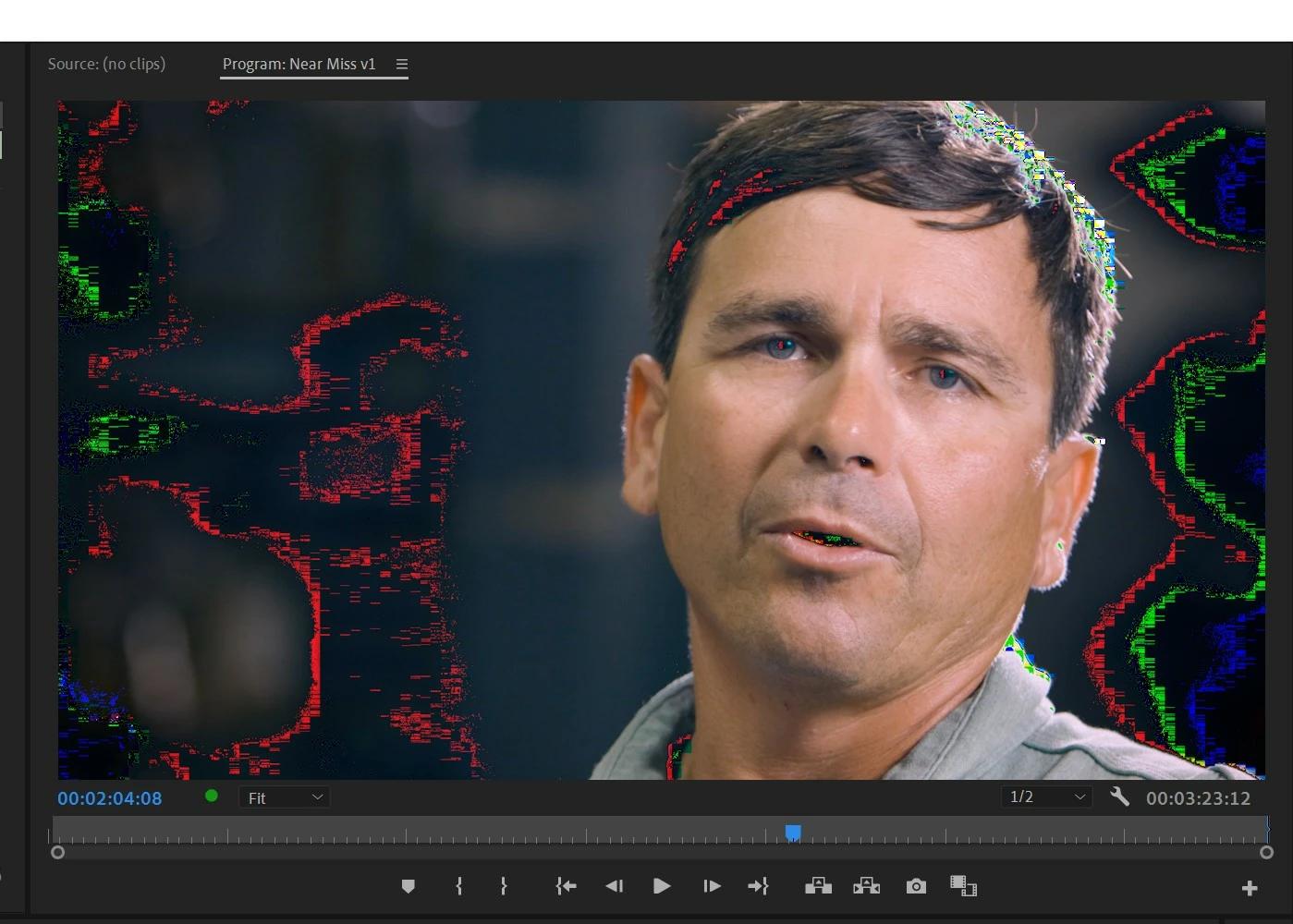
Then most Premiere files started stalling either right after startup or shortly after. So after going through all the usual steps, including:

  • Unistalled all CC apps and the Creative Cloud desktop app, then
  • Using the Adobe Cleaner Tool (twice)
  • Reinstalling AMD drivers (even going back to ones that had worked this February 2020)

I still have this issue. Any help is greatly appreciated.

    This topic has been closed for replies.
    Correct answer attentioncreative

    I've seen lots of issues with converting older project to newer versions, so that behavior is not surprising. 


    Did Premiere run that hardware compatibilty check when you first installed CC20? Any GPU errors or driver updates needed? Those glitches you see are definitely GPU related since they're not in the output; ie it's only affecting your computer screen. Have you tried just running with Software Only and no OpenCL?


    Here is the downconverter site: http://downgrader.elements.tv

    Not officially sanctioned by Adobe, but its seems to work for most people. All Premiere Pro project files are just wrapped text files that have a "flag" noting the software version, and this site just sets the flag to a prior version.


    JVK


    JVK, thanks again for the help!


    I decided to reinstall Windows 10 as a completely fresh install, then I added the latest drivers and CC versions and everything is working well (YAHOO!).

    3 replies

    Participant
    July 21, 2020

    Okay I learned something about the OpenCL issue just now. It's almost 3AM and I've been trying to figure this issue out for a while now. I finally came across a setting that makes or breaks the Program/Source Monitors while using AMD's RX 5700 GPUs. Go into Adobe Premiere's Preferences, under General, and unselect Display Color Management (requires GPU acceleration). This entirely removed all the artifacts from my monitors and everything seems to render fine now. Unfortunately you end up loosing an option selection. But, at least you get great performance without the visual artifacts. I've also done some test exports using HEVC/H.264 and it renders my test files 100% without any issues while calling up on using the GPU. Before I was having all kinds of issues with jpg images, then videos, it then included items created through Adobe Premiere itself, like the Bars and Tone or Universal Counting Leader. Everytime I exported those files into "final" video files, the errors, those artifacts, carried over. Now, things seem to be working 100% using OpenCL, so long as you don't have that Display Color Management option on. Best of luck!

    Participant
    May 28, 2020

    In my case I was only seeing this issue with my AMD computer on jpg images. Sometime this week I noticed an Update to Premiere Pro 2020, and on the release notes mentioned AMD bug fixes. Now using Premiere's Graphics I get this error using OpenCL and jpgs. Nothing was fixed if anything made worse. What I don't like is, if I switch back to Premiere 2019, OpenCL works 100% in all my work. Adobe has made changes to Pr 2020 that does not utilize OpenCL the same as the 2019 version.


    Is Adobe dropping OpenCL entirely? Is this their push to move away from it? If so, it would mean that AMD is no longer a supported Hardware product.


    I don't have any issues with cache. 


    I forgot to mention, this error carry's over into my exported video files. It isn't just something found in the workspace. So it is affecting my final product as well.

    Legend
    May 28, 2020

    It's not so much Adobe dropping OpenCL entirely as it is AMD's artificially restricting OpenCL support in all of its current graphics drivers to OpenCL 2.0. And OpenCL 2.0 is very bug-ridden to begin with. It has been updated at least twice since then (in fact, integrated Intel UHD Graphics inside its 8th- and newer generation CPUs already support OpenCL 2.1, which fixed some of the bugs of OpenCL 2.0), while OpenCL 3.0 has just been released. Unfortunately, nobody supports OpenCL 3.0 yet.


    With an Nvidia GPU, OpenCL support has been effectively disabled in Premiere Pro (leaving only CUDA and software only available) because its drivers are artificially restricted to OpenCL 1.2 support. OpenCL 2.0 or newer is required. Unfortunately, AMD's GPUs are stuck with this base minimum.

    Community Expert
    March 9, 2020

    A few things happening here, they may or may not be related.

    1. The lower right corner show you the MEDIA CACHE activity. If the cache is reloading on every project then it may be corrupt. Have you emptied it in a while? Where is it stored? I would check Premiere preferences > Media Cache and see the file path; navigate to it, close Premiere and throw the cache and cache database folders in the trash. Then restart Premiere and reopen the project; the cache will rebuild and then hopefully not have to do it again.
    2. The cache should always be on a fast drive, and preferably one that is not your OS/startup disk. Since you only have the two drives, make sure the cache is on the faster SSD; you can move the cache location to somewhere else that's more convenient than the default location. If you have an empty bay on that PC, think about getting a 2nd SSD just for the cache.
    3. The graphics glitches are from using the OpenCL driver. I'll admit that I'm not up on my GPU drivers for PCs; Apple uses Metal now for AMD cards, is OpenCL the only driver available for Windows? If you've updated it recently and it's still not working then maybe it's the AMD card itself? How old is it?

    JVK

    -------------------------------------------------------------------------JVK | Editor/Designer/Software Instructor. Pr, Ae, Ch, Ps, Ai, Id
    attentioncreative
    Inspiring
    March 9, 2020

    JVK, thanks for the response.

    First, I should have been more specific. I have a 3 NVMe SSD drives (500gb, 2tb and 4tb). Windows is on the 500gb drive. I had the cache files on that drive but when this issue wouldn't go away I tried moving them to the 4tb SSD, to no avail. I've dumped the media cache a number of times and nothing seems to work.


    Second, the card is almost brand new and works fine with all other applications, including DaVinci Resolve (just tried).

    I was wondering, since the OpenCL issue started appearing shortly after the files stopped opening correctly if they were related, but maybe not?


    I am thinking of reinstalling Windows on my hard drive and starting from scratch - and hoping the Premiere files work ok. That's so much time though...

    Community Expert
    March 9, 2020

    Thanks for the clarity, sorry to hear that these problems are so bad -- you've already done the right thing with your media cache so never mind all that.


    Before you reinstall Windows, I wonder if perhaps this project is corrupt. Have you tested a new project using the same media? Was this project modified from an earlier version of Premiere or did it originate in CC20? You could try creating a fresh project and importing this one into it, or at least your latest edit.


    You could also try trashing your preferences (hold down ALT at startup). Also, are you on latest patch – v14.0.3? CC20 has been notoriously glitchy, and my main advice for most folks has been to try CC19 (and downconvert your project file).


    JVK

    -------------------------------------------------------------------------JVK | Editor/Designer/Software Instructor. Pr, Ae, Ch, Ps, Ai, Id