
Participant
October 2, 2015
Answered

Premier CC 2015 Vertical red lines & yellow/green when paused

  • October 2, 2015
  • 6 replies
  • 12175 views

I upgraded to OS X El Capitan last night, and have encountered this error in Premiere Pro CC 2015. Is anyone else having this problem?

Video plays back fine, but whenever I pause any footage there are vertical red lines and the rest of the frame goes a greeny-yellow colour. Strangely, when I full-screen the playback window this problem disappears. I suspect this issue is to do with OS X El Capitan (somehow), and hopefully Adobe will address in an update soon!
Any help would be greatly appreciated!

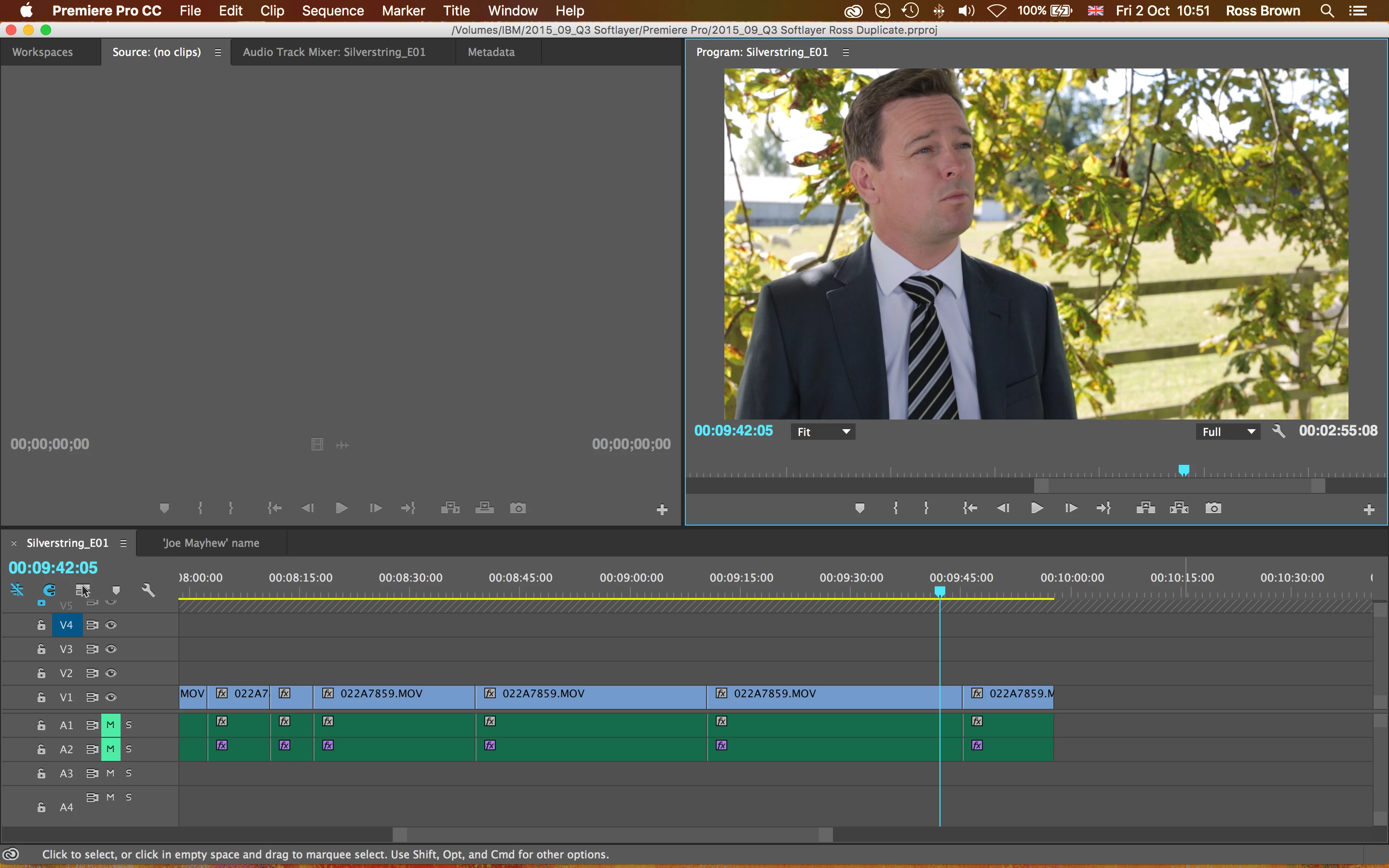
When paused, this is what it looks like:

During playback, it seems to be fine:
This topic has been closed for replies.
Correct answer Shane_P

This is known issue with El Capitan. This has been known for the past few months since the beta release of El Capitan. The only issue seems to be when the video is paused as you stated. There have been several postings regarding this.

The best thing to do is never to update a workstation with a new release as soon as it comes out. Just update a secondary machine to test on (if you have one).

In my case I have an iMac 27 retina with the 4GB AMD and that is my primary workstation. It has Yosemite 10.10.5 and runs smooth as butter.

I have a 21" iMac with a 1GB Nvidia and this is my test machine so to speak. I have El Capitan on this machine and am experiencing the same issue.

Hopefully Adobe will have a patch soon.

6 replies

Participant
October 21, 2015

I had the same problem.

If you upgrade to OSX 10.11.1 a bug fix update what is available today you can fix the problem.

I updated like an hour ago en set the render engine back to the GPU acceleration engine and the where no lines anymore.

I hope this is working for you too.

Greets,

Oscar.

Participant
October 21, 2015

Thanks for sharing. I'm upgrading now.  Hopefully that fixes it!

Participant
October 21, 2015

BTW...I upgraded my system to 10.11.1 and the issue is now gone from my system as well!  Yay!

Participant
October 16, 2015

I had the same problem. It was also affecting my final export. Thanks for the work-around. Hopefully Adobe fixes it soon.

Participant
October 15, 2015

I am also getting the same problem!

Godamit adobe!!!!

Participant
October 15, 2015

God damn APPLE!!

Participant
October 15, 2015

This helped, thank you. I hope this gets addressed soon. Changing the project settings helped, but did slow things down.

Participant
October 8, 2015

I put a video together that shows you how to configure the settings:

https://www.youtube.com/watch?v=4NaX-e52I94

It worked for me without a problem!

- Marcelo

DigimediaDude.com

Participant
October 8, 2015

Thanks Marcelo. Problem solved and now workable.

Hopefully come up with fix soon.

Brian

Jasperimage.Co.Uk

Shane_PCorrect answer
Inspiring
October 2, 2015

This is known issue with El Capitan. This has been known for the past few months since the beta release of El Capitan. The only issue seems to be when the video is paused as you stated. There have been several postings regarding this.

The best thing to do is never to update a workstation with a new release as soon as it comes out. Just update a secondary machine to test on (if you have one).

In my case I have an iMac 27 retina with the 4GB AMD and that is my primary workstation. It has Yosemite 10.10.5 and runs smooth as butter.

I have a 21" iMac with a 1GB Nvidia and this is my test machine so to speak. I have El Capitan on this machine and am experiencing the same issue.

Hopefully Adobe will have a patch soon.

Participant
October 2, 2015

Thanks a lot for the response! Puts my mind at rest to know it's not just me.

This will be the last time I upgrade software straight away!

Hopefully they'll be fast on releasing a patch Thanks again.

Inspiring
October 2, 2015

Also I want to mention that if you turn off your GPU Acceleration and use Software only mode the issue should stop. It seems to only affect when GPU Acceleration is turned on.

Go to File>Project Settings>General and switch to Software only mode.