
Legend
July 8, 2017
Answered

Premiere opacity changes causes permanent invisibility, playback oddities.

  • July 8, 2017
  • 2 replies
  • 3296 views

Apparent bug CC2017.1.2...

I project with two sequences, one hosting the other, works fine until I make an opacity change to the first opacity keyframe after which layer becomes permanently invisible and playback experience becomes jerky with timeline indicator hopping forward (not smooth) and nothing apparently playing. Screenshots from good to bad state as described...

main sequence things are fine...

Inner sequence adjustment layer, things are fine...

Inner sequence vignette layer, things are fine...

Inner sequence jpeg layer, things are fine...

For main sequence move opacity to 0% then back to 100% things remain invisible (BUG?) Playback jerks forward past second 100% keyframe still invisible... only restarted Premiere returns visibility...

Any thoughts?
This topic has been closed for replies.
Correct answer Ann Bens

I recreate the tutorial and your timeline. I cannot reproduce the issue (applying opacity keyframe on nest which results in black screen).

does it also happen when turning to MPE software?


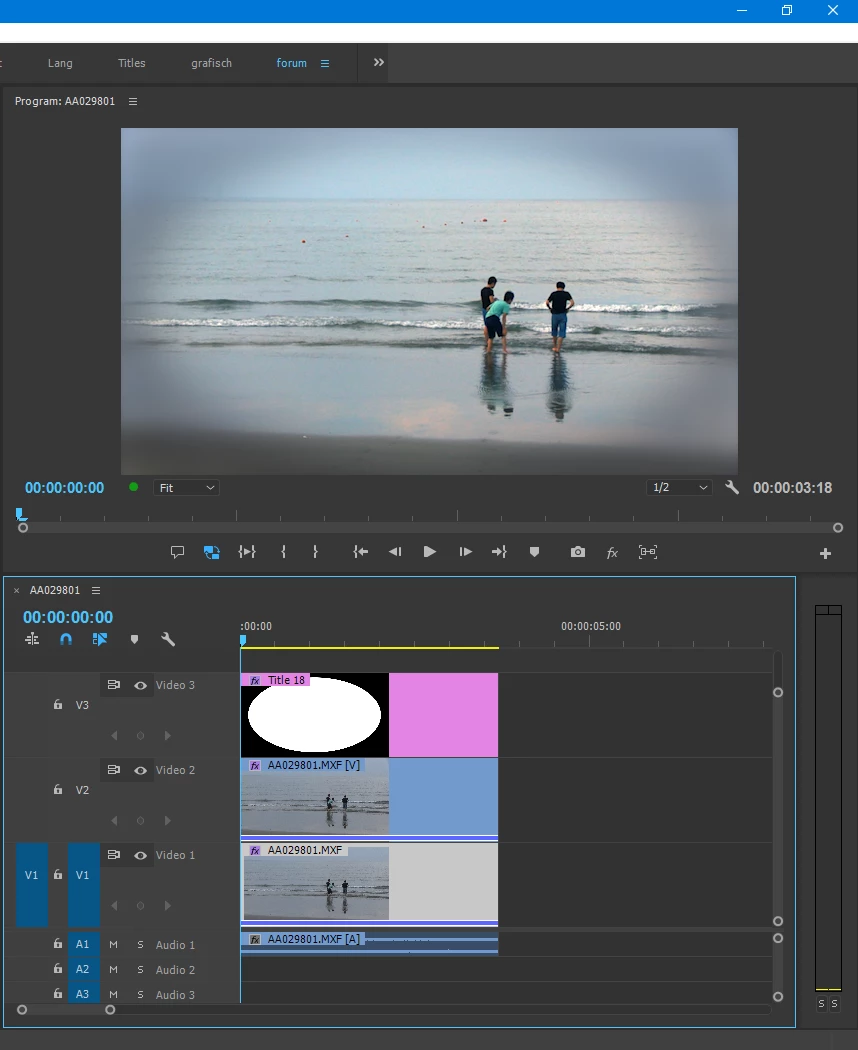
Old fashioned way:

V1 clip + effect to make it darker and gaussian blur,

V2 track matte set to V3,

V3 title with white oval and gaussian blur added.

2 replies

shooternz
Legend
July 8, 2017

No one suggested the easy and simple solution - Lumetri >Vignette

This single effect applied directly to a single clip on a single layer has simple  parameters to lighten or darken the corners of the frame as well as blur the edge of the vignette.

Ashley7Author
Legend
July 9, 2017

Both Ann and Neil did above. But thank you too!

https://forums.adobe.com/people/Ann+Bens  wrote

There are many ways to make a blurred vignette.

...

The most simple way to make a vignette is to use the one from Lumetri.

A link to the tutorial would be nice.

https://forums.adobe.com/people/R+Neil+Haugen  wrote

...

The Lumetri vignette is pretty decent, but with the caveat that it only works as a centered one. You can't move the center at all. Using various types of masks of course allows one to put it anywhere.

Neil

R Neil Haugen
Legend
July 8, 2017

I'm puzzled looking at this.

It appears from your first image that the vignette is applied to the "Inner Sequence" ... and that image is what we see in the program monitor in all but the last. So I have no clue what you're doing with the other layers ... and also, what seems the base of the image (Inner Sequence on V3) becomes "Blank jpeg" in V3 in your second pic.

So ... I've no clue what you're doing here, or really, what you're trying to achieve.

Neil

Everyone's mileage always varies ...
Ashley7Author
Legend
July 8, 2017

https://forums.adobe.com/people/R+Neil+Haugen  wrote

I'm puzzled looking at this.

It appears from your first image that the vignette is applied to the "Inner Sequence" ... and that image is what we see in the program monitor in all but the last. So I have no clue what you're doing with the other layers ... and also, what seems the base of the image (Inner Sequence on V3) becomes "Blank jpeg" in V3 in your second pic.

So ... I've no clue what you're doing here, or really, what you're trying to achieve.

Neil

Hi Neil, I am not following your confusion fully but let's start with you're not understanding what I'm doing...

I'm following a  Lynda.com tutorial for applying a blurred vignette. You create a solid layer and use a mask for the basic vignette, then you use an adjustment layer above with gaussian blur that itself has a mask that allows one to blur the outer edges of the vignette. It works fine until I mess with opacity on the outer sequence... the one which does *not* have all that stuff I just described.

So first, is there a better way to do the same thing? Maybe that will allow me to move forward. I was successfully using AE for a photo montage but went to Premiere given it's supposed to be simpler but the first vignette tutorial I found mentioned the described method so I went with it... I could give up on it but it seems it works at first and it itself is not breaking... Premiere seems to break after I mess with a difference sequences opacity.

In my screenshots above, I'm showing the inner layer several times, each time selecting a different layer so you can see the effects controls... maybe that wasn't clear. Not sure what yyou mean by "becomes "Blank jpeg" in V3 in your second pic." ... Blank.jpeg is always blank.jpeg which is a white jpeg with blank text saying "Blank" ... that is fine and doesn't change or "become" ... so I'm confused there.

Thanks for any thoughts!

R Neil Haugen
Legend
July 8, 2017

Well ... looking at it again, you go between one sequence in the first image, to the other sequence, then back to the first in the last. Is the second sequence nested in the first?

Neil

Everyone's mileage always varies ...