
Participant
December 21, 2017
Question

Premiere Pro "Debug Event" Crashing Error

  • December 21, 2017
  • 3 replies
  • 5512 views

So I've seen the "Premiere Pro has encountered an error." window many times before, but this is the first time I've seen one with these details. 

Below is a picture of the error (taken from my cell phone since my laptop is new and I couldn't remember my screenshot keybind). 
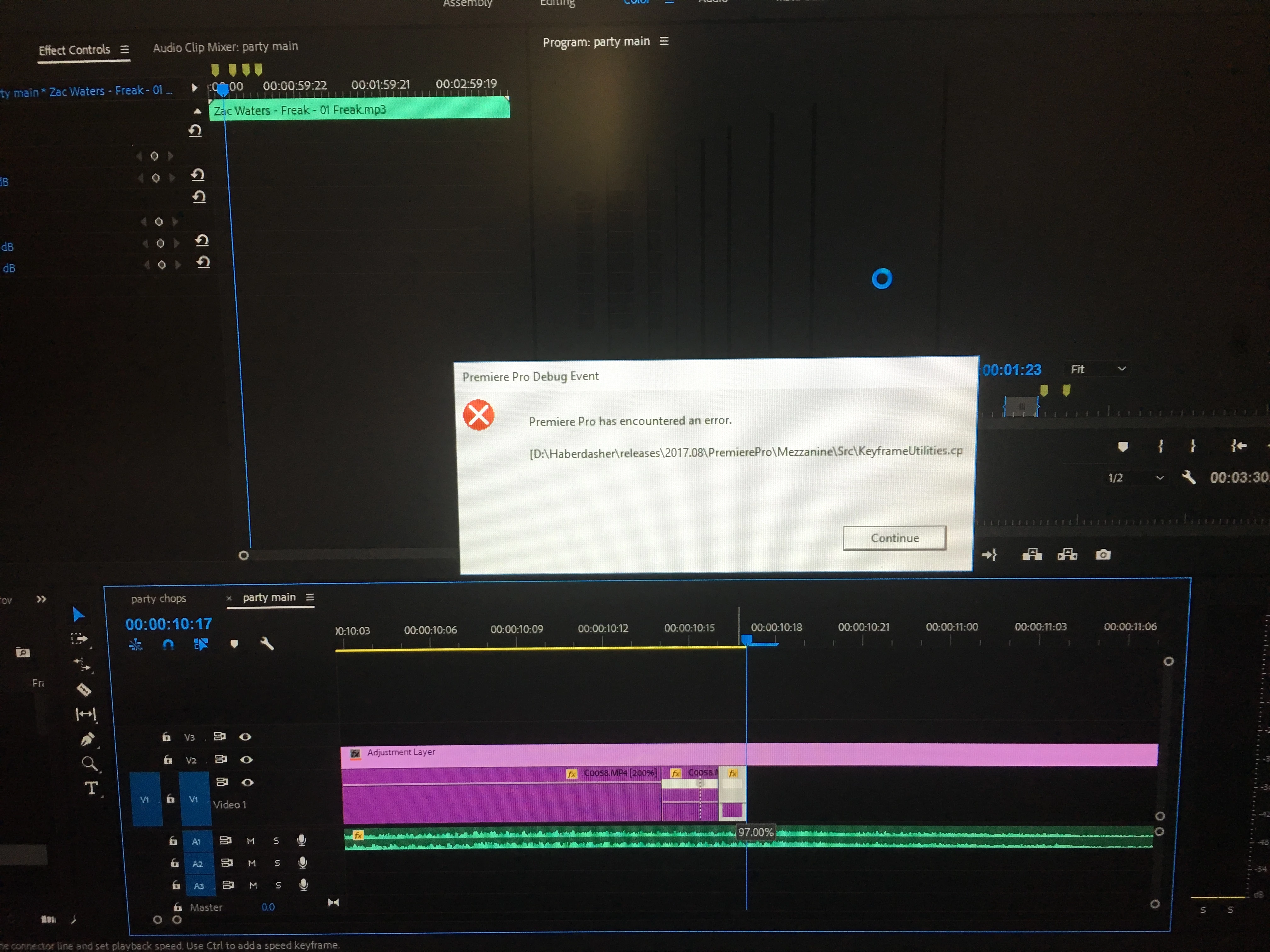
The "[D:\Haberdasher\releases\2017.08\PremierePro\Mezzanine\Src\KeyframeUtilities.cp... " part is very odd because I cant find any path/folder name containing "Haberdasher" anywhere on my whole PC, let alone on my D:\ drive (1TB internal HDD). 

The crash happened when I tried to place a speed remapping keyframe on a clip within the timeline, something I'd done twice on the previous clip a minute or two before. It's a little frustrating since my auto-save was still set to 15 minutes by default (forgot to change it since switching computers) so I lost a good bit of progress, so I want to make sure I find out the problem so this doesn't happen again.  I've had a few other problems with speed remapping/keyframing in the past so I was hoping most of them had been fixed upon the new update. Then again, this issue could be a result of user error, in which case I'd like to know what I'm doing wrong.

I believe this is my first forum post so I apologize for any lack of info/bad post etiquette.  Any help would be much appreciated, as I plan on doing a lot of speed ramping on this current project and would rather not encounter this error again.

Cheers,

Elijah

System Info:

Processor: Intel(R) Core(TM) i7-7700HQ CPU @ 2.80GHz

Installed memory (RAM): 8.00 GB (7.88 GB usable)

System type: 64-bit Operating System, x64-based processor

Drives: NVMe Samsung MZVLW128 128gb SSD  (C:\)

ST1000LM035 1TB HDD (D:\)

Adobe Premiere Pro CC 2018 version 12.0.0 (build 224)

This topic has been closed for replies.

3 replies

Participant
January 22, 2022

On my PC I've gove to this folder >  C:\Users\Lenovo\Documents\Adobe\Premiere Pro\12.0

Then deleted the folder named "Profile-Lenovo" in it. Then I opened premiere pro & it worked. I hope it works for you too.

SertgAuthor
Participant
December 22, 2017

UPDATE: It's happened again.

So within the past 15 minutes I've had some SERIOUSLY annoying issues with keyframing, specifically involving time remapping.  I've got a clip that I brought to my timeline from in/out points in my source monitor.  Whenever I bring it to the timeline and go to the effects control panel, I notice that the speed is set to "0.00%".

I'm unable to place any keyframes within the timeline, and if I click the stopwatch in the EC panel to reset the keyframes, the clip shrinks in the timeline to only a few frames. If I THEN try to change the speed by moving the line, no matter how far I adjust it, the clip block shows the zebra lines, (similar to how it looks when you have a nested clip and you trim the clips inside of the nest and there's nothing left at the end of the nested clip on the TL) as well as arrows pointing backwards.  After fooling with it for a while I managed to reset the speed to 100% without all of the weird changes.... however when I then continued to try and place another keyframe further down, the speed automatically jumped to 191.68% where I placed the keyframe.  This has happened to me before several times, usually I just end up re-importing the whole clip just so I don't have to deal with the frustration.

This time, however, while trying to figure this out, I got another error similar to the one I got last night shown in my previous post.

At this point I just feel like closing out Premiere and stopping editing for the night, but I need to finish this video and don't want to continue to have these problems tomorrow.  Any help would be appreciated since it's looking like the program won't even allow me to complete a simple keyframing task, let alone finish my project for my client.

Legend
December 22, 2017

I've never seen this one before.  You can try Steps 2D, E and F below, one at a time.

Unofficial Premiere Pro Troubleshooting Guide

Legend
December 21, 2017

I've never seen this one before.  You can try Steps 2D, E and F below, one at a time.

Unofficial Premiere Pro Troubleshooting Guide