Participant
September 18, 2017
Answered

Problem for opening a PRPROJ
  • September 18, 2017
  • 2 replies
  • 4150 views

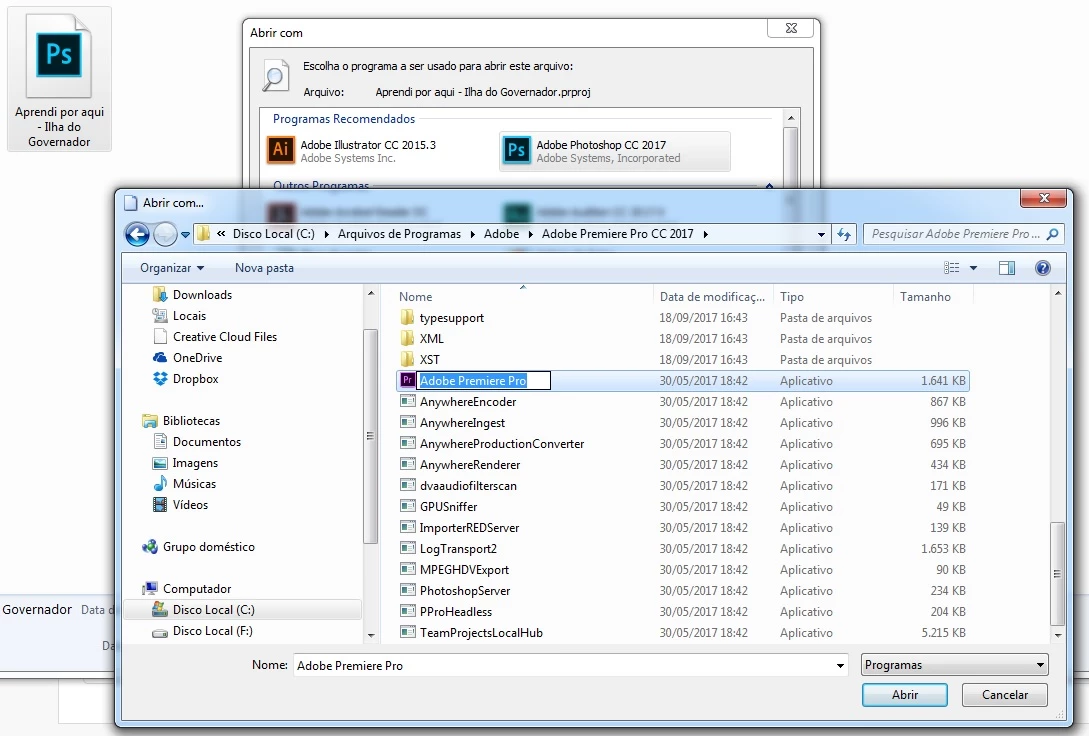
My projects PRPROJ are oppening as photoshop or illustrator. If a change for premiere as the image show, when i check the option, the premiere don't save.

PS: I already reinstall the photoshop and the premiere

    This topic has been closed for replies.
    Correct answer R Neil Haugen

    Part of that sounds like Windows has the file-association wrong. But as you don't have a screen-grab showing a PrPro project file, I can't be sure. If you could make a screen-grab of one or more PrPro project files (those with .prproj extensions) that would be very helpful.

    What you're showing there is the PrPro main application file, it looks like ... which isn't helpful. It's the file association for the project files that's the key. Here's a couple ways to get your PrPro files re-associated, if that is the issue.

    This is for just the PrPro project files extension ... done in the "Explorer" file manager app.

    1. Right-click on one of your project files ... should have the .prproj extension.
    2. Select "Open With" from the options.
    3. If it does not show PrPro as the top option, then either select it (if visible) or if it isn't visible, "Choose another app" and if it doesn't appear there, select "More apps" ... and it should appear there.

    This is a way that allows you to re-assign numerous files at once.

    1. Right-click the Windows button on the Task Bar, and select the Control panel.
    2. Select "Default Programs", or if that doesn't show, "Programs". What you need to find under either of them is the option to "Set your default programs" in Win7/8, or in Win10, "Associate a file type or protocol ... ".
    3. This brings up a dialog box with EVERY file type extension recognized by Windows. Scroll down until you get to .prproj ... see what the current program is listed as, which sounds like Photoshop. If it's not PrPro, then click that line, then select "Change Program ... " and select PrPro.

    Neil

    2 replies

    Legend
    September 19, 2017

    1. Turn on file extensions.  It was a mistake for Microsoft to hide those by default.

    2. Re-associate the .prproj extension to Premiere Pro.

    R Neil Haugen
    R Neil HaugenCorrect answer
    Legend
    September 18, 2017

    Part of that sounds like Windows has the file-association wrong. But as you don't have a screen-grab showing a PrPro project file, I can't be sure. If you could make a screen-grab of one or more PrPro project files (those with .prproj extensions) that would be very helpful.

    What you're showing there is the PrPro main application file, it looks like ... which isn't helpful. It's the file association for the project files that's the key. Here's a couple ways to get your PrPro files re-associated, if that is the issue.

    This is for just the PrPro project files extension ... done in the "Explorer" file manager app.

    1. Right-click on one of your project files ... should have the .prproj extension.
    2. Select "Open With" from the options.
    3. If it does not show PrPro as the top option, then either select it (if visible) or if it isn't visible, "Choose another app" and if it doesn't appear there, select "More apps" ... and it should appear there.

    This is a way that allows you to re-assign numerous files at once.

    1. Right-click the Windows button on the Task Bar, and select the Control panel.
    2. Select "Default Programs", or if that doesn't show, "Programs". What you need to find under either of them is the option to "Set your default programs" in Win7/8, or in Win10, "Associate a file type or protocol ... ".
    3. This brings up a dialog box with EVERY file type extension recognized by Windows. Scroll down until you get to .prproj ... see what the current program is listed as, which sounds like Photoshop. If it's not PrPro, then click that line, then select "Change Program ... " and select PrPro.

    Neil

    Everyone's mileage always varies ...