
Program monitor preview screen is completely glitchy
Hello everyone,
I have searched the forums and couldn't find an answer to this very troubling issue.
Also I have contacted Adobe chat support 3 times already and no one was able to help me thus far (in each time I had to restart the computer to see if those changes would have worked, but none did, so now I decided to try the forum).
I would be very grateful if someone could help me. I'll try to provide every information about the issue and my specs.
I have installed Premiere Pro about a week ago. I had never used it before on this computer.
From day 1 I have the same issue with every project: The preview screen in the "program monitor" is completely glitchy. It gets black, gray, blank or just purely bugged (as in the print below) if I add any text (100% of the time) or some other video effects (in this case seems to be random). The only way to make the image reappear is if I keep adjusting the size and position of the Program Monitor panel. I must constantly change its size and position whenever I add a new text, select an existing text or switch back to a video clip in my timeline. Any of those actions make the preview screen disappear.
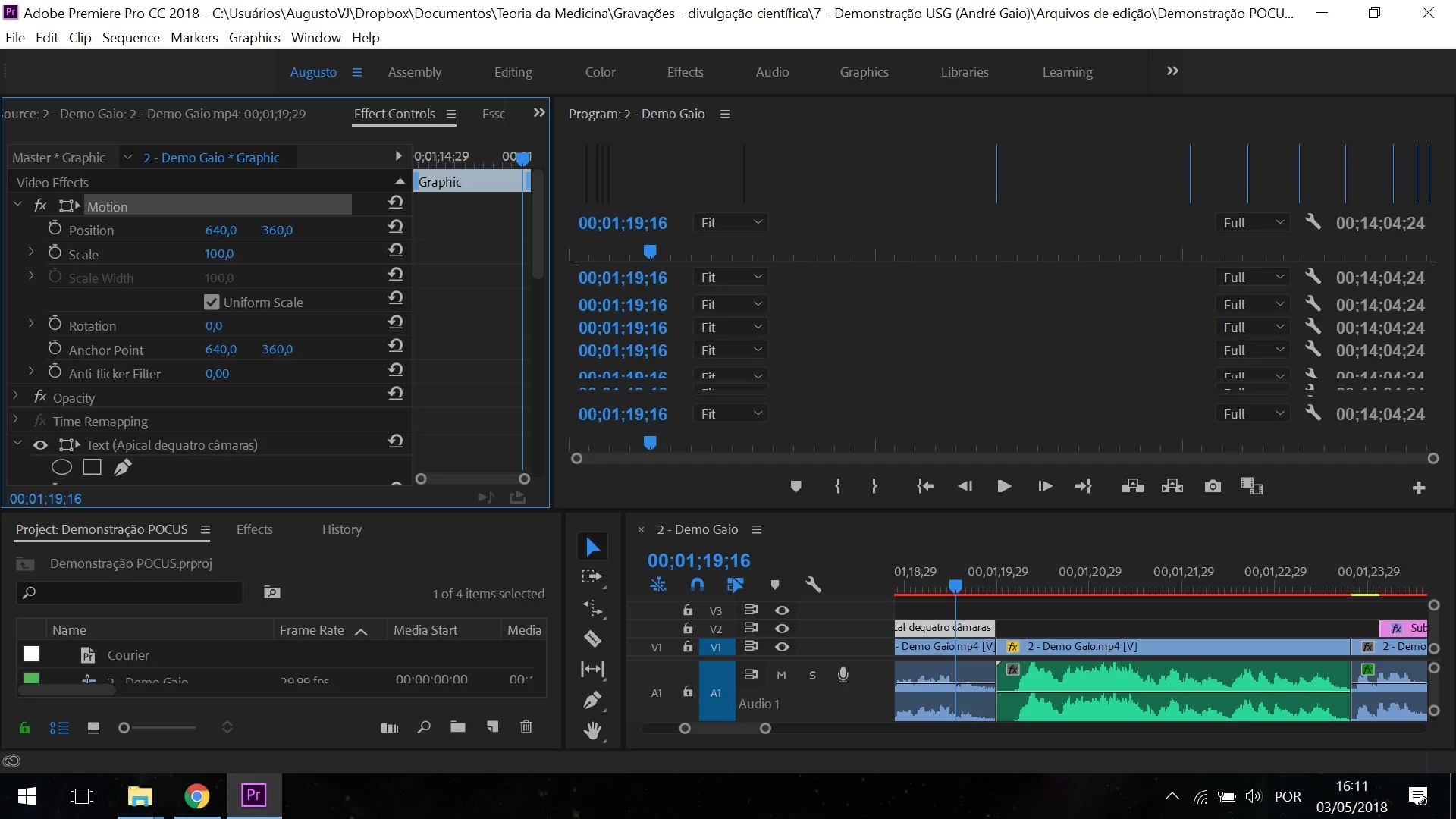
This quick video capture summarizes the problem:
I'm pretty sure it has something to do with my graphics card. I have another problem where I can't play some games in full screen mode (only windowed mode) on this computer (also unresolved since I bought this computer) and for some reason I think it is related to this Premiere Pro bug.
The card is a GeForce GTX 1050 Ti with updated drivers.
But what exactly is the problem, and more importantly, how to fix it, I have no clue.
The support staff from the chat suggested me some things:
- Deleting the media cache (nothing changed)
- Going to NVidia control panel and changing some stuff (to make sure there is only a single graphics card active when Premiere Pro is being used): nothing changed
- Resetting Premiere Pro preferences by holding shift+alt on program launch (surprisingly this solved the glitch, but after restarting the program it came back)
- Updating the graphics card: It was indeed outdated, and when I updated it the glitch stopped. But then after restarting the program it came back. This raised my suspicion it has indeed something to do with the graphics card. But I don't know what.
In the end nothing worked.
The last guy suggested I should ask to speak with someone from the "video chat support", but I decided to try the forum first.
Version 12.1.1 (Build 10)
- Have you installed the recent updates?
Yes, my Premiere Pro is updated according to Creative Cloud.
- What operating system?
Windows 10 Home
- What kind(s) of source footage? When telling about your source footage, tell us about the codecs, not just the container types. For example, "H.264 in a .mov container", not just "QuickTime".
I'm not sure how to answer this codecs detail, but every source footage I use is in .mp4
- If you are getting error message(s), what is the full text of the error message(s)?
I sometimes get this error message when I open the program, I suspect it is somehow related:
"Your screen resolution is below the minimum required 1024 x 768. Please increase your screen resolution or adjust the DPI scaling setting in your Display preference to a smaller size."
But that's not true. I use my notebook's native resolution, which is 1920 x 1080
Again, I'm pretty sure the problem is with the graphics card, and has something to do with that error message.
- What were you doing when the problem occurred?
It happens mainly when I try to add some text or select an existing text in my timeline. But I can see it is wrong from the time I open a new project, because the image appears on the preview screen only at some specific sizes and positions of the Program Monitor panel.
- Has this ever worked before?
No, the issue is present since I first installed Creative Cloud a week ago. I tried reinstalling Creative Cloud and Premiere Pro, but nothing changed.
- What other software are you running?
I'm not sure what this question is supposed to mean, I usually don't have other softwares running when using Premiere Pro.
- Do you have any third-party effects or codecs installed?
No, just what Adobe brings in with Creative Cloud.
- Tell us about your computer hardware. Be especially certain to tell us about your CPU, RAM, GPU (make, model, driver version), any third-party I/O hardware (e.g., AJA, Blackmagic) and the type of media drives you are using.
I couldn't find a way to attach my .nfo file here, so here are what I believe to be the main points:
Acer Aspire VX5-591G notebook
Windows 10 home
X64 system
Intel Core i7-7700HQ CPU @ 2.80GHz
RAM 16 GB
NVIDIA GeForce GTX 1050 Ti
- Are you using Mercury Playback Engine GPU Acceleration?
No, I haven't changed the "Mercury Playback Engine Software Only" option, which was the default one.
- Do you still have the issue when choosing Project Settings > General > Renderer > Mercury Playback Engine (Software Only)?
This is strange, I saw that recommendation in many places, but for me that was the default option. Is it not supposed to be?
- Does the problem only happen with your final output, with previews, or both?
Only with previews. The final output, when I finally manage to export the project, works fine.
Anyone help?
Please? 
 AdChoices