

natashazimin
Participant
February 25, 2021
Question

Rotate Footage 90 degrees in Source Window to View Verticaly

  • February 25, 2021
  • 1 reply
  • 2967 views

I have a mix of horizontal (1920x1080 footage) and vertical footage (1080x1920) shot on my Sony A7III that I'm sorting through and creating subclips from. I'm viewing the footage in the Source window and creating subclips to review later, so I don't want to have to drag individual clips into my Timeline / Sequence.


My question is - is there any way to rotate a shot that appears horizontal but was actually shot vertically so that it appears vertically in the Source Window? When I apply the transform master clip effect it rotates the video within the contraints of the previous aspect ratio, whereas I'm looking to flip the entire orientation of the video.
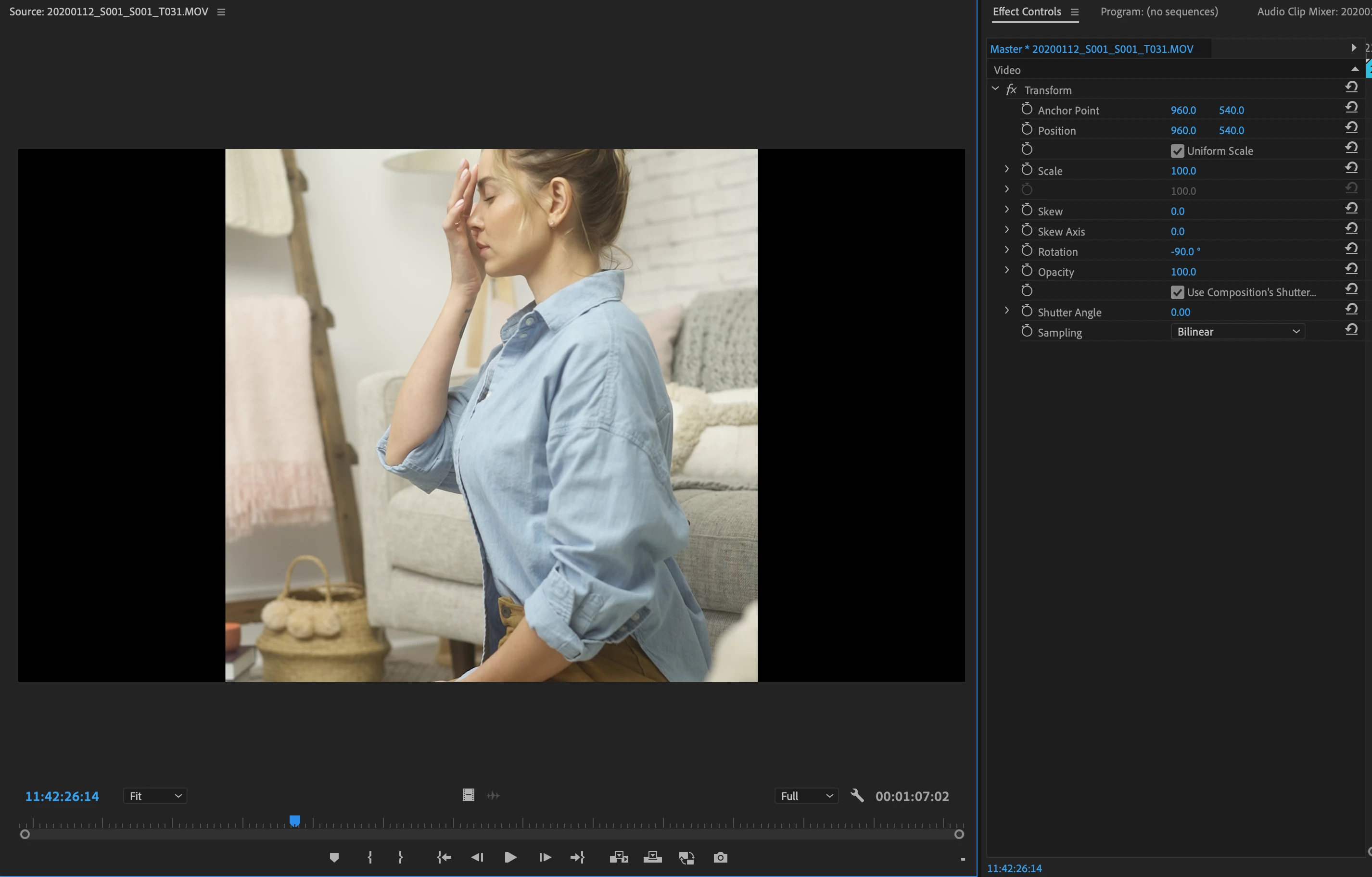
 

Thanks everyone!

This topic has been closed for replies.

1 reply

gerikp
Community Expert
Community Expert
February 26, 2021

Your source window is defined by the sequence settings. You could separate all your vertical clips and then drop those into a new sequence that is set up as a vertical sequence and view them that way. 

natashazimin
Participant
February 27, 2021

I'm not sure I entirely agree. The "program" window is defined by sequence settings but the source window is defined by the clip settings. Because I shot everything on my Sony A7III which gives the video clips the 1920 x 1080 horizontal aspect ratio perhaps there's a way to change the metadata to display the video as 1080 x 1920 instead? I imagine in this case it would appear vertical in the source window.


Screenshot below to show that I did create a vertical sequence and the program window on the right is vertical meanwhile the source window is not. 

gerikp
Community Expert
Community Expert
February 27, 2021

Ah, I think I misunderstood a little. If you are familiar with ffmpeg you can change the rotation flag on videos with in the command line. I just tested this with a MOV file I shot with my 5D MK III.


ffmpeg -i input.mp4 -metadata:s:v rotate=90 -vcodec copy -acodec copy output.mp4