
Split Screen Video Glitch: Causes?
I am a brand new user to Adobe Premiere Pro. I'm using version 14.2 on Windows 10 64.
I recorded video screen capture using Snagit in MP4 format. I record it on one machine, then e-mail myself the video file and open it on another machine. As far as video playback of the un-edited file, it is "perfect" in terms of simply playing as it was recorded.
The problem arises when I import the MP4 into Premiere Pro. Immediately after adding the file to the project, the video splits into 4 quadrants, with the original video in the upper left and the remaining quadrants being some odd sort of stretched/streaked version of the upper left quadrant.
Here are screenshots of the issue, along with my settings. This is a recreation of the original file (reproducible), I wanted to get shots of my file creation settings in case those are relevant:
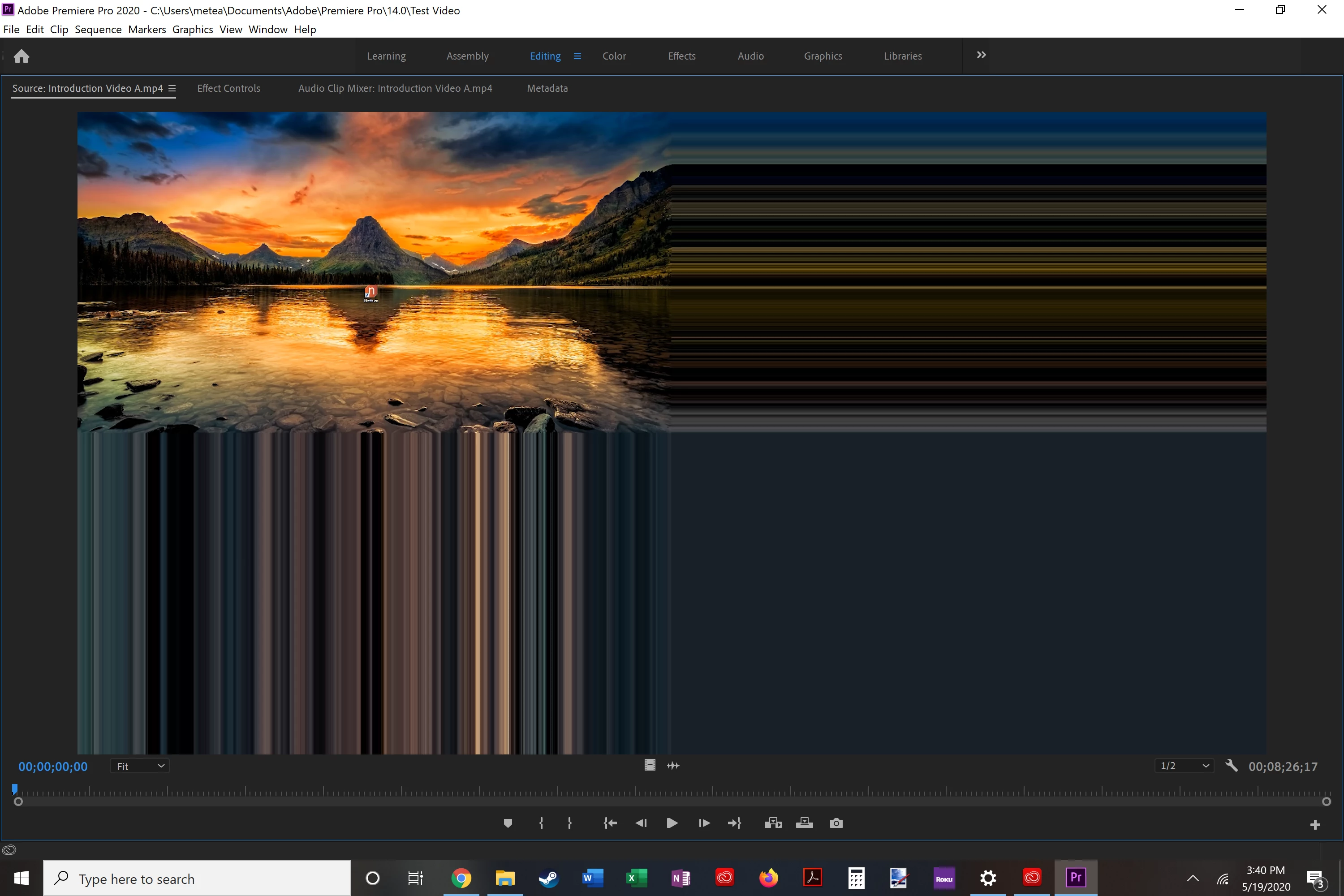
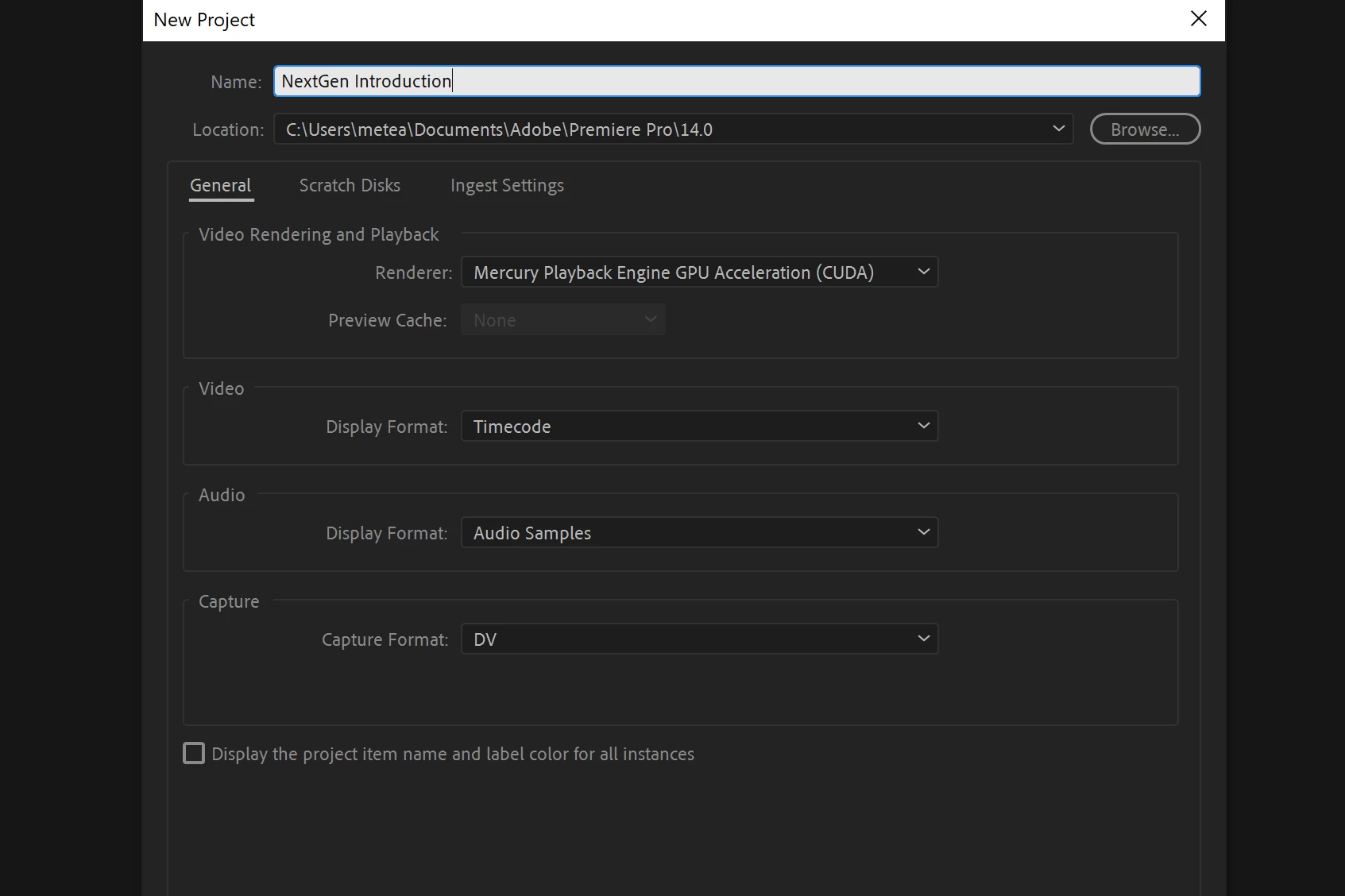
It seems as if a user asked a question involving a similar issue in this thread: https://community.adobe.com/t5/premiere-pro/cs6-unwanted-split-screen-and-color-problems/m-p/11144881?page=1#M272202
The resolution for that user was to run the mp4 through HandBrake. I did the same thing, and it appears to be working properly within Premiere Pro now.
My question is: WHY?! What is it about the process or the format that causes this error to happen? Why do I need to run the MP4 through HandBrake? Why doesn't it just "work" when I add it to the project? As I was editing the file the first time through, it mostly displayed properly in the editing panel of Premiere Pro, and the exported file retained the glitchy video.
How can I avoid this in the future? What other information can I provide, if the answer isn't clear? I have not tried this with another video file.
 AdChoices