
Participant
March 4, 2018
Answered

Why do iPhone videos get way bigger after Premiere editing?

  • March 4, 2018
  • 4 replies
  • 4079 views

Hi-

I have 720p video shot on iPhone & I just want to swap out audio and trim. I'm a bit new to premiere, so matching footage, to sequence, to project, to export has me a bit confused.

I am trying to re-render the single video but every single format I choose seems to make the file size massive using Adobe Premiere CC 2018. I can't find a simple answer online to re-rendering iPhone video back to the same format. Given that I'm just uploading to YouTube, should using H.264 and other suggested settings necessarily increase the file size 5x, from 1.4G to ~7?

I suppose the bigger question is if you want to translate iPhone to YouTube, what's the best way? There are some tutorials on this, but I am doubtful that the filesize should get this much bigger.

original settings

render settings
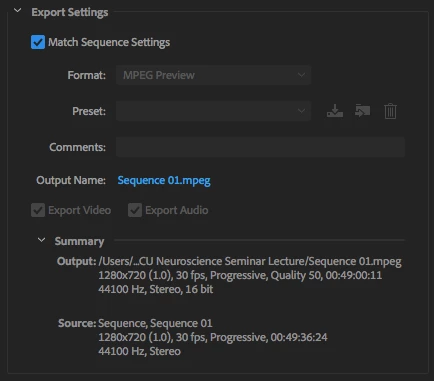
output file is ~7GB

This topic has been closed for replies.
Correct answer jasontcox

Hey there. So there is a LOT to learn here in the world of video codecs and formats. First off, I can guarantee you that as a newer user, you RARELY ever want to check mark "Match Sequence Settings." I Know it SEEMS like a good thing to check, but it's actually used in more complex/advanced scenarios (it's a setting Ive been wanting them to move or change for a while). Anyway, it's converting your video to another codec that has a higher bitrate (good term to learn) meaning more bits of information per second are being pumped into the video. The codec its selecting for you is also not widely used. To get something that wont be GINORMOUS in size and will be pretty compatible with most devices you probably want to select H.264 from the Format list and then "Match Source - Adaptive High Bitrate" from the Preset list. You'll find this is much closer to matching your iPhone video file sizes and you can send this video pretty much anywhere and itll work.

Lastly, you can upload direct to YT from within Premiere. After selecting the two options I mentioned above, go to the Publish tab further down the window and you'll see options to immediately publish your video to Youtube and other social media sites!

4 replies

Conrad_C
Community Expert
Community Expert
March 5, 2018

If the bitrate of the export settings in Premiere Pro is higher than the bitrate of the original iPhone video, that could make the export file size bigger than the original. The posted screen shot doesn't show the bitrate because it's off the bottom of the picture; you have to scroll down further in the Video tab to see what bitrate is set for a preset.

After choosing the most appropriate H.264 preset (like YouTube 720p), try lowering the bitrate until the estimated file size shown at the bottom drops to the size you expect. The filename makes it sound like a single-camera recording of a lecture from an unmoving camera on a tripod; if that's what it really is, you should be able to drop the bitrate pretty far before the video quality becomes objectionable.

Participant
March 7, 2018

these are very helpful, thank you. I think I understand the bitrate point, but I'm left with a theoretical question: wouldn't any bitrate greater than the original be a waste? You can't ever get more quality than the original video (which is 1.4GB). If you pump up the bitrate to be higher than it, you must just be pushing redundant frames or something because the quality can never improve past the original. So larger file sizes just seem to me like completely wasteful settings or inefficient codecs. No?

Conrad_C
Community Expert
Community Expert
March 7, 2018

donv5676813  wrote

a theoretical question: wouldn't any bitrate greater than the original be a waste? You can't ever get more quality than the original ...So larger file sizes just seem to me like completely wasteful settings or inefficient codecs. No?

You're right, and that's why I suggested that you can lower the bitrate to lower the file size, as long as you're satisfied with the quality of the result. You don't even have to match the bitrate of the original, as long as you're happy with how it looks.

There's nothing wrong with the presets. They're suggested starting points for those who want to maintain the quality of their original video, but they want to make sure that their preset can preserve the quality of not just iPhone videos, but videos produced with professional equipment. So they suggest a bitrate that could preserve the quality of a high-quality commercial production, in case someone is encoding a trailer for a $50 million motion picture or a commercial for a car company.

It looks like you have a 720p video. If you go to the YouTube help page for encoding video, for 720p it suggest a bitrate of 5–9.5 megabits per second depending on frame rate and dynamic range. The Premiere Pro preset for YouTube 720p is set up to export VBR (variable bit rate) with a target and maximum bitrate of 16Mbps. I'm not sure why the Adobe preset aims that much higher than the YouTube recommendation, but the bottom line is, you are free to pick a lower bitrate that doesn't compromise the look of an iPhone lecture video.

If you're going to do this a lot, you should save your custom settings as your own preset, and then choose it in the future.

jasontcox
Inspiring
March 5, 2018

Grigor's answer is a bit confusing. Im not even sure what he means by "create an hd dv project" and I'm a trainer in the software! The best way to generate a sequence for your media is to take a clip and right click on it in the Project Panel and select New Sequence from Clip but it sounds like you got that far already! Then follow my export recommendations.

Grigor Poghosyan
Participating Frequently
March 4, 2018

The best way is to create an hd dv project first, then after you get done to export with h.264 default settings , it is the best way for exporting for Youtube.

jasontcox
jasontcoxCorrect answer
Inspiring
March 4, 2018

Hey there. So there is a LOT to learn here in the world of video codecs and formats. First off, I can guarantee you that as a newer user, you RARELY ever want to check mark "Match Sequence Settings." I Know it SEEMS like a good thing to check, but it's actually used in more complex/advanced scenarios (it's a setting Ive been wanting them to move or change for a while). Anyway, it's converting your video to another codec that has a higher bitrate (good term to learn) meaning more bits of information per second are being pumped into the video. The codec its selecting for you is also not widely used. To get something that wont be GINORMOUS in size and will be pretty compatible with most devices you probably want to select H.264 from the Format list and then "Match Source - Adaptive High Bitrate" from the Preset list. You'll find this is much closer to matching your iPhone video file sizes and you can send this video pretty much anywhere and itll work.

Lastly, you can upload direct to YT from within Premiere. After selecting the two options I mentioned above, go to the Publish tab further down the window and you'll see options to immediately publish your video to Youtube and other social media sites!