
July 21, 2011
Answered

Company Logo in WebHelp Skin?

  • July 21, 2011
  • 2 replies
  • 1598 views

Our design guy has been putting together a custom skin for our implementation, but he can't figure out how to get the skin designer to let him insert the company logo. I haven't figured it out, either. It doesn't necessarily have to be in the top panel. We just need it to appear somewhere.

Any suggestions?

Thanks!
This topic has been closed for replies.
Correct answer Captiv8r

Hi there

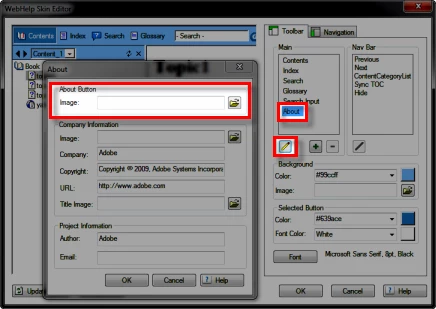
One way would be to use the button that is used for the "About" link on the far right of the main toolbar. Insert the logo as the button image in the Skin editor.

Click the About item in the Main area, then the Edit button. Then click the folder icon and browse to the logo.

Cheers... Rick

Helpful and Handy Links

RoboHelp Wish Form/Bug Reporting Form

Begin learning RoboHelp HTML 7, 8 or 9 within the day!

Adobe Certified RoboHelp HTML Training

SorcerStone Blog

RoboHelp eBooks

2 replies

Participant
July 22, 2011

The About box in WebHelp is one of the many interface items you may wish to customize. Left as is, it will display the "Powered by RoboHelp" sign. You can replace this with your company logo, product symbol, or simply remove it. Three different procedures are detailed below. The first procedure is done within the confines of RoboHelp. Should you follow this step, each time you generate the WebHelp file, the information is included in the output. However, if you wish to follow any of the other procedures detailed below, RoboHelp will automatically return the About box status to its default values. Therefore, you should copy the modified files that you are instructed to change to another location outside the SSL directory. After you generate the file, copy the files from the stored location and replace the newly-generated files with the ones you modified to recreate your changes.

Message was edited by Peter Grainge to remove gaps in text.

Peter Grainge
Community Expert
Community Expert
July 22, 2011

Bigyan Sharma

You talk about three procedures but don't describe them. It also sounds like you are referring to methods that were used in older versions. What is wrong with the correct solution that Rick had posted?


See www.grainge.org for RoboHelp and Authoring tips

@petergrainge

Use the menu (bottom right) to mark the Best Answer or Highlight particularly useful replies. Found the answer elsewhere? Share it here.
Captiv8r
Captiv8rCorrect answer
Legend
July 21, 2011

Hi there

One way would be to use the button that is used for the "About" link on the far right of the main toolbar. Insert the logo as the button image in the Skin editor.

Click the About item in the Main area, then the Edit button. Then click the folder icon and browse to the logo.

Cheers... Rick

Helpful and Handy Links

RoboHelp Wish Form/Bug Reporting Form

Begin learning RoboHelp HTML 7, 8 or 9 within the day!

Adobe Certified RoboHelp HTML Training

SorcerStone Blog

RoboHelp eBooks

July 21, 2011

Thanks, that looks pretty straightforward. Love these forums...