
Inspiring
November 9, 2022
Answered

How to create Numbered and Bullet List in Robohelp Version 2022.0.346

  • November 9, 2022
  • 6 replies
  • 1543 views

Question 1 - How do I create a new bullet list and numbered list?


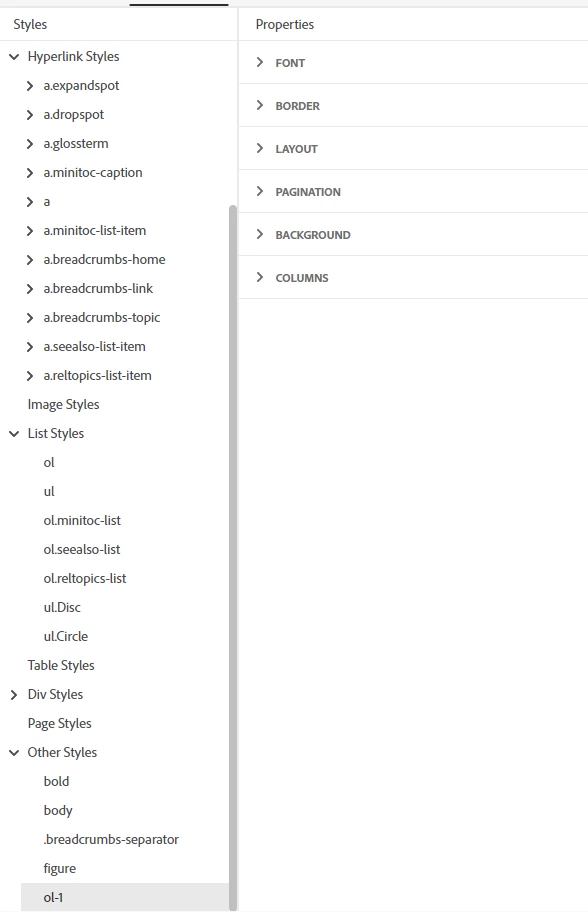
Adding a New Style

1. New Style 

2. Tag - ol-1

3. Font details entered.

4. Where is "bullets and numbering"?
 

The second option - Duplicate Style 

1. Duplicate ol

2. Tag - ol-1. (question - what are Tag, Class, and Pseudo Class? Do I need to learn CSS?)
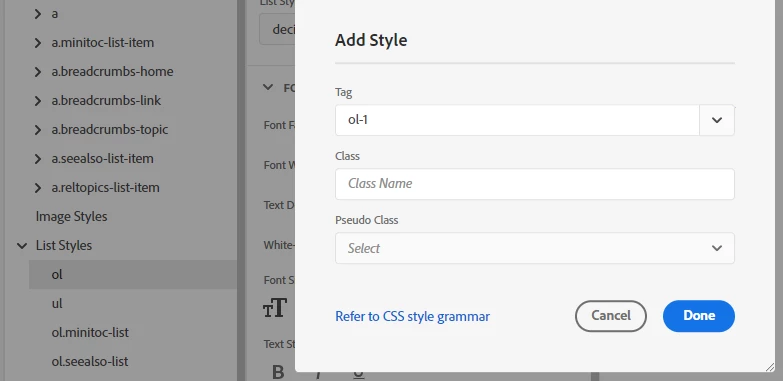
3. ol-1 is created below "Other Styles". Again there is no option to select "bullets and numbering" and Preview is also displaying normal text instead of numbered list.
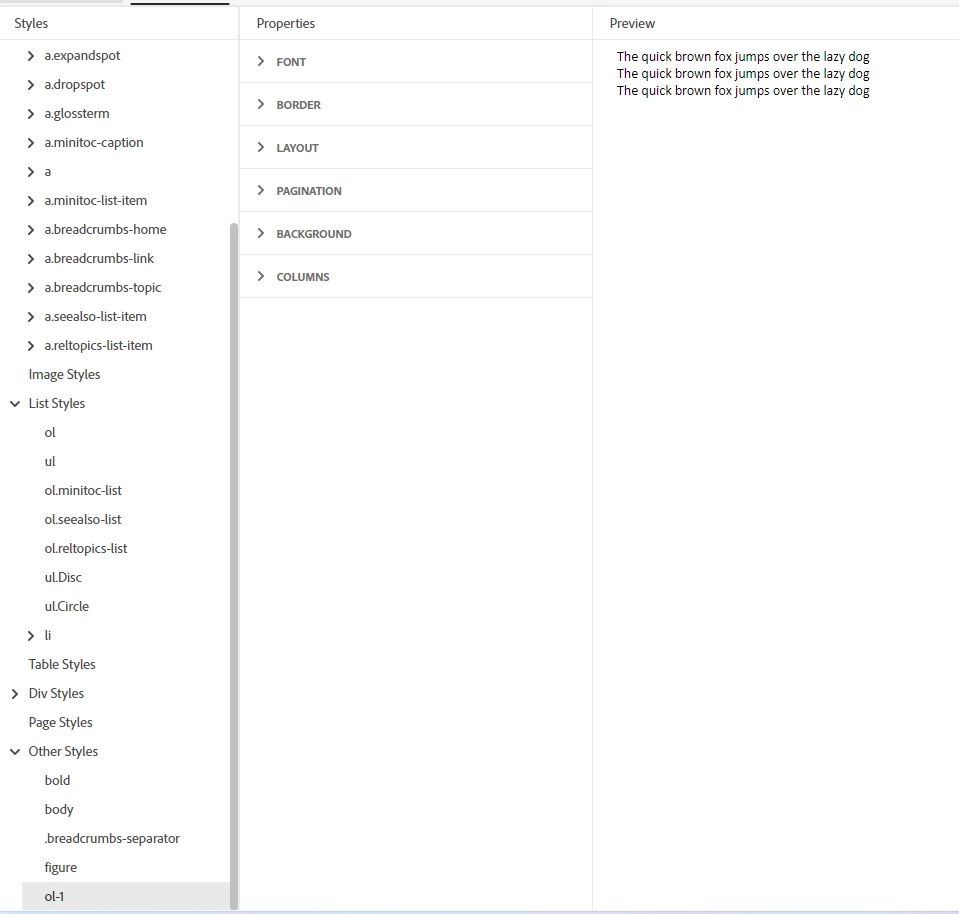
 

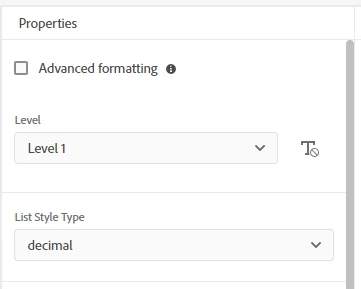
Question 2-  I am not getting the below options when I try to create a new style or try to duplicate the existing style (ol or ul)
 

Question 3 - How do I create a new stylesheet?


    This topic has been closed for replies.
    Correct answer Amebr

    Okay, in RH 2019, If you apply a class style (like reltopics-caption) to a paragraph, clicking on the p tag will remove that class and return you to a default p tag.


    In RH2020 and RH2022 you have to scroll up to the top and select the (None) style to remove the class. It's not very intuitive, I think. :s


    Now to create the list in your example.


    1. Create a numbered step as normal.

    2. Press Enter, then the Tab key. You'll get a nested list starting at 1.

    3. Select the style you want from the bullet button. There is a bit of funny behaviour here as the cursor moves to the next paragraph, so click back into the correct one and type your text.

    4. Press Enter, then Tab. You'll get a nested list with a bullet.

    5. In the Number button, click the last item that doesn't have any numbers (with a tooltip of None). You should get a numbered list starting at 1.

    6. Now click the Number button again and pick the number style you want.


    Now to de-nest levels.

    1. After step 6, press Enter, then Shift+EnterShift+Tab. The list item is returned to the bullet level with the correct bullet symbol.


    You can Shift+EnterShift+Tab again straight away if you don't want another bullet item. You'll be returned to the original list level and the item will have the correct next number for the list.


    I think this should do the trick for you.


    EDIT: corrected shortcut for de-nesting list items.

    6 replies

    Community Expert
    November 10, 2022

    I should note that the method I posted will work by clicking on the specific ol or ul style (e.g. ol.Circle) in the Styles panel, but only after you've used each style once from the buttons so they are added into your stylesheet. But step 5 must always be done using the Number button. (The method should also work with your own custom ol and ul styles from the Styles panel, but I haven't tried it.)


    Lija SNAuthor
    Inspiring
    November 10, 2022

    Thank you very much @Amebr & @Peter Grainge .

    AmebrCommunity ExpertCorrect answer
    Community Expert
    November 10, 2022

    Okay, in RH 2019, If you apply a class style (like reltopics-caption) to a paragraph, clicking on the p tag will remove that class and return you to a default p tag.


    In RH2020 and RH2022 you have to scroll up to the top and select the (None) style to remove the class. It's not very intuitive, I think. :s


    Now to create the list in your example.


    1. Create a numbered step as normal.

    2. Press Enter, then the Tab key. You'll get a nested list starting at 1.

    3. Select the style you want from the bullet button. There is a bit of funny behaviour here as the cursor moves to the next paragraph, so click back into the correct one and type your text.

    4. Press Enter, then Tab. You'll get a nested list with a bullet.

    5. In the Number button, click the last item that doesn't have any numbers (with a tooltip of None). You should get a numbered list starting at 1.

    6. Now click the Number button again and pick the number style you want.


    Now to de-nest levels.

    1. After step 6, press Enter, then Shift+EnterShift+Tab. The list item is returned to the bullet level with the correct bullet symbol.


    You can Shift+EnterShift+Tab again straight away if you don't want another bullet item. You'll be returned to the original list level and the item will have the correct next number for the list.


    I think this should do the trick for you.


    EDIT: corrected shortcut for de-nesting list items.

    Lija SNAuthor
    Inspiring
    November 10, 2022

    The style "None" is not working for me

    Shift enter is removing the number.  example - the text "Note" in the screenshot


    Lija SNAuthor
    Inspiring
    November 10, 2022

    Also, I am unable to edit "None"


    Peter Grainge
    Community Expert
    Community Expert
    November 10, 2022

    Just one thing to add, until you feel proficient in setting up List styles it's best to avoid checking the Advanced settings box. They give a lot more control but are more difficult to set up.


    When you do feel proficient, duplicate the style and edit that. Then if it goes belly up, you still have your start point.

    ________________________________________________________

    My site www.grainge.org includes many free Authoring and RoboHelp resources that may be of help.


    Help others by clicking Correct Answer if the question is answered. Found the answer elsewhere? Share it here. "Upvote" is for useful posts.
    Community Expert
    November 10, 2022

    RH shouldn't restart when editing a style using the built in editor. Let me look at it overnight when I have access to the right version and can see what a new, good RH2022 project looks like. 


    I'll post details of how to do standard css for the list in your example at the same time - I have to meet a deadline right now 🙂

    Lija SNAuthor
    Inspiring
    November 10, 2022

    sure, Thanks a lot!! 🙂

    Community Expert
    November 10, 2022

    For your last example with a paragraph that has the reltopics-caption style applied, clicking p should remove that 'reltopics' class automatically. I'll have a go when I'm at my computer with RH2022 as I currently only have RH2019 right now - it's possible it's something unique to those special RoboHelp styles.

    Lija SNAuthor
    Inspiring
    November 10, 2022

    Hi @Amebr , I tried style <p>, but for some reason, it is not working. So I had to use HTML. 

    Also not sure, if this is a bug, RoboHelp 2022 keeps restarting (not always) when I edit certain styles.


    I missed asking one more question, How to create multi-level numbering. could you pls let me know this too. 


    Community Expert
    November 10, 2022

    Yes, you should know some basic HTML and CSS now as Robohelp 2022 supports standard HTML and CSS following the official specifications. It's actually pretty easy and I recommend running through the W3 Schools CSS tutorial (there's also a html tutorial). https://www.w3schools.com/css/


    Tag refers to the HTML tag which describes the type of content. So p is for a normal paragraph, h1 is for a heading 1, h2 is for a heading 2, ul is a bulleted list and ol is a numbered list. The fields that appear may be different for specific tags, so for example, you don't get numbering options for a p because that is not an allowed property for the p tag (this is defined in the html and css specifications).


    You can click Done at this point, as the tag itself is a valid "style".


    However, if you want variations to a style, for example, perhaps you want a special "Callout" paragraph for an important call to action, then you need to give it a different name so you can specify a different font size and colour to your standard p tag. You do this with the Class field. So you might set up your p tag to be black font and 11pt size. then you would set up a p class called "Callout" and define the colour as dark grey and font size 13pt.


    You can ignore the Pseudo Class field as you won't often need it. The most common case is to define a different colour for visited links, for example. But I rarely use any of the options in my documentation projects.


    To relate this to your example, your first attempt didn't display any numbering fields because "ol-1" is not an HTML tag. Therefore it defaults to the basic fields that apply to most tags, which doesn't include numbering.


    For your second attempt, again you created a tag that is not in the HTML specification. What you should have done was typed a style name in the Class field so that you create a variation of ol to customise.


    FInally to create a new stylesheet, in Robohelp, right-click on the css folder (or the folder where you want to save the stylesheet) then select New > New Stylesheet. (I'm working from RH2019 New UI, so the naming might be slightly different but the locations should be the ame)

    Lija SNAuthor
    Inspiring
    November 10, 2022

    Thank you @Amebr . Thanks to adobe and everyone who helped me.


    This is what I learned


    Numbering & Bullets - To make the styles “ol and ul” to work, make sure that the following details are selected:

    Restart numbering: Refer to https://community.adobe.com/t5/robohelp-discussions/rh-2019-12-continue-numbering-at/td-p/11182612

    Try this:


    Type text, and apply the style OL. that will give you

    1. <text>


    Then enter, and automatically you will get 2. < text>

    Suppose you have to add a note below point 2. add the note and press enter. Add point 3.

    To start the numbering from 3. go to content properties, and you will see < restart numbering at> and select 3.


    Continue Numbering: Refer to https://community.adobe.com/t5/robohelp-discussions/rh-2019-12-continue-numbering-at/td-p/11182612


    Always check HTML

    If the styles are not working, make sure to check the HTML output.

    For example – when I was typing the text, it was in Bold letters. I tried <p> style, but it was not applying.

    So click on </>.

    Remove “class="reltopics-caption"” and save.

    Now you will see the <p> style is correctly applied.