
May 23, 2013
Question

Robohelp 9 and TFS 2012 issue - TFS linking is not working

  • May 23, 2013
  • 1 reply
  • 1931 views

Hi,

I'm using Adobe Robohelp 9 with Team Foundation Server 2012 on Windows 7 -  64 bit. I've also installed Microsoft Visual Studio Team Foundation Server 2012 MSSCCI Provider. I've also mapped the project folders on my machine.

But when I try to open any project, it is giving the following error message:
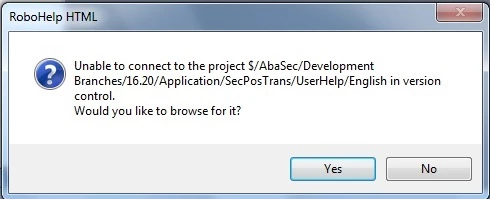
And if I click on Yes, it shows:
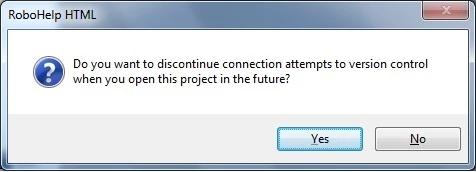
If I say No for this second message, it opens the project without TFS connection. I can't check-out any file. I can just modify it and it will be saved locally.

When I'm outside of Robohelp project, means in the project folder, I can see all the project files are mapped and they have TFS check-in/check-out/Get latest.... all these options as shown below:
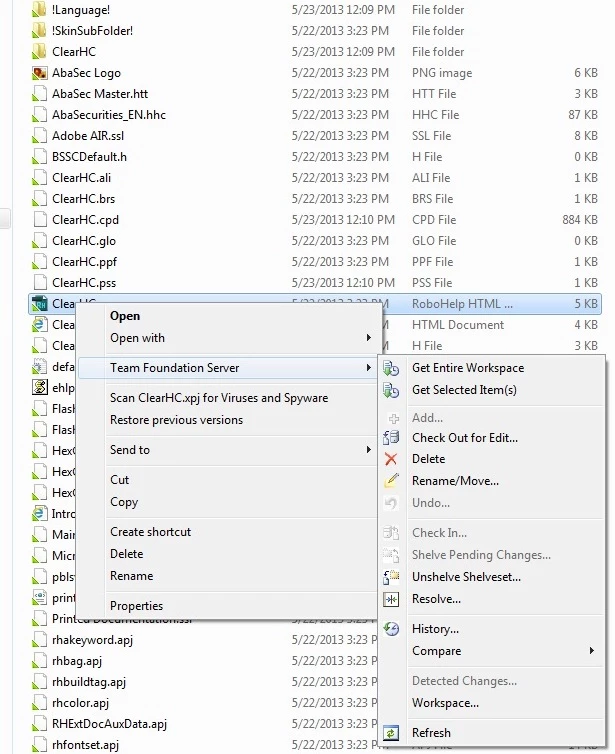
But when I open the project, I can't see the TFS option under file menu.

Please suggest if there is any solution...

Thanks,

Dipali

    This topic has been closed for replies.

    1 reply

    Willam van Weelden
    Inspiring
    May 23, 2013

    Hi,

    Just to be safe: Did you also install the VS 2012 Shell (Isolated) and the TFS plugin? As far as I know, you need the shell and the TFS provides apart from the MSSCCI provider. (http://www.adobe.com/devnet/robohelp/articles/robohelp-tfs-integration.html)

    The interesting thing is not that the connection is lost, but that if you want to browse it, you don't see a browse page. Normally, RH would just show you a popup where you can select the project.

    Now for some magic: **Note: I will describe how to manually change your source control link. Make sure that you have a backup apart from TFS, just in case.

    • Check out the .XPJ file.
    • Remove the .CPD file.
    • Open the .XPJ file with a text editor, such as Notepad.
    • Search for the text <name>vc::cookie</name>

    <matchedpair>

          <name>vc::cookie</name>

          <value>$/BV - MVV/Main/Key2Vergunningen/Tools/Documentatie/mvv-gebruikers</value>

    </matchedpair>

    • Now get the path from the VS project ($/BV - MVV) and the full path to the folder in source control where the project is stored.
    • Set the complete path between the <value></value> tags.
    • Save the .XPJ file.
    • Open the project with RoboHelp.

    You connection should now be restored. Note that if you make even a small mistake in the TFS project path, RoboHelp will not be able to find the project.

    Greet,

    Willam

    May 29, 2013

    Thanks Willam,

    I've tried your suggestion but still the problem is not resolved.

    I have to check-out and check-in the files outside the Robohelp project (without opening the project) and do the changes in Robohelp. There is no Source control option under File menu and right-click menu on any file.

    It is not a good option to everytime check-out and check-in the files outside the project and do the changes inside. Also, it is not suitable in case of adding new windows, layouts for different outputs. I tried to do that but I could not. When I tried to check-in the Window/layout related changes on the folder (outside the RH project), I got a message that there are no pending changes to check-in.

    Please suggest....

    Thanks,

    Dipali

    Willam van Weelden
    Inspiring
    June 3, 2013

    That suggests that your project is not under version control from RH’s point of view.

    Try the following:

    1. Click File > Source Control > Add

    2. Select TFS from the list.

    3. Follow the steps in the wizard to add the project to a new location in TFS.

    If this doesn’t work, it’s time for the big guns. Let me know whether the above works.

    Greet,

    Willam