Known Participant
April 11, 2024
Answered

PNG Files Not Accepted in Adobe Stock

  • April 11, 2024
  • 3 replies
  • 1528 views

The attached PNG files, transparent background, were not accepted in Adobe Stock due to quality issues.  I usually can spot quality issues when not accpted, but these have me stumped.  The focus appears to be good...but any comments will be well received.

    This topic has been closed for replies.
    Correct answer Abambo

    Your first: The overall quality is not the best.

    Some general issues:
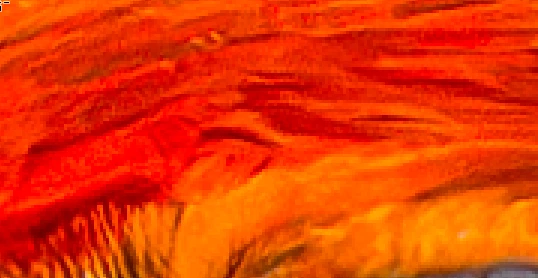
    • You have colour clipping.
    • You have a high noise level:
    • You have blown out blacks and missing whites, so I think the original picture was underexposed.
    • You have not embedded the sRGB colour profile, as required.

    Then you have multiple errors in your cutout work. @Jill_C has mentioned some. Let me add some of mine too:

    If you look at this part, you see the shadowy leftovers from the background, and you see that you did not used the erasesr in a steady line.

    My two-minute fix solved some of the issue:

    (It's not yet perfect, but with more time and energy, it could work out.

    You were over the “line” (1) here, and I can't bring that back, as I do not have the original, but I can help you out with the sharp corners, as laid out by @Jill_C (2):


    First, you erase more than needed:

    Then you bring back the foreground that has been erased with the background.


    To be able to orient myself, I use a second layer, that I overlay to the cutout, with a strong transparency, so that I see, where I'm working. That makes sharp corners, without any effort.


    To visualize places, where you did work sloppily, I can use in Photoshop the fx effects, where you lay a “red” line around your cutout:

    You see immediately all those imperfections, that are difficult to see, but will create issues when you superpose your cutout to a background. When you're done, you delete the effect, and the line is gone.

    The clouds show areas where your masking brush was soft so that there is a gradient transparency. Usually, you do not wish that, especially with branches and claws. With the feather it may be of use, but it needs to be consistent.


    3 replies

    Abambo
    Community Expert
    AbamboCommunity ExpertCorrect answer
    Community Expert
    April 11, 2024

    Your first: The overall quality is not the best.

    Some general issues:
    • You have colour clipping.
    • You have a high noise level:
    • You have blown out blacks and missing whites, so I think the original picture was underexposed.
    • You have not embedded the sRGB colour profile, as required.

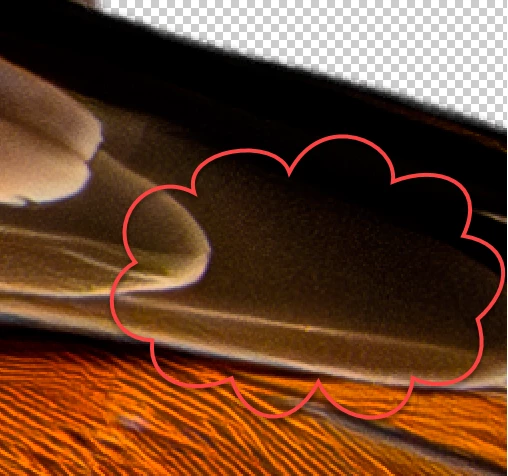
    Then you have multiple errors in your cutout work. @Jill_C has mentioned some. Let me add some of mine too:
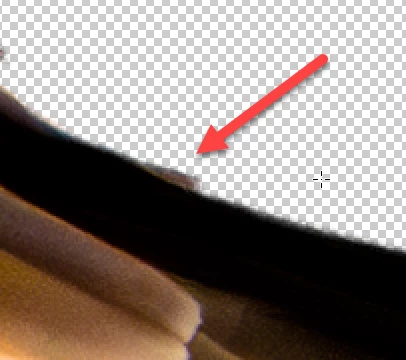
    If you look at this part, you see the shadowy leftovers from the background, and you see that you did not used the erasesr in a steady line.
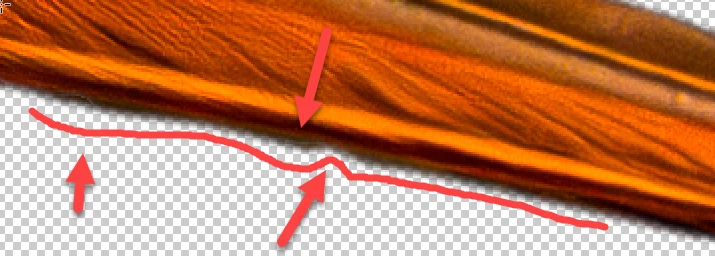
    My two-minute fix solved some of the issue:
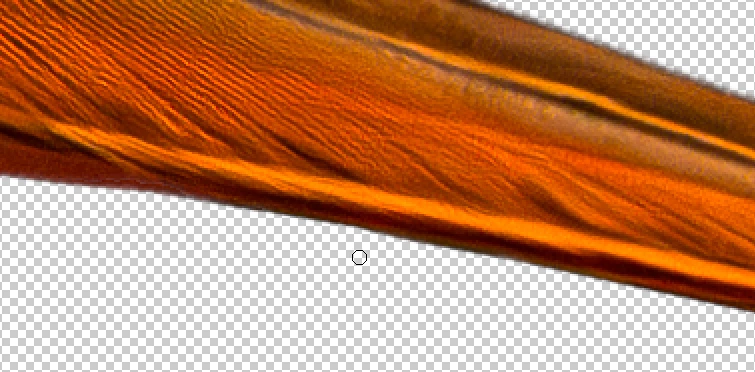
    (It's not yet perfect, but with more time and energy, it could work out.

    You were over the “line” (1) here, and I can't bring that back, as I do not have the original, but I can help you out with the sharp corners, as laid out by @Jill_C (2):
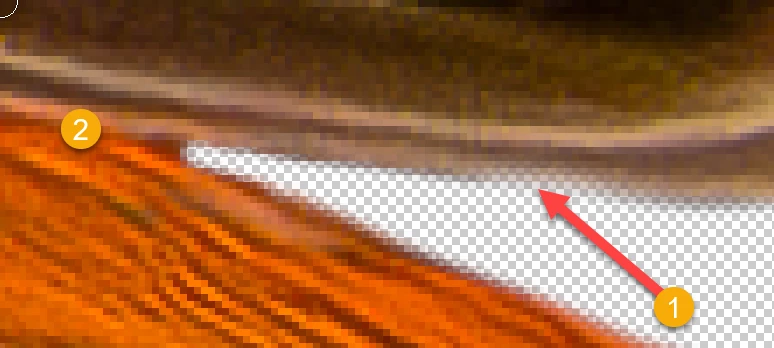
     

    First, you erase more than needed:
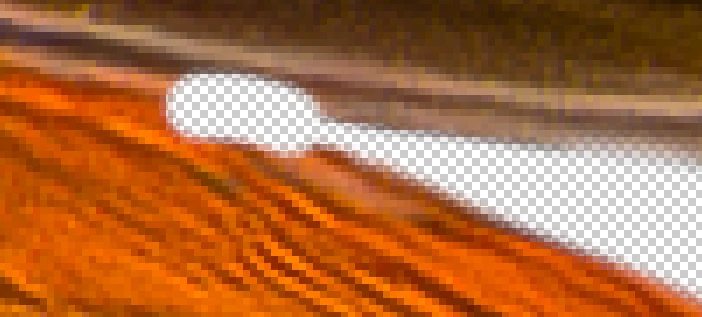
    Then you bring back the foreground that has been erased with the background.
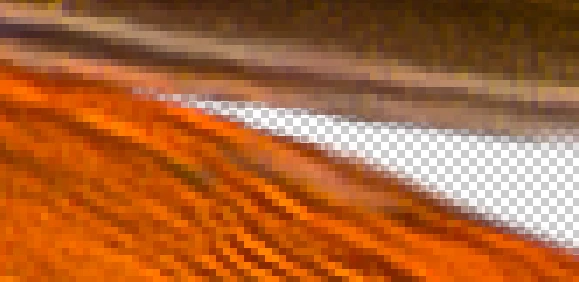
     

    To be able to orient myself, I use a second layer, that I overlay to the cutout, with a strong transparency, so that I see, where I'm working. That makes sharp corners, without any effort.


    To visualize places, where you did work sloppily, I can use in Photoshop the fx effects, where you lay a “red” line around your cutout:
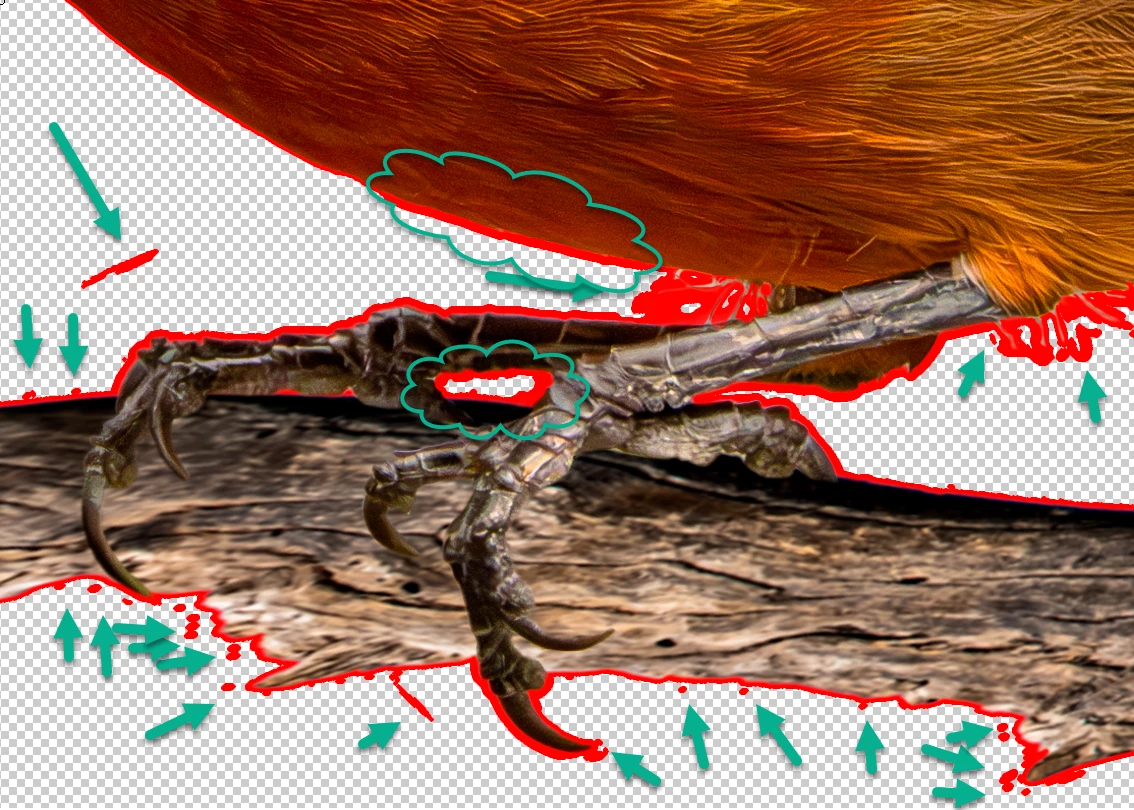
    You see immediately all those imperfections, that are difficult to see, but will create issues when you superpose your cutout to a background. When you're done, you delete the effect, and the line is gone.

    The clouds show areas where your masking brush was soft so that there is a gradient transparency. Usually, you do not wish that, especially with branches and claws. With the feather it may be of use, but it needs to be consistent.


    ABAMBO | Hard- and Software Engineer | Photographer
    Jill_C
    Community Expert
    Community Expert
    April 11, 2024

    That's very helpful - you could teach a class in masking / cutouts !

    Jill C., Forum Volunteer
    Abambo
    Community Expert
    Community Expert
    April 11, 2024

    I could. I've done cutouts for nearly thirty years. I played with a demo of Photoshop 3 on our IRIX Workstations and I started somewhere around Photoshop 4, may be still on our Mac computer if I remember well. The memory is a bit blurred. 😉

    ABAMBO | Hard- and Software Engineer | Photographer
    Jill_C
    Community Expert
    Community Expert
    April 11, 2024

    I think that the moderators look very carefully at the edges of PNG's to make sure that the cutout from the background was done well. While these are both quite nice, there may be a few areas where a bit of improvement is needed. On the second image I think the focus on the beak is too soft.


    Jill C., Forum Volunteer
    Known Participant
    April 11, 2024

    Jill, thankyou...I appreciate your detailed views that you attached.  I will work on the detail and re-submit.

    Jill_C
    Community Expert
    Community Expert
    April 11, 2024

    Glad to be of assistance !

    Jill C., Forum Volunteer
    John T Smith
    Community Expert
    Community Expert
    April 11, 2024

    You need to ask program questions in the forum for the program you are using
    To ask in the forum for your program please start at https://community.adobe.com/
    Moving from Using the Community (which is about the forums) to a Stock forum
