Known Participant
January 13, 2025
Answered

Quality issues on my AI generated illustrations

  • January 13, 2025
  • 6 replies
  • 957 views

Hello,

I mainly use generative AI, but recently I've been receiving many rejections for my photos.

So this time, I uploaded some simple illustrations instead. However, even the illustrations that seem simple to me were all rejected due to quality issues.

I would appreciate your advice on what might be the problem.
Correct answer Abambo

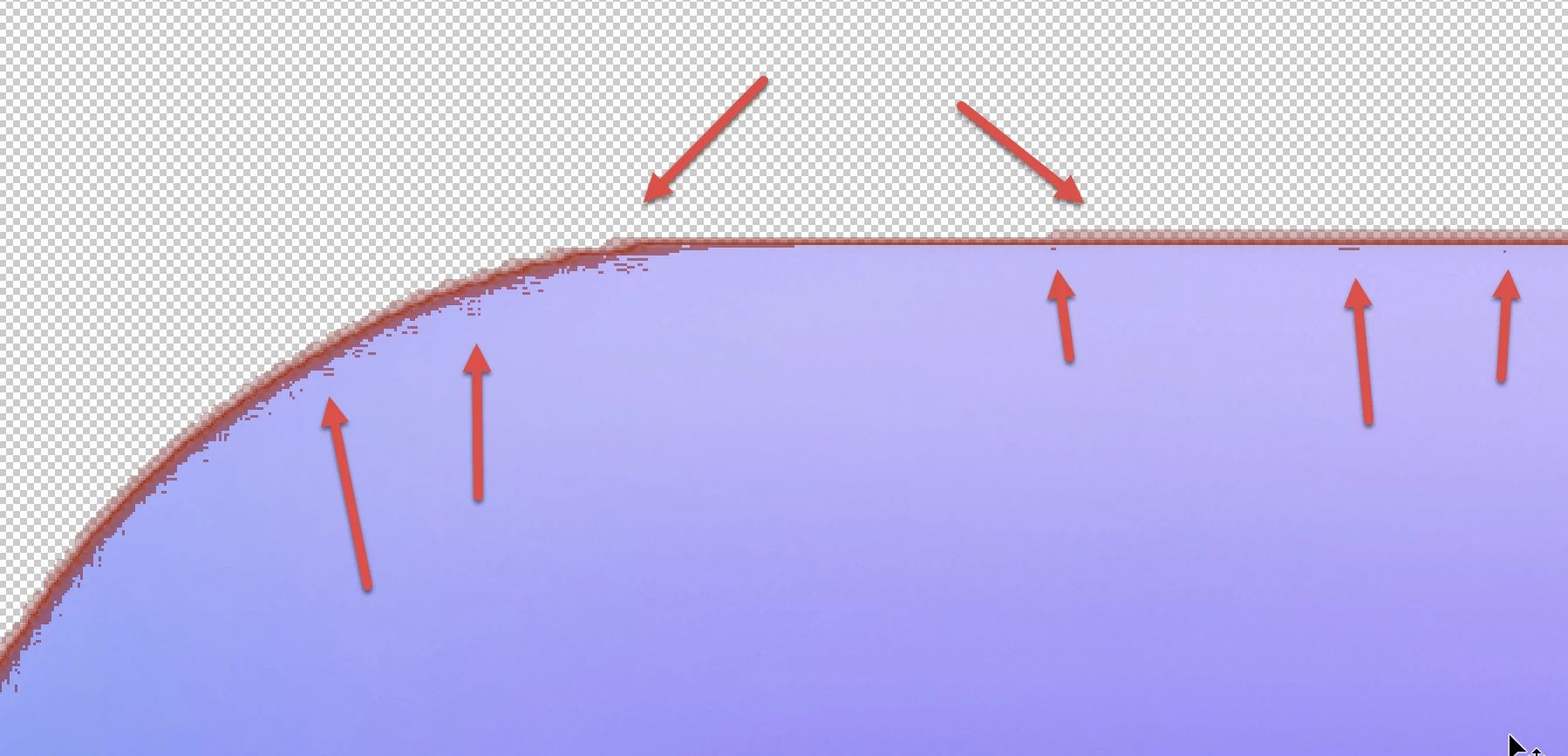
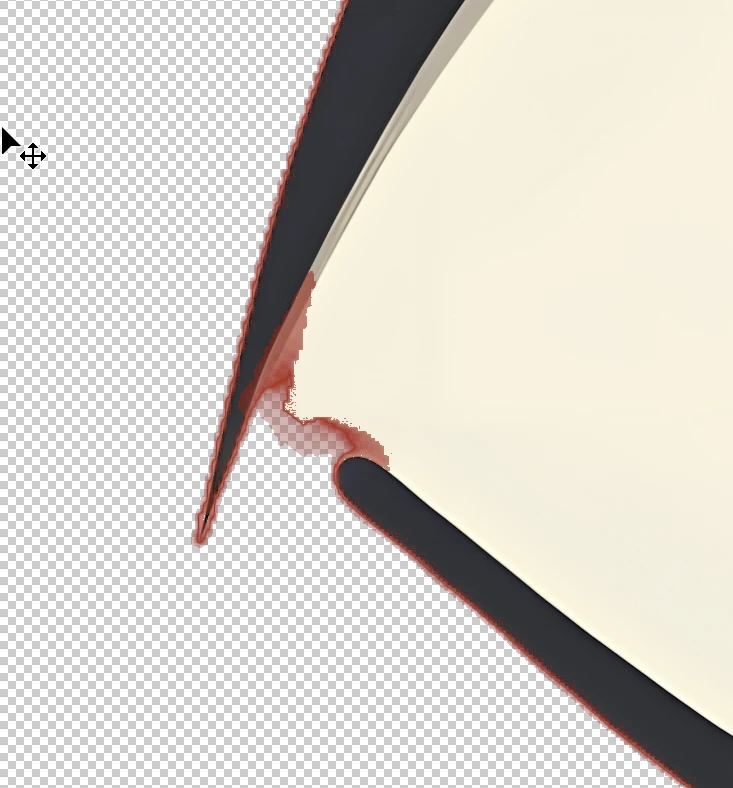
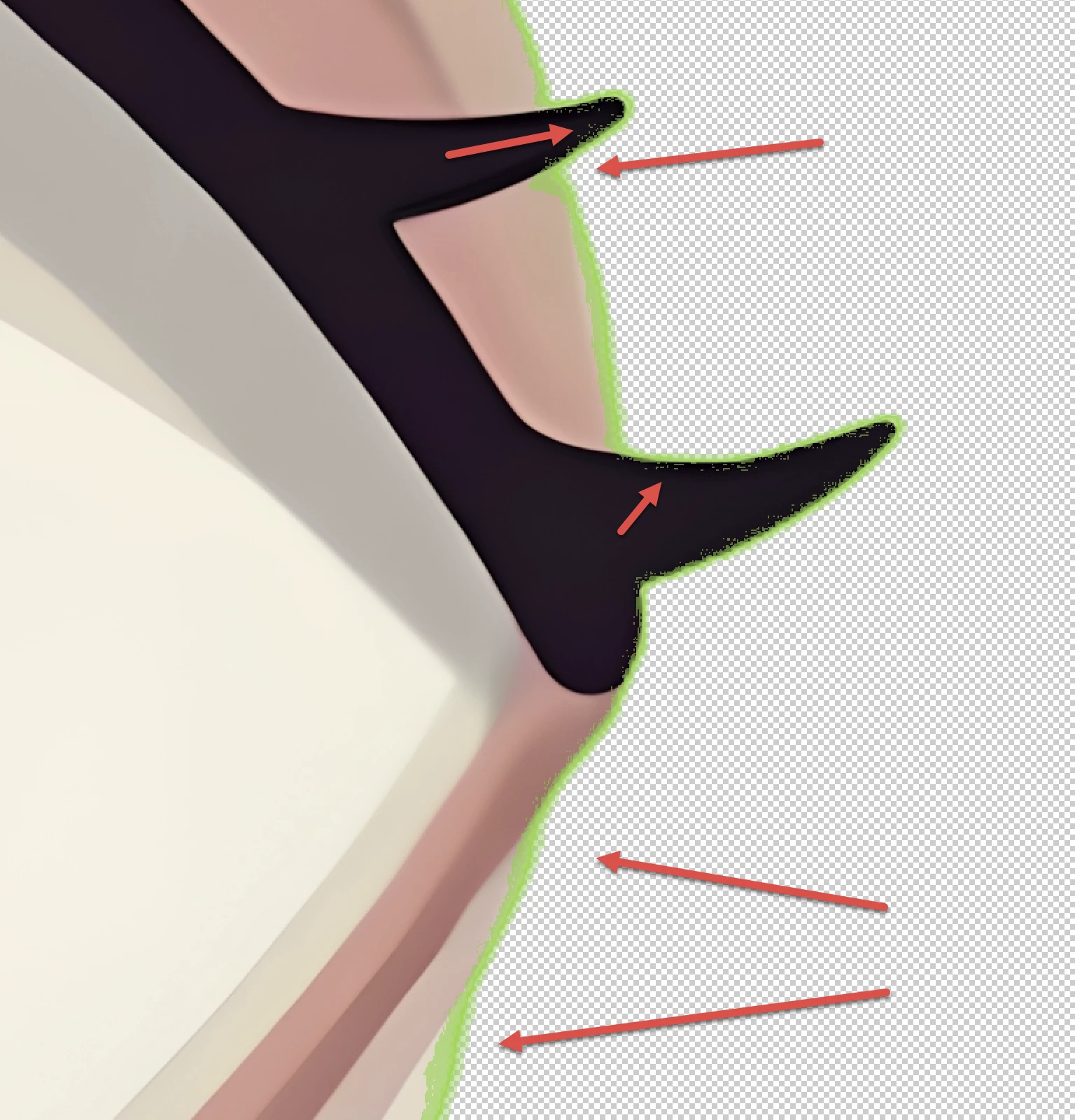
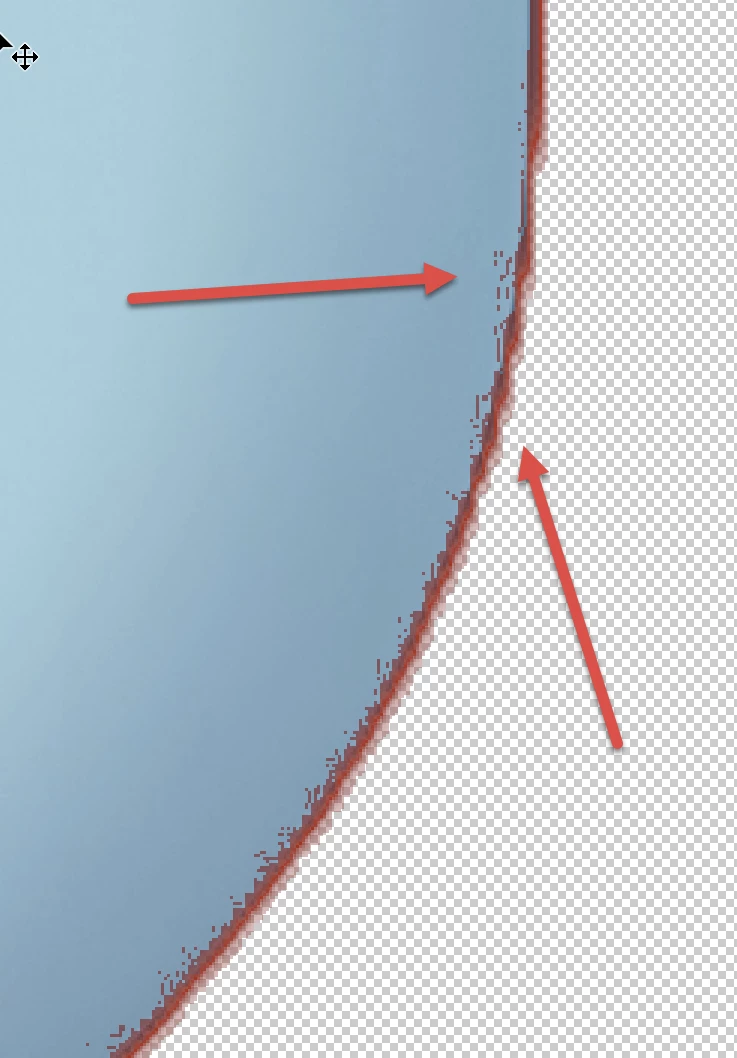
First Checkmark: your transparency mask is not good enough:

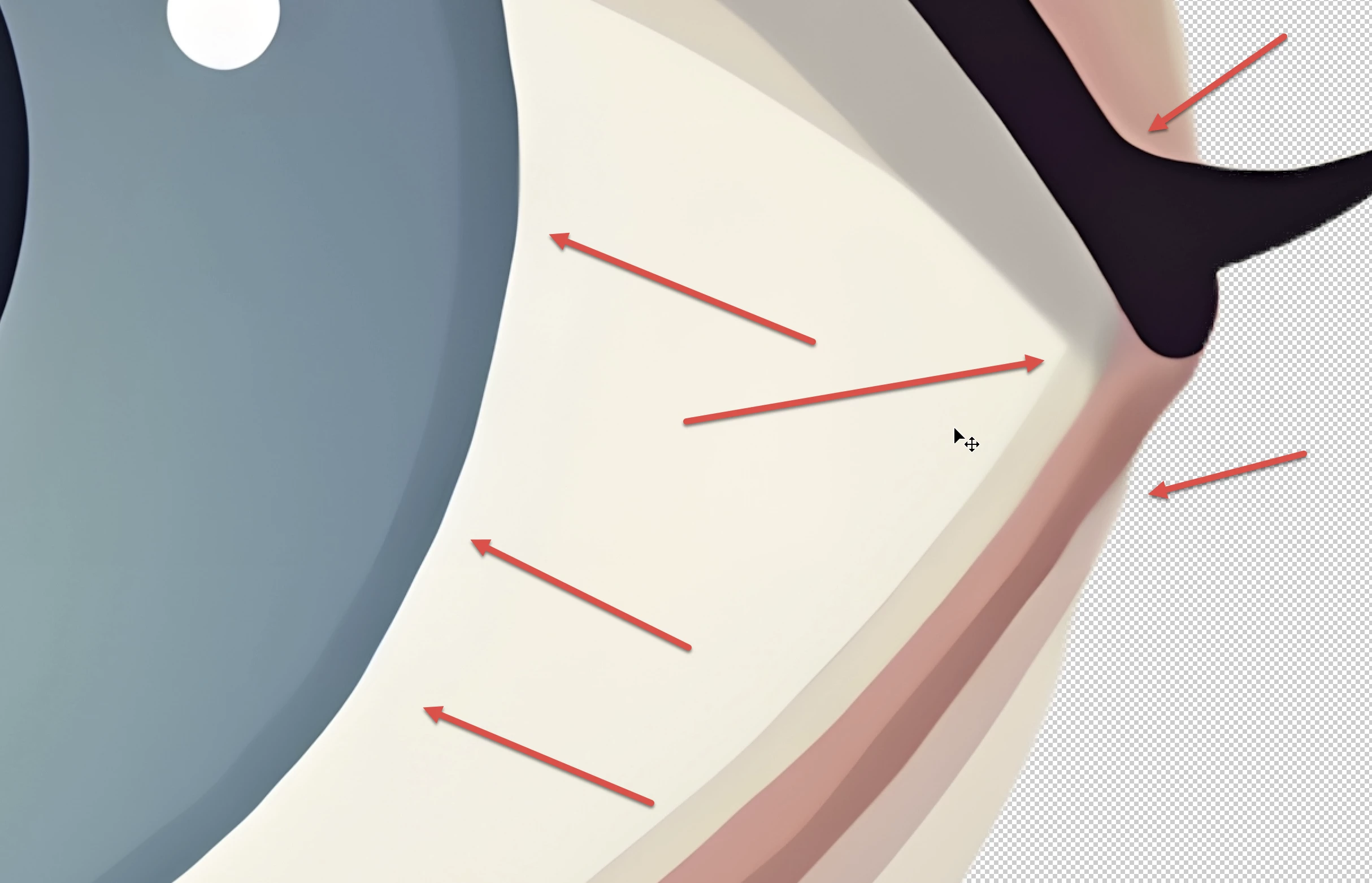
In addition, there are rendering errors:


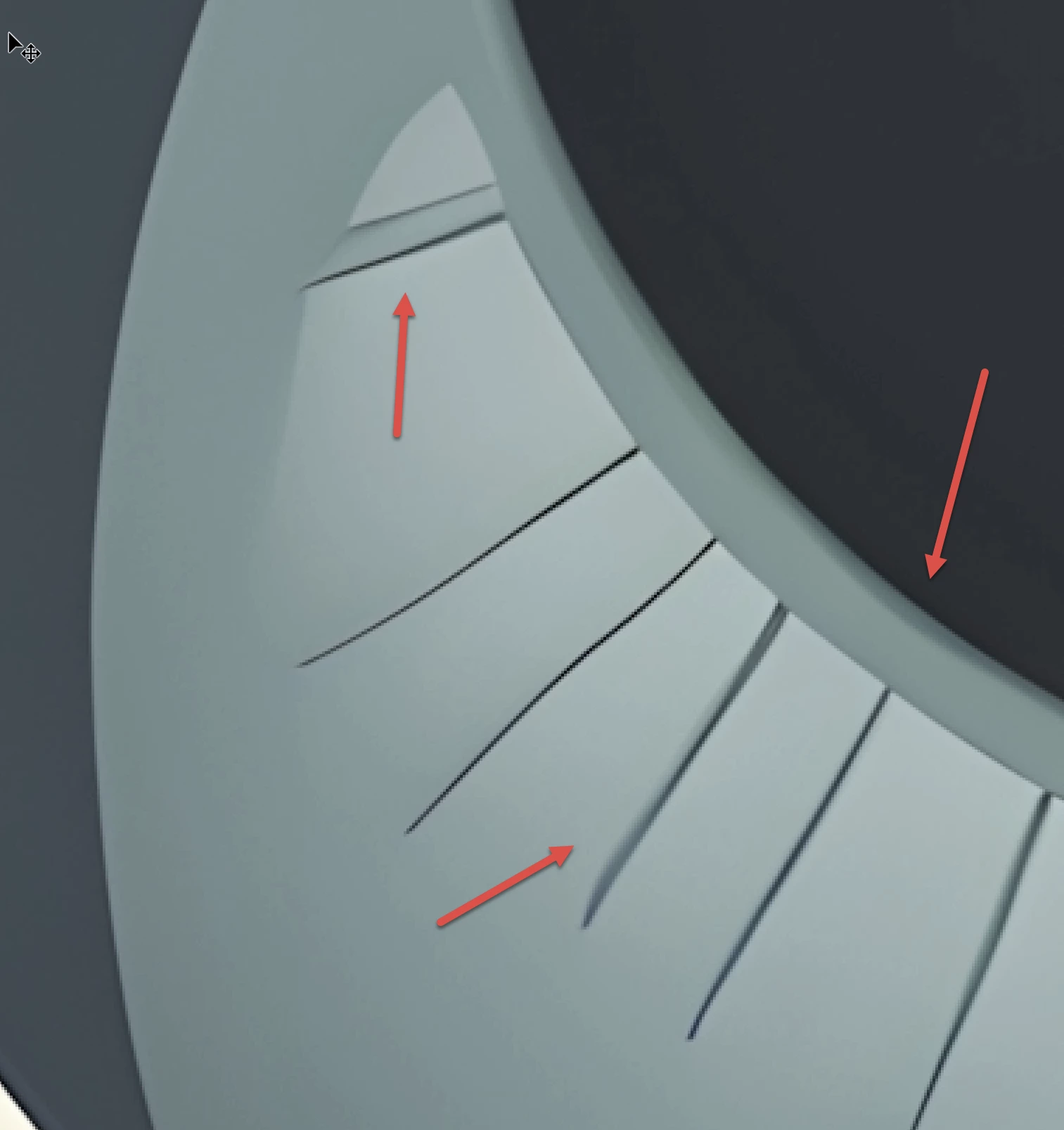
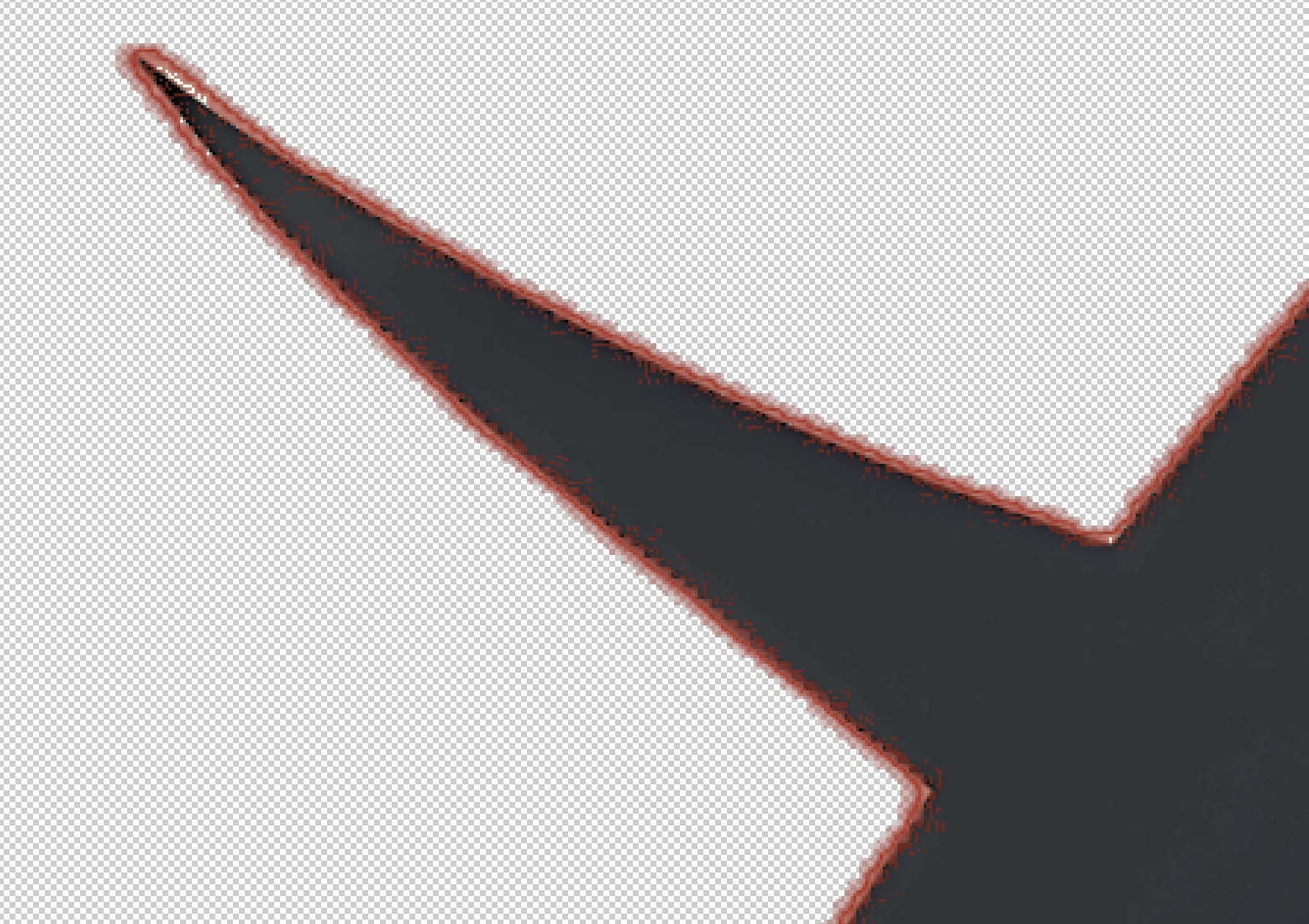
Your asset also exposes lines, where no lines should be:


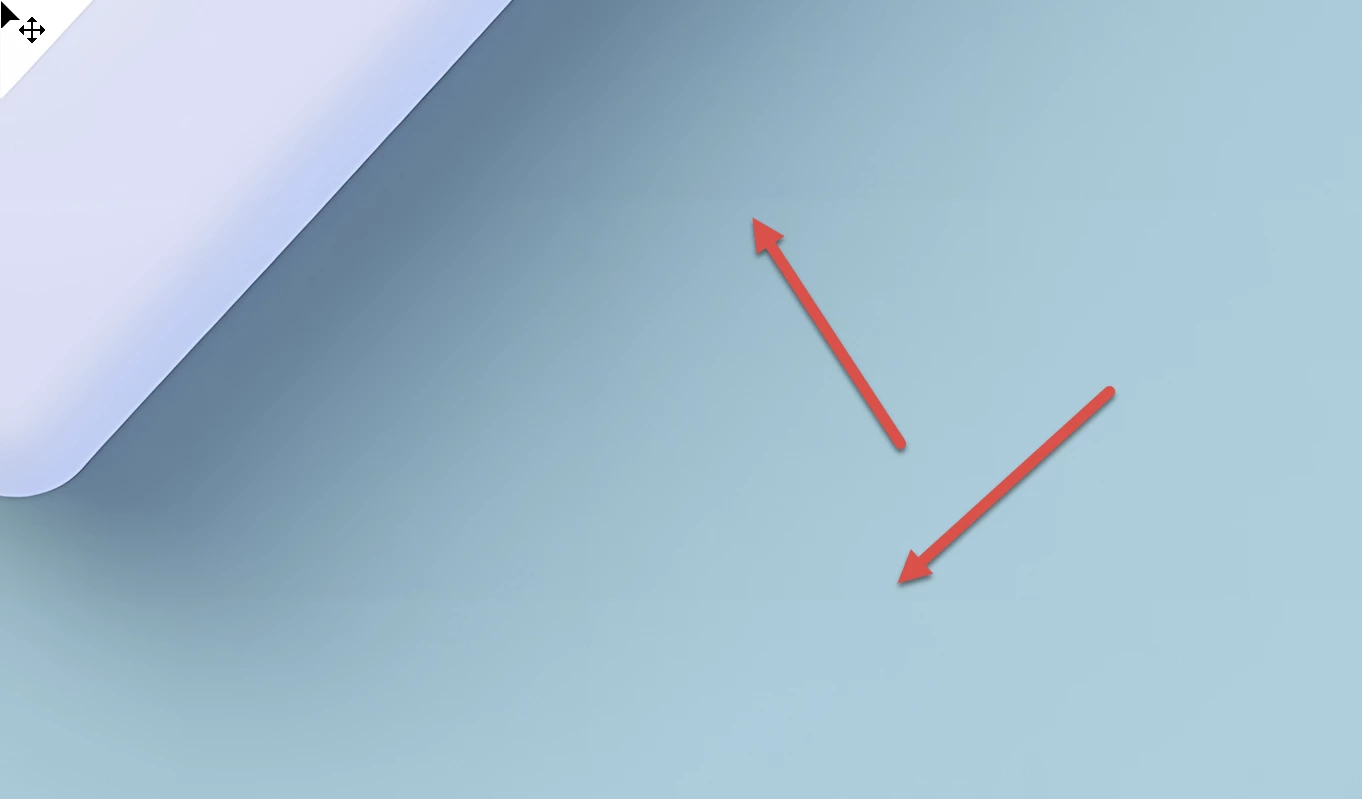
Second: the shadow is odd:

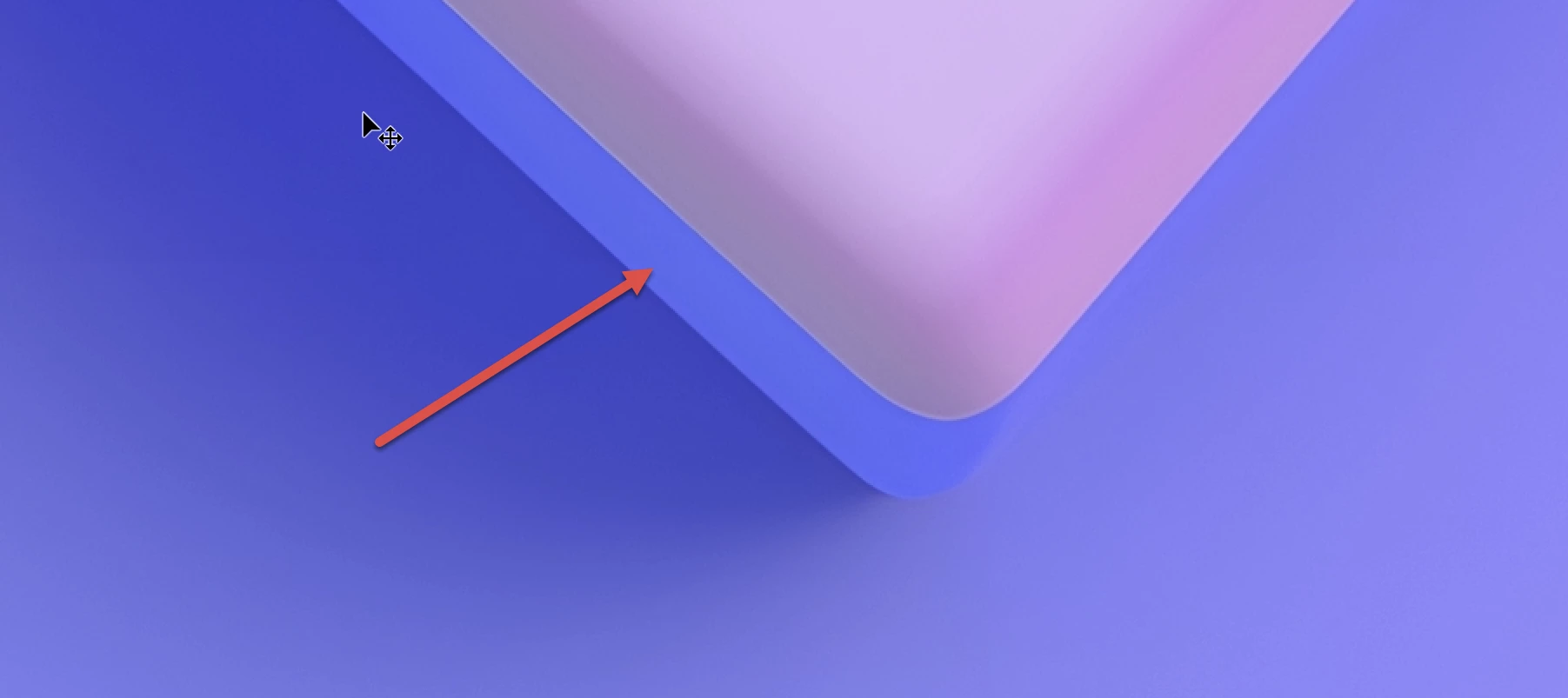
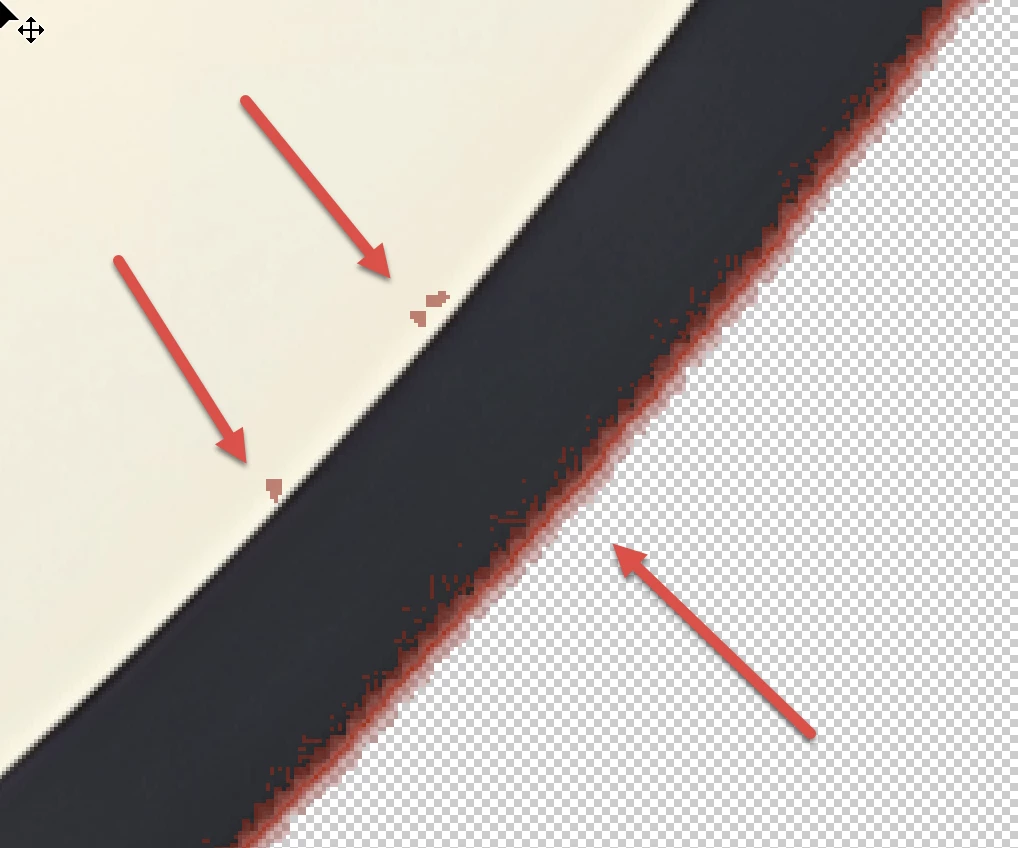
The mask is erroneous too:

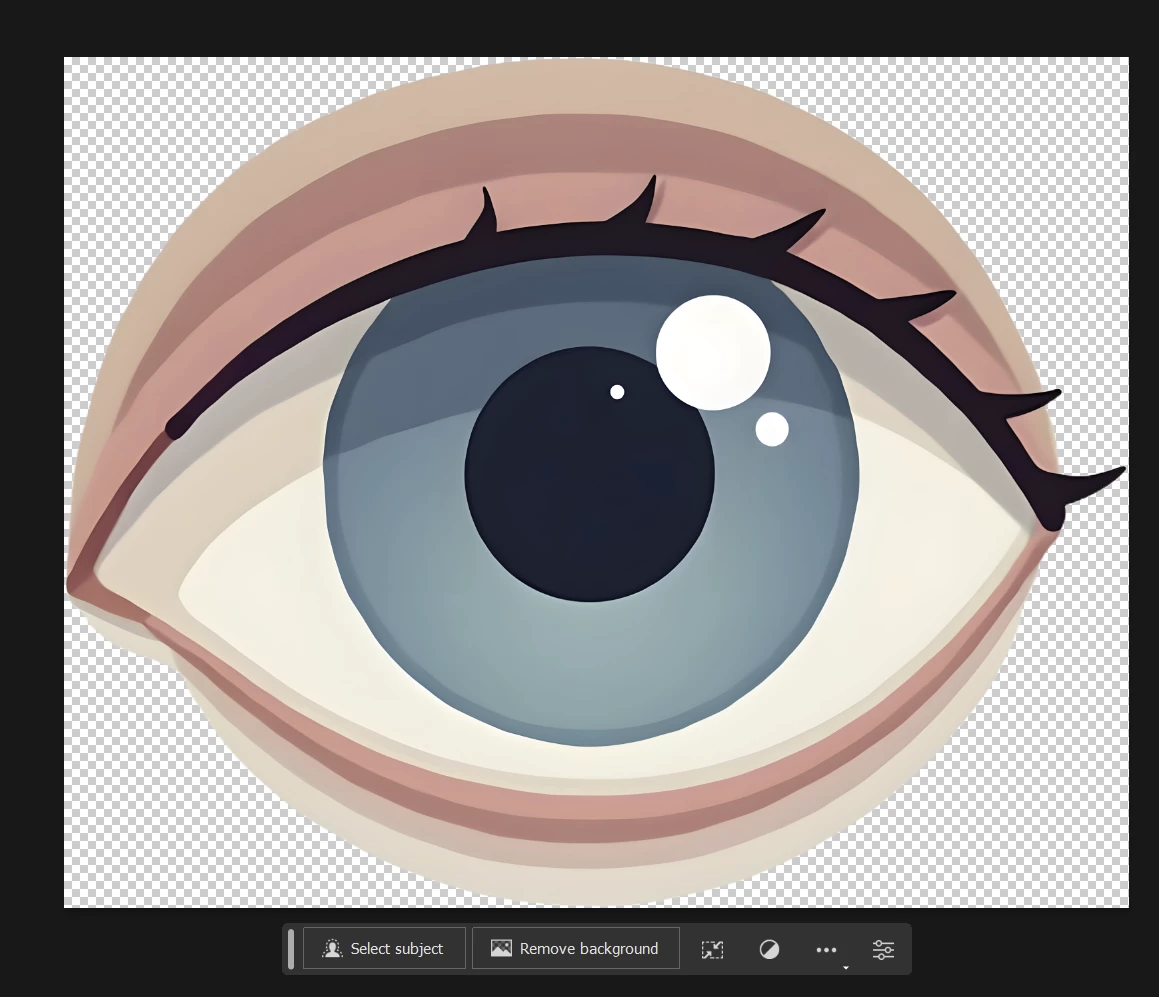
Blue eye, the first:

Bad masking:

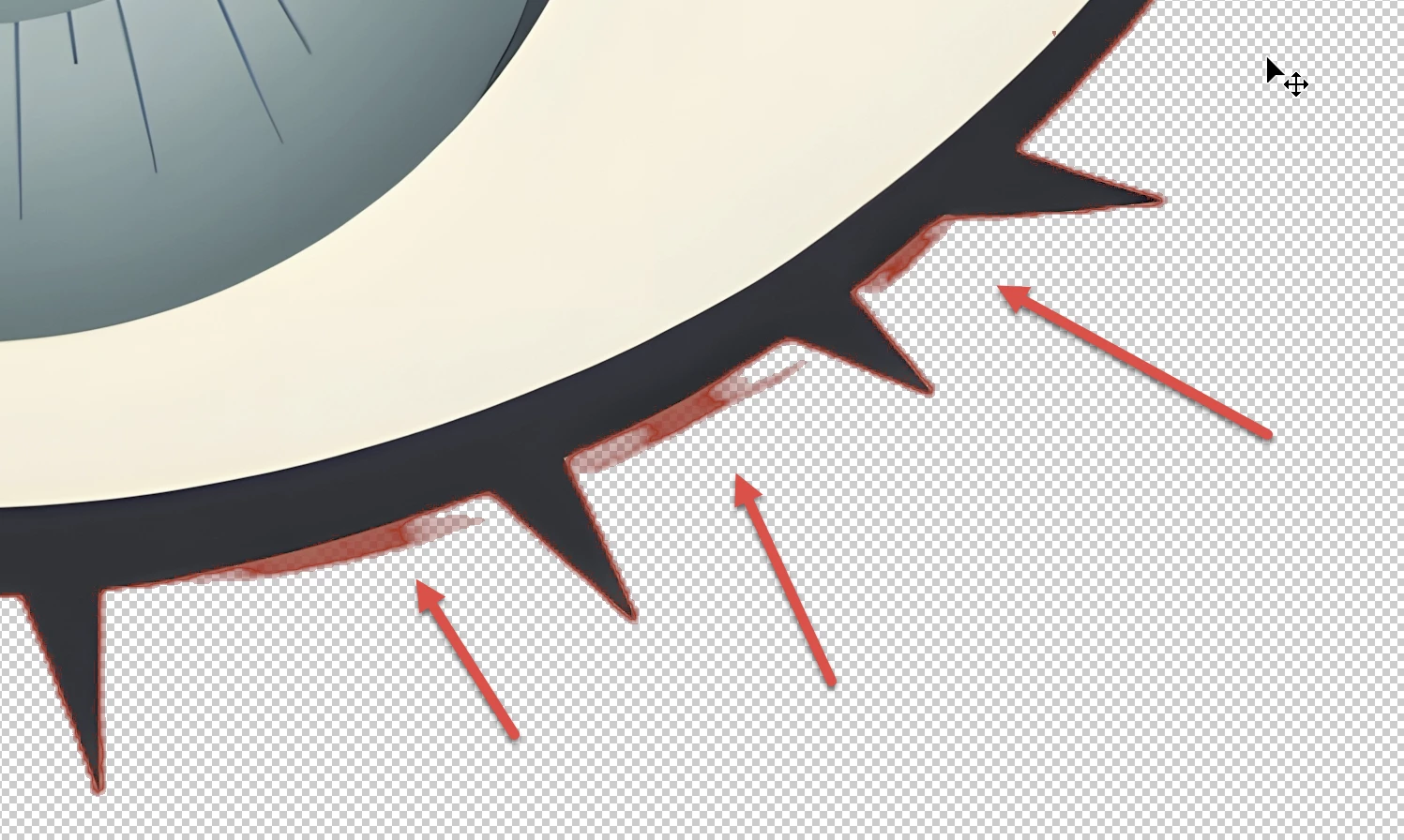
Eye (the last): Rendering errors:

And, you got it by now, huge cutout errors:

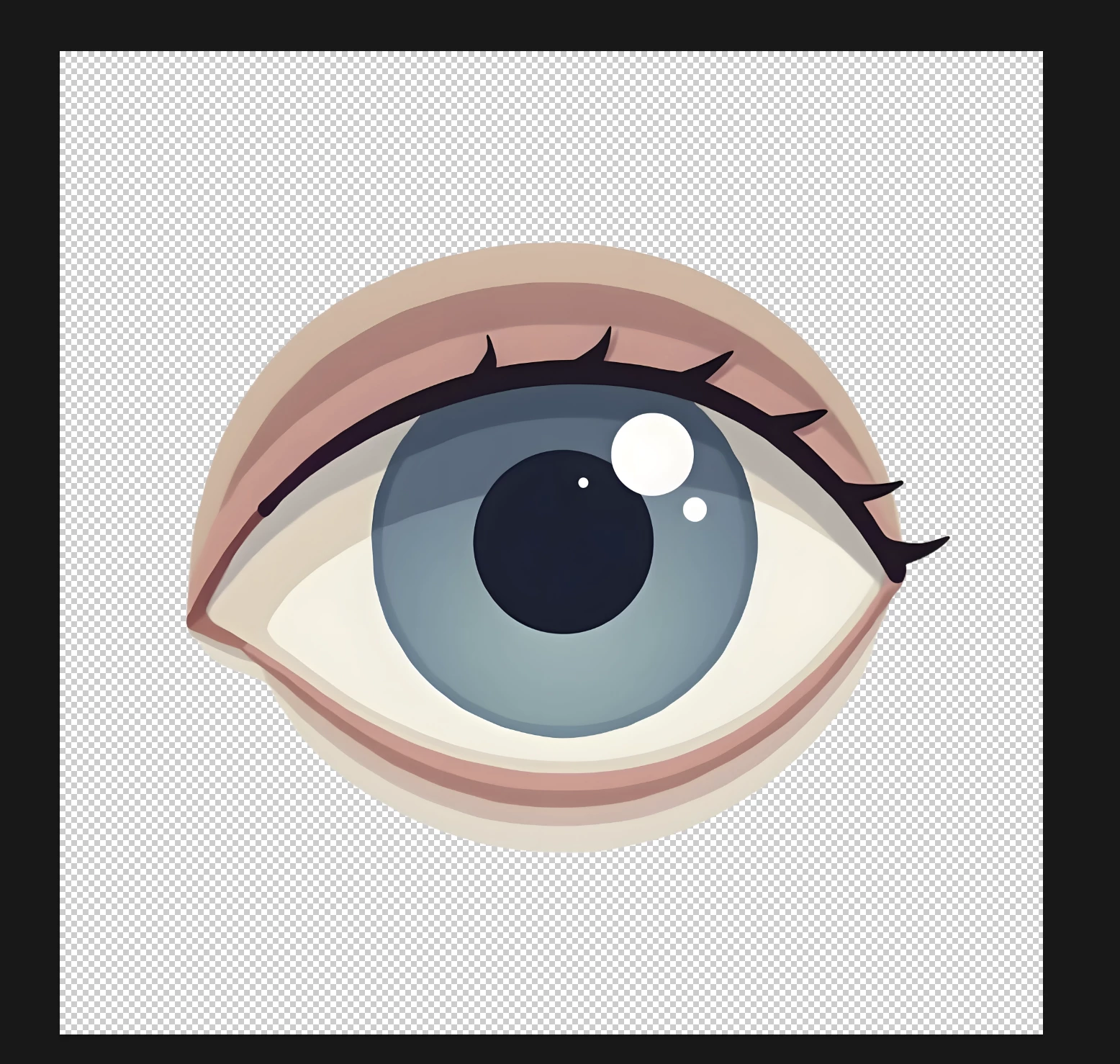
You should trim your assets as required (Do: Crop to minimize empty space around the images.):

This:

instead of this:


6 replies

Known Participant
January 14, 2025

Hello.

Thank you to everyone who took the time to respond.

After reviewing your feedback, I realized that my illustration had quite a few errors. I also learned that background removal is not easy. I used Adobe Express for background removal, but should I manually edit it in Photoshop for better results?

Thank you.

Legend
January 14, 2025

Manual editing is always necessary.

Abambo
Community Expert
Community Expert
January 13, 2025
quote


So this time, I uploaded some simple illustrations instead. However, even the illustrations that seem simple to me were all rejected due to quality issues.


By @BH_Moon3191

As you are probably lacking the talent to create these simple icons from scratch, use generative AI to design them, then use a vector program to recreate them. They would be clean, usable and, as a vector asset, scalable.

ABAMBO | Hard- and Software Engineer | Photographer
Abambo
Community Expert
AbamboCommunity ExpertCorrect answer
Community Expert
January 13, 2025

First Checkmark: your transparency mask is not good enough:

In addition, there are rendering errors:


Your asset also exposes lines, where no lines should be:


Second: the shadow is odd:

The mask is erroneous too:

Blue eye, the first:

Bad masking:

Eye (the last): Rendering errors:

And, you got it by now, huge cutout errors:

You should trim your assets as required (Do: Crop to minimize empty space around the images.):

This:

instead of this:


ABAMBO | Hard- and Software Engineer | Photographer
daniellei4510
Community Expert
Community Expert
January 13, 2025

Try putting your transparencies against a black Solid Color to check for cutout issues.


Adobe Community Expert | If you can't fix it, hide it; if you can't hide it, delete it.
Jill_C
Community Expert
Community Expert
January 13, 2025

Here are other drawing errors.

Jill C., Forum Volunteer
RALPH_L
Community Expert
Community Expert
January 13, 2025

I looked at the first image of a check mark and what I noticed at 200% is the dark blue thin line around the image is jagged.

I would select the the button in Photoshop, reduce the selection by 4 pixels. Smooth the selection and then resave it.