


- Home
- Stock
- Discussions
- Re: Adobe Stock .ai Image with transparent backgro...
- Re: Adobe Stock .ai Image with transparent backgro...

Copy link to clipboard
Copied
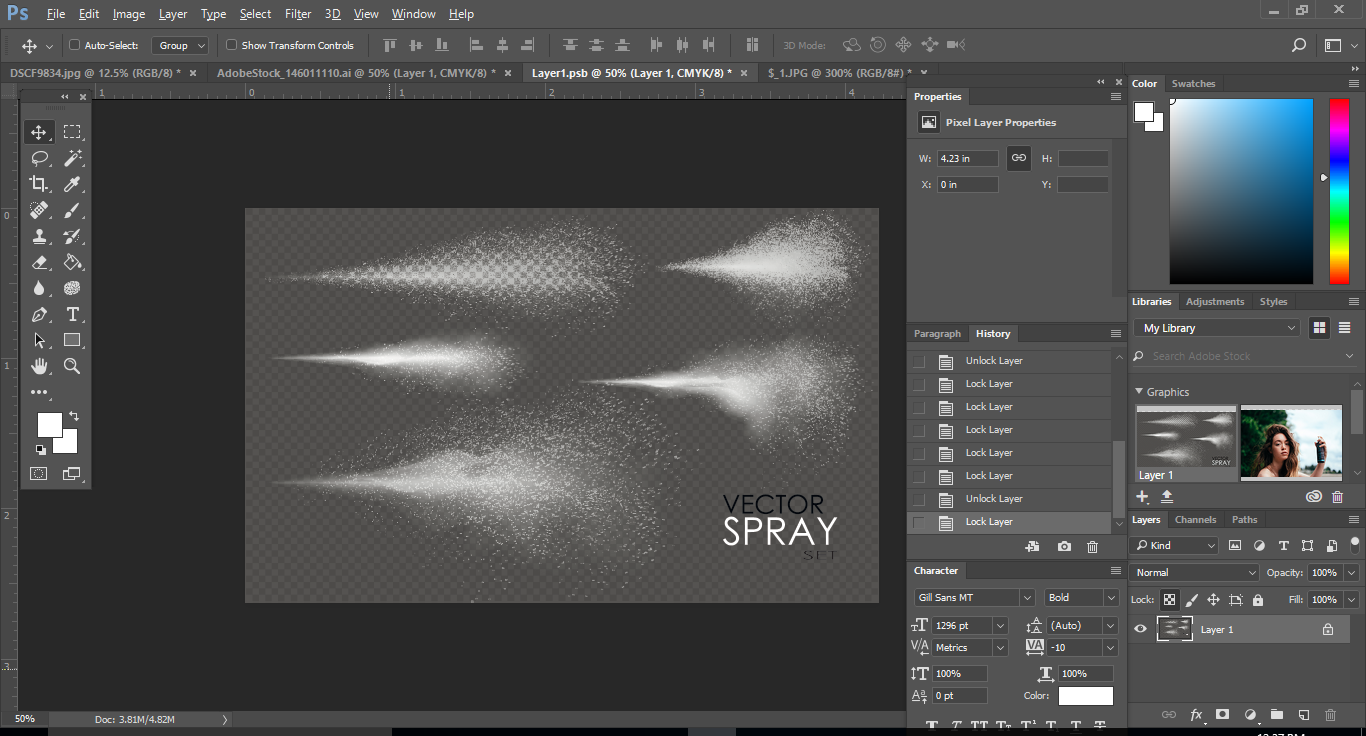
I recently bought this adobe stock images because I need to import a spray effect into one of my images. I thought this would be a transparent background but when I open it in Photoshop there is still the dark grey squared background. I can't isolate the spray effect from it.
Any way of doing this without having to have Illustrator?


 1 Correct answer
You need to open it in Illustrator and turn off the background layer.

 47
Replies
47
47
Replies
47

Copy link to clipboard
Copied
You need to open it in Illustrator and turn off the background layer.


Copy link to clipboard
Copied
Hi Nicole,
I understand your concern but as Brad mentioned you need to open the image in Illustrator.
Therefore, I have added an image credit to your account so you can license a different image instead.
Apologize for the trouble.
Please feel free to update this thread in case of any additional query.
Regards,
Twarita

Copy link to clipboard
Copied
Hello Nicole, I have the same problem, how can I contact the artist who created the image? There is no background layer in illustrator and I can't figure out how to place this image in Photoshop, I have an image of snow effect but I just want the white shini objects, nit the gray background or the checkboard background. Please help! My image number is 127572317
Copy link to clipboard
Copied
Hi Rosa,
Sorry for a delay in response. Please follow the steps below:
Step 1: Delete Checker box from layers panel.
- Expand Layer and further expand the last sublayer(Clip Group)
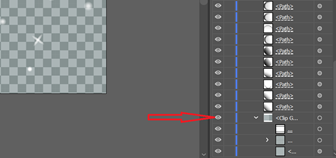
- Hide and delete checker box layer
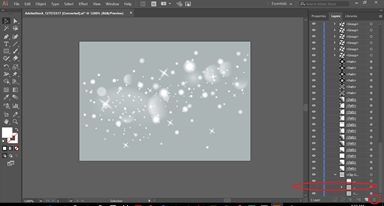
Step 2:
- Close layer one and create a new layer(Layer2) and Drag Layer 2 below layer
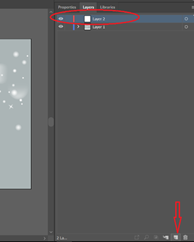

Step 3:
- Move layer(Path) to new layer(Layer 2) and hide layer one, so that we can make changes only on Path without affecting the complete artwork.
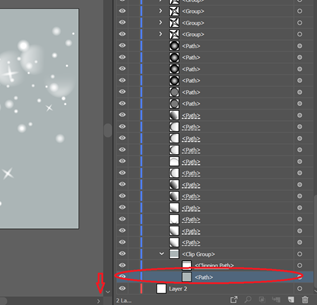
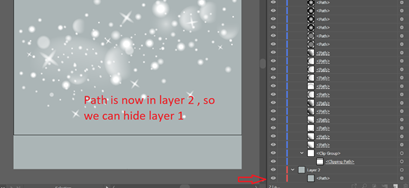
Step 4:
- Hide Layer1 and change the colour of path from layer 2 and show layer 1
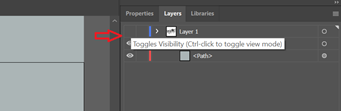
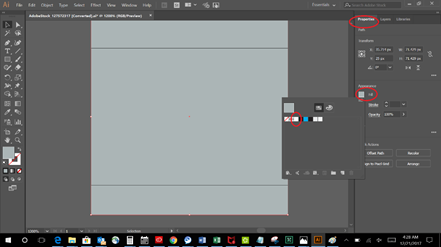
- Final output:
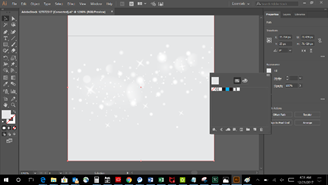
Hope this information helps!
Feel free to update this thread in case of any additional questions.
Regards
Twarita

Copy link to clipboard
Copied
Hi,
I am having the same trouble and have been trying to follow your instructions for image
| #186244437 |
Do I have to move the million separate path layers from each and every group in Layer 1 to the new layer 2? I might just lose the will to live.
Please help!
Thanks,
Maura

Copy link to clipboard
Copied
Hi Maura,
If I get your query, you are trying to remove the Transparency Grid (Checkerbox) from the image.
If yes, Please Hide/Delete Sublayer"<Compound Path>" from the last Group in the Layers panel.
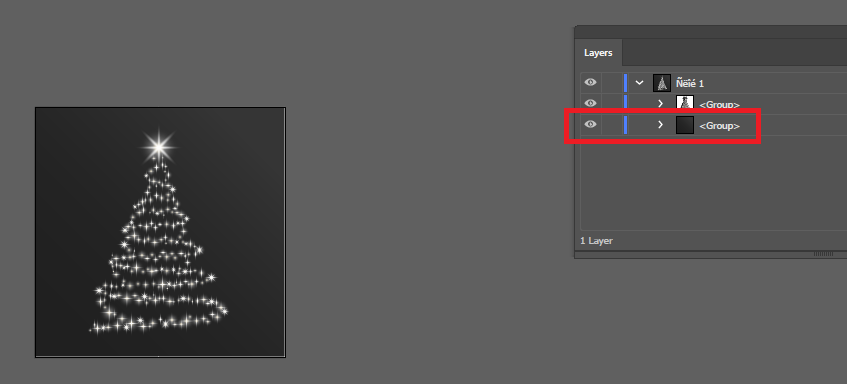
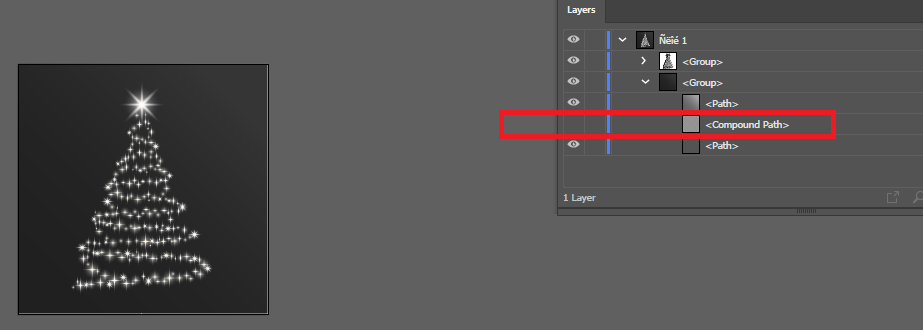
Regards,
Srishti
Copy link to clipboard
Copied
Thank you!

Copy link to clipboard
Copied
I'm having the same difficulties. I know Ps & Ai well and am a professional. The layers on multiple images do not expand in their native programs or other programs. There is no information to expand. I can't find solutions on here. It feels like it wasn't save with true layers. How do I over come this or get credit back for unusable images? Thanks
Copy link to clipboard
Copied
Hi Caitlin,
Sorry to hear about that. Please share the File IDs you are facing trouble with so that we can further assist you.
Regards
Twarita
Copy link to clipboard
Copied
Hi, Twarita! Please tell me I've simply overlooked something! #134489291 #119326624 #189620105
Copy link to clipboard
Copied
One step forward- I was able to isolate the image from the background by double clicking on the stock item in the Library and having it open in its native program. But maneuvering the isolated image breaks some of the fill treatments, specifically in #134489291. The transparent background is somehow hiding the shading layers (maybe a quirk from the version it was developed in?) So the task I'm trying to accomplish but failing at is to place something photographic behind the bubble yet none of the various routes I've taken have yeilded this outcome without sacrificing rendering of this bubble.
Copy link to clipboard
Copied
Hi Caitlin,
I am sorry for the delay in response here, can you please be a little more specific about the workflow which you are following in order to isolate the image? You can share screenshots with me as well, it will further clarify the issue here.
Regards
Twarita

Copy link to clipboard
Copied
I am also having the same issue with there being no background image to turn off. It seems to be all of the snow images...

Copy link to clipboard
Copied
Could you name the asset id? Also specify the program(s) and version you use to edit the asset.
Copy link to clipboard
Copied
...and to add to this: I would recommend to start a new thread for this as the new fora are really difficult to follow-up if someone adds to the discussion so deep into the thread.

Copy link to clipboard
Copied
Hi, i purchased file# 222626328 and if a background layer is buried somewhere in the hundreds of clipping groups, im not searching to find it. I paid for this file to save me time, not waste it. I could create this same effect in illustrator faster than it would take to find the background layer. When i purchase a license to an image that states it is on a transparent background, i expect to be able to remove that background in a quick and timely manner. If you could please credit me back for this useless file it would be much appreciated

Copy link to clipboard
Copied
Hi J. M.,
If you open the clipping path and scroll to nearly the bottom you'll find the background image. If you really want a replacement license I can grant it for you, however, it was fairly easy for me to find the background, if we're talking about the same thing.
EBQ
Copy link to clipboard
Copied
I absolutely want a credit back. The files are not labeled for easy use.
Copy link to clipboard
Copied
Hi J.M.,
I've granted you a replacement license for the asset.
EBQ

Copy link to clipboard
Copied
Hi. I also can't figure out how to remove the grid background from an image I purchased through Adobe Stock. I have tried to use Ai to remove the background as directed but I am having no luck. I have not used Ai before so maybe I just need more information/direction. In any case, it seems really ridiculous that Adobe doesn't inform buyers that the transparent backgrounds shown are not actually transparent backgrounds. It also seems like a good item to have a tutorial for. Novices like me aren't going to be able to just figure this stuff out.
Copy link to clipboard
Copied
In addition to your question, you could look for a similar .jpg image that has a solid black background and then when you place it into photoshop use the 'Blend If' sliders on the mist layer and adjust it slightly from the black slider and all the black will disappear leaving you with the mist. You even have more control using the sliders to achieve more or less mist.

Copy link to clipboard
Copied
I am having trouble too. I need icons on a transparent background to place on a coloured background. I bought a card of related icons, but when I cut the icon I wanted away from the others (using PS cc) and placed it on my design (I am using InDesign), it is still on it's white background. I need it transparent so it doesn't show the white behind. I tried searching on 'transparent icons' in Stock, but what came up were not designs I wanted. Can anyone suggest how to get icons that have a transparent background? This is crazy, there must be a way. Thanks in advance
Copy link to clipboard
Copied
Hi Liz,
Sorry for the trouble you have been facing. Would you mind sharing the file ID which you are referring to?
Regards
Twarita

Copy link to clipboard
Copied
Hey, I'm having a similar problem with vector image I purchased from Fotolia. The picture is "Snow Blizzard Effect on Transparent Background Vector Illustration. Abstract bright white shimmer g... on older version of AI (CS6)I saw layers: 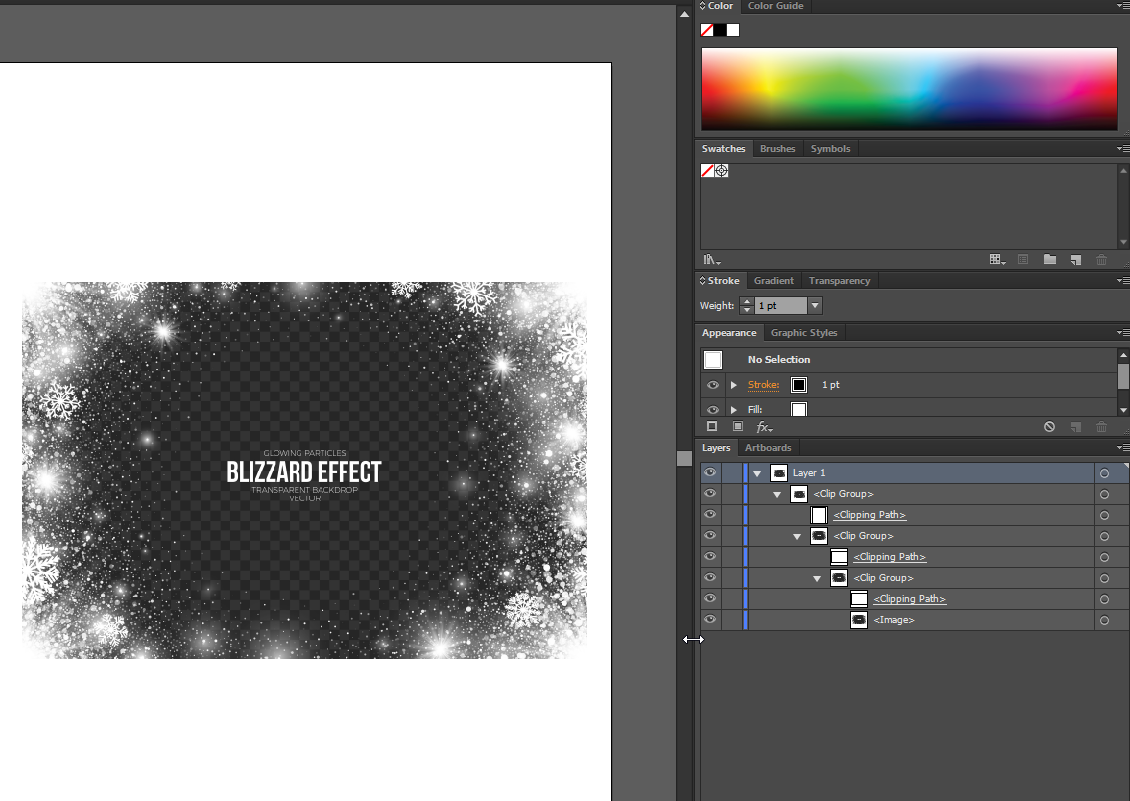
On the newer version it looks like this:
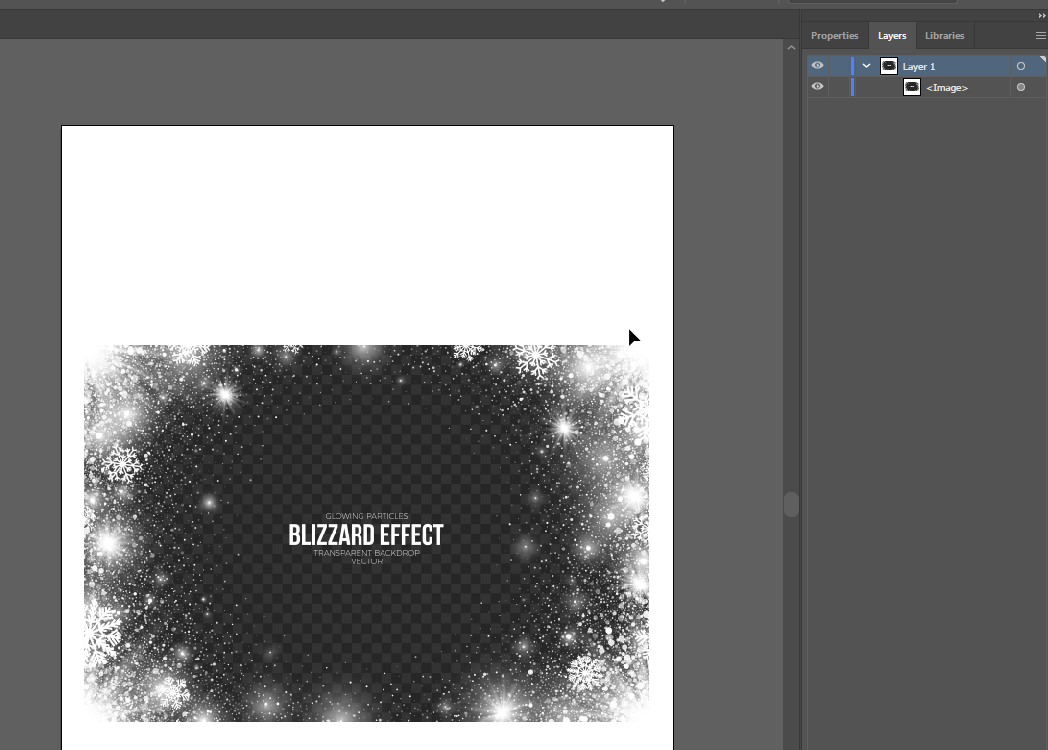
How can I make the image really transparent?

-
- 1
- 2

Find more inspiration, events, and resources on the new Adobe Community
Explore Now
 AdChoices