
Participant
February 3, 2018
Answered

How do I see what images I've bought and prove I bought them with a standard license?

  • February 3, 2018
  • 1 reply
  • 11904 views

Hello,

How do I see what images I've bought and prove I bought them with a standard license? I know I did, but I want to have the evidence to prove it should I need it.


With thanks

Sonia
This topic has been closed for replies.
Correct answer Abambo

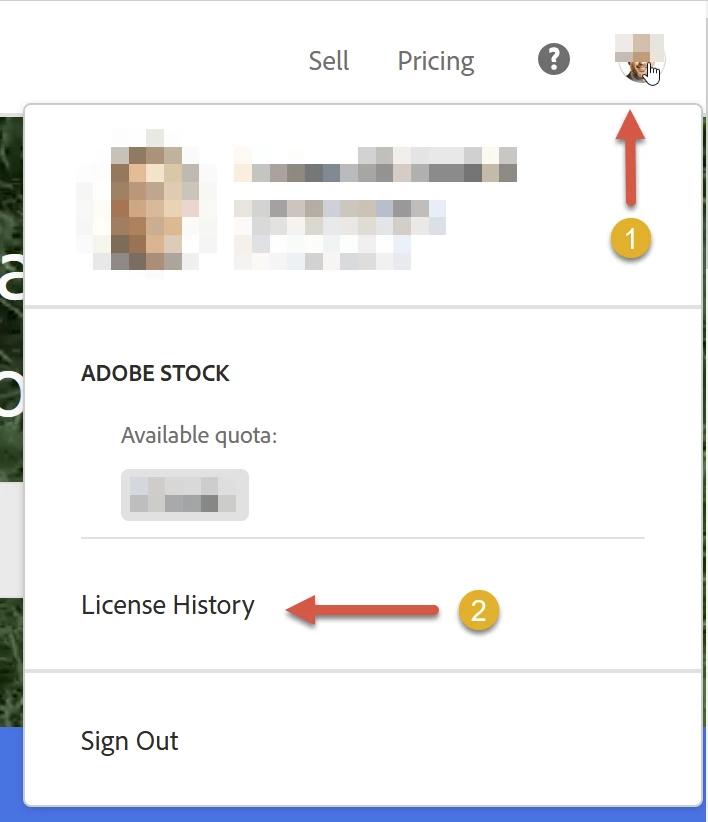
On https://stock.adobe.com click your avatar (1) and then “Licence History” (2). So basically, it's still the same:

A shortcut would be this link: https://stock.adobe.com/Dashboard/LicenseHistory


1 reply

twaritar3263062
Participating Frequently
February 5, 2018

Hi Sonia,


Thanks for reaching out to our Stock team. The images you have purchased can be viewed in your license history. Please follow the steps below as shown in the screenshot.


  • You must sign into your Stock account and login with your Adobe ID and password.

Click on the license history.

  • Once you are on the license history page, you can view the File ID as well as the license type you have purchased.


Also, you will be able to find the proof of your purchase from the invoices, kindly follow the steps shared in the link below:

Print a copy of the invoice for your Adobe Creative Cloud subscription.


Hope this information helps!


Feel free to update this thread in case of any additional questions.


Regards

Twarita


[Moderator deleted private information. Please do not post private information like e-mails and phone numbers]

Participating Frequently
June 7, 2023

On a mac using Chrome. I'm logged into my Stock.adobe.com account, but it looks nothing like your screen shot and I do not see "license history" anywhere. 

Jill_C
Community Expert
Community Expert
June 7, 2023

You are responding to a post that is 5 years old. I suppose the user interface has changed during that time. It's a web-based syste, so we all see the same screen regardless of OS.

Click "My Libraries" in the upper right corner if your Buyer account. Then on the left side just above the images, select the drop down option for "Licensed only".

Jill C., Forum Volunteer