Inspiring
September 23, 2022

Importing OBJ or fbx files in Stager problem

  • September 23, 2022
  • 4 replies
  • 848 views

I try to explain my problem:

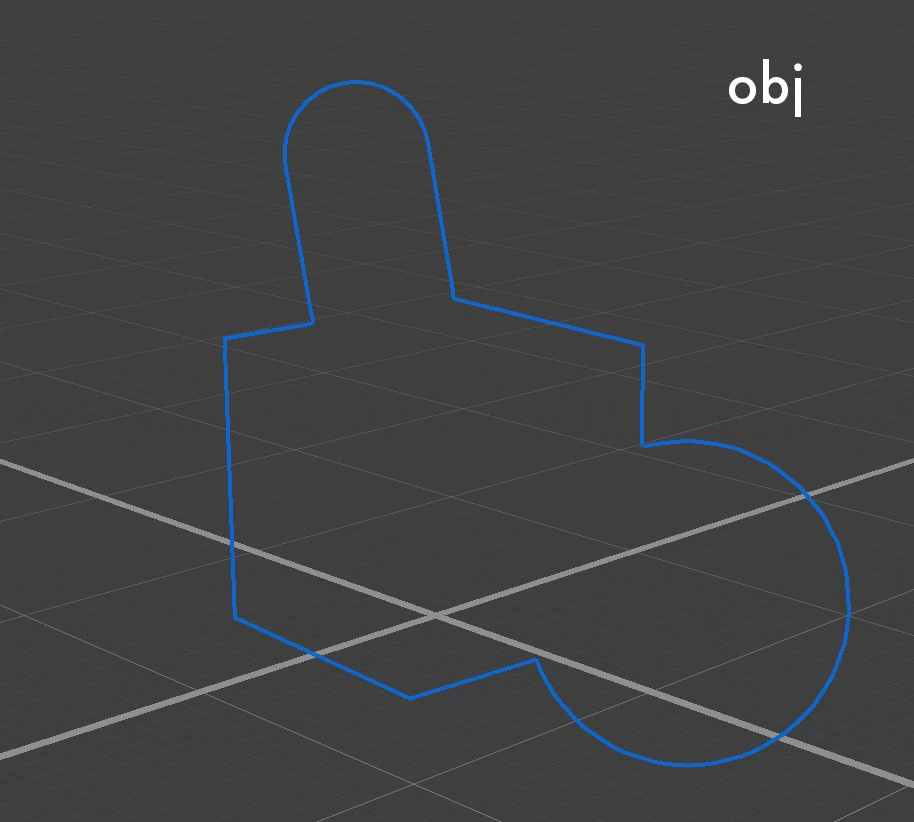
Building my meshes in Cheetah3D and exporting as OBJ and FBX

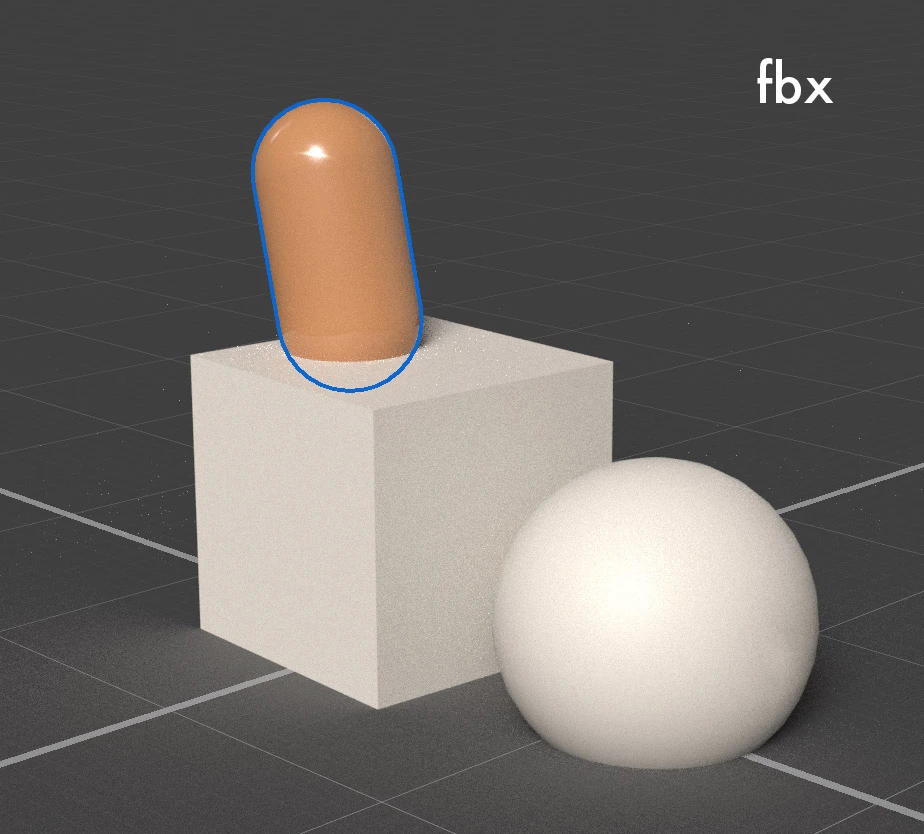
Importing OBJ in Stager shows the mesh with all materials transparent

(of course i can click each material and set the slider from transparent to 100% visible but thats just a bad solution)

Importing the same mesh as an FBX shows the mesh but i cant aply a material proper because its just showing the main color of it...

My workaround (bad solution):

I open the OBJ File in painter (no problem), put on the different materials and send it to stager...

If i open my FBX file in Painter, i have the same problem like i have in Stager - i cant place materials on it because it just shows the Main color of the placed material.


Is it a problem of my exported obj/fbx file from cheetah3d?

I try to set a download link of that simple file:https://immo-pano.de/Untitled.fbm.zip 
    4 replies

    Inspiring
    September 23, 2022

    One of the meshes (the ball) was refering to a png file, the others just standard greys when exported.

    But the same happens just with a singe Mesh in standard grey...

    Inspiring
    September 23, 2022

    I did , i sent the files.


    Ares Hovhannesyan
    Community Expert
    Community Expert
    September 23, 2022

    I have such problem with obj object exported from Marvelous Designer and Adobe Fuse. The solution that I fins is to export JPG Maps not in png format. SOmetime png are not rendered correctly in Dimension and Stager.

    Adobe Employee
    September 23, 2022

    Hi @Laas Tietje! It sounds like there might be something weird happening when you exported the mesh from Cheetah3D. 


    We are not able to diagnose working files directly on the forum website. Can you email the Stager log file and Stager scene with the imported meshes to Substance3d-bugs@adobe.com. If the file is under 20 MB you can attach it directly to the email.  If it's larger, you can send via a file transfer link like Creative Cloud assets, Dropbox, We Share, One Drive, Google Drive, or similar.