
Participating Frequently
July 18, 2017
Question

Lost media file path / unable to map or relink

  • July 18, 2017
  • 4 replies
  • 6943 views

Hi,

We tried the Team Project but I think that since it's still in beta, we will wait a bit to jump in completely.

I'd like to share one problem that we had with the media management / mapping / relinking.

The fact that you can have both of mapping media and "make offline", and "relink" medias in the team project may create new kind of bug like the one we had.

First time my client started the Team Project, I had succesfully mapped the media, all was linked. The day after, he called me and all the media were all offline, ( I don't know what wen't wrong, only closed and restarted Premiere) So I did try to do the same thing, but no luck. Mapping to the folder we're the medias were would not reconnect...

I didn't know what to do so I tried to force offline the media by right clicking on the bin folder in Premiere (Make Offline). Tried to relink with link media option... but all the file path/tape name/file name infos of every medias we're... gone!
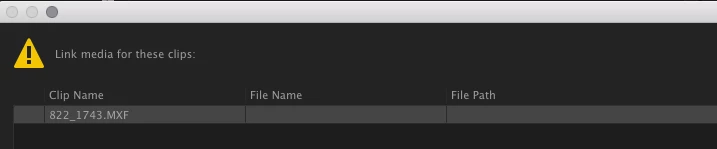
I know that we should not be relinking like that but I did not know what else to do... If I would to a search for the media automatically it would not find it. I had to get it manually and force it, that way it reconnected the media. Maybe it was too big for a Team Project but i was not going to manually reconnect 3000+ medias for a Documentary. Only option was to go back in history , but again, the history project is so so not very intuitive (a small slider in the Media Browser that appear only if you click on the project?)

Anyway I wasn't able to get the media back online so I tried to convert the project to a normal one. Here is the same window for the relinking media.

So at that point, after 2 days, I came back to the original project that I had in backup (a normal project) sended it to the client and told him we would work with the old method...

I would be more happy to try on a smaller project, with my colleague, under the same roof. But for now, working with distant client for a documentary, I think I will wait!

My thoughts with the mapping tool... well I find it is not very friendly, vs the link media tool that is more straightforward. Maybe it should be adapted to be under the same place ?

Thank you.

This topic has been closed for replies.

4 replies

KeithH_RTN
Participating Frequently
May 11, 2018

Are you also aware of video files that are imported only showing up as audio as well?

Adobe Employee
May 11, 2018

Does the video show up when you import to a local Premiere project??

KeithH_RTN
Participating Frequently
May 11, 2018

It was a local saved project. When I selected properties it showed the video info but only had the audio icon and you couldn't view the video. I re encoded the file (h.264) with the same settings as the original and it was fine when reconnected

KeithH_RTN
Participating Frequently
May 9, 2018

If none of those methods work, we've had some luck with removing proxy media and relinking after that. We would basically relink twice, once to the "proxy media", which was actually the original media, and then again to the original media or transcoded media. That was after converting the project to a physical copy. Good luck...

PeterELee
Adobe Employee
Adobe Employee
May 9, 2018

Not sure if this is what's happening here, but some users of Premiere Pro on Mac OS 10.11 have reported certain media files going off-line, seemingly at random, in both standalone Premiere projects and Team Projects. In some cases, cleaning their media caches fixed the problem. See FAQ: How to clean media cache files? for instructions.

austinh166267
Participant
March 7, 2018

I have this same issue in the latest version of Premiere CC 2018 (12.0.1). It looks like Premiere does not convert the file paths when you convert out of team project, or when you save to FCP .xml - the media still references the Team Project database.

The converted project works fine on the computer where I had first used it as a team project, but when I try to open it on another editing station, all the media appears to be offline. I believe this is because the Team Project database is stored locally.

The only workaround I've found for this is manually re-linking each and every file. This is terrible, and not a true "conversion." Please fix this, Adobe, or we will never be able to use Team Projects in production.

James Brady
Participating Frequently
March 20, 2018

Same Team Project problem here, with a different twist:  All media went offline in a local project two days after I had converted it from a team project.

I'm opening it on the same system, same drives, etc... not sure what changed between days, but either way the real issue at the heart of this is that wen you convert a local project to a team project, the location and names of all your media are given some sort of randomly-assigned "cloud" name and location.

The part that doesn't make sense:  These new designations and locations remain even after the project is converted back to a local project.  Now, re-linking wouldn't be too bad if the original file names were preserved, because you could make use of the "display only exact name matches" function and voila.  Alas, as you can see, while the original file names are still exist within the path, there are a lot of other new random characters.

So unfortunately, I concur with the above workaround -- we must manually re-link all media. For now. 

To Adobe:  Nice beta so far.  Let's see what you've got in mind to fix this so it can be used for real work.

Participant
March 20, 2018

I found a solution. In my case a coworker was working in the project and something happened i guess where it saved the project locally then the next day when we went to go into the project the media would not connect on the local or team project. We tried everything you can imagine to batch reconnect files and as you guys are experiencing, nothing worked.

Solution... In the local project. Highlight all media in all sequences and right click and press offline. I know that they are already offline but just to make sure it is important that they are. Then make a brand new project and click and drag just the sequences you want to carry over. Because the media is offline this should only take a couple minutes to perform the transfer (If I do have all the media linked premiere will stop responding trying to copy it all over, and only responds again after an hour or so). Then in the new project, the sequences will bring all related media with it. Since our project was already picture locked that was fine for us. I have not tested dragging the media over independently from the sequence but I think it would still work. I guess the corrupted file paths are reset or something because the link media feature will now work. From there you can go Edit>Team Project>convert to team project and you are back in business.

I also tried one more step before doing this that might have contributed to it's success. one of those "I tried a lot of things and I'm not sure what it was that helped". If this doesn't work alone. Reply to this and I will add that part.