robertstonefilm
Known Participant
May 20, 2017
Answered

Team Project won't save

  • May 20, 2017
  • 17 replies
  • 19721 views

For the past 24 hours my team project will not sync with creative cloud. This icon is in the lower left hand corner.

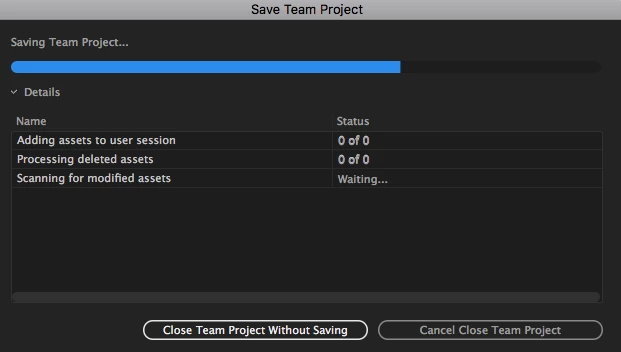
If I try to close the Team Project I get frozen in this window:

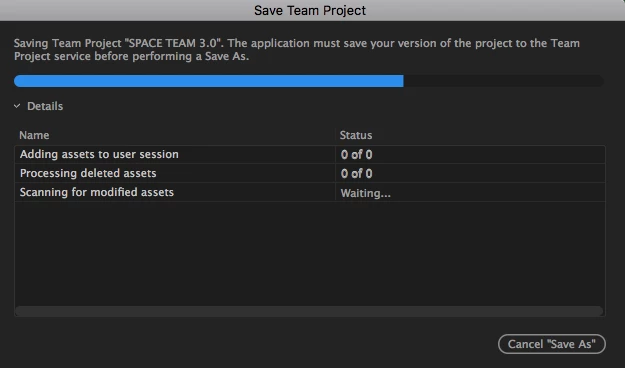
If I try to save it as a Premier project I get frozen at this window:

The only way to close down is to force quite but how can I be assured that I won't lose all my work?

This has been happening many times over the past week.

Correct answer jhunternolan

Neil,


I was just able to solve the problem.


Things I tried-

- Starting Premiere with no drives plugged in - fail

- Quitting and forcing save - fail

- Getting uninvited and revinted to team project - fail

- Every way of saving locally / saving to teams - fail

- Deleting autosave folder in Adobe Cloud Folder - fail


- GOING INTO CREATIVE CLOUD AND SELECTING A PREVIOUS VERSION (from 22.5 to 22.4) - WIN


Don't ask me why but after 2 weeks of asking people, digging in forums, and speaking with AE's, a simple version downgrade unclogged the pipe and let me in.  I now have a backlog of local saves that it's trying to upload when I share changes but I will have the team reject them and reshare their version of the project with me in the morning.


Cheers, hope this is helpful!


Sorry, to be clear, I replaced my install of Premiere (inside of creative cloud desktop app) with version 22.4 (I was on version 22.5) and that is what did the trick.

17 replies

Participant
June 22, 2021

I just lost all my morning work due to working with team projects, same error, there's no fail safe to save at least a local backup or warn you about you're about to loose all your work before hit cancel the share thing....

Adobe Employee
June 22, 2021

Hi, 

every edit you make in a Team Project is saved to a local database. 
Have you tried to browse the local changes you made in the morning in the Media Browser - View and restore auto-saves ?


-Udo

Udo Pawlik  |  Sr Software Product Quality Specialist |  Adobe  |  upawlik@adobe.com

Participant
June 22, 2021

Personally, when I got this error the local database had also failed to save the changes, so going through the previous versions and changes in the media browser would only show me older saves from previous days. 

Usually lost at least an hour of work at a time and had to start over. 

Participant
July 14, 2020

This just happened to me July 14, 2020. Very frustrating.

Participant
July 13, 2020

Definitely not fixed, in 2020, and I'm super pissed now. I'll have to force quit. And I'm going to lose all of that work?!?

WOW.

Been using adobe for 15+ years, always recommended it to everyone. I will now warn everyone to stay far, far way.

I had a deadline.


EDIT::::

I didn't end up losing too much. still, this has been a headache from day one. 


Participant
March 19, 2019

Hello,

I am having the same problem.  For the last few days my team project will not save.  I cannot share any changes or convert it to a normal project because it will not save at all.   It's incredibly frustrating, I can't get anything done.  Would you be able to walk me through finding the bug?

Thanks

PeterELee
Adobe Employee
Adobe Employee
March 19, 2019

I'm sorry to hear that you're running into this issue. Can you try the following?

1. Launch Premiere Pro

2. Create a new project (can be either a standalone project or a Team Project -- it's temporary)

3. In the Media Browser, browse to the Team Project that's having trouble auto-saving (it should be under "Creative Cloud/Team Projects Versions")

4. Right-click on the Team Project and choose "Make New Team Project from Version..."

5. Open the copied Team Project and see if it auto-saves new changes successfully.

If you have a lot of unshared changes, you can also create a new Team Project from an Auto-Save instead of a shared version. To do that, switch to the "Auto-Saves" tab in step 4 and choose "New Team Project from Auto-Save..." when right-clicking the Team Project name.

The next Creative Cloud release will contain a fix that should hopefully make these workarounds unnecessary.

Participant
October 1, 2024

Still not fixed haha!

PeterELee
Adobe Employee
Adobe Employee
December 18, 2018

taylorp67545410​ What version of Premiere Pro are you using? Also, roughly how many media files are in your Team Project? One situation I know of where auto-save can take more than 5 minutes in the current release (Premiere Pro 13.0.2) is when you import or make metadata changes to a couple thousand media files at once. In those cases, it's usually advisable to let it keep churning along, and the auto-save will complete eventually once it has inspected all of the new or updated media files on disk and updated the database. We're working on improving the performance in those situations.

You can force the auto-save to move faster by attempting to close the Team Project. The auto-save code normally does its best to stay in the background so as not to interfere with your editing, but if you close a Team Project it will put up a progress dialog and work more aggressively.

In earlier versions, importing specific types of clips from other Team Projects or standalone projects could prevent auto-save from completing. Certain merged clips and multicam sequences were especially problematic. All of those issues that I'm aware of have been fixed in 13.0.2.

Participant
December 19, 2018

I'm running the most current version of Premiere so that would be (Premiere Pro 13.0.2).  But yes, it has been getting stuck on the save team project dialogue box above after I would try to import a ton of file changes.  I'll see what happens if I just let it sit and load, but I'm guessing it's just going to sit and not budge.

PeterELee
Adobe Employee
Adobe Employee
December 19, 2018

Good to know. As mentioned above, speeding up the initial auto-save after importing a large number of files is an area we're actively working on. It's tedious, but you might also have better results if you import the files in smaller groups, say a few hundred at a time, then wait for the asterisk in the Premiere title bar to go away, indicating that all changes have been auto-saved, before importing the next batch. The background processing that goes on when a media file "comes online" after an import can cause the auto-save operation to restart, so the more files there are, the longer it takes before an uninterrupted auto-save can succeed.

Participant
December 18, 2018

Yeah this happens a lot to me in Premiere Team Projects.  I get an error message that says Premiere could not auto save within the past 5 minutes and right after that error I'm not able to share my changes   I'm forced to convert it to an offline project which defeats the purpose of team projects all together.  So I don't think this bug is fixed.

Participant
February 26, 2021

This is what's been happening to me all week 😞 

robertstonefilm
Known Participant
May 21, 2017

UPDATE: When I tried to close the project I got stuck on this window:

I had not choice but to force quit.

When I went to reopen the Team Project I had LOST 2 DAYS OF WORK!!!!!

The same thing happened to my partner on this Team Project a few days ago.

HOW CAN THIS HAPPEN?

epic_travis
Participant
June 15, 2020

This exact same thing just happened to me in After Effects 2020. Lost about a weeks worth of work bc I had to force quit and didn't realize the file never actually saved the whole time I was making edits. Super frustrating and looks like they have not fixed yet.

Participating Frequently
August 26, 2022

This is STILL happening as of today - 8/26/2022 on Version 22.5.0 (Build 62).

Our entire production company will be moving to Davnici Resolve soon because they actually provide a quality product that WORKS and so far, they seem to care when customers aren't happy.