anaspixelz
Participant
June 1, 2026
Answered

Suitable AE Version

  • June 1, 2026
  • 2 replies
  • 35 views

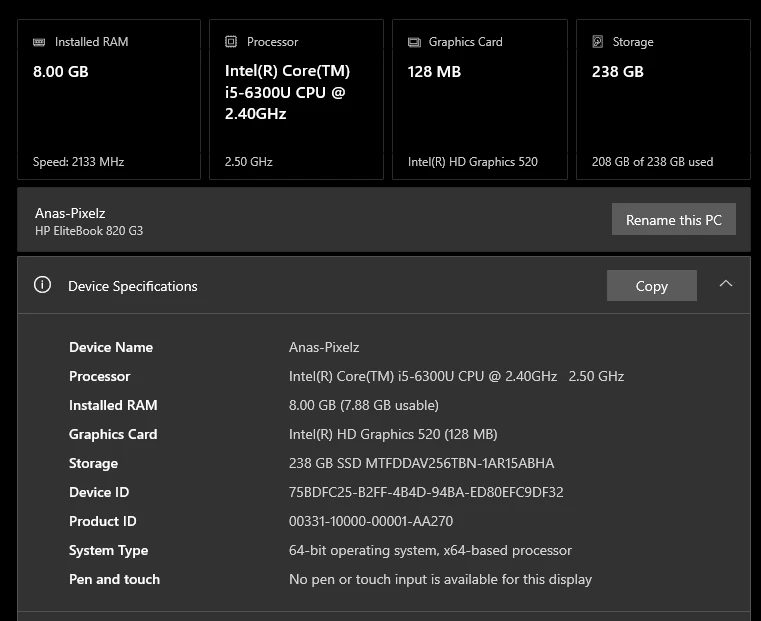
Please which after effects version is suitable for my laptop. i like to do edits, minimal motions and 3d. 


Correct answer Warren Heaton

Hi ​@anaspixelz:


You can work with After Effects 25.x or 26.x.  After Effects 26 has improvements specifically for computers with low RAM.  


With these system specifications, I would stick to the following:

  • Close other applications before launching After Effects.  This includes web browsers.  If following online training, try running that from your mobile phone or tablet.  This also applies to other Adobe applications that you will likely be using like Photoshop, Illustrator, Premiere, and Media Encoder.  When switching to Photoshop, save and close After Effects and then open Photoshop.  When you are ready to return to After Effects, save your work in Photoshop and then close it and the open After Effects.  Same goes for when switching to Illustrator, Premiere, or Media Encoder.  Media Encoder is a little different in that we tend to send Composition to Media Encoder while After Effects is open.  Save your After Effects project, send the Comp to Media Encoder, but then close your After Effects work immediately.
  • Work in Compositions at 1920 by 1080 (Full HD) or 960 by 540 (Half HD) at 30 frames per second, 25 frames per second, or 24 frames per second with short durations (15 seconds or less, but try to keep 30 seconds at the upper limit).
  • Set the Composition Resolution to Auto and the Magnification to 50% or 25%.  This automatically sets the resolution to Half or Quarter respectively, reducing the memory required for rending the frame.  You can also set this manually.  
  • For Previews, use Shift Numpad 0.  This skips 1 frame, allowing for longer Previews with less system memory.  Consider changing this to 2.  If you prefer to use Spacebar, you can change the Skip option for Spacebar from 0 to 1 or 2 in the Preview panel.
  • Keep an eye on the Composition profiler column in the Timeline panel.  This shows exactly that is slowing things down as you work.
  • For rendering sample movies, customize and save the “Best Settings” Render Settings template such that the Resolution is Half or Quarter instead of Full.  Name it something like ‘Best Settings - Half”.  Also customize the “High Quality” Output Module template such that it uses ProRes 422 Proxy instead of ProRes 422, naming it something like “Proxy Quality”.
  • Be mindful that when rendering Best Settings / High Quality or Best Settings / H.264 - Match Render Settings - 5Mbps that it may take a long time - especially compared to customized Render Settings templates and Output Module templates.
  • An important note:  It is possible to get out of memory errors when rendering at Best Settings while having been working just fine at Half Resolution or Quarter Resolution.  In those cases, you will have to move the project to a computer with higher system specifications.


Even if you were to be able to install an older version of After Effects, you would still want to follow these guidelines.

 

2 replies

Warren Heaton
Community Expert
Warren HeatonCommunity ExpertCorrect answer
Community Expert
June 3, 2026

Hi ​@anaspixelz:


You can work with After Effects 25.x or 26.x.  After Effects 26 has improvements specifically for computers with low RAM.  


With these system specifications, I would stick to the following:

  • Close other applications before launching After Effects.  This includes web browsers.  If following online training, try running that from your mobile phone or tablet.  This also applies to other Adobe applications that you will likely be using like Photoshop, Illustrator, Premiere, and Media Encoder.  When switching to Photoshop, save and close After Effects and then open Photoshop.  When you are ready to return to After Effects, save your work in Photoshop and then close it and the open After Effects.  Same goes for when switching to Illustrator, Premiere, or Media Encoder.  Media Encoder is a little different in that we tend to send Composition to Media Encoder while After Effects is open.  Save your After Effects project, send the Comp to Media Encoder, but then close your After Effects work immediately.
  • Work in Compositions at 1920 by 1080 (Full HD) or 960 by 540 (Half HD) at 30 frames per second, 25 frames per second, or 24 frames per second with short durations (15 seconds or less, but try to keep 30 seconds at the upper limit).
  • Set the Composition Resolution to Auto and the Magnification to 50% or 25%.  This automatically sets the resolution to Half or Quarter respectively, reducing the memory required for rending the frame.  You can also set this manually.  
  • For Previews, use Shift Numpad 0.  This skips 1 frame, allowing for longer Previews with less system memory.  Consider changing this to 2.  If you prefer to use Spacebar, you can change the Skip option for Spacebar from 0 to 1 or 2 in the Preview panel.
  • Keep an eye on the Composition profiler column in the Timeline panel.  This shows exactly that is slowing things down as you work.
  • For rendering sample movies, customize and save the “Best Settings” Render Settings template such that the Resolution is Half or Quarter instead of Full.  Name it something like ‘Best Settings - Half”.  Also customize the “High Quality” Output Module template such that it uses ProRes 422 Proxy instead of ProRes 422, naming it something like “Proxy Quality”.
  • Be mindful that when rendering Best Settings / High Quality or Best Settings / H.264 - Match Render Settings - 5Mbps that it may take a long time - especially compared to customized Render Settings templates and Output Module templates.
  • An important note:  It is possible to get out of memory errors when rendering at Best Settings while having been working just fine at Half Resolution or Quarter Resolution.  In those cases, you will have to move the project to a computer with higher system specifications.


Even if you were to be able to install an older version of After Effects, you would still want to follow these guidelines.


Community Manager
June 1, 2026

Hi Anaspixelz,
Thanks for your post and for sharing your system specifications. Super helpful!

After Effects should install and run on this system, but you may run into some performance limitations depending on the type of projects you're working on.


A few things that stand out:

  • 8 GB of RAM is on the lower end for current versions of After Effects. Simple projects may work fine, but more complex compositions, larger footage, or multitasking can slow things down.

  • The Intel HD Graphics 520 is an integrated graphics solution, so some GPU-accelerated features may not perform as smoothly as they would on a system with a dedicated graphics card.

  • Your SSD is a plus, although you may want to free up some additional space since After Effects uses storage for cache files and previews.


If you're just getting started with After Effects or working on smaller projects (basic motion graphics, text animation, simple compositing, etc.), I'd encourage you to give it a try and see how it performs with your specific workflow.


You may also find it helpful to review the current After Effects system requirements and recommended specifications:
https://adobe.ly/4fUgEP2


If you're experiencing a specific issue—slow previews, rendering problems, crashes, or something else—let us know more about the project you're working on and we'll be happy to help.


That's about the sweet spot: helpful, not gatekeeping, gives them a resource, and invites them back with more details if they run into trouble.


Thanks,
Kevin

anaspixelz
Participant
June 2, 2026

so which version do u think i should download

Community Manager
June 2, 2026

Hey there!

If it were me, I’d get the latest version. However, keep in mind that you are capable of doing mainly simple projects. Let the community know how it goes. I hope well! Best of luck.


Cheers,
Kevin