
JohnColombo17100380
Community Manager
Community Manager
February 23, 2026
News

Introducing Quick Apply — Now in Public Beta
  • February 23, 2026
  • 13 replies
  • 1920 views
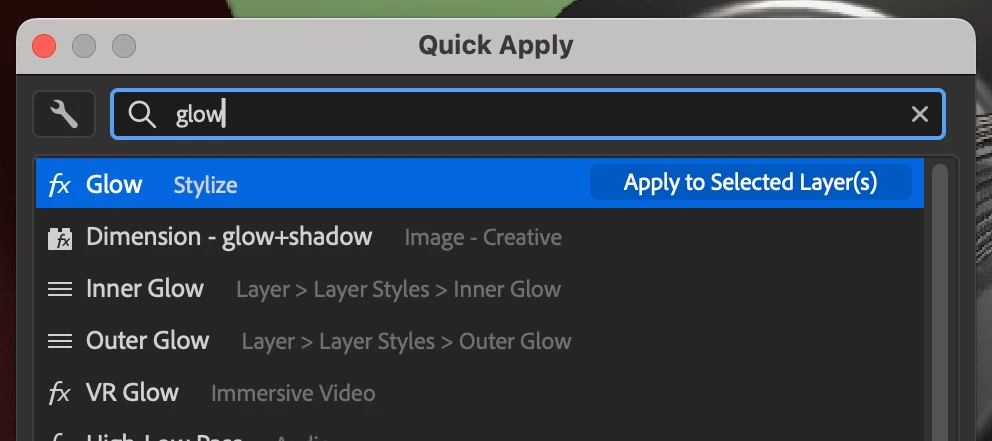
Quick Apply dialog in After Effects

Hi all!

We are very excited to unveil Quick Apply in After Effects (Beta) 26.2.0.30 or higher. Quick Apply is a search box that puts every effect, animation preset, and menu command right at your fingertips. Type a few characters, pick what you want, and apply or run it. It’s that simple.

  • Effects — Search by name or category and apply to the selected layer, or create a new Solid or Adjustment layer with the effect already applied.
  • Animation Presets — Search and apply text presets and other animation presets to the selected layer, or to a new layer or adjustment layer.
  • Menu Commands — Search and run any top-level menu command, including access to blending modes, installed scripts, and preferences.
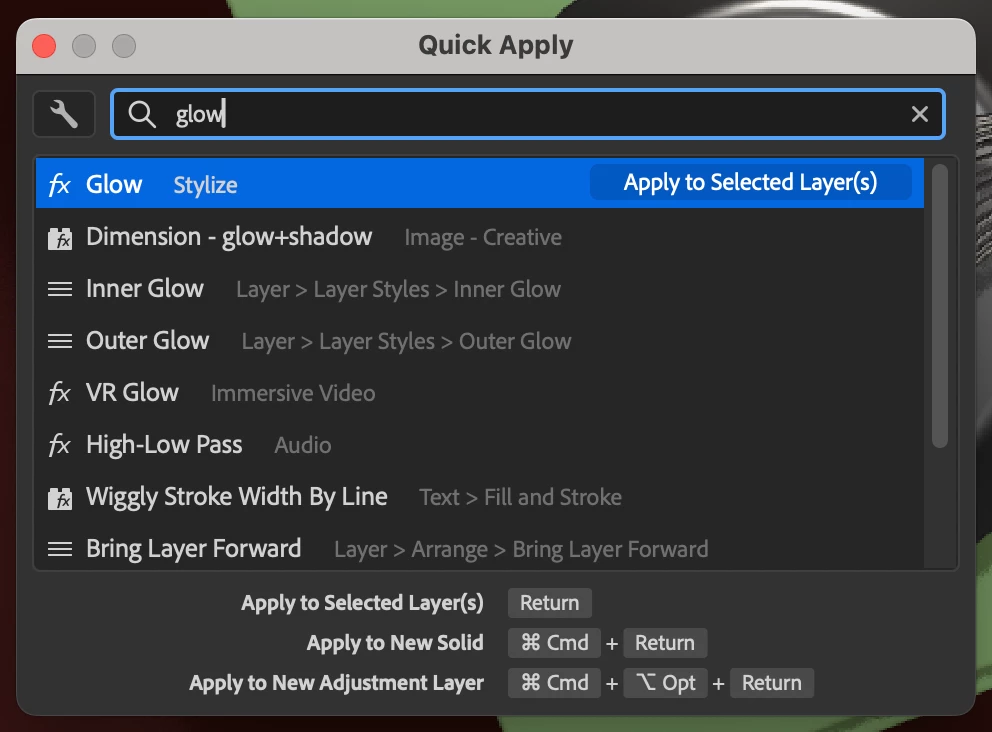
Showing result for “glow” in Quick Apply

To open the Quick Apply dialog

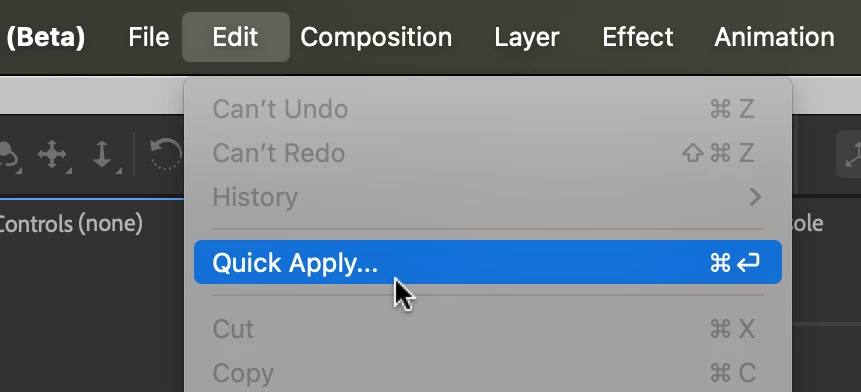
  • Edit menu > Quick Apply
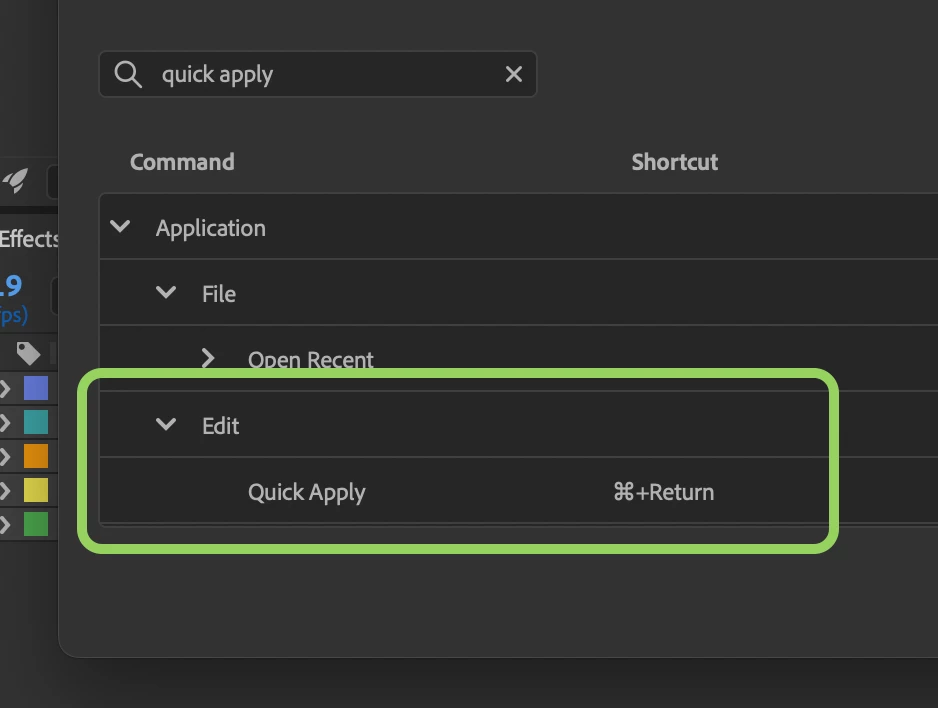
  • Ctrl+Enter (Windows) / Cmd+Return (macOS) — the shortcut can also customized.
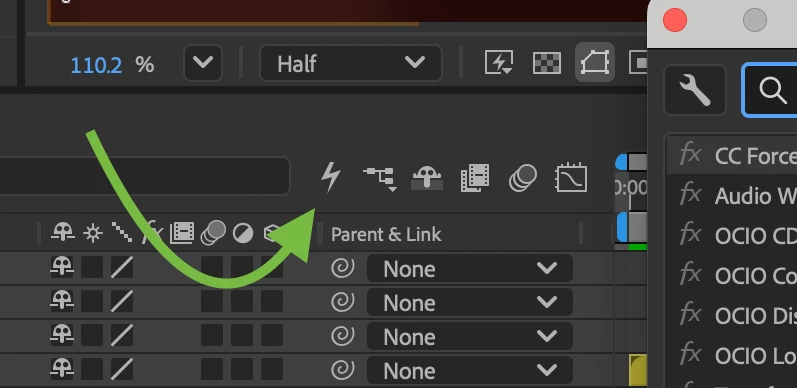
  • The Quick Apply button in the Timeline (between the search field and the mini-flowchart button).

The search box will be focused when the dialog opens, so you can start typing your search right away.

In the Edit Menu Keyboard Shortcut In the Timeline


Search, Apply, & Modifier Keys

  • Search for items by their name, menu, or category. Results update as you type. Searching is fuzzy and sorts results by the closest match.
  • Select an item in the list, then apply or run it by pressing Enter, clicking Apply/Run, or double-clicking. You can use the up ↑ and down ↓ arrows to change selection in the list, but left ← and right → arrows allow you to keep editing your text if needed.
  • Modifiers (Effects and Presets): Hold Ctrl (Windows) / Cmd (macOS) and press Enter to create a new solid or layer with the effect or preset applied. Hold Ctrl+Alt (Windows) / Cmd+Option (macOS) and press Enter to create a new adjustment layer. The hint area at the bottom of the dialog shows these options when you have an effect or preset selected.
Apply to the selected layer(s) Create new layer Add as adjustment layer


Settings & Filters

Use the Settings (the wrench icon) menu in the dialog to select the categories of results you want shown in your search.
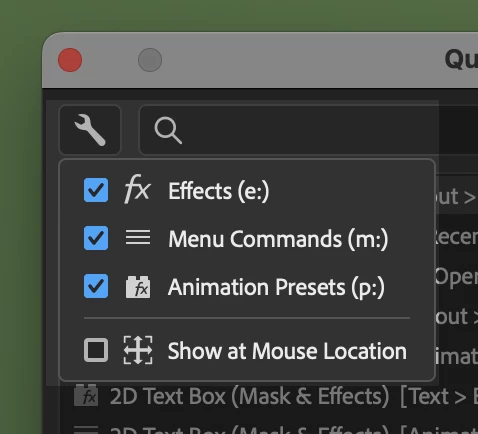
Settings menu in Quick Apply


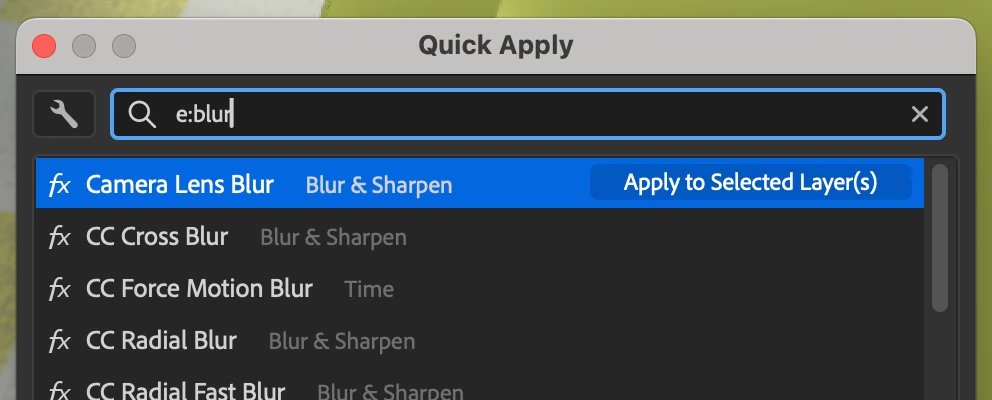
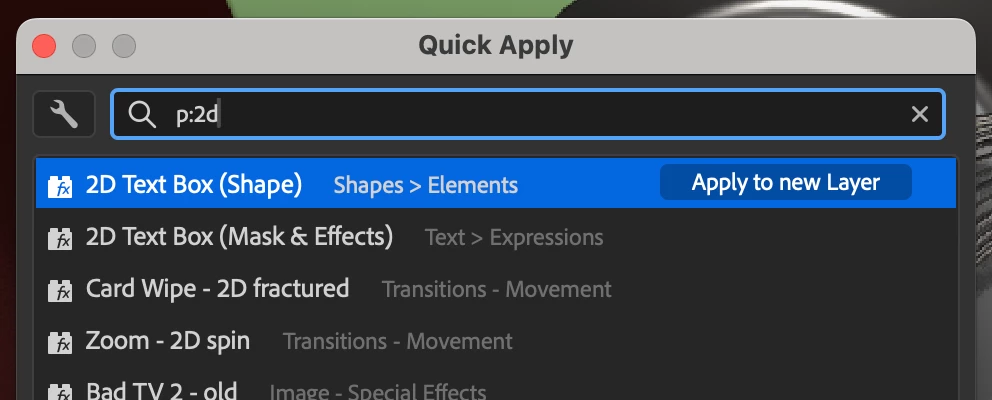
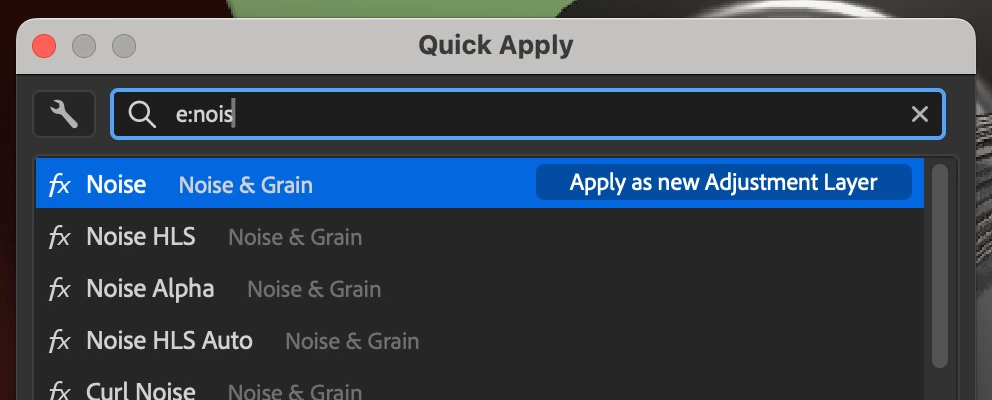
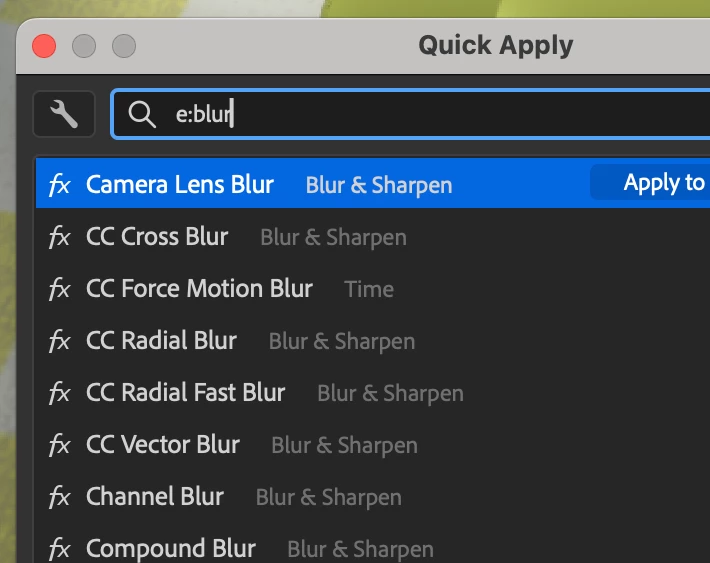
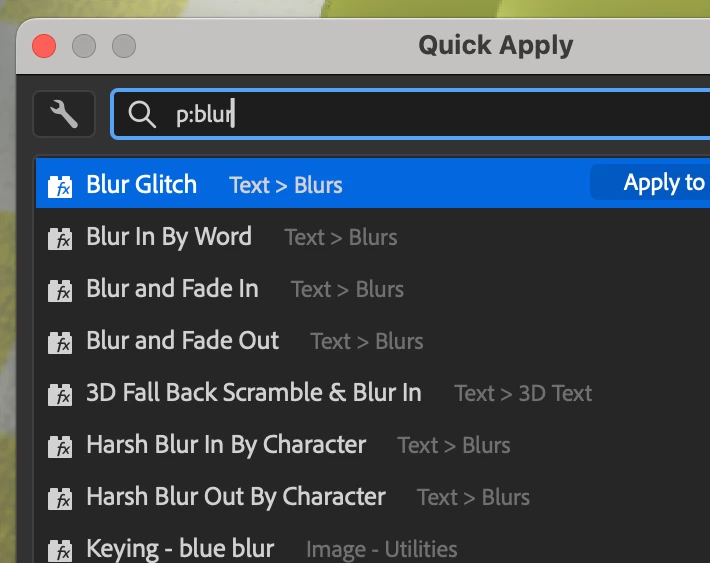
You can also type e:, p:, or m: at the start of your search to limit the result to only effects, presets, or menu commands.

Start search with e: for only effects Start search with p: for only presets


Select where the Quick Apply dialog will appear when you open it—either in the most recent location (default) or next to your mouse (enable "Show at Mouse Location").


We want your feedback

Quick Apply is in Public Beta because we want to make it great with your input. Try it out—apply effects, drop in presets, run commands—and let us know what works, what doesn’t, and what would make it even more useful. Your feedback will directly shape how Quick Apply evolves.

Thank you for being a part of After Effects (Beta),

  • John, After Effects Engineering Team 

    13 replies

    JohnColombo17100380
    Community Manager
    Community Manager
    March 10, 2026

    Thank you all for your feedback! It has all been very informative and we are happy to report that there are now improvements available in the latest After Effects (Beta) 26.3.0.5.

    We hugely appreciate the feedback and input so far. To directly address the screenshot functionality requests: at this point, we don’t plan to add this to the Quick Apply dialog in order to keep it focused on in-app search-and-apply. However, we do hear the need for improved screenshot handling loud and clear. Improvements in that area are now a part of our internal conversations moving forward.

    Updates

    • Updated UI (see updated screenshot in the post above)
      • Cleaner visual hierarchy and selection highlighting
      • Clearer action text for the selected item
      • Improved display of shortcuts below the list of items
    • Without a layer selection, the default action (Return/Enter) for effects & presets will also create a named layer for them, just like Cmd/Ctrl+Enter does.
    • ScriptUI panels in the Window menu are now included in the search.

    Bug Fixes

    • If a custom shortcut to launch Quick Apply typed a character, those characters are no longer typed in the search field.
    • Effects & presets are no longer shown in the list if there is no active composition.
    • The toggled state of the different categories in the 🔧 menu is now remembered between AE launches.
    • The text in the search box is no longer vertically offset on macOS.
    • Attempting to apply effects/presets to layers that don’t support them (e.g. Cameras, Lights, 3D Models) now shows a warning.


    Please give the latest AE (Beta) build a try and let us know how Quick Apply is working for you.

    Cheers,

    - John, After Effects Engineering Team 

    Shebbe
    Community Expert
    Community Expert
    March 12, 2026

    I think these changes are really nice!


    • I'm curious why BCC+ effects are listed up top on initial launch. Could it be sorting by some background identifier they gave them?
    • Still would love to see a favorite item mechanism to force items to top, e.g. CTRL+Enter → L → Enter to add Lumetri Color effect if made favorite.
       
    • Keyboard functionality is awkward in the context of striking it again to close the dialog.
      1. CTRL+Enter → causes the current entry to be applied due to the Add to New… mechanism
      2. CTRL+Space → creates a space in the search box first, then on second press it closes the window.
      3. CTRL+Tab → doesn't do anything while it's open.
      4. SHIFT+Tab → impossible to assign as keyboard shortcut.
      5. CTRL+, → doesn't do anything while it's open.
      6. CTRL+ALT+D → creates ð character in the searchbox

      I'm sure some can't really be avoided like nr 6 but maybe there is room for improvement.
    Manaus
    Inspiring
    March 5, 2026

    Congrats to the team, that’s an awesome new feature!

    The community is giving awesome feedbacks as well, looking forward to this one.

    Inspiring
    March 5, 2026
    For the german part of the world: I hope this is not the final title of this feature. It gives me chills.


    Known Participant
    March 3, 2026

    Impressive replace of aged FX console.. One think… The CTRL+ENTER hotkey degrade its purpose - which is, I guess, save time.. It is really not possible to press it by one hand.. And that you need to left your mouse on the table, press enter and return back is a bit annoying.. I know you can modify the shortcut, but.. I wish there will be much friendly default hotkey as this tends to be one of the most used hotkey ever.

    what about ctrl+space like FX console have? If you decide to change this “octopusfriendly” hotkey to something more convenient to normal people, I also suggest to choose something what does not change if you change national keyboard layout (like mess with layer inpoint set etc when use german/czech/polish/-- whatever different than US)::

    And..could quick apply work with multiple layers at once? Because FX console does not.. And I miss it.. Often apply something to multiple layers and then need to use KBar or menu instead of FX consloe.


    Participant
    March 4, 2026

    You can go into shortcuts and replace it. I’m using Ctrl+space.

    Known Participant
    March 4, 2026

    I know, I wrote it.. But.. I am changing workstations in studio often and there is not recommended to change any default values 

    Participant
    March 3, 2026

    Excelent update. A couple of suggestions:
    I think the select command functionalities could be greatly expanded.
    select 1,4-8 - to select those layers
    select text/shapes/precomps - to select that kind of layers.
    select red - to select layers with that label color.
    Select parent/childs - select parent/childs of the currently selected layer.

    parent to nº - all selected layers will be parent to nº  

    I would love a button to capture the frame and easily export a png. That way it would completely replace Fx console in my workflow.
    and favorites! 

    JohnColombo17100380
    Community Manager
    Community Manager
    March 10, 2026

    This is great feedback and a very cool suggestion, thank you! Regarding the frame capture, please see my response above.

    Thanks again,

    • John
    Davide_Boscolo
    Inspiring
    March 3, 2026

    This is really good John!
    Any chance to make it work with expressions too? I'm using quickmenu at the moment to search through my expression library (txt files in a custom folder) and apply them to the selected property. 

    JohnColombo17100380
    Community Manager
    Community Manager
    March 10, 2026

    Hi ​@Davide_Boscolo,

    Thank you for this feedback! After Effects doesn’t currently have functionality for saving/loading expressions (though it’s been highly requested). As future functionality is considered, having expressions within Quick Apply could definitely be a possibility. I’d love to hear more about you’d imagine that working and how it would best fit into your flow.

    Cheers,

    • John
    Davide_Boscolo
    Inspiring
    March 11, 2026

    Thank you John.
    My ideal workflow would be:

    • select one property (or more than one)
    • seach and apply my saved expression with Quick Apply.

    I think this is intuitive and straithforward.

    🤔Now, how do you want a user to save these expressions and where to save them?

    Personally I would like to be able to save them from AE.
    Select the expression and “Save expression to file”. Or.. what about an entry at the bottom of this list?


    I do prefer to save them to a custom folder (or have to option to do so) so I don't have to worry about migrating the library when updating AE. I would pick a cloud folder to make sure they are synched across devices and in a safe space.

    Thank you for listening. 

    Participant
    March 2, 2026

    In addition to effects, presets, and menu commands, I would love to be able to use this to invoke scripts, too. Some scripts show up in a menu, so maybe they would be accessible as a menu command. However, I have a lot of scripts that I would like to use as easily as any other command and Quick Apply would be the ideal way to execute them.

    JohnColombo17100380
    Community Manager
    Community Manager
    March 10, 2026

    Hi ​@nthArt,

    As of the latest AE (Beta) build 26.3.0.5, you can now access all installed scripts inside Quick Apply.

    Cheers,

    • John
    Inspiring
    February 25, 2026

    Will there be also a quick export possibility for PNG images? :-)  

    JohnColombo17100380
    Community Manager
    Community Manager
    March 10, 2026

    Hi ​@simon0815,

    Thank you for this feedback! Right now, we want to keep Quick Apply focused on applying effects/presets/commands, but we hear the need for this functionality is strong. Can you tell me more about how you’d imagine using this beyond the existing Save Frame As… functionality?

    Thanks again,

    • John
    Shebbe
    Community Expert
    Community Expert
    March 10, 2026

    @JohnColombo17100380  I can give some perspective from my workflow as I also would love to see a ‘quick-save’ ish feature.


    What sets FX Console apart from Save Frame As… is that you can instantly save to JPG or PNG, it summons the ‘choose location’ popup window immediately and after confirmation no additional clicks are needed. This means it is at least 2 clicks less than AE's best implementation. 


    What makes it even more powerful is Copy to Clipboard. In most of the cases I need to share frames, I need to share them in chat applications or email. For this to work there is no need to save it to a file at all. Just to clipboard and it can be immediately pasted into the chat.


    I also use Greenshot for other desktop screen grabs where sometimes I also draw and make notes on. If I need to do that with a comp frame I also do a Copy to Clipboard and open the clipboard into Greenshot.


    Similarly in some occassions I go into Photoshop, File→ New → from Clipboard for the resolution → Paste.

    So definitely room for some QoL on AE’s side I think. But I don't know what a suitable location for it would be. Probably just top bar menu entries and keyboard shortcuts?

    Shebbe
    Community Expert
    Community Expert
    February 24, 2026

    Great to finally see this functionality native. 

    Here's some feedback based on extensively using FX Console for a few years.


    Appearance:

    • I think the window is too big for no specific reason. When nothing is typed yet it already lists everything that passes the global filter setting up to some maximum count (stops around the letter ‘R’). Contrast this with FX Console which is almost only a search field but starts showing results once you type. I would rather see no results at all but show maybe up to 8 entries once you start typing.
    • The popup is an OS based window but is this really necessary? It would look much cleaner and integrated in the main UI if the top window bar was removed. The window simply closes itself when clicked outside of it or the shortcut command is executed again.


    Functionality:

    • It would be useful to be able to define favorites to force them to the top.
    • A nice to have would be quick slots and blacklisting similar to FX Console. It allows you to conjure the quick menu then follow it by a number keystroke to instantly apply the element defined on that quickslot. Like CTRL+Enter → [1] → adds a Fill effect. Blacklist to exclude elements from ever appearing.

      Thanks!


    JohnColombo17100380
    Community Manager
    Community Manager
    February 24, 2026

    Thank you for this feedback, ​@Shebbe. It’s very appreciated. We do have more limitations on what we can use as UI than a third-party does (i.e. branding guideline, UI frameworks), but the suggestions on functionality are good ones.

    Paul Slemmer
    Participating Frequently
    February 26, 2026

    I’d present the comp mini-flowchart as a precedent for a transient dialog that doesn’t need a system UI header. I know there are some restrictions in the guidelines for floating windows but this feels more akin to the mini-flowchart than a full modal.

    Szalam
    Community Expert
    Community Expert
    February 24, 2026

    LOVE THIS. I’ve been using the free FX Console (and, more recently, the paid Quick Menu since it doesn’t conflict with the Properties Panel) for this. Having it native is going to be great.

    Thoughts: 

    • It’s nice that I can pick where it pops up. At first, I thought I’d want it to be where the mouse is, but I’m so used to Quick Menu in the middle of the screen at this point that I’m just going to go with the default.
    • ECSTATIC that I can apply it to a new solid or a new adjustment layer. That is going to be one of those little time savers that adds up so much throughout a day’s work.
    • Not sure what I think about the text at the bottom switching between “apply to new layer” and “apply to new solid” depending on whether it’s a type animation preset or an effect. It makes the text at the bottom jump in a distracting way. Not a huge deal, but maybe just “layer” with no need to differentiate.
    • Very surprised to stumble across the “Import Recent Footage” being in there as an option when it pulled up some sound clips by their file name as I was typing for something else. Puts me in mind of a feature request to have frequently imported things be a menu instead of (or in addition to) recent. I’ve got some assets I use a lot and it’d be awesome if there were a menu for those for when they slip off of the “recent” area.

    Ideas:

    • I absolutely want to favorite things so that effects I use most (Fractal Noise, Tint, Magic Bullet Looks, etc.) come up first.
    • I will definitely be changing the keyboard shortcut.
      When I’m working fast (which this tool helps with), I don’t want to be using two hands for it. One hand will be hitting the keyboard shortcut (I’ll be using ctrl+space) as my other hand moves from the mouse to the keyboard ready to type in the name of whatever effect/preset/menu item I’m after.
    • I’d like it to recognize spaces like Quick Menu does. That is, if I type ma bu, I expect Magic Bullet Looks and the Magic Bullet Colorista extension to be top results, but Looks doesn’t show up anywhere near the top - even if I type ma bu lo and Fractal Noise is four items down with frac noi 


    JohnColombo17100380
    Community Manager
    Community Manager
    February 24, 2026

    Thank you for this feedback, ​@Szalam!  Regarding the search results, the low ranking of Fractal Noise in that case might be a bug. We’ll investigate that more deeply. Hugely appreciate all the other input as well!