





Open for Voting
Kerning adjustment behaves incorrectly when editing text in Premiere
Premiere内でテキストを作成した時、カーニング調整の挙動がおかしい
詳細
カーニングをショートカットで変更すると、テキスト全体のカーニングが崩れてしまう。
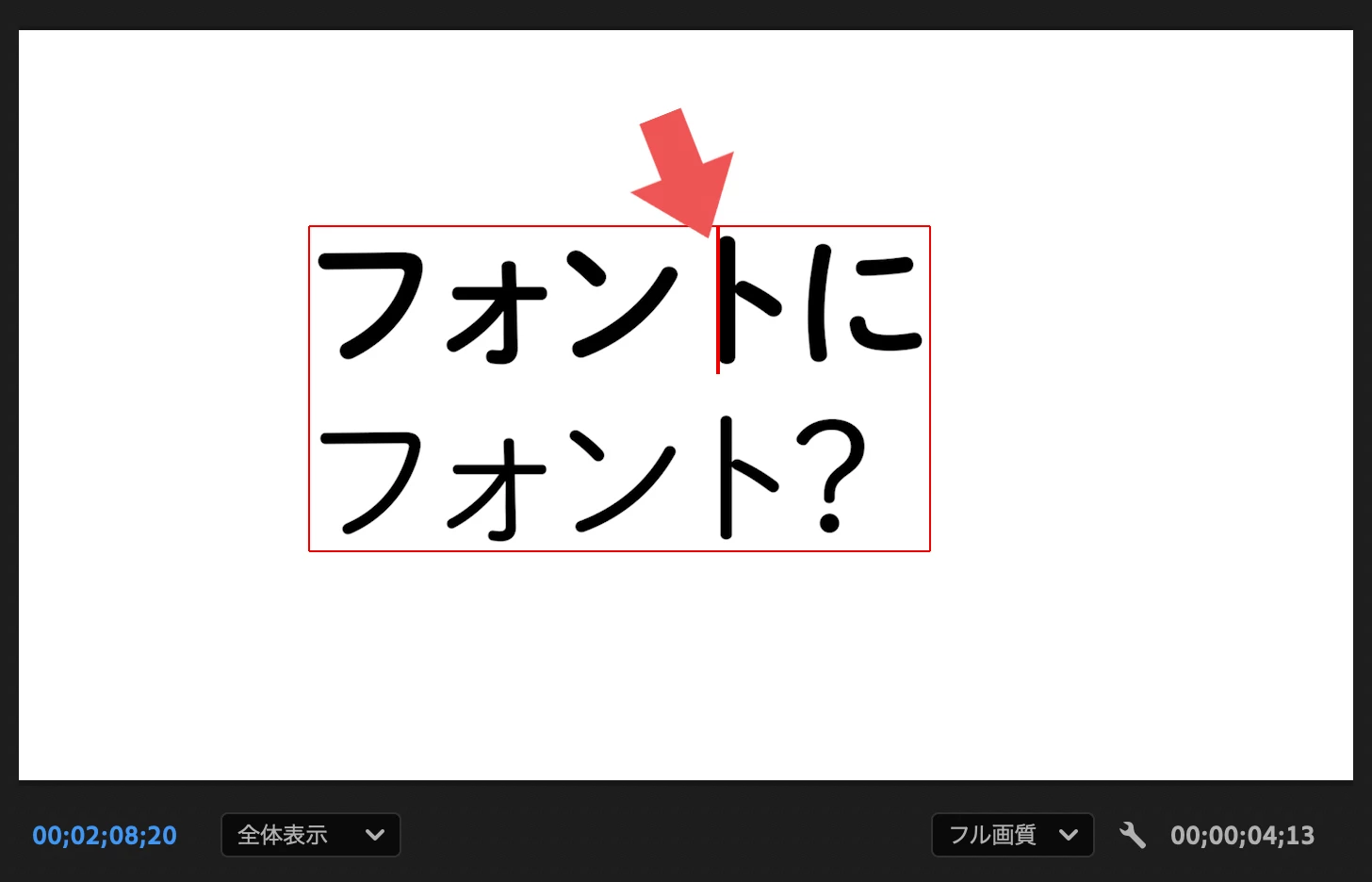
①テキストを作成し、プログラムパネルで文字と文字の間に入力カーソルを配置。
②ショートカット「option + 左(右)キー」で、カーニングを調整。
結果
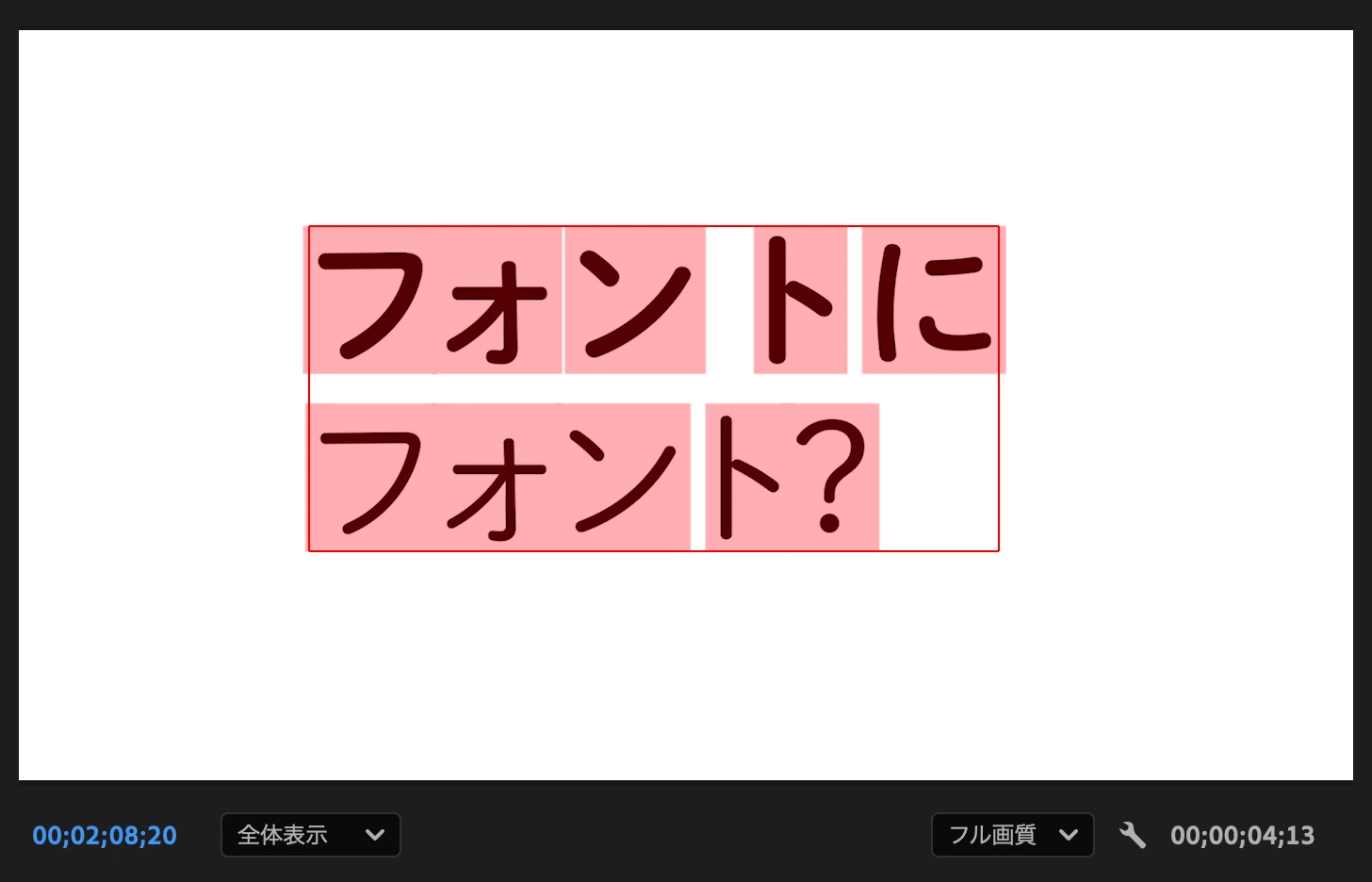
テキストすべてのカーニング大きくが変更されてしまう。(広がってしまう)
注意点
フォントによって差異がある。
Title:
Kerning adjustment behaves incorrectly when editing text in Premiere
Description:
When adjusting kerning using keyboard shortcuts on text created in Premiere Pro, the kerning of the entire text block breaks unexpectedly.
Steps to Reproduce:
- Create a text layer and place the text cursor between two characters in the Program Panel.
- Use the shortcut Option + Left Arrow or Option + Right Arrow to adjust the kerning.
Actual Result:
The kerning of all characters in the text changes dramatically (the text becomes much wider/spread out).
Expected Result:
Only the kerning between the two selected characters should change.
Additional Notes:
- The severity of the issue varies depending on the font used.
 AdChoices