




New in Firefly From Adobe MAX 2026: Relight, Skin Cleanup, Edit Text & More
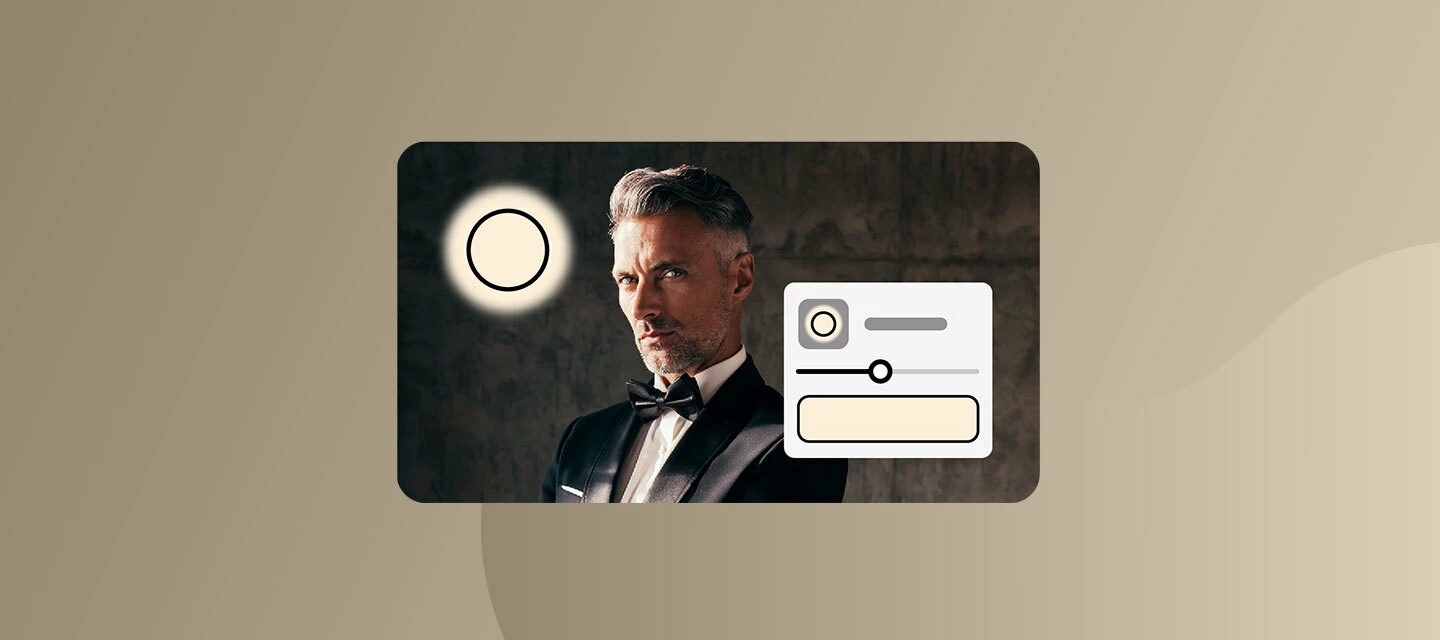
Relight the shot, clean up skin, and speed up your workflow with Quick Actions. Here’s everything new from Adobe MAX 2026, starting with the three updates you can try today.
Create faster with Quick Actions
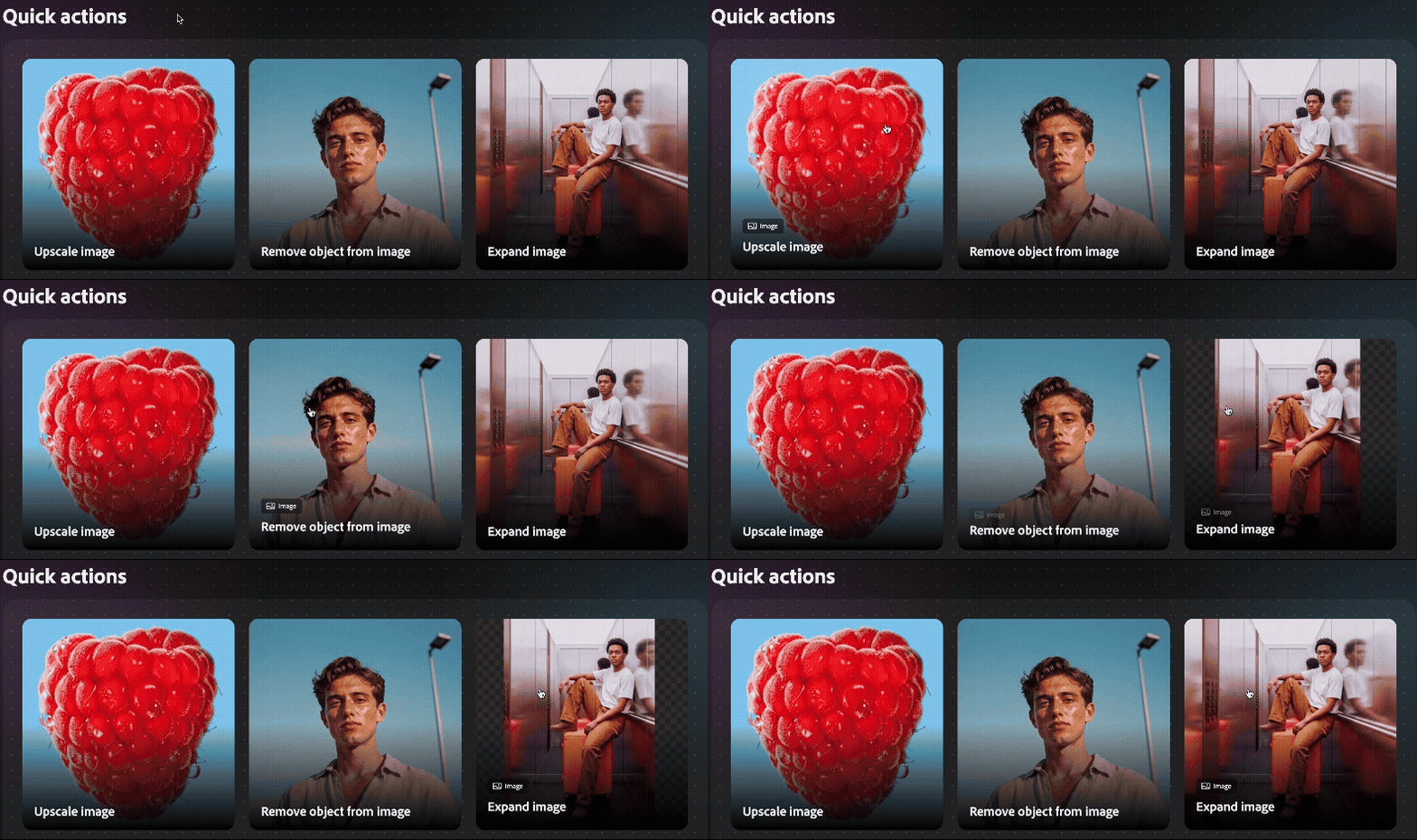
Open Quick Actions from the Firefly homepage to generate, edit, enhance, and transform your content with fewer clicks. They squeeze an entire multi-step workflow into a single click. Learn more about Quick Actions in our HelpX user guide.
Adjust lighting in images
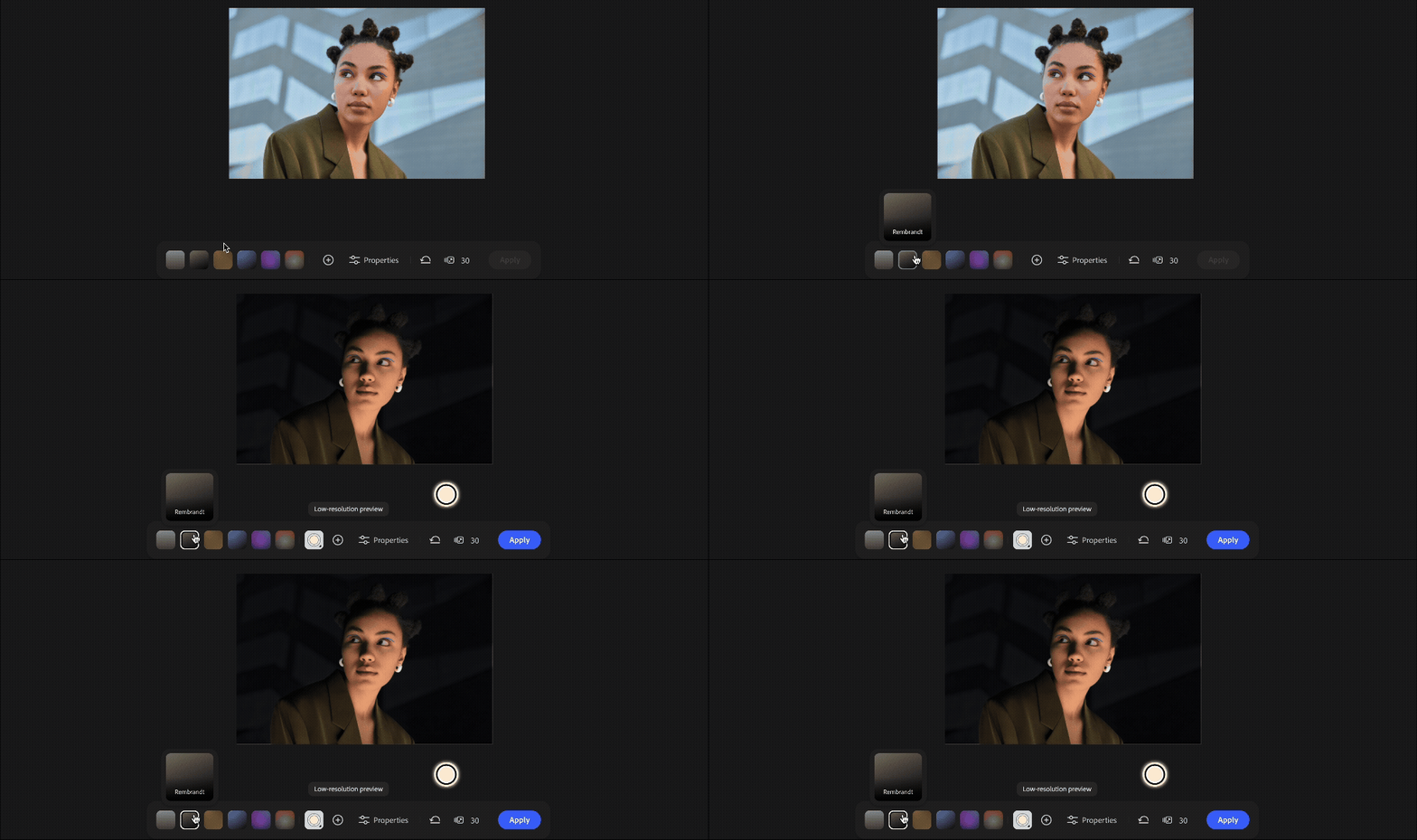
Use Relight to add up to three point or directional lights, then tweak the properties of each light separately. You can also choose how much of the image's original lighting to keep.
Not sure where to start? Apply a lighting preset. Each one comes with its own light sources and settings. Learn more about Relight in our HelpX user guide.
Remove facial blemishes from images
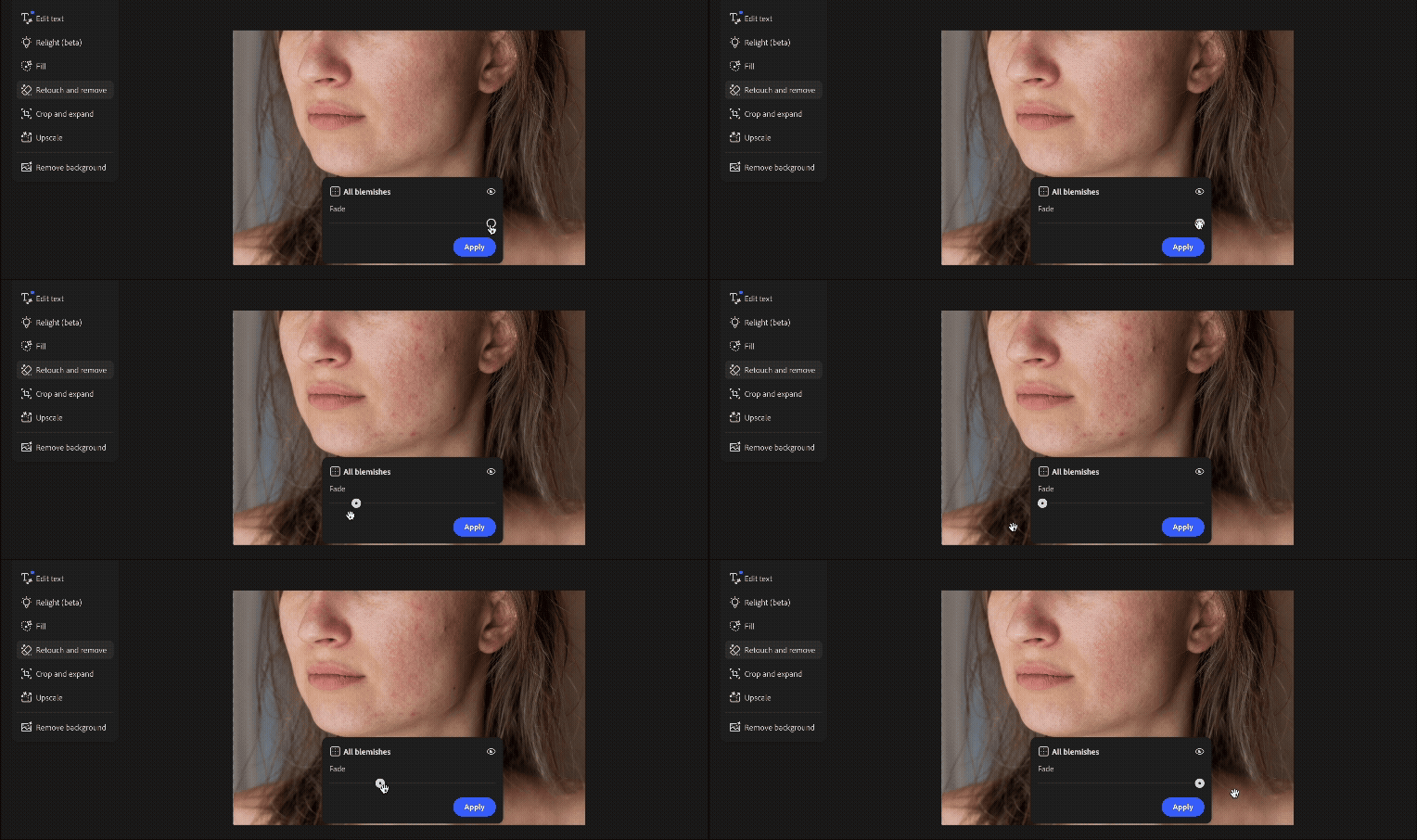
Use the Skin Cleanup feature to remove temporary blemishes like acne, as well as permanent marks such as moles, freckles, and scars. Firefly’s retouch and remove features are subtle, so they can be applied to any photo. Learn more about Skin Cleanup in our HelpX user guide.
Everything Else that Shipped
| What’s New | What does it do? | Why you’ll care |
|---|---|---|
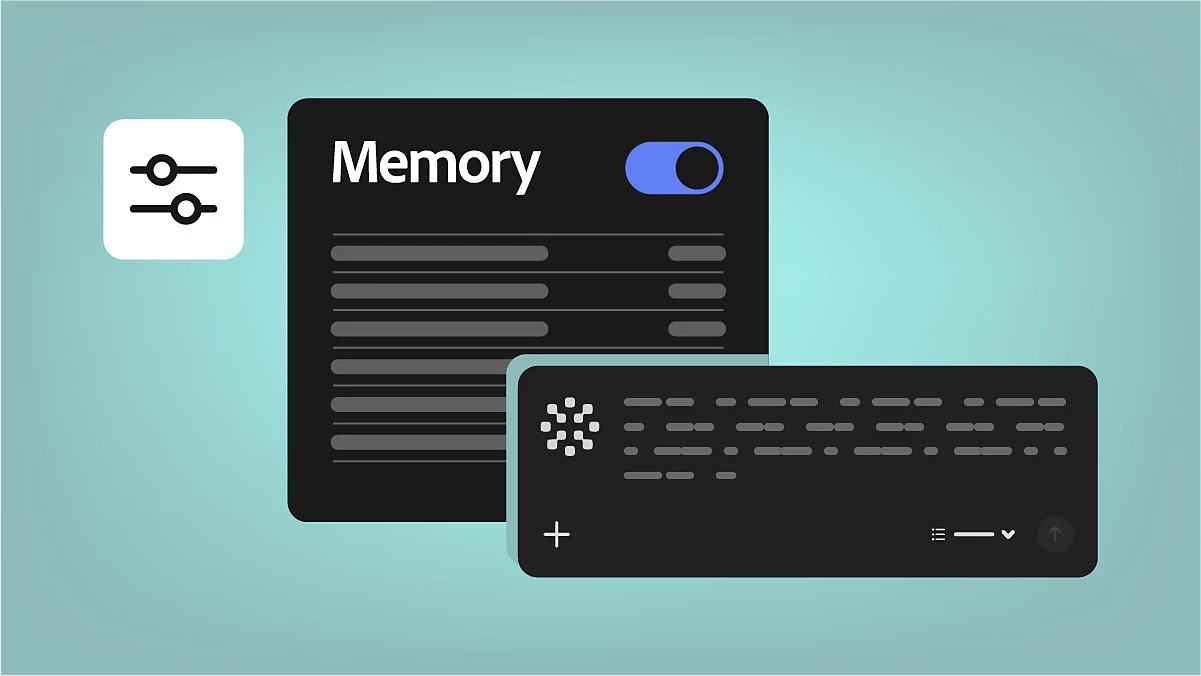 | Set your creative preferences or let the AI Assistant learn from your chats, and edit or delete them anytime. | Saves them from repeating themselves and gives you personalized results they fully control. |
 | Edit text makes the text in your image editable line by line, matching the original font and style while leaving the rest of the composition untouched. | Fix or change text in an image without recreating the design from scratch. |
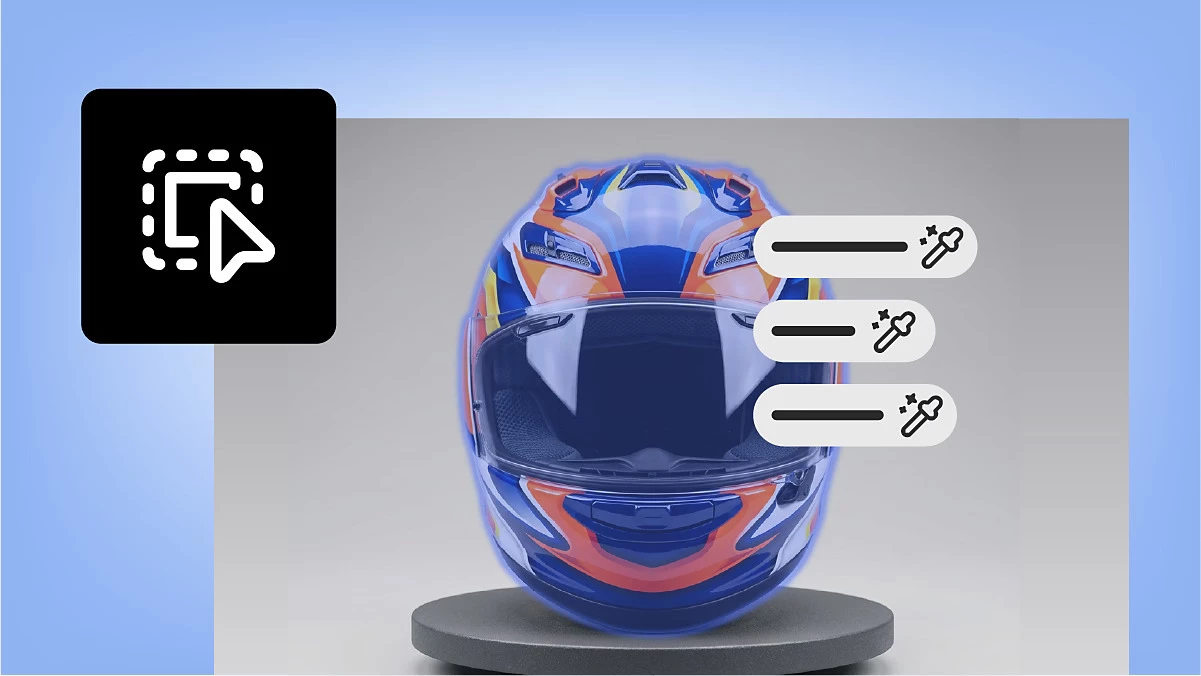 | Select a single object in your image and edit only that object. The rest of the image stays the same. | Change one object without touching the rest of the image, so you skip the reshoot or the full redo. |
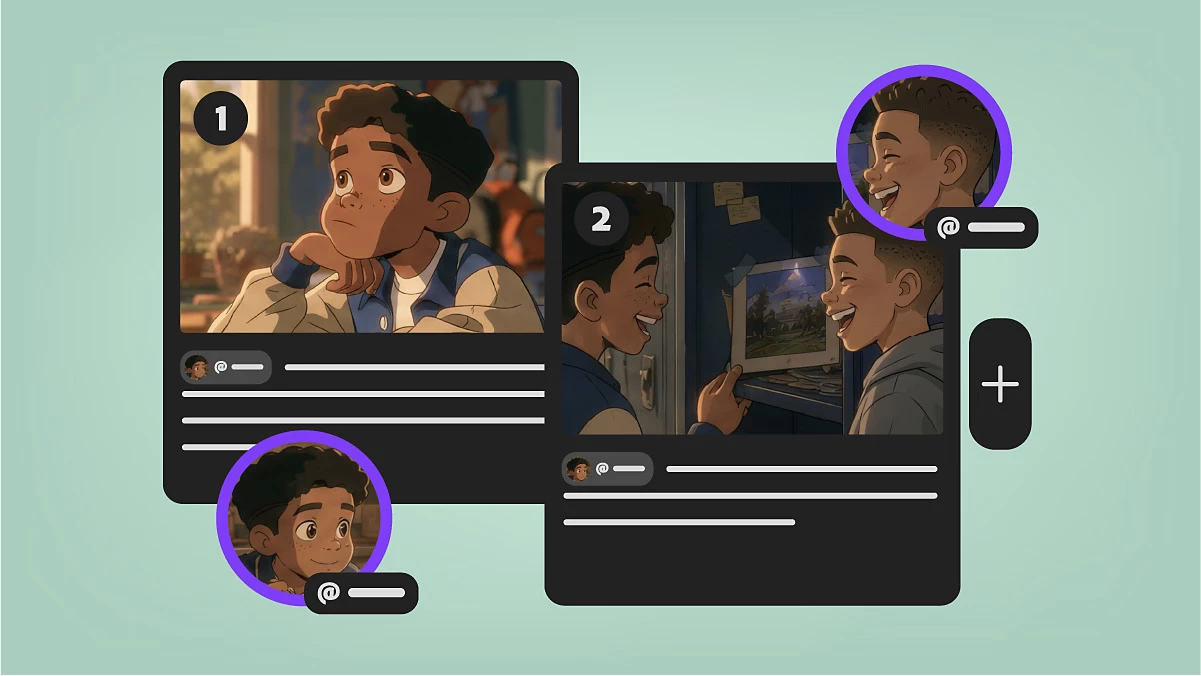 | The AI Assistant turns your idea into a consistent visual story using reusable elements, then generates clips for your shots all at once or one by one. | Create a consistent, multi-shot video from a simple idea without filming or editing each scene by hand. |
Try it now
Open Adobe Firefly and give these a go
Tell us in the replies: which new feature are you using first, and what are you making with it? Share a before/after if you have one. 🎨
Need help or have an idea? Ask in the Firefly community or suggest a feature.
Want inspiration? Browse thousands of free creations in the Firefly Community Gallery and remix them in Firefly.
 AdChoices