


New in AE Beta: Depth of Field in Advanced 3D
Outstanding in our (Depth of) Field
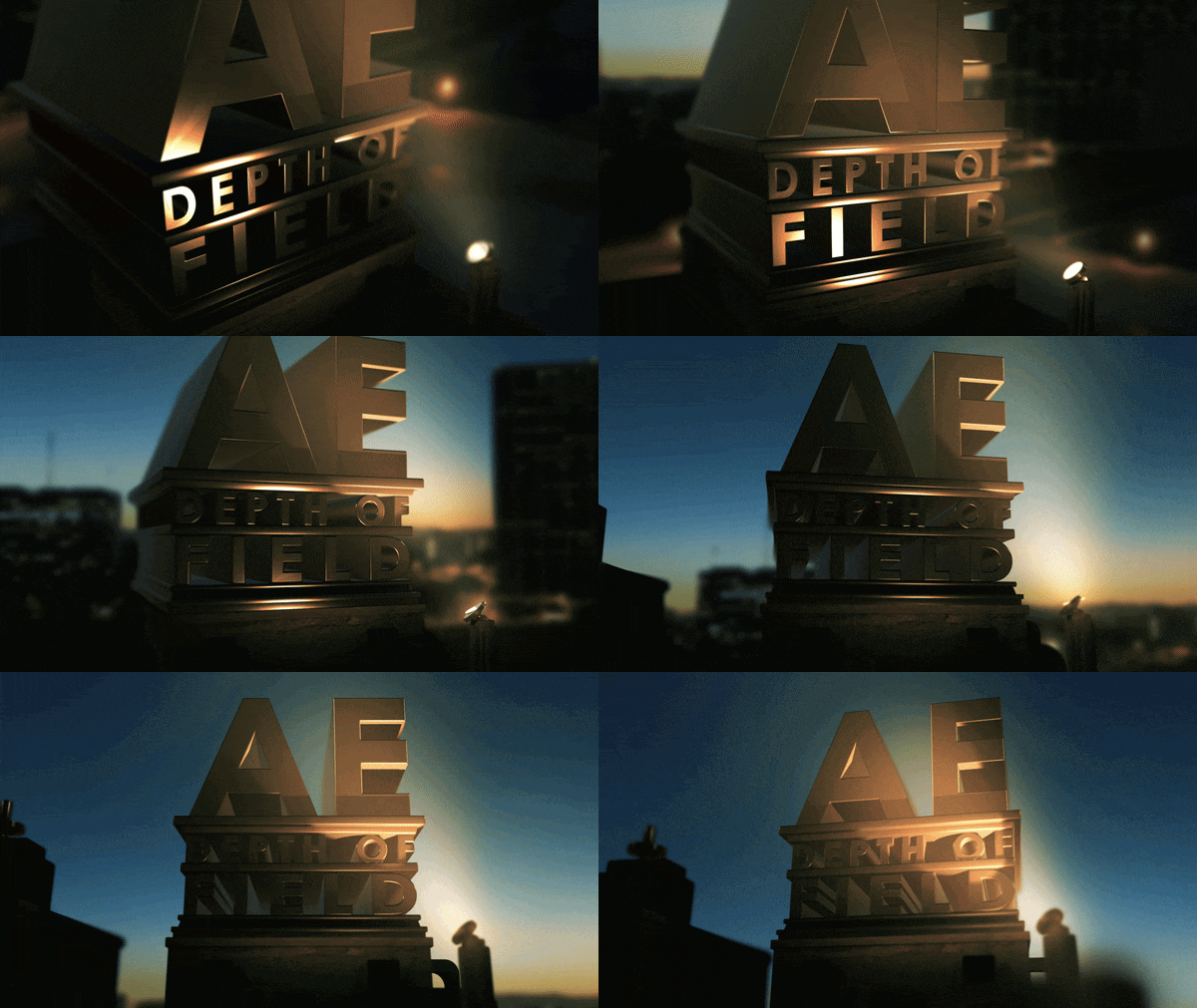
Hello beta users!
Version 26.2.033 of After Effects Beta introduces support for in-engine Depth of Field in Advanced 3D.
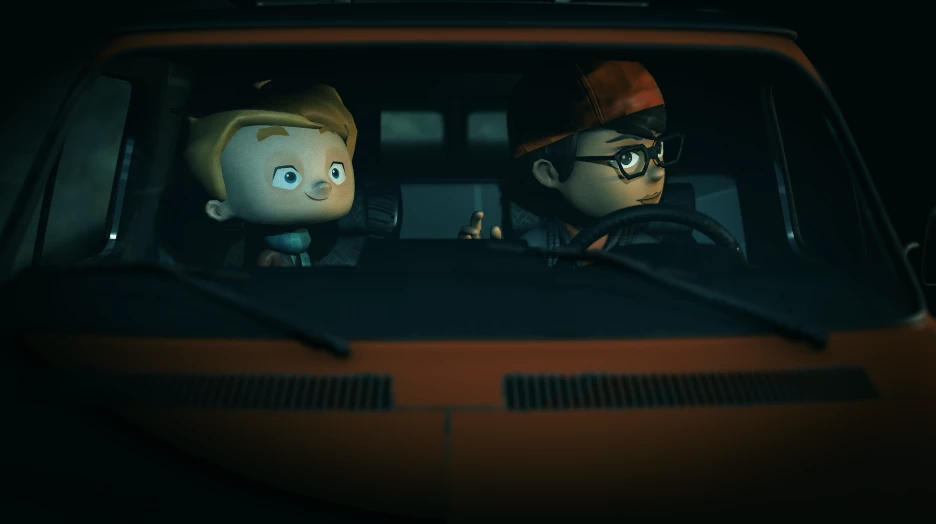
This is an entirely new method of creating Depth of Field that works with 3D models, parametric meshes, Substance 3D materials, 3D text and shape layers, and anything else you want to focus on in Advanced 3D. It even handles multiple levels of overlapping transparency, so you can do things like focus on a subject through a window:
To enable depth of field in your scene, set your composition to the Advanced 3D renderer, add a Camera layer and check the Depth of Field box. By default, After Effects will approximate a physical camera.
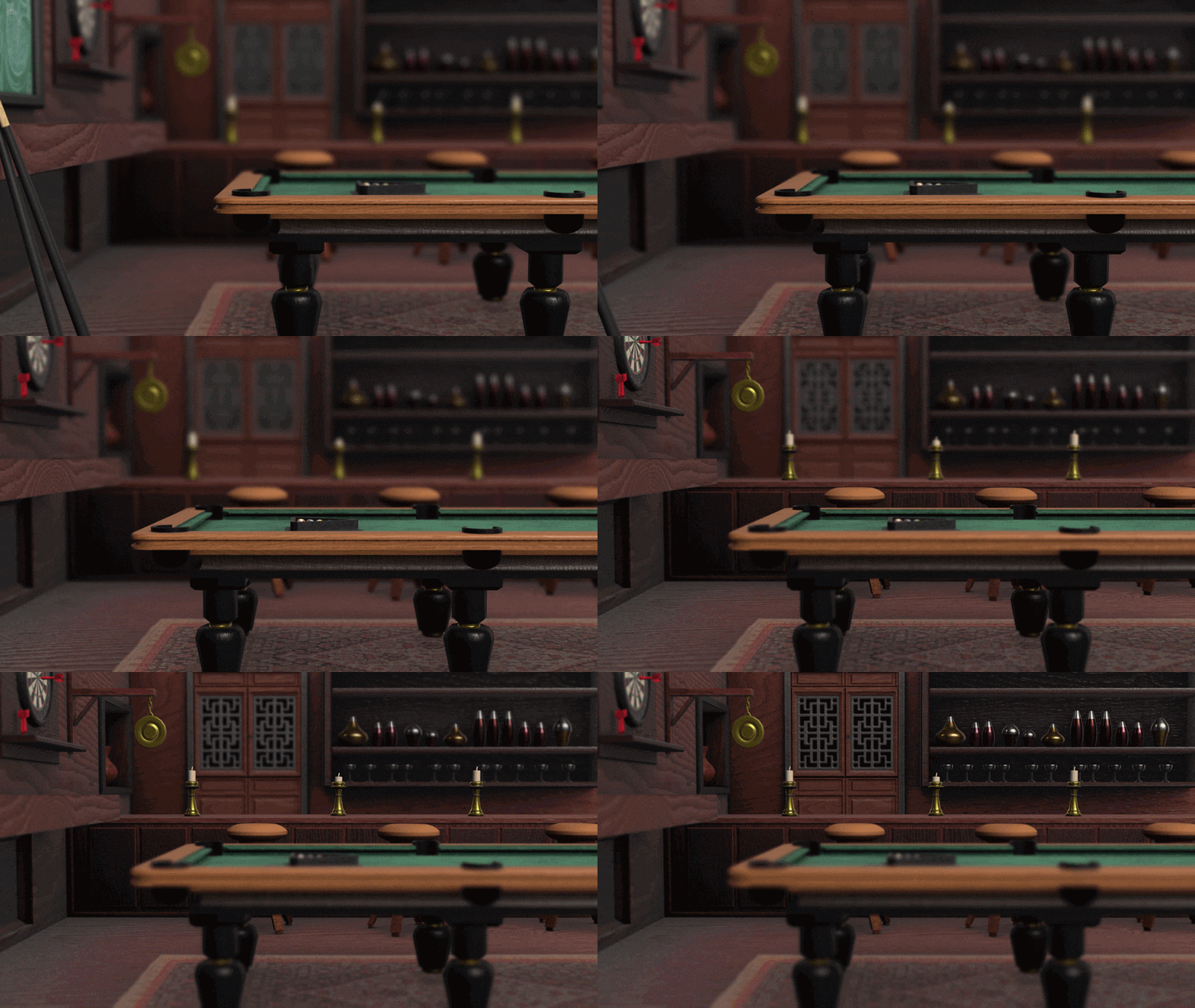
Depth of Field in Advanced 3D includes four simple, animatable controls:
- The default Focus Distance varies according to which camera you select (50mm, 35mm etc) and assumes you want to focus on a z value of 0, which is where most layers are created by default. There are lots of ways to override this, for example:
- Select both the camera and the layer you want to focus on and go to Layer > Camera > Link Focus Distance to Layer (links the camera to the layer with an expression)
- Set Focus Distance to Layer (sets the current property value but doesn’t create a live link)
- Link Focus Distance to Point of Interest will use the camera itself to control focus distance.
- As in Classic 3D, Aperture controls the maximum blur in your scene.
- Focus Area Width is an “artistic override” that determines the thickness of the focal region in the frame.
This will enable you to keep nearby objects or layers of your scene fully in focus, even if the result is not optically correct.
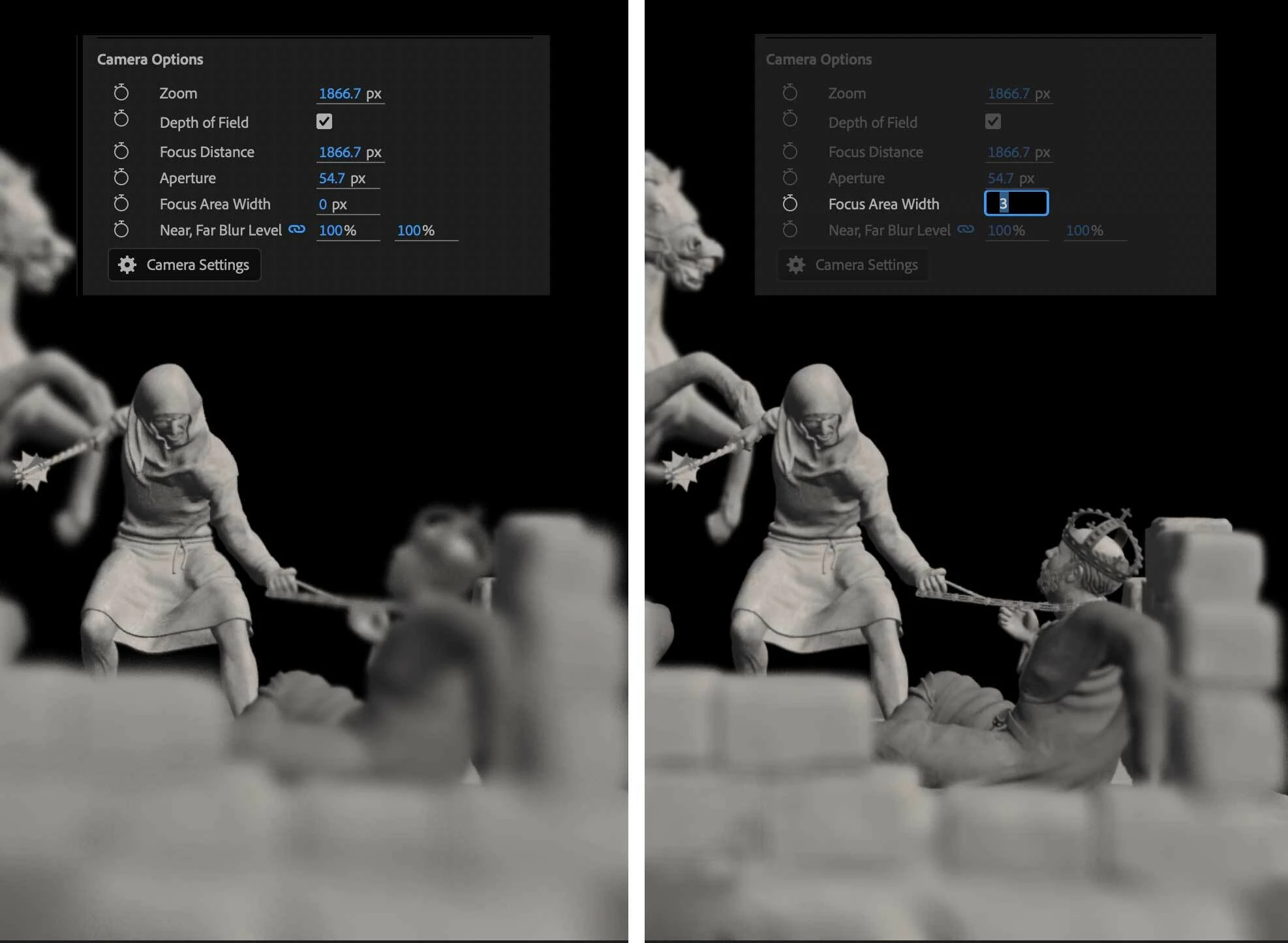
In the left image we wanted our imported 3D model to look like a small diorama with shallow depth of field. However, the default blur is so shallow that the pawn is in focus, while the king he is threatening is blurry. Focus Area Width allows you to artificially increase the “focus slice” (right) so that all of your important elements are clear. Model by: RaduCarstean
- • Another “artistic override” control, Near, Far Blur Level allows you to discretely amplify or reduce the blur in front of or behind the focal plane. Adjust them together (the default) to exaggerate your results beyond a real-world lens, or tweak them individually to suit your design needs—for example, set the “far” level to 0 to produce a “focus to infinity” scene while still blurring elements in the foreground.
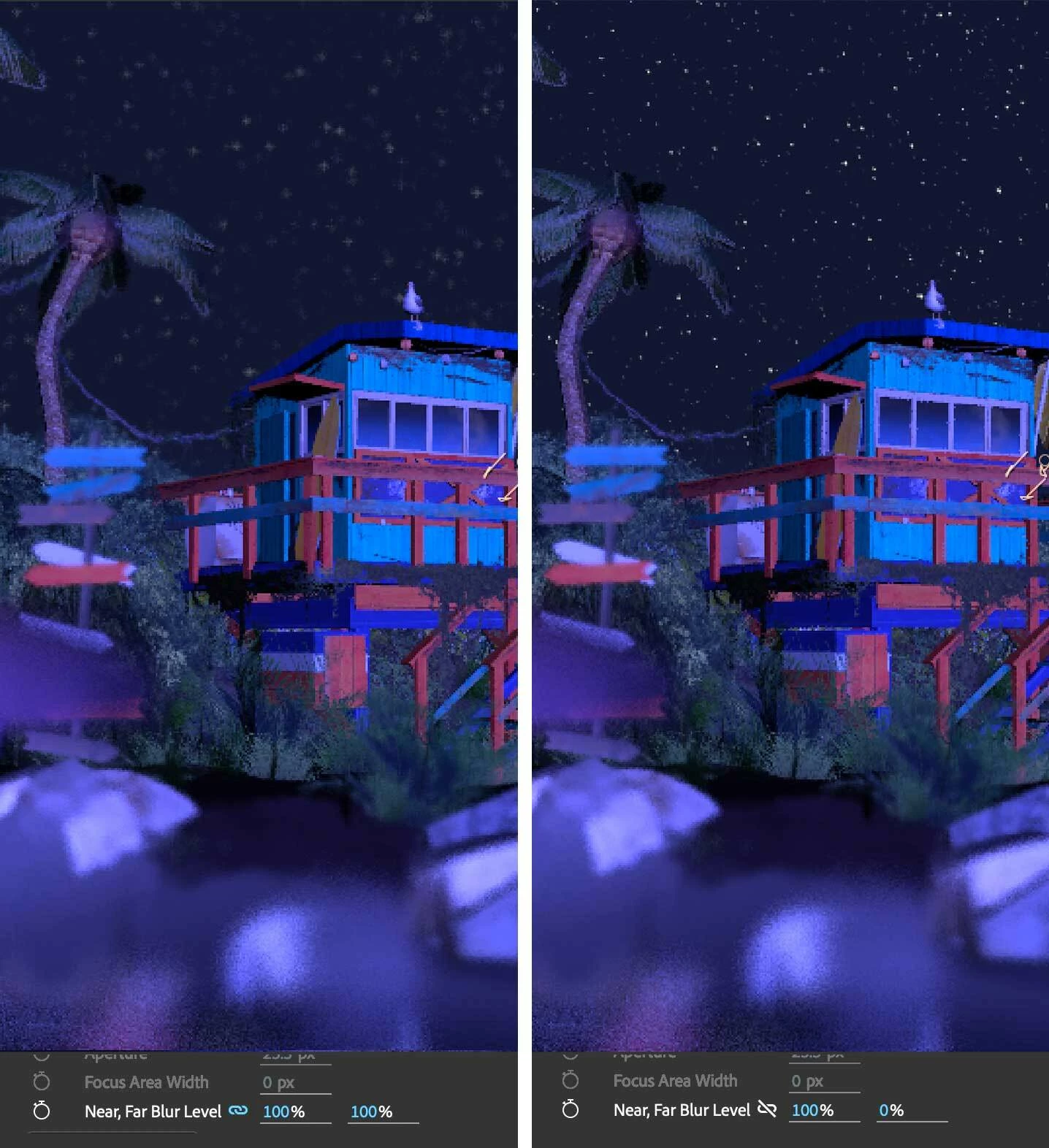
In the left image, the default Depth of Field setting blurs the foreground as expected, but also softens the background, which makes the scene look artificially small. Turning down the Far blur level (right) to 0 allows us to “focus to infinity”, producing a pleasing result. Model by: David Jávorcsík
Pro Tip: Depth of Field quality is controlled by the general Render Quality slider in Render Options. If you see a “ripple” effect when animating the Focus Distance or animating the z-position of an object through a fixed focus, increase the quality. Artifacts should not be visible outside of very low quality settings. However—as you’d probably expect—higher quality depth of field will increase render times.
Please give this new functionality a try and let us know how it’s working for you.


 AdChoices