



Find Effects Faster with the Updated Effects Panel in Adobe Premiere 27.0
Finding the right effect or transition shouldn't slow down your edit.
Adobe Premiere 27.0 brings an updated Effects panel with animated previews, improved search, and the ability to preview video effects on your own footage before applying them. Browse visually, find what you need faster, and spend more time on your edit.
Before you start
- Version: Adobe Premiere 27.0
- Status: Generally available
- Credits: No generative credits are required for the Effects panel features described in this article.
- Video effects and transitions: Animated thumbnail previews are available.
- Audio effects: Visual previews aren't available.
- Preview from Source: Available for supported video effects. Third-party plug-in behavior may vary.
- Windows: Windows 11 version 24H2 or later.
- macOS: macOS 15 or later on an Apple silicon Mac (M1 or newer). Intel-based Macs aren't supported in Premiere 27.0.
- Region/language availability: [PENDING VERIFICATION]
- Licensing/commercial use: Not applicable to the Effects panel itself. Licensing for third-party effects, plug-ins, and assets may vary.
- Last verified: November 6, 2026
1. Browse effects visually
Not sure what an effect or transition will actually do?
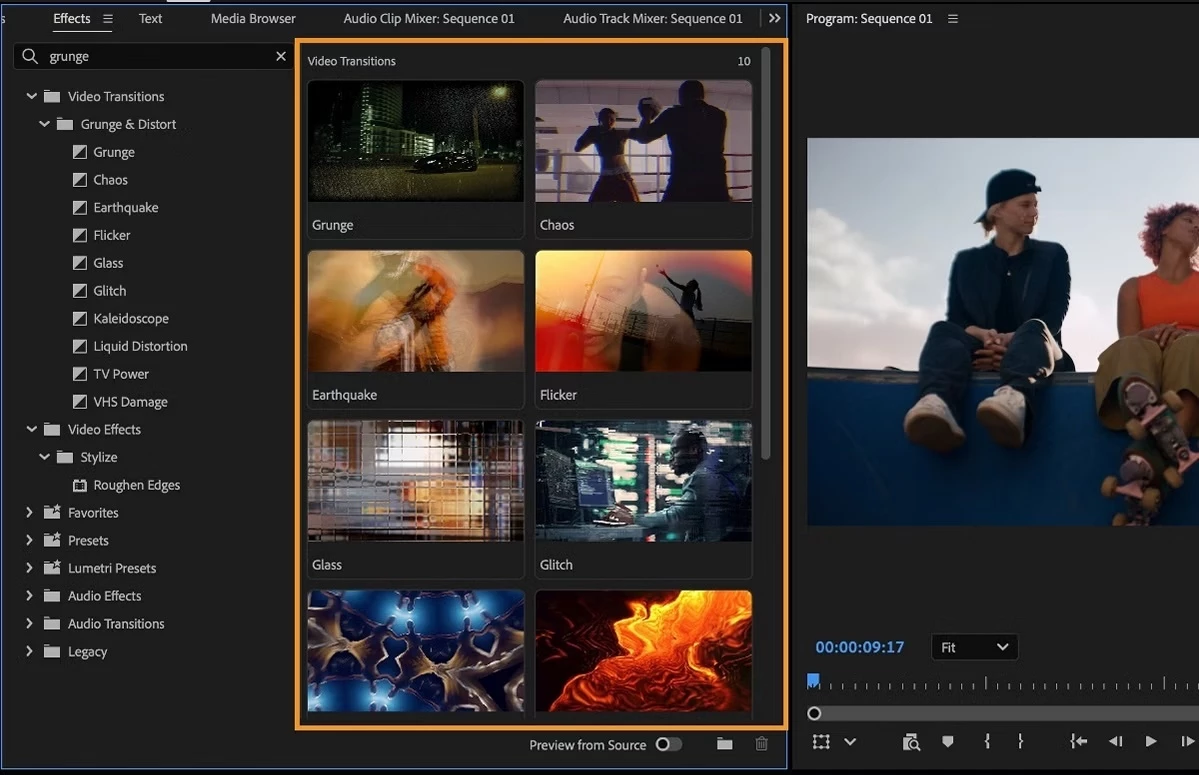
Hover over a video effect or transition in the Effects panel to see an animated preview. You can also open a category and browse visually instead of applying effects one at a time just to see what they do.
[VISUAL: Effects panel displaying several animated effect or transition previews. Alt text: Adobe Premiere Effects panel showing visual previews for multiple video effects.]
2. Preview an effect on your own footage
Sometimes a sample thumbnail isn't enough. You want to know how an effect will look on your shot.
Turn on Preview from Source to preview supported video effects using your own footage before applying them to your sequence.
- Choose the footage you want to preview.
- Turn on Preview from Source.
- Browse supported video effects.
- Apply the effect once you've found the look you want.
[VISUAL: Preview from Source enabled with an effect displayed on source footage. Alt text: Adobe Premiere Effects panel previewing a video effect on the editor's source footage.]
3. Search instead of scrolling
Already have an idea of what you need?
Use the search field to narrow the Effects panel to matching effects and transitions. It's a faster option when you know what you're looking for and don't need to browse every category.
4. Favorite the effects you use most
If you keep coming back to the same effects, make them easier to find.
Select the star icon to add frequently used effects to your Favorites. You can also organize effects into custom bins or save effect presets for settings you want to reuse.
[VISUAL: Favorite star selected beside an effect in the Effects panel. Alt text: An effect marked as a Favorite in the Adobe Premiere Effects panel.]
5. Fine-tune the result
Found the right effect? Now dial it in.
After applying an effect, adjust its settings in the Properties panel or Effect Controls panel. The Properties panel organizes effects and masks into collapsible cards, while Effect Controls remains available when you need detailed keyframe editing.
[VISUAL: Applied effect displayed as an adjustable card in the Properties panel. Alt text: Effect settings displayed in the Adobe Premiere Properties panel.]
Try this: Find a new favorite
Open a clip from one of your current projects and give yourself five minutes to explore the updated Effects panel.
Beginner: Find an effect using its animated preview and apply it to your clip.
Stretch: Preview several effects against your own footage using Preview from Source, then favorite the one you'd be most likely to use again.
Did visual browsing change which effect you chose?
Share what you found in the comments.
Learn more: Updated Effects panel in Adobe Premiere
 AdChoices