



You can now generate video and sound effects right on the timeline — here's the Premiere Beta feature worth your attention

If you spend any time in the Premiere (Beta) forum you may have already seen it, but I want to make sure this one doesn't slip past the folks who live here in the main forum: there's a new Generative Media Tool in the Premiere beta, and it lets you generate video clips and sound effects directly on your timeline — no round-trips, no separate web app, no export/import shuffle.
Abhi Singh, Principal Product Manager on Premiere Desktop, wrote up the details over in the beta forum, and I'd genuinely encourage you to read his post and leave feedback there, because that's where it actually reaches the people building it: Now in Beta: Generate Sound Effects and Video in the Premiere Timeline.
Here's the short version of how it works.
It's a new tool in the toolbar that shares a slot with Generative Extend — long-press the icon to pick which one you want. Drag across an empty stretch of a video or audio track (or double-click a gap) to set your duration, and a generative task bar appears right there, in context, where the clip will land. You describe what you want, check your settings, and generate — and you can keep making new selections while earlier ones are still processing.
On the audio side, select any audio range, describe the sound you want, and it generates multiple variations matched to the exact length of your selection. You review the variations and pick your favorite from the AI badge. The nice touch: you can use your own voice to guide the timing and intensity, so a whoosh or an impact lands exactly where it should.
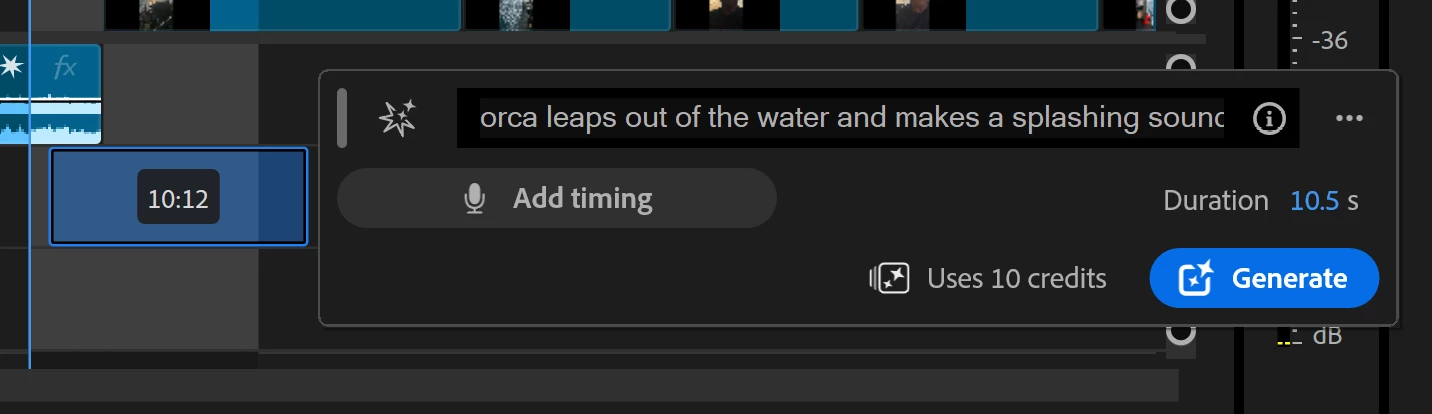
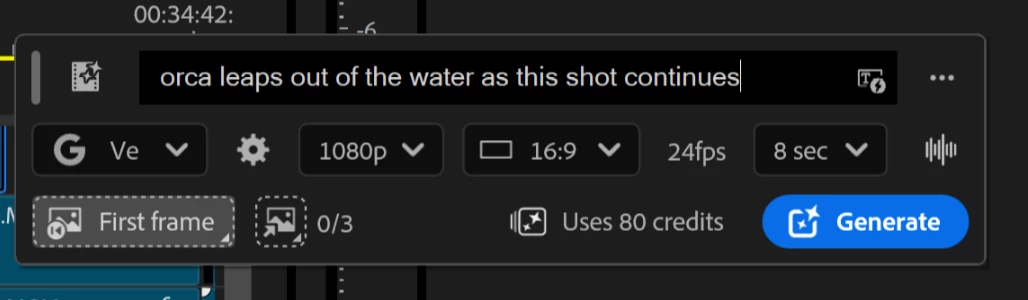
On the video side, you pick a model — Adobe Firefly plus supported partner models, with Veo 3.1 as the default — and use the eyedropper to feed it reference frames (first, last, previous, next, or reference) sampled from the Program Monitor, Source Monitor, or Project Panel. For gaps, it automatically uses the adjacent clips on either side. Premiere matches the closest model settings to your sequence where it can — resolution, aspect ratio, frame rate, duration. (One gotcha worth knowing: the default Veo 3.1 only supports reference frames for 8-second, 16:9 generations.) And anything with AI-generated media automatically gets Content Credentials at export, which I appreciate.
My two cents, having actually put it through its paces: the sound-effects generation is the sleeper hit. Need a room tone, a whoosh, a specific little impact that isn't in your library? Describe it, dial it to the exact length of your selection, done — without ever leaving the timeline. That's a real, everyday time-saver.
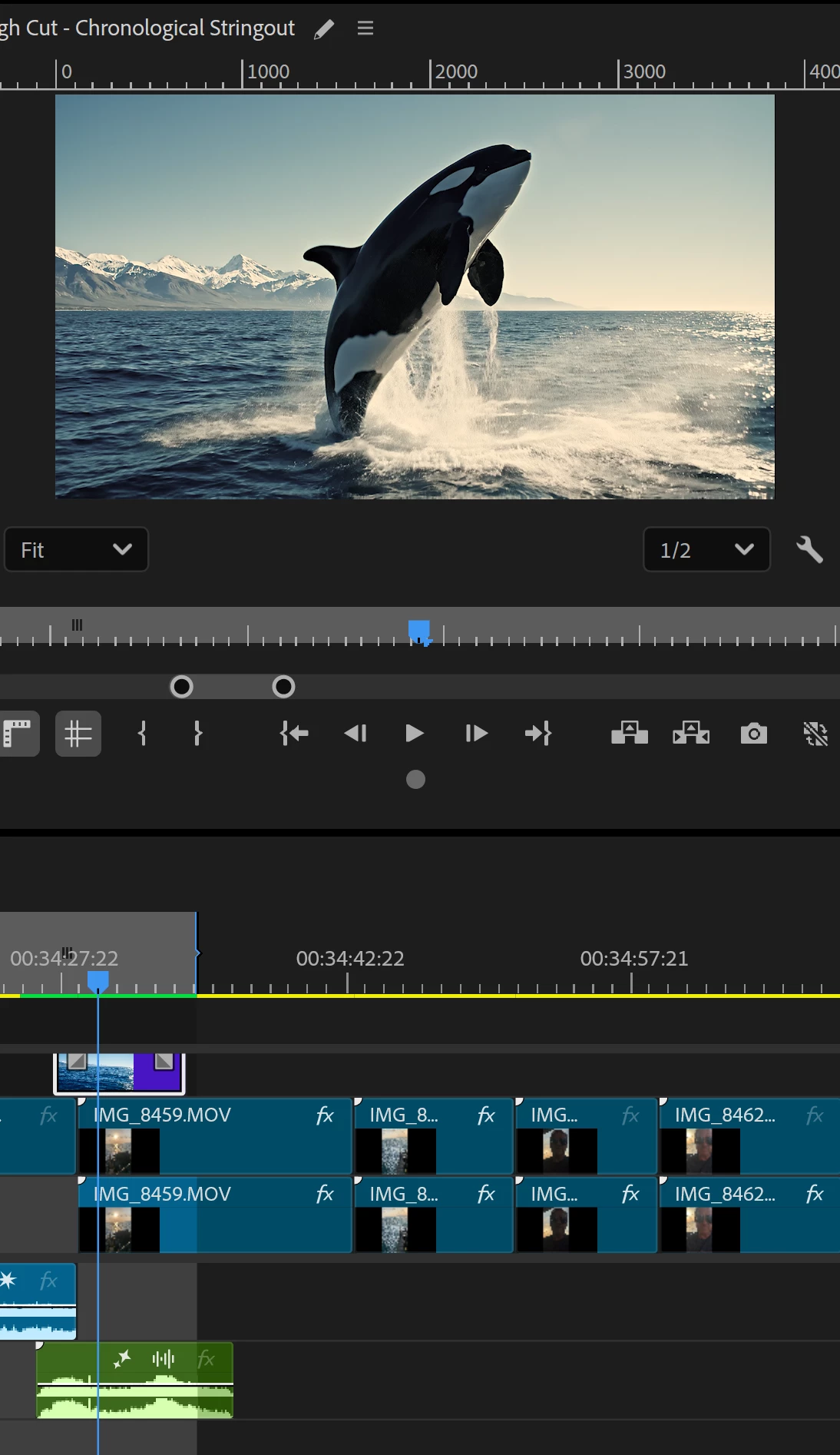
Generative video is more of a "know what you're using it for" tool. It shines for placeholder shots, cutaways, establishing shots, and quick B-roll, and having it live in the timeline beats the old back-and-forth with outside tools. But it's prompt-and-hope by nature: expect trial and error, expect to spend Firefly credits finding a usable clip, and — a real tip — the moment you generate something close, save it, because you may not land back on it. Feeding it reference frames genuinely helps accuracy, so use the eyedropper.
Bottom line: this is a legitimately useful addition, especially for social and quick-turn work, and it deserves more eyes and more feedback than a beta-forum thread usually gets. If you've got a few minutes in the beta build, try it and tell the team what you think.
Read Abhi's full post and leave your feedback here: Now in Beta: Generate Sound Effects and Video in the Premiere Timeline
Want a deeper hands-on look? Scott Simmons wrote a great, honest walkthrough over on ProVideo Coalition: Adobe Premiere is adding a Generative Media Tool
Official docs: Generate video and audio in Premiere (beta) · Generative Media Tool FAQ
So — who's tried it? What have you generated that actually made it into an edit? Drop it below. 👇
 AdChoices