




Now in Beta: Effects in Properties Panel
Who just got a glow-up? Effects, that's who!
If I had a nickel for every time a new video editor opened up the ECP and said, "Wow, was this built in the 90s?" I wouldn't be typing this blog post right now. I'd be sitting on my veranda with a strong Manhattan in my hand and looking out at the Caribbean. If I had a penny for every time a seasoned video editor told me they had the muscle memory of an Olympic typist, but that they need to invest in 4.00 reading glasses just to SEE the parameters for Bokeh blur well... you get it. Your disdain for the ECP is loud and clear.
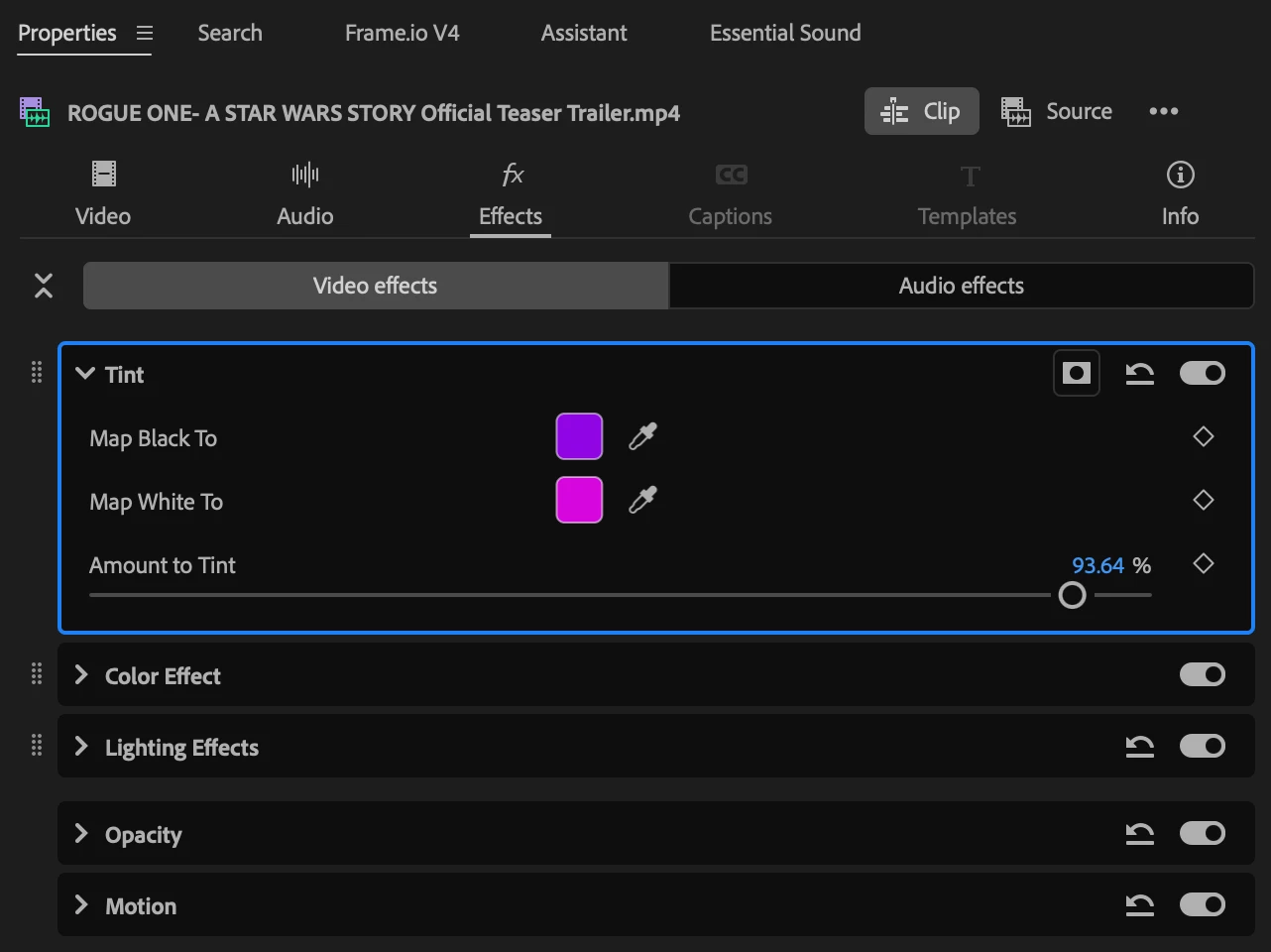
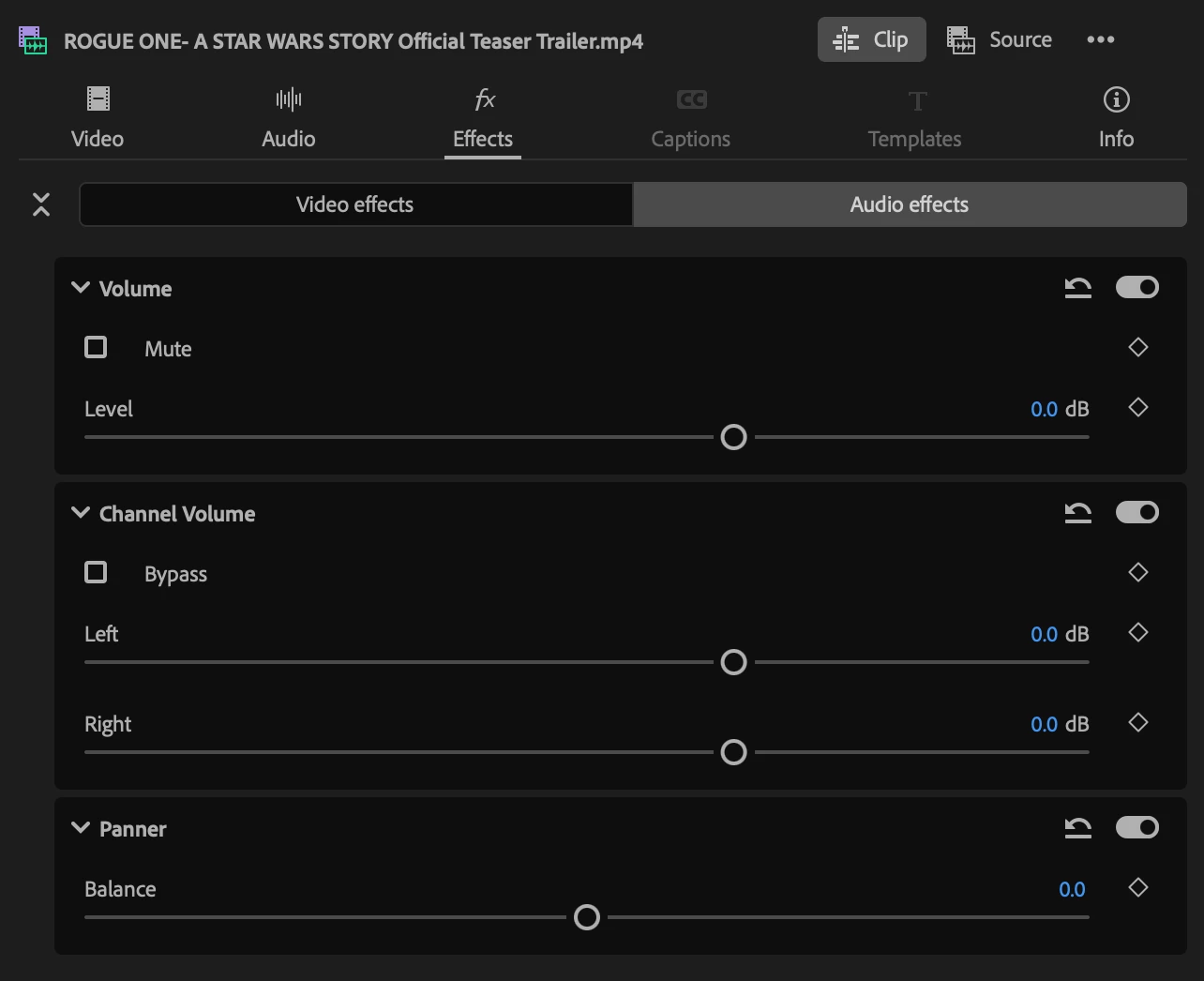
Have we got a solution for you! Brand new to Public Beta we now have Effects in the Properties Panel! Video Effects! Audio Effects! Masks! Even some color (but you should still go over to our brand new Color Mode for adjusting your Temperature and Saturation because oo la la!)
You may have noticed that we are investing in better effects experiences. Building on the acquisition of Film Impact last year, we are now surfacing Effects in the Properties Panel. We have spent countless meetings debating about twirls, Advanced modes, and reordering dots. This team of designers and engineers have been working tirelessly so that your relationship with effects feels smoother and easier than working with the ECP, while maintaining the powerful functionality.
We want your feedback! Please open up a project, dock the Properties Panel and ECP side by side and do a comparison. If you like filling out surveys, you can take the Properties Panel for a spin and then answer this: https://forms.cloud.microsoft/r/r3yq9Ytuy3. If you'd rather type to us right here, then we'd love your feedback on:
- The basics: adding, rearranging, and changing the parameters of video and audio effects
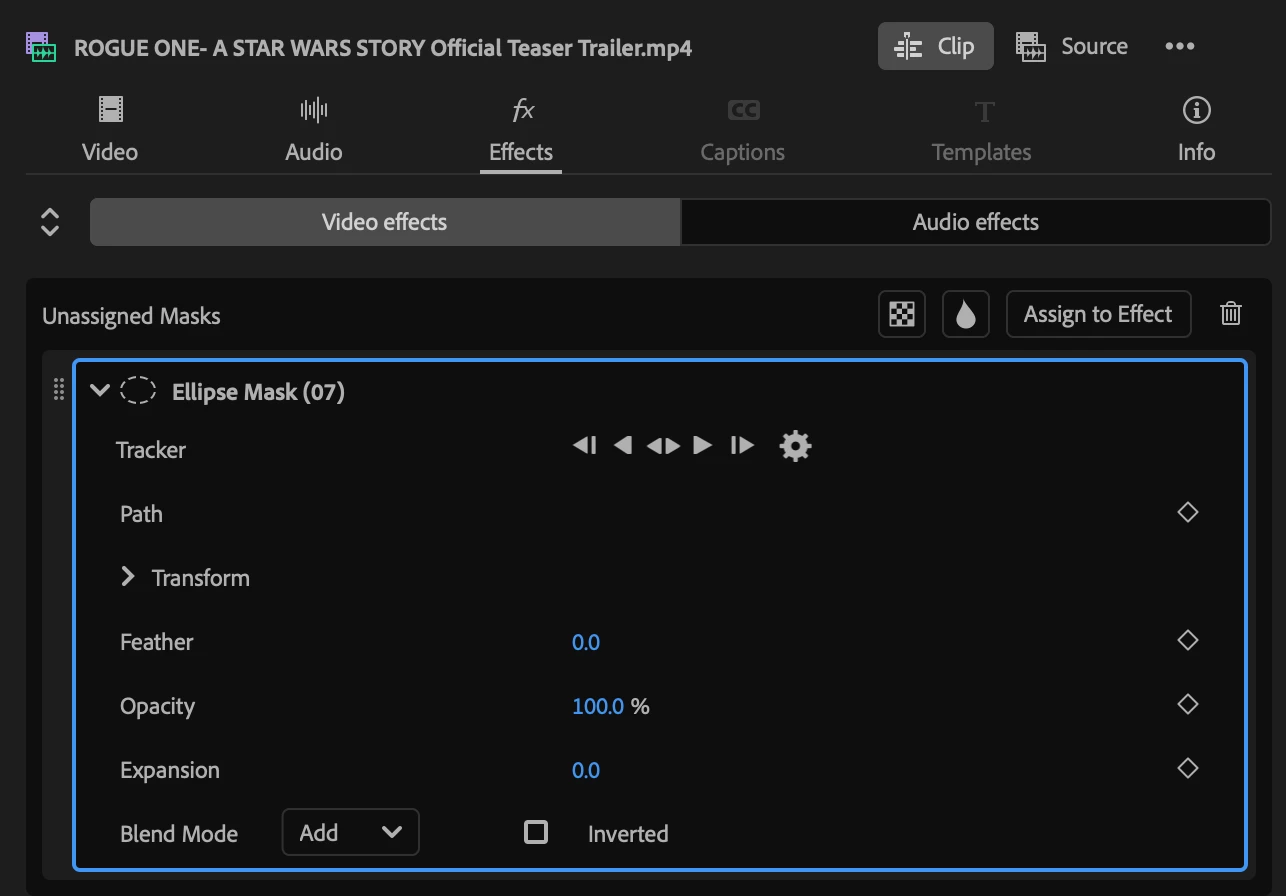
- Masking: assigning, reassigning, and how masks and their parameters display inside effect cards
- Re-ordering effects: Does rendering order and the ability to change it feel intuitive?
- Complex projects: If you are working with multi-channel audio, complex color adjustments, or a giant effects stack, let us know how it feels compared to the ECP
- Does it pair well with the new color mode?
- Applying and working with Source Effects
Known Issues:
- While you can do everything that you used to do in the ECP, we don't have a visual timeline editor for keyframing in the Properties Panel. You can keyframe in the Properties Panel, but if you want to drag and drop keyframes in relation to one another, you need to do it in the ECP.
- Windows has some performance issues. We are working on this.
What’s New
- A tabbed panel structure: Video, Audio, Effects, Captions, Motion Graphics, and Info.
- The new Effects tab is the core of this update - with Video Effects and Audio Effects sub-tabs, it's where the redesigned, card-based effect controls live, replacing the flat list style of the old Effect Controls panel. A Collapse All button allows you to switch between a detailed and macro level of your effects.
- New UX: When dragging effects or masks in the Effects tab, all cards temporarily collapse for easier placement
- Masking is now built into the Properties Panel. Masks show up as their own cards, nested inside the effect they're assigned to (or in an "Unassigned Masks" section at the top if they haven't been assigned yet). Drag a mask card onto an effect to assign it, or use the quick-action button to automatically turn it into an Opacity mask, a blurred mask or assign it to any effect on your clip.
- Jumping off point for Color Mode: We want you to use the new Color Mode. For quick and simple Color changes you also have a Color section in the video tab. This way Color becomes a core workflow such as Transform or Crop. A quick action allows you to quickly get into Color Mode from the Properties panel.
- More attention to Source effects. Not all video editors have discovered the power of source effects. Now they are more easily findable through the switch at the top of the Properties panel.
-
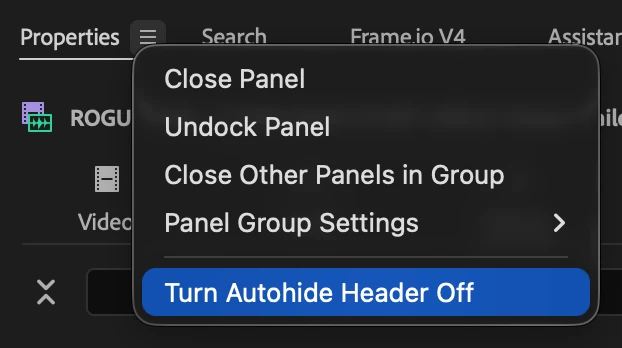
Auto hide header bar during scrolling to optimize real estate. You can turn this off by clicking on the hamburger menu next to “Properties” and selecting "Turn Autohide Header Off." A fast scroll up brings the top header back to switch tabs. (Available to Mac Users; Win users currently need to turn it on)
-
"Sticky" Effect Name headers let you scroll in the Properties panel without losing sight of which effect you are currently on.
 AdChoices