




Now in Beta: Introducing Color Mode
Welcome to the public beta of our brand new Color Mode! This is a colossal release that's been years in the making, months in private beta, and now we're excited to share it with you. Here's all the most important information to get you started.
Resources for Learning About Color Mode
Given how new this is, we've prepared the following videos and articles to get you up to speed on Color Mode as quickly as possible.
- Color Mode Announcement Video
- Color Mode in Premiere Page
- Color Mode Training Course
- Frequently Asked Questions Videos
- HelpX Articles
About Color Mode
Color Mode is a brand new approach to color grading created specifically for the needs of editors. It's been designed to be an accessible, fast to learn, and efficient environment for making every clip in your sequence look its best right inside of Premiere. However, Color Mode has also been built to provide the full functionality necessary for users at every level to make highly detailed improvements as well as the broad stylistic enhancements necessary to prepare any edited sequence for delivery to the audience in its best form.
Whatever your level of color knowhow, Color Mode gives you a streamlined and uncluttered color adjustment experience. Learning how to examine and evaluate the image is the most important skill necessary for successful color, and Color Mode has been carefully designed is to keep your eye on the picture as you work. The default layout deliberately maximizes the size of the Color monitor (depending on your computer’s display size), minimizes other onscreen distractions to only what’s essential to guide you through the process, and provides color-specific panels that aren’t available in Edit mode to accelerate your color workflows.
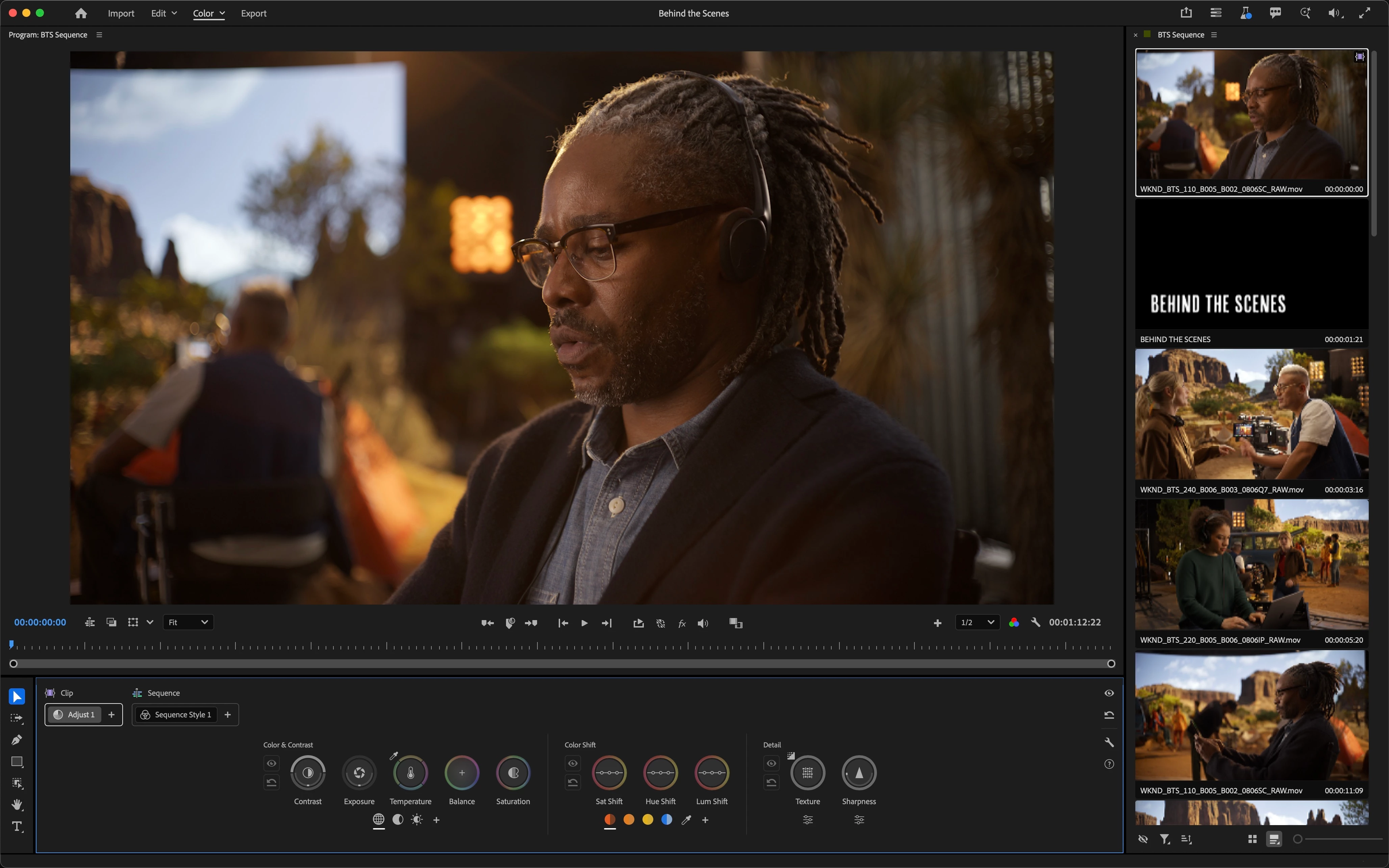
The Clip Grid, available only in Color Mode, makes it fast to select any clip for sequence navigation and immediate adjustment. It can be positioned vertically or horizontally, and has many functions that help you organize your work via filter and sort, manage color operations via copy and paste, and make complex selections quickly in order to create groups for grade management.

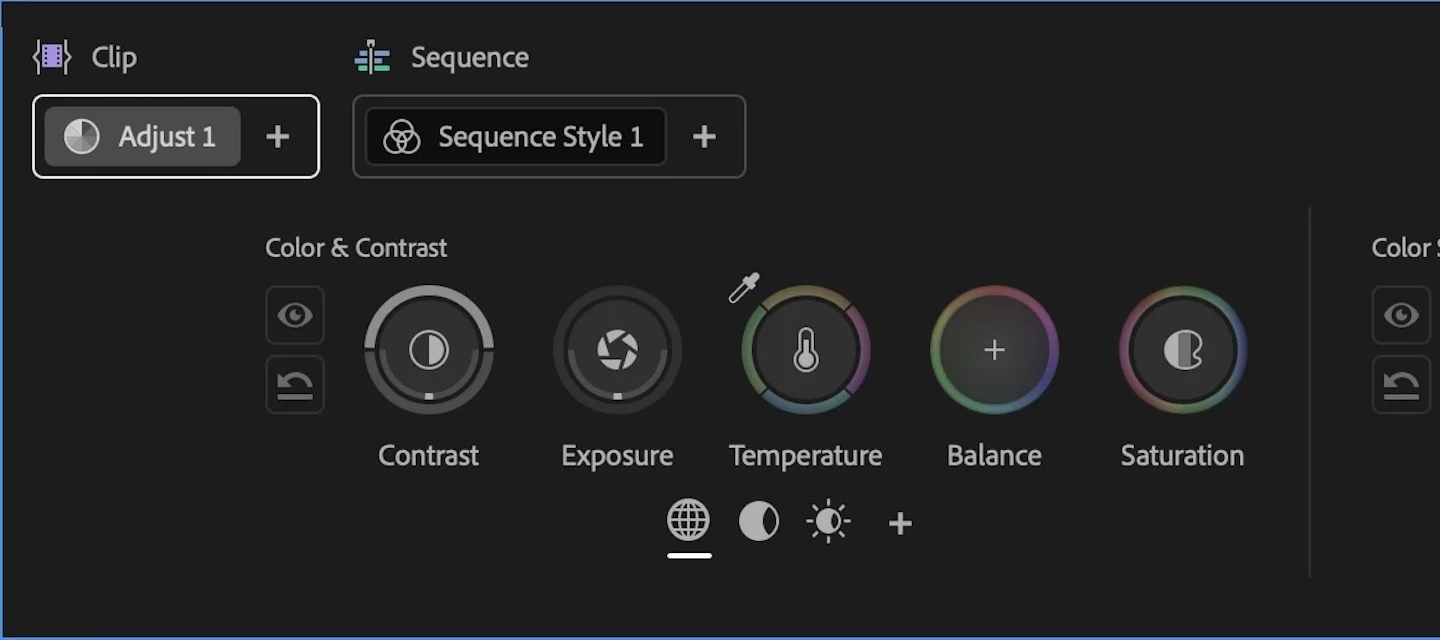
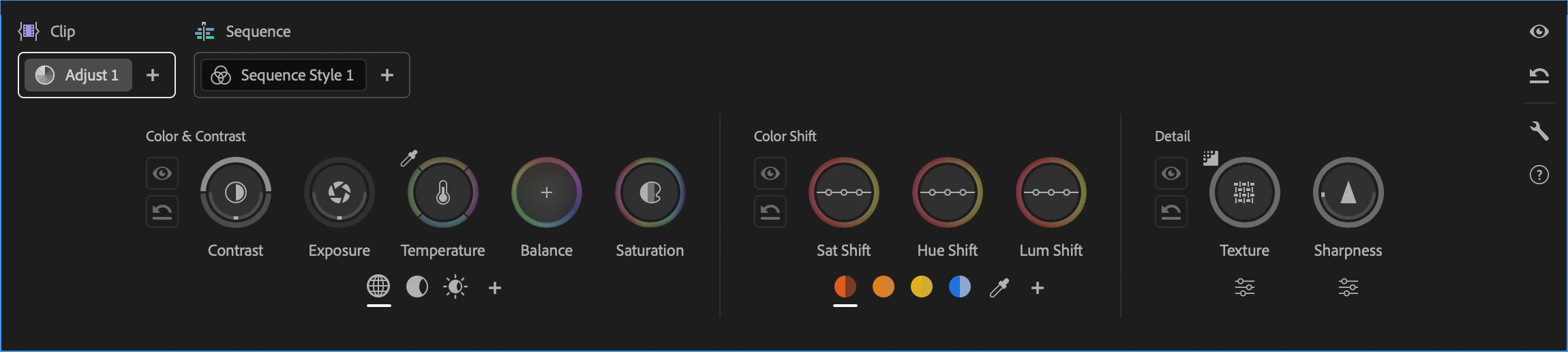
The Color Controls panel has been designed to expose maximum color adjustment functionality within minimum space, so you spend more time grading and less time opening collapsed groups and scrolling around to find what you need. Adjust operations give you surgical control over the image, while Style operations let you use saved Style presets or build-your-own combinations of modules designed to make artistic adjustments fast and fun. Two dimensional color controls let you simultaneously adjust related parameters for maximum creative control, while a heads-up-display gives you contextual analysis and guidance when you need it, disappearing when you don't.
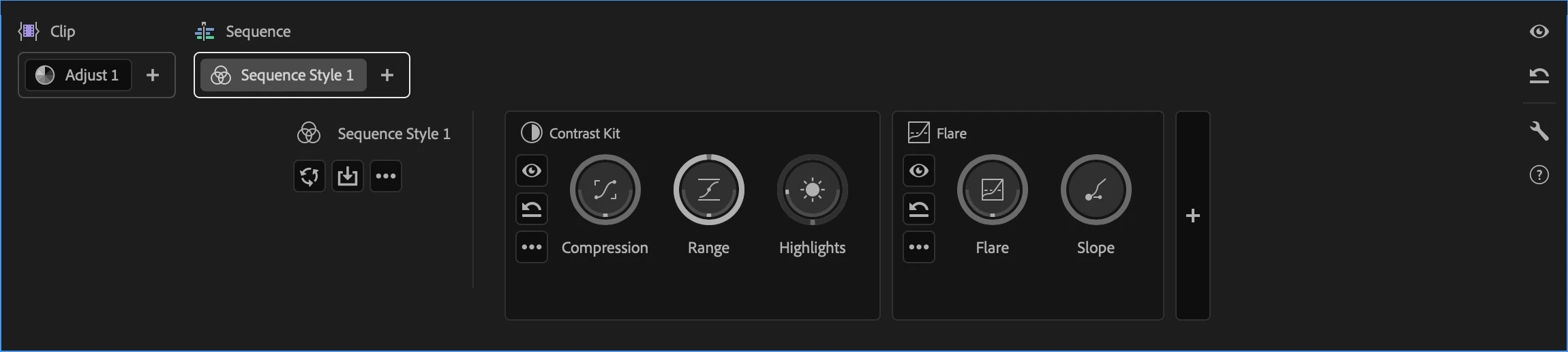
Color Mode also makes it easy to apply operations at every level of your grade, to adjust the entire sequence at once, specific custom groups of clips, or individual clips as your needs require. When applied to the sequence or a group, an operation automatically ripples changes to all connected clips, making alterations fast and simple. Every clip starts with an Adjust operation you can use to make surgical corrections to images, while a default sequence Style operation lets you apply a Style Preset to the entire sequence to give it a show look, or create your own look by mixing and matching Style Modules, which are customizable color effects.
Lastly, the Color monitor has specific features to facilitate color workflows. For example, you can switch between sequence and clip playback modes in the time ruler to either navigate the entire sequence quickly (in sequence mode) or focus deeply on the clip at hand without accidentally navigating to another clip (in clip mode). A new Solo mode lets you suspend compositing effects and superimpositions so you can specifically monitor a single clip you’re adjusting, without the distraction of superimposed graphics or clips getting in the way.
About the Public Beta
While Color Mode is nearly complete, it’s still a work in progress. However, the end-to-end workflow we wanted to give in this first version of Color Mode is fully operational, so we invite you to give it a try, kick the tires, and give us your feedback. Tell us what you like, because it’s important for us to hear what’s working. Tell us what you think could be improved. Above all, feel free to reach out on the public beta forums.
How Should I Test This?
Color Mode is a massive update, and the public beta is an ongoing work in progress. While we’ve taken pains to provide the best experience possible, you should expect issues to arise from time to time. When these happen, we’d appreciate it if you would use the Adobe bug reporting mechanism and let us know what you were doing in the provided dialog.
We’re confident that we’ve given you new workflows you’ll love, and we’d be very happy for you to test with real-world edited sequences of various lengths and sizes. However, changes are anticipated over the course of the public beta as we make improvements and respond to user feedback, so we don’t recommend doing client work just yet.
Ongoing refinements to Color Mode at this stage may impact the project format, so consider every project you create that uses Color mode to be potentially disposable. For the best experience, import duplicates of projects with sequences you want to test using, or import new media into a fresh project.
Note: There are no limitations over what kind of media you are encouraged to test with, although 8K media is known to have performance issues when used at an 8K sequence resolution.
Premiere (beta) Project Compatibility
While it's possible to take a project created in Premiere (beta) with Color Mode and open it in Premiere 26, this isn’t recommended as you won’t be able to access any of the beta features in the shipping version, including the new color effects in each clip, group, and sequence operation. Given the magnitude of the changes in this particular beta of Premiere, we do not recommend moving projects freely between versions.
To avoid inconvenience, we recommend you use duplicate projects with sequences that you'd like to work with for learning and testing Color Mode, and we strongly advise against using this public beta for mission critical client work.
If you do open a Premiere (beta) project in Premiere 26, you’ll be warned about missing color effect and sequence color effect video filters. If you continue, you’ll notice that graded clips contain an offline filter corresponding to the color effect. The safest thing you can do in this instance is to quit without saving and reopen this project in Premiere (beta).
Color Management
Color Mode is designed to work on sequences using Color Management. This is meant to give you the best starting point for grading clips in all supported color spaces, log-encoded, or raw. Using Color Management, you’ll get great results using the Direct Rec. 709 (SDR) color setup that’s the default for most new sequences.
Important: You should always double-check that sequences are using the correct color setup before you start grading. Using the wrong color setup could give you unexpected results and changing the color setup you’re using after you’ve made color adjustments is not recommended as it will likely change the appearance of your clips.
As you experiment, you may also want to try the newly improved Wide Gamut (Tone Mapped) color setup to see the differences in workflow. The default Tone Mapping and Gamut Compression settings have been improved to work correctly with graphics and SDR media using the new Apply Inverse Tone Mapping checkbox in the Advanced settings. This new option is a work in progress during public beta, so your feedback is critical to making sure we’re giving you the results you need.
No matter which color setup you use, every feature in Color Mode has been designed to make grading and delivering HDR output a pleasure, so try choosing either the Rec. 2100 HLG or PQ output color spaces and using all the available Adjust and Style tools to grade HDR highlights if you have an HDR display you can use.
After Effects Interoperability
Because of the extensive changes being made to how color grades are managed, After Effects interoperability for clips that have been graded using Color Mode remains a work in progress, and should be avoided until further notice. We remain committed to robust After Effects interoperability so making this a great experience is a priority for us.
Color Mode Replaces the Lumetri Panel
While the Lumetri Color effect remains available in the Color Correction bin of the Effects browser, the Lumetri panel has been replaced by the Color Management panel to support the new Color Mode. Previous projects using Lumetri will import correctly and appear as before, with total color fidelity. If you want to continue making Lumetri color adjustments or adding more Lumetri Color effects, you can do so using the Effects Control panel.
Avoid Using Lumetri Color and Color Mode Together
If you’re beginning a new project, we encourage you to use Color Mode without also using Lumetri Color effects. The Lumetri Color effect has several disadvantages compared to Color mode, including:
- Some controls in Lumetri Color clip out-of-range color values so they’re not retrievable in subsequent adjustments. Color Mode does not.
- Lumetri Color controls have a more limited range of adjustment. Color Mode gives you greater range to make bigger changes.
- Lumetri Color does image processing differently than the significantly more color space-aware tools that have been newly created for Color Mode.
- Lumetri Color controls were primarily designed for SDR grading. Color Mode tools have been built to make both SDR and HDR grading easier and faster.
Avoid mixing Lumetri Color with the Color workspace; using Lumetri often restricts your grading options in Color Mode.
There Are New Fast Color Features in Edit Mode
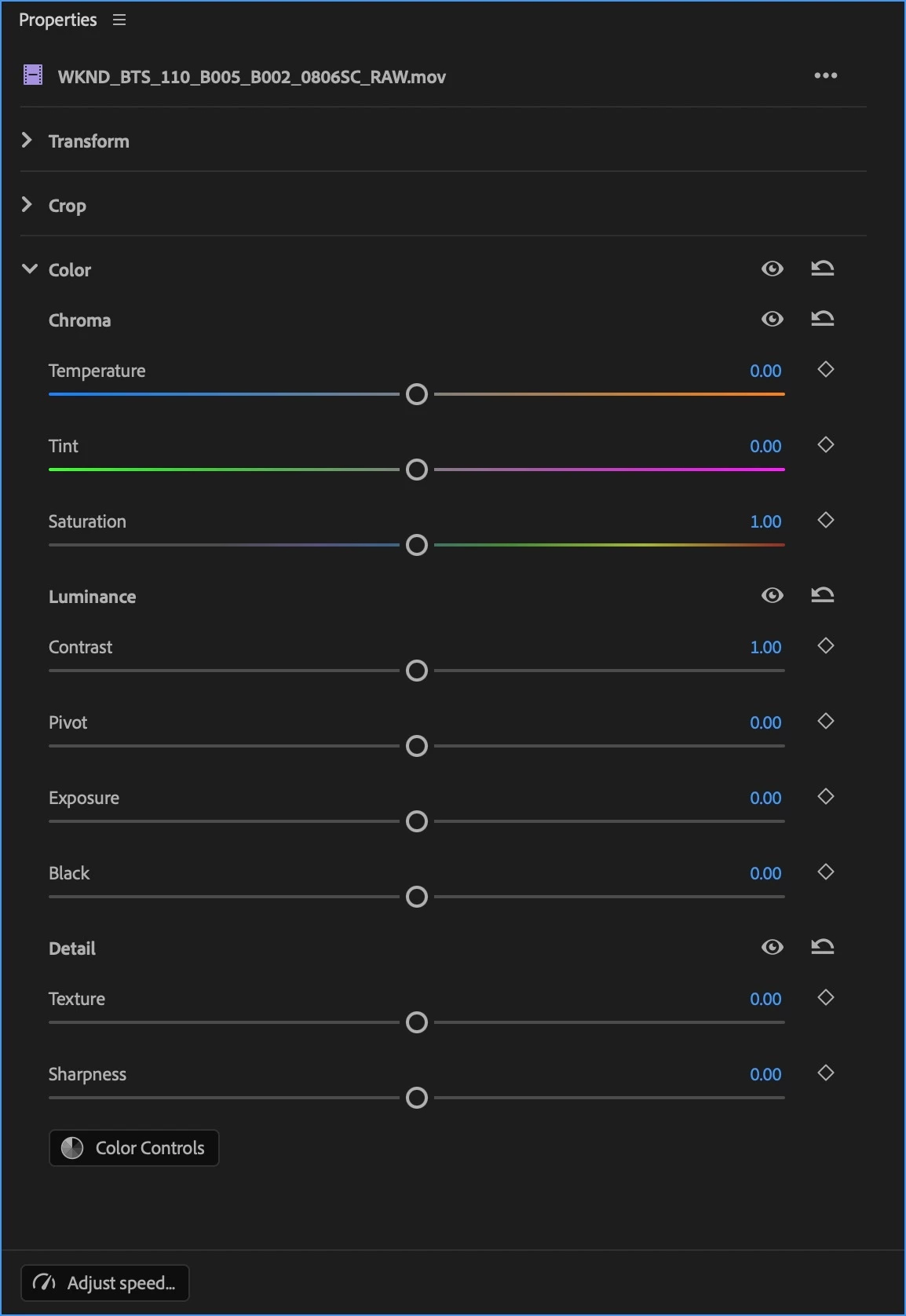
If you want to make fast color adjustments in Edit mode, the Properties Panel has a new Color section with a set of basic correction controls that you can use. These adjustments work in conjunction with Color Mode to provide you a seamless experience. You can make simple and fast adjustments to fix issues with individual clips in Edit Mode, while using the streamlined workflows in Color Mode to quickly grade your overall sequence with more creative controls.
Clip Match Has Been Removed
Changes to Premiere required the Clip Match feature of Lumetri be removed, as well as the clip comparison mode of the Monitor in Edit mode (clip comparison is available in Color Mode).
Finish Critical Projects in Version 26
If you want to continue using Lumetri as it was to finish a work in progress, we encourage you to continue using the shipping version of Premiere version 26 until you’ve finished.
One Last Note From the Architect
On a personal note, back when I wrote the Color Correction Handbook, I had no idea that I’d someday have the opportunity to bring everything I’ve learned to a re-imagination of color workflow this ambitious. Color Mode is the product of a career's worth of work as a colorist, of research, of talking with countless colorists and post production artists, and lessons learned building all kinds of other color tools and workflows. With the help of my close collaborators in Design, Engineering, Project Management, and Product Marketing here at Adobe, we would all like to introduce this new color experience.
While we've worked hard to provide as complete a color workflow as we could on day one, Rome wasn't built in a day and this is only the beginning; we have an ambitious roadmap and there's much more to come, so I invite you to give it a try and have fun exploring what we’ve created!
 AdChoices