



Now in Beta: Premiere Pro Text Styles Enhancements
We are thrilled to announce enhancements to styles for graphics and captions! You can try them out in public beta starting with build 24.2x38. We are excited about your feedback!
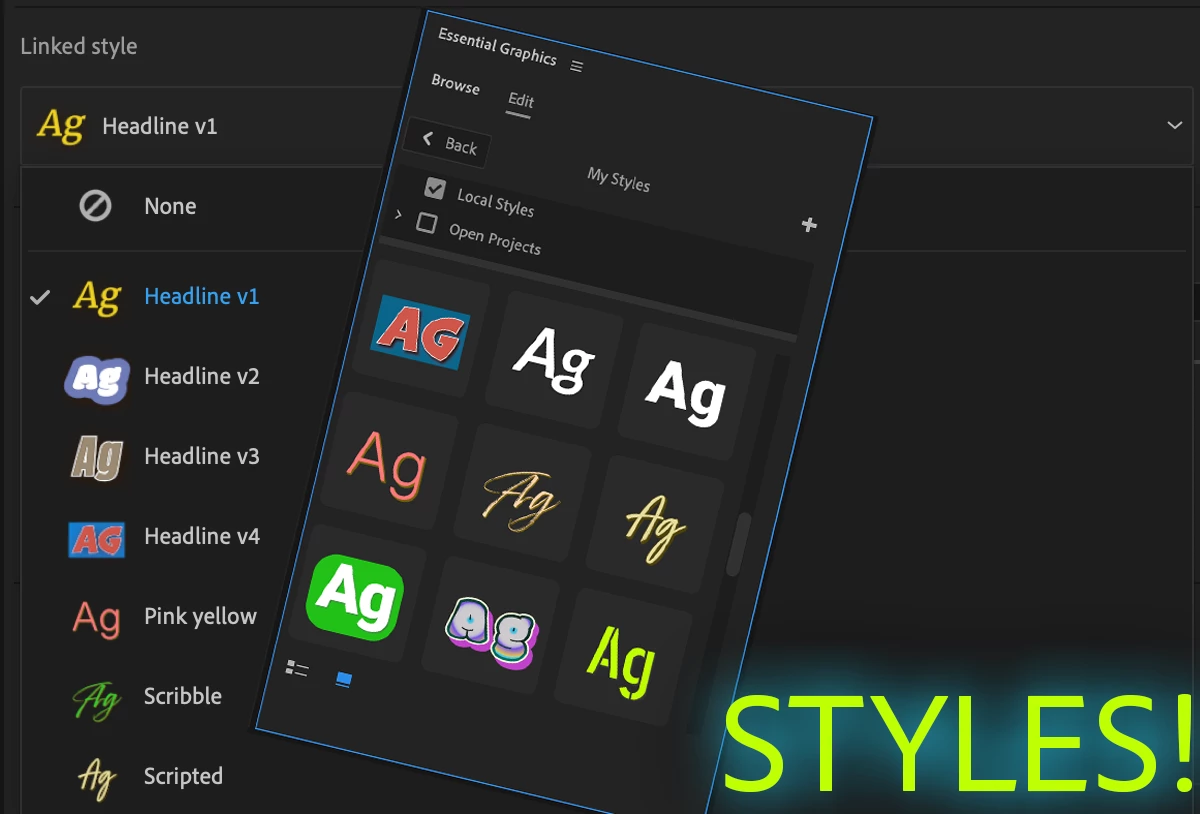
Let's explore the two key improvements:
1. Thumbnails for Reference:
- Easily reference your styles with the introduction of thumbnails.
2. New Style Browser:
- Navigate and reuse styles seamlessly with the all-new style browser.
Styles Workflow Walkthrough:
Creating a Style
- Create or Import a styles via the new plus button.
- Styles now appear with thumbnails in the Essential Graphics panel dropdown.
Note: Graphics styles are referred to as "Linked Styles," while captions styles are termed "Track Styles.". This distinction is important, as for caption styles always apply to the entire track, while for graphics, styles apply to text layers.
Create a style
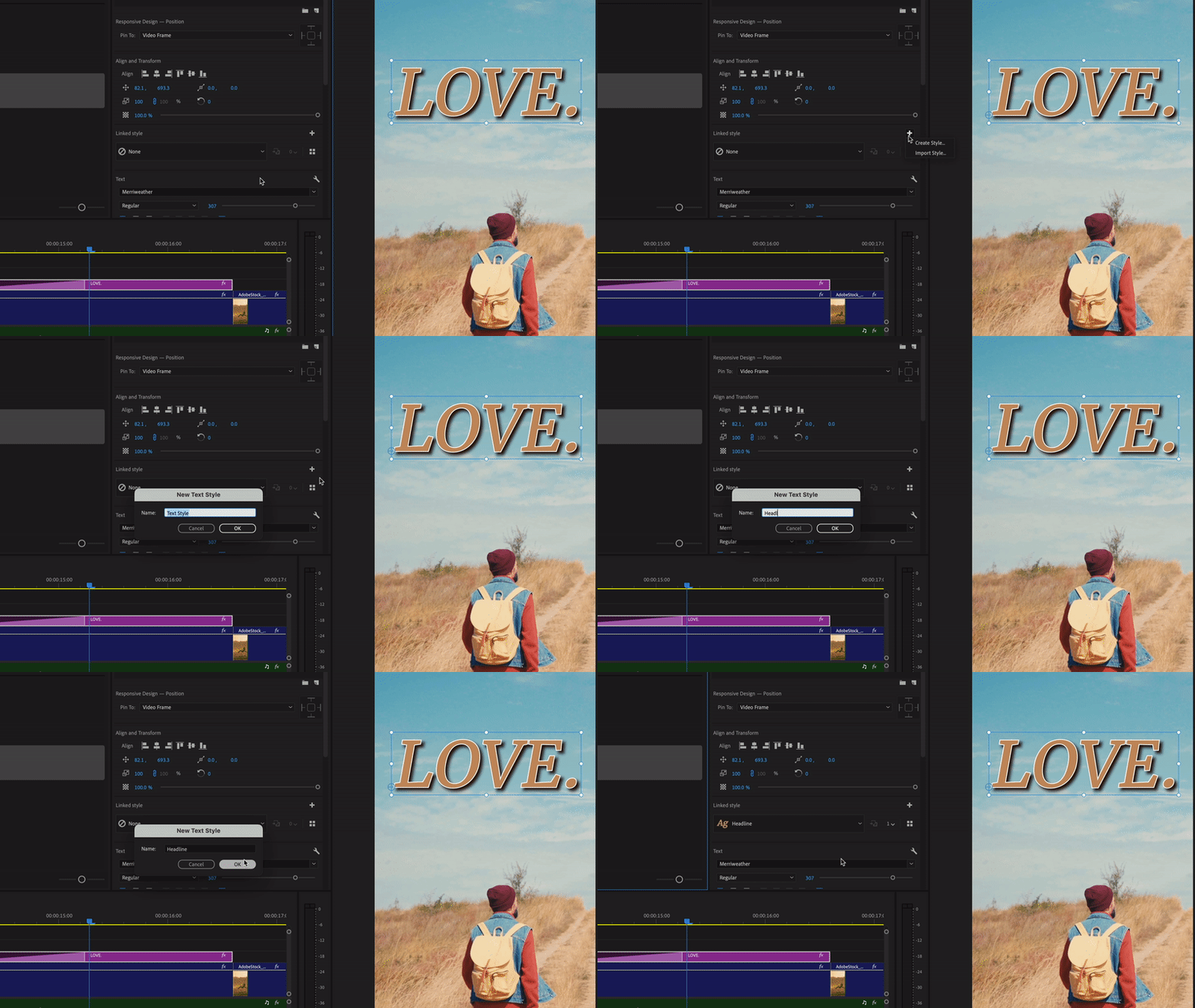
Thumbnails
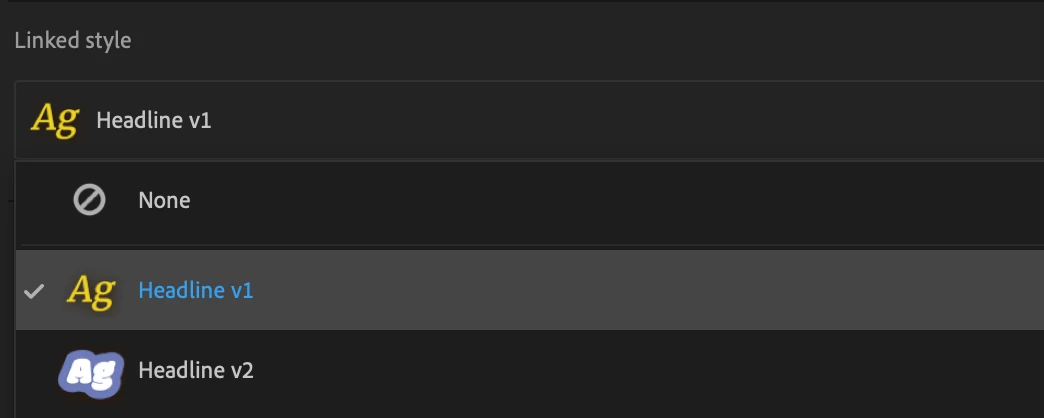
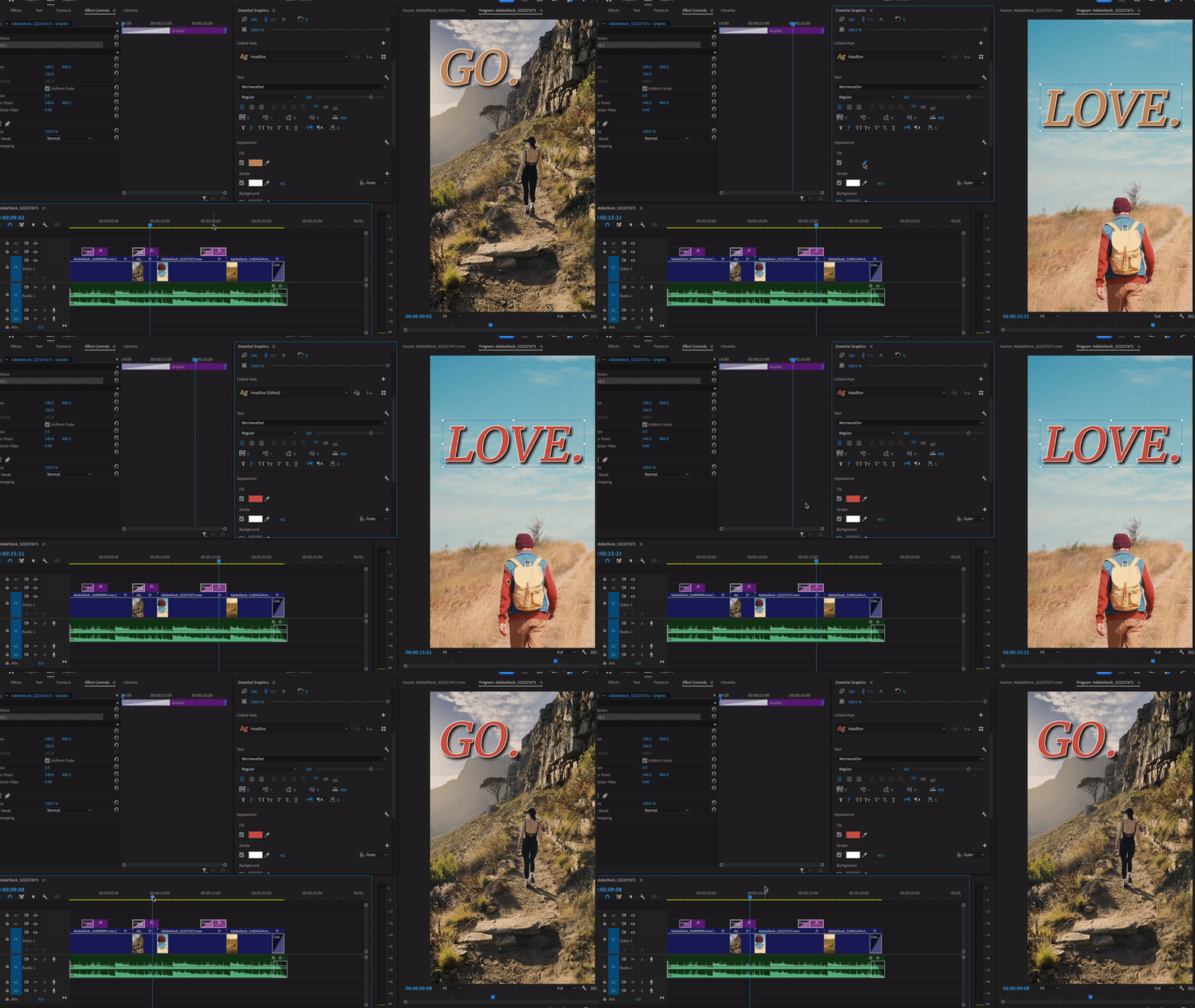
Updating a Style and Usage Indication
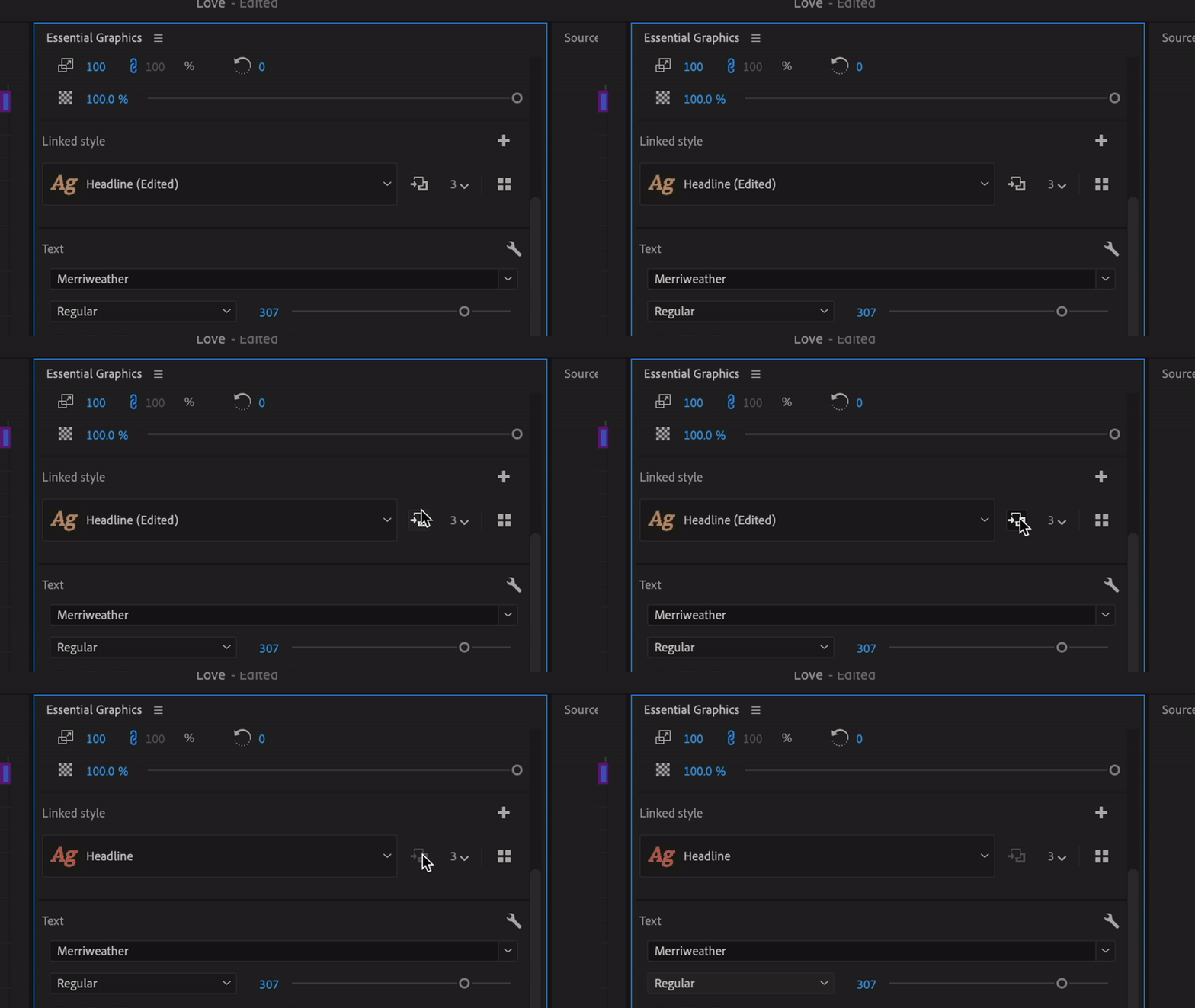
- Ripple your style changes to all instances with the new Redefine Style button, which replaces the old Push and Pull arrow buttons.
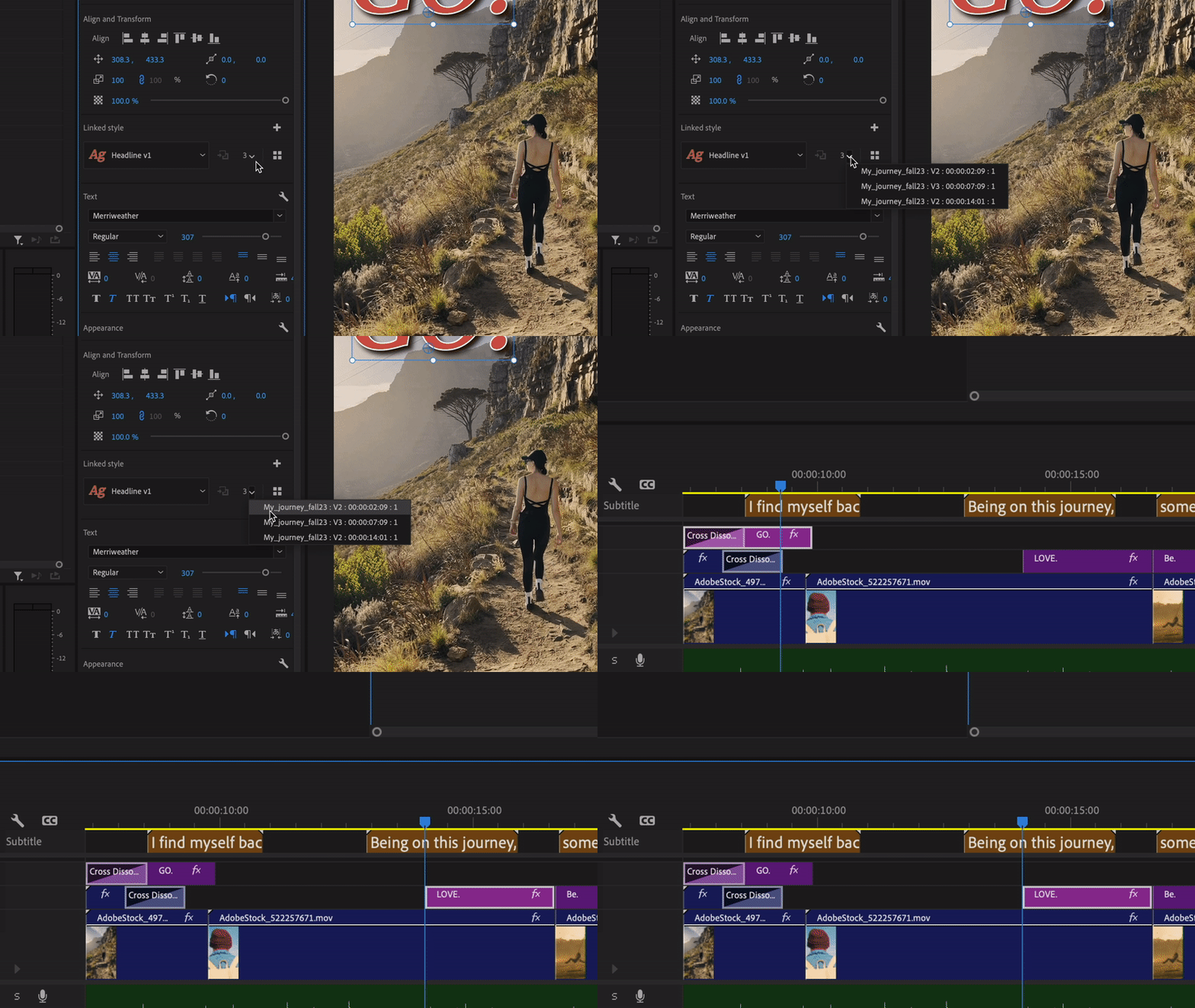
- A usage indicator shows how often a style is used, with a pulldown for quick references and navigation.
Update style
Usage Indicator and navigation dropdown
The Brand New Style Browser
- Access the style browser by clicking on the grid icon in the styles section in the Essential Graphics Edit tab.
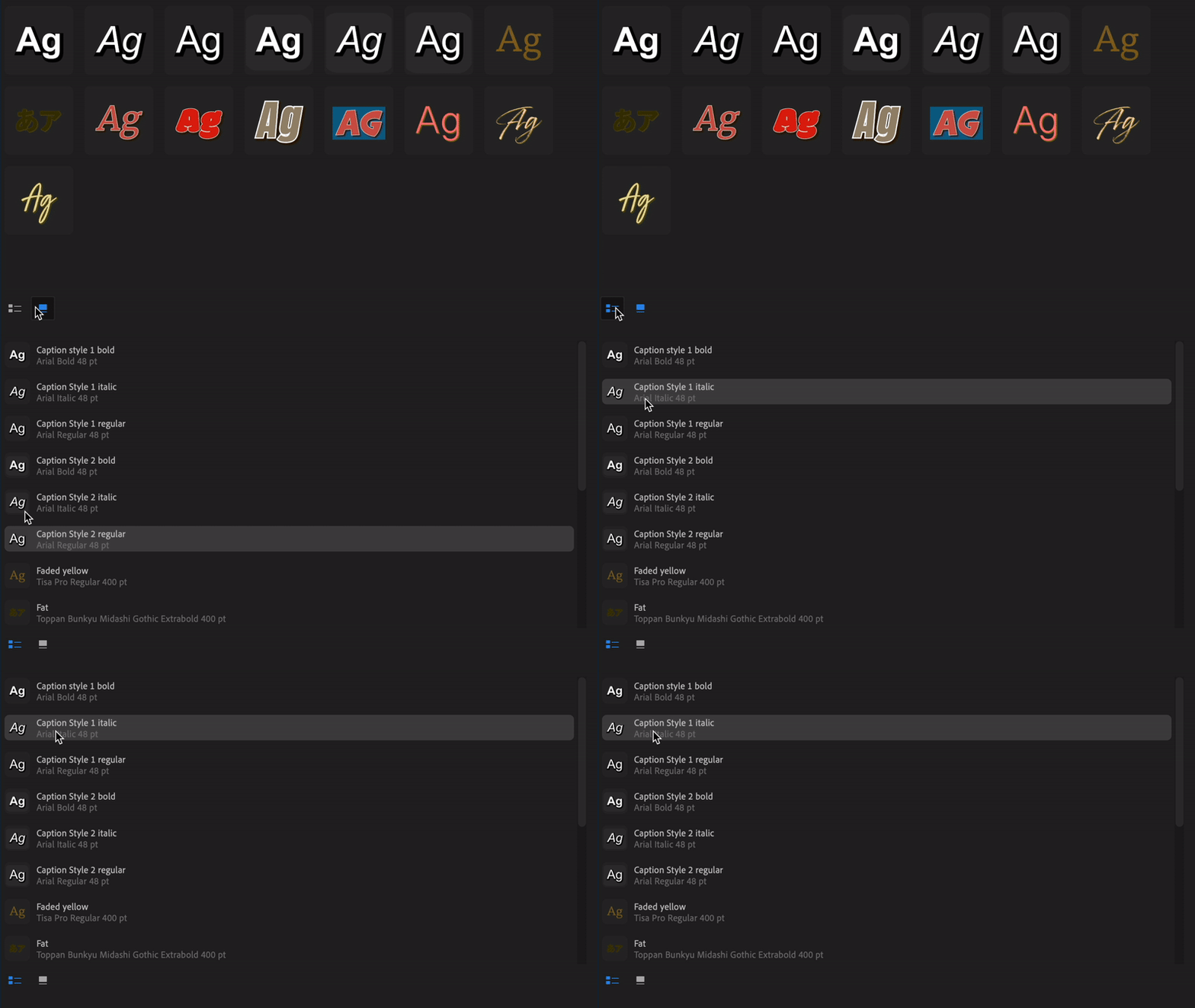
- Choose between default icon view or a more compact list view for additional font information.
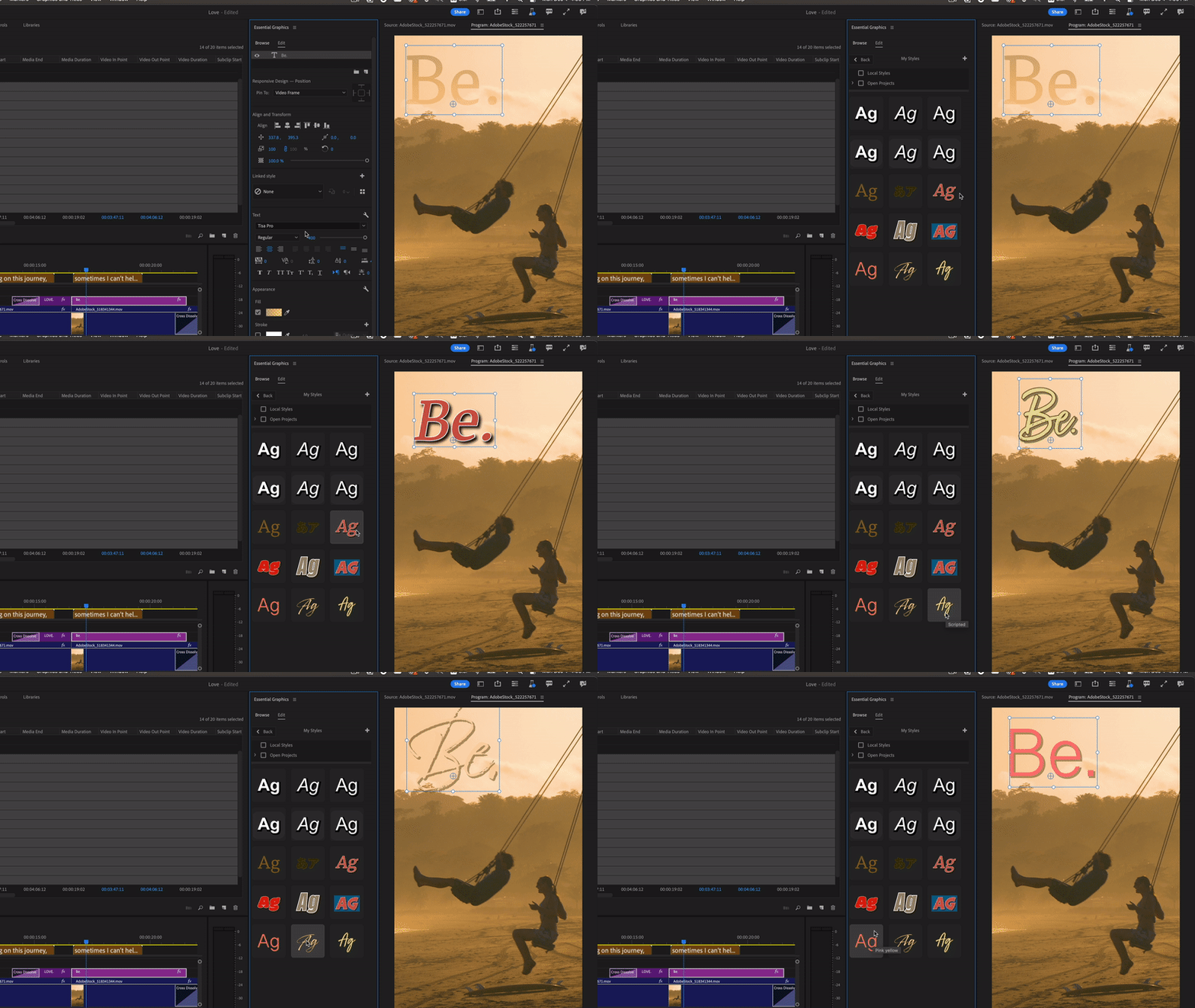
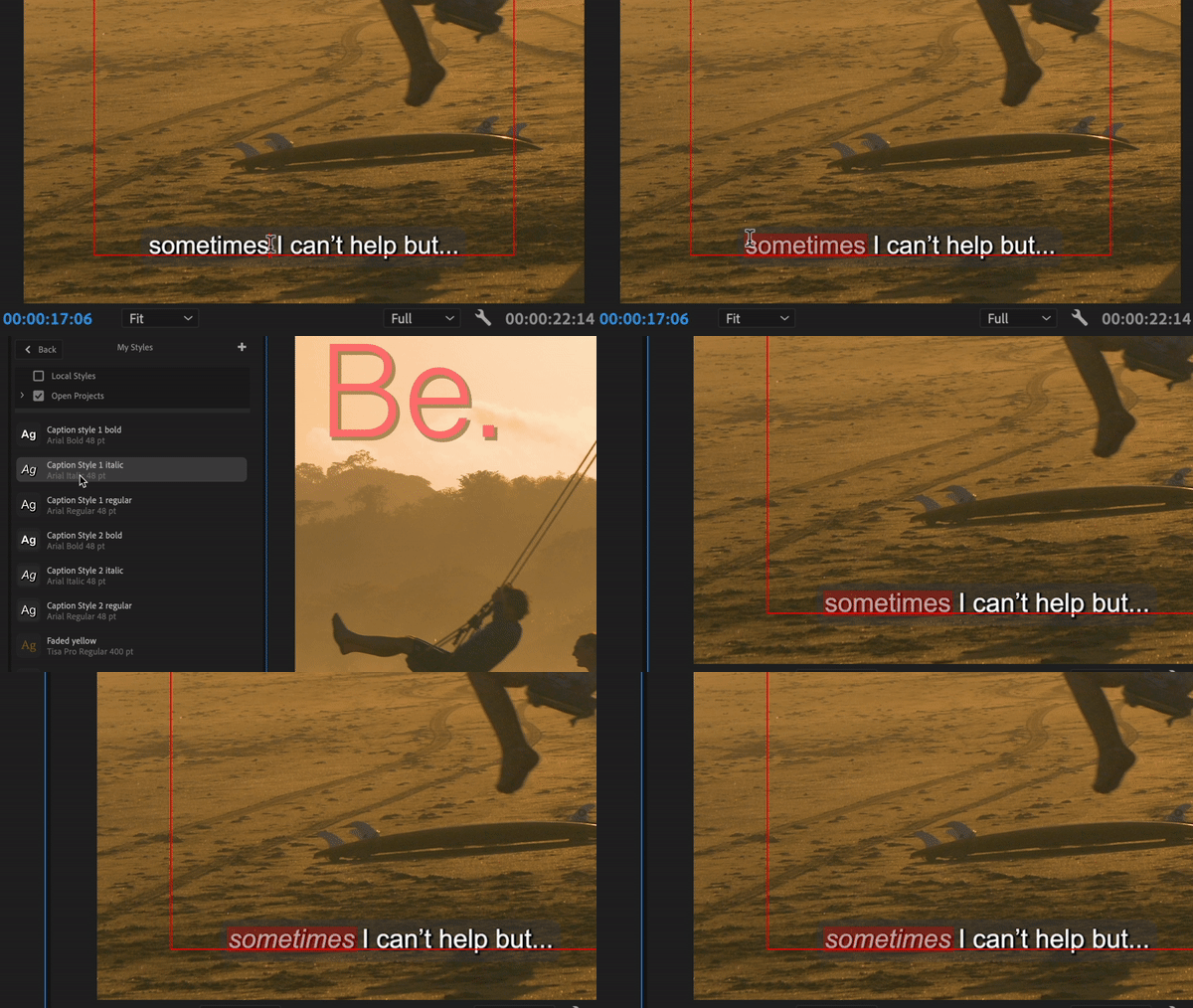
- In the style browser, click on a style to apply attributes without creating a track or linked style. Think of it more of a "paste attributes" kind of workflow, similar to how the Legacy Titler used to apply styles.
- Apply attributes to only parts of your text.
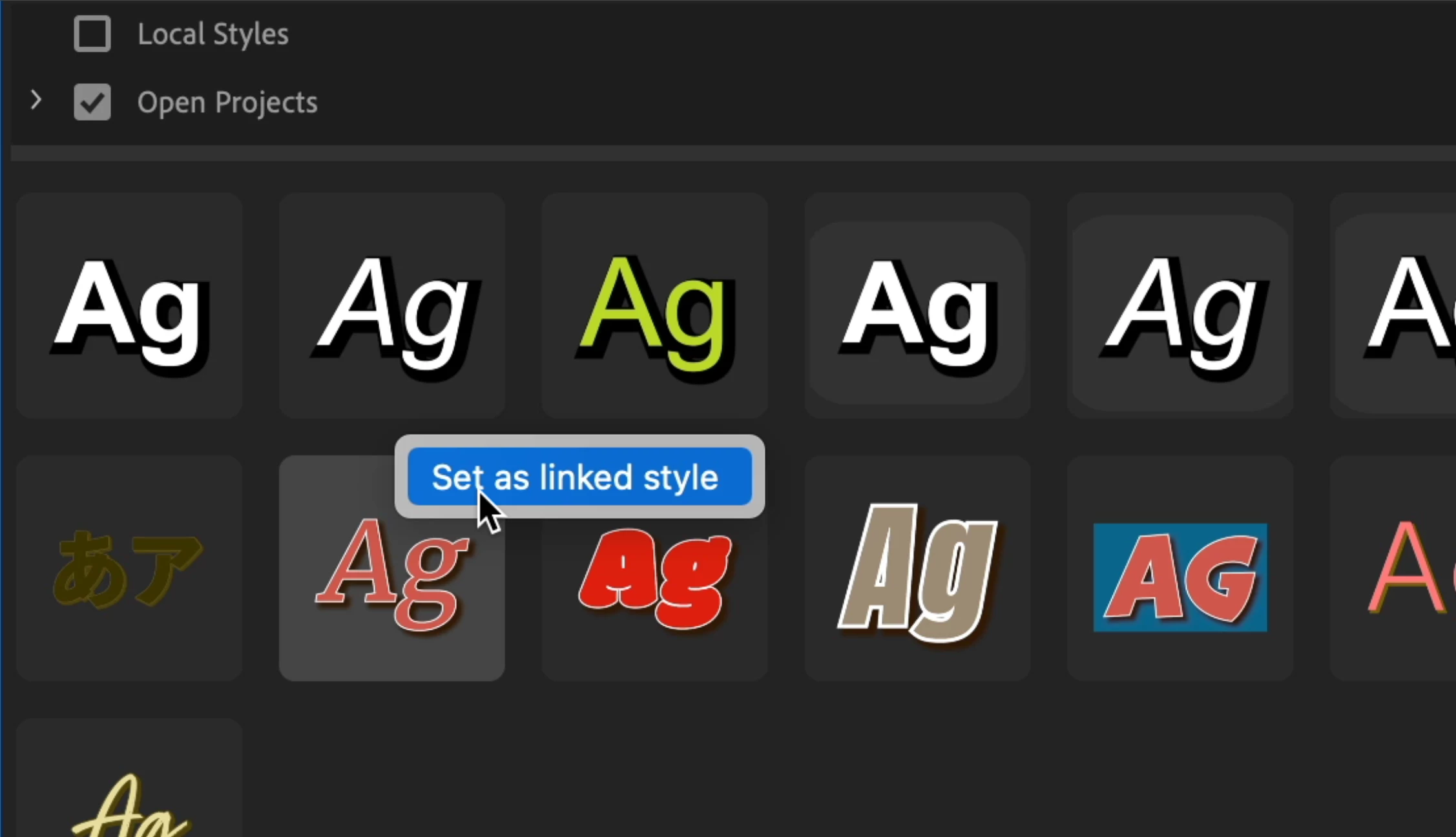
- Right-click a style to “Set as linked/track style”
Style Browser in icon view
Style browser in list view
Apply attributes to parts of a text
Set as linked style/track style in the style browser
Reuse styles across projects
- Easily store styles in a new default local location for quick reuse.
- Export styles from the Project panel to this location via “Export Text Styles”
Export styles to new local Text Styles folder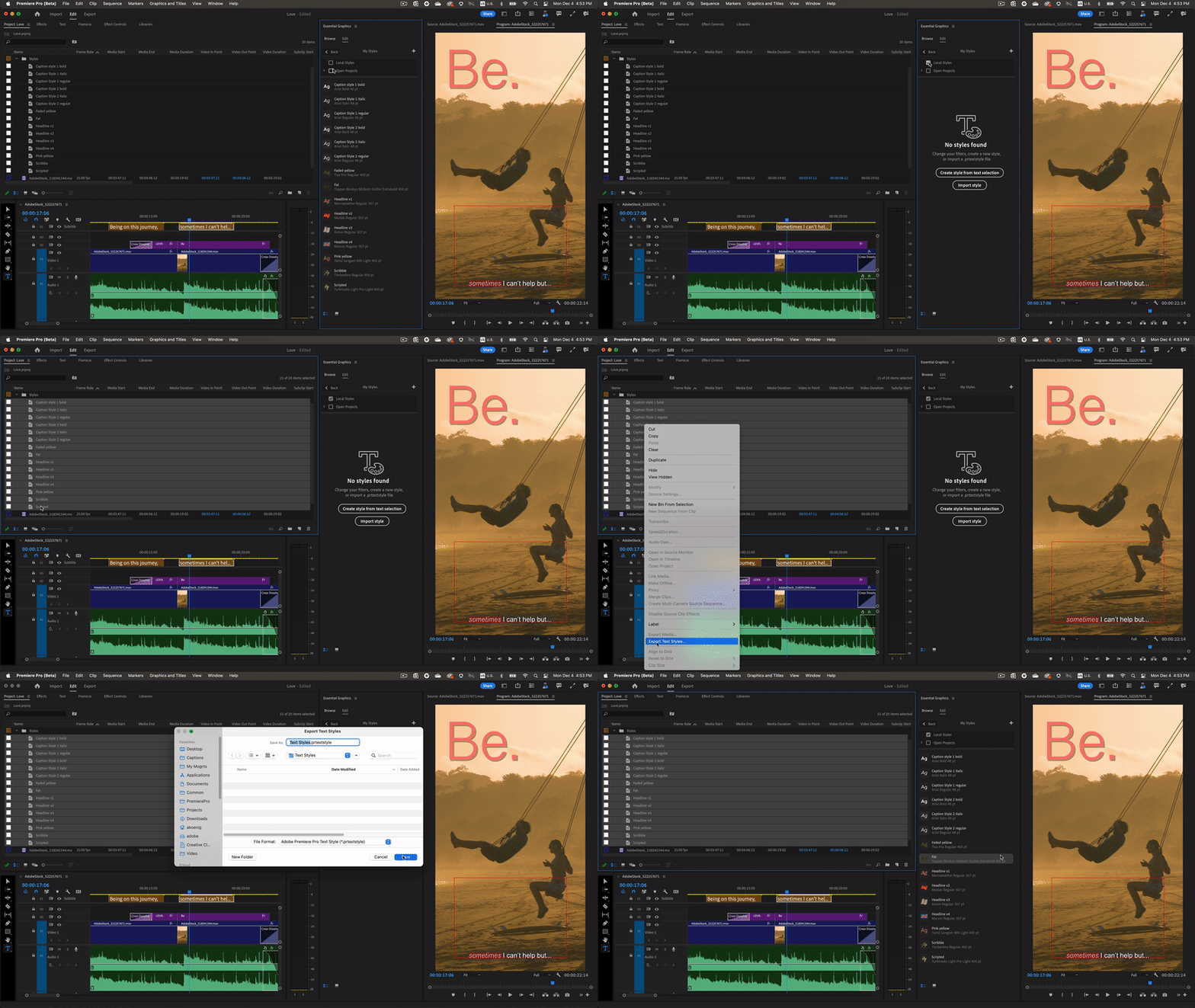 .
.
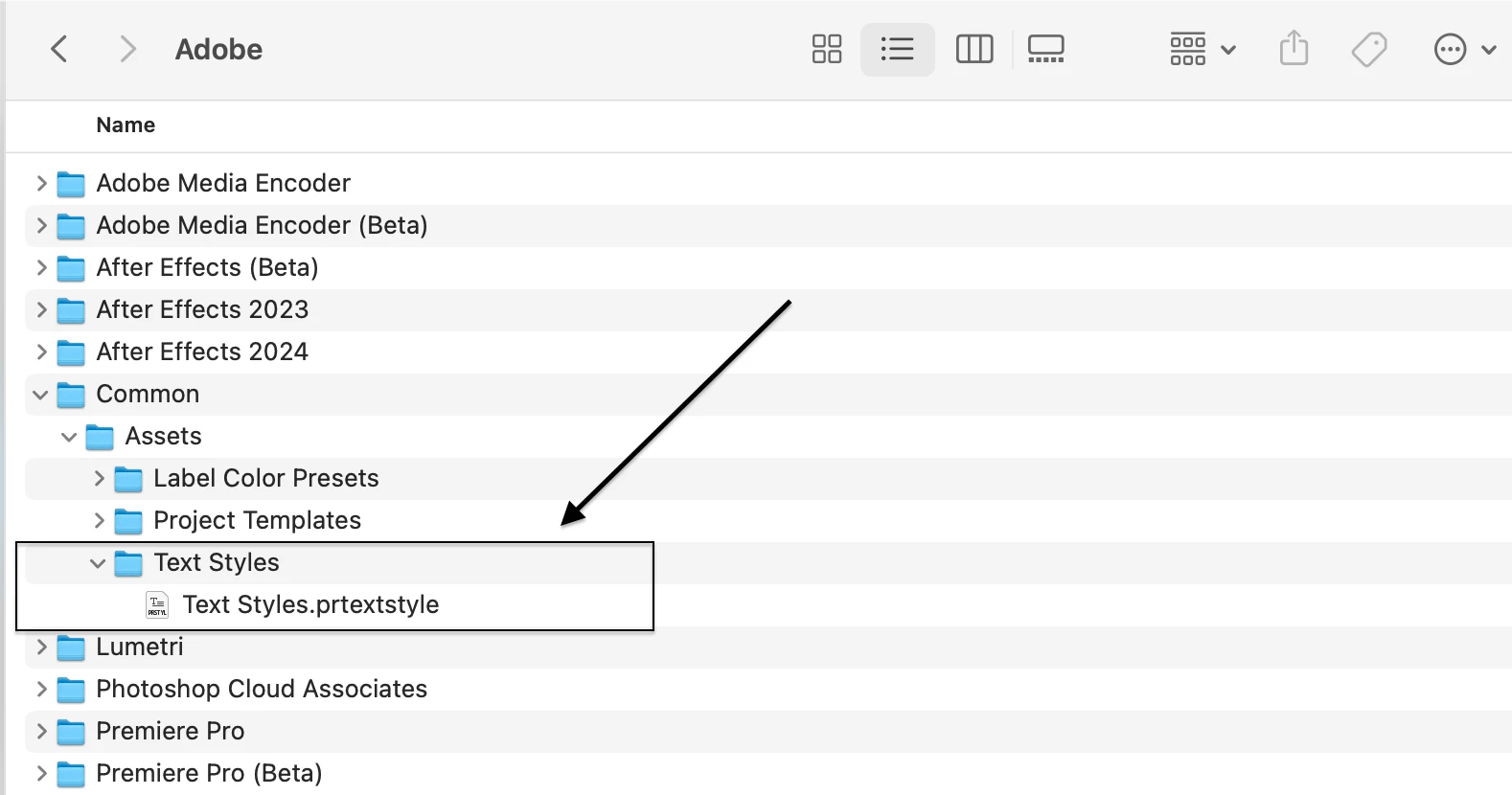
New local Text Styles folder at: Users/username/Documents/Adobe/Common/Assets/Text Styles
What's Still Missing:
- Save styles to libraries and use them in the style browser.
- Option to apply style attributes without the font.
- Option to apply style attributes without paragraph settings (so the text does not change it's position on the screen).
Try It Out:
- Explore the feature with this sample styles collection
 AdChoices