

David Polk
Community Manager
Community Manager
September 13, 2023
Answered

[Now Released] Enhance Speech in Premiere Pro

  • September 13, 2023
  • 29 replies
  • 32045 views

With AI-powered Enhance Speech now in Premiere Pro (beta), you can magically remove noise and improve the quality of dialogue with one click, so it sounds as if it were recorded in a professional studio! We need your feedback to optimize this feature further through adding a comment below and completing a short survey.


Here’s how to use it:

 Open the Essential Sound panel and select a clip containing speech in your sequence. Click on “Dialogue."
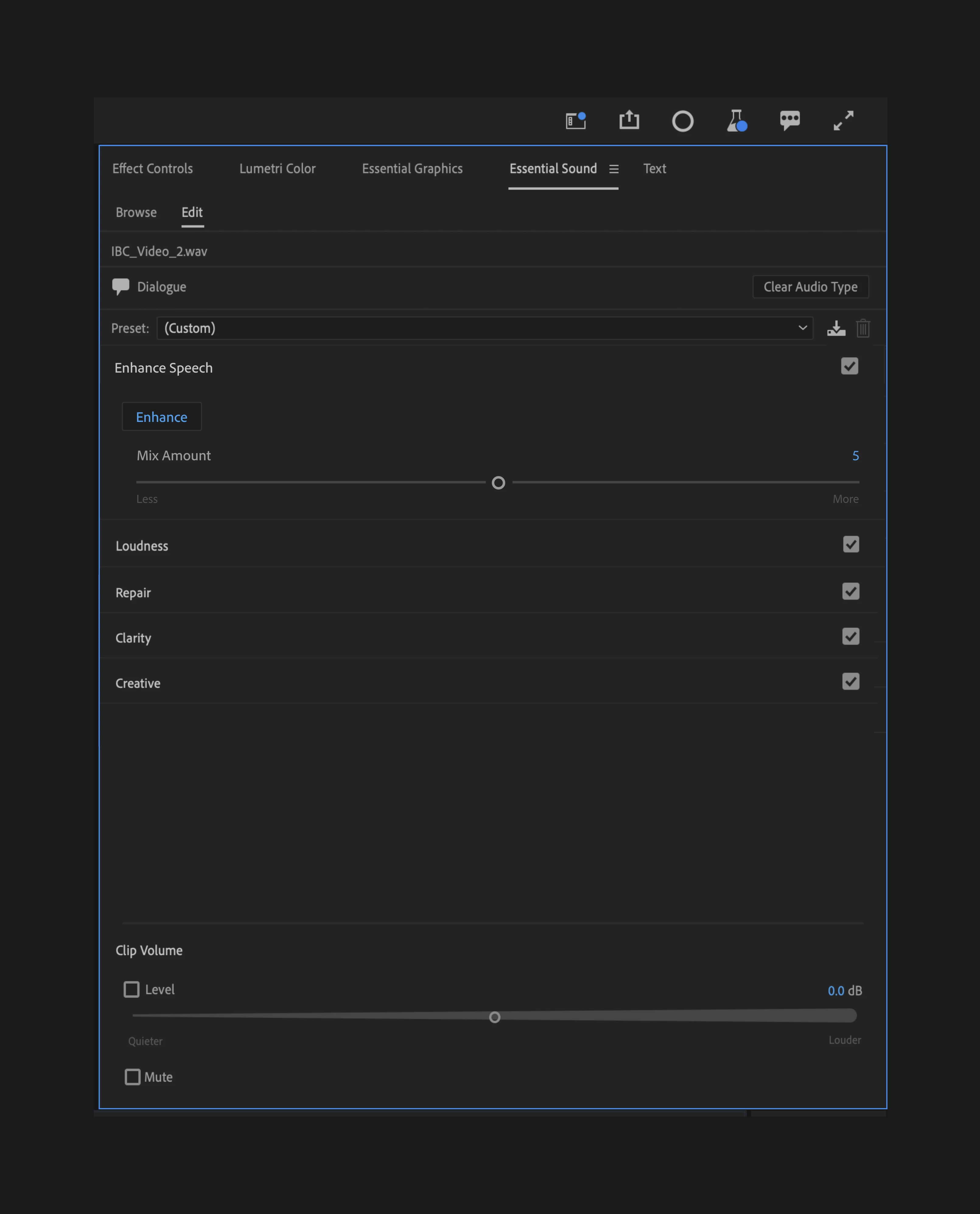
 

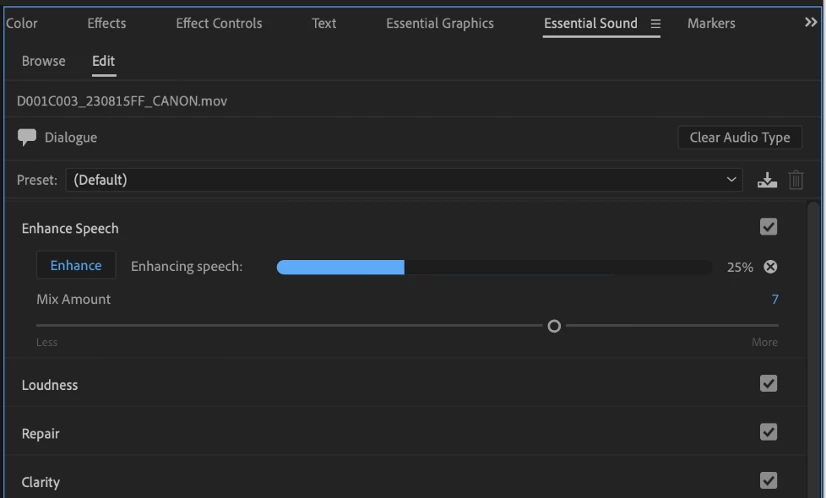
Then, just click the “Enhance” button. When processing is complete, you can adjust the amount of enhancement using the Mix Amount slider. This slider allows you to mix your raw audio with the enhanced audio, allowing natural background noise to come through.
 

What kind of recordings work well with Enhance Speech?

 Audio that is recorded with a low-quality microphone (phones, online meetings, on-camera mics) tend to be improved with Enhance Speech. It does not always work well with:

  • Extremely very poor-quality audio (e.g. a recording from an old VHS tape with heavy artifacting)
  • Multiple overlapping speakers
  • Whispers
  • Loud background music
  • Singing


How does it work?

 The version of Enhance Speech within Premiere Pro (beta) is the same feature that has been available online via Adobe Podcast. However, Enhance Speech within Premiere Pro (beta) has been optimized to perform locally on your machine, allowing you to run Enhance Speech on an unlimited number of clips. Unlike Adobe Podcast’s service, no internet connection is required. The model is not trained on your usage.


As indicated in the name, this won’t work with music, sound effects, or ambient audio. And like most AI-powered features, it requires a performant system; processing times may vary. (See Premiere Pro’s recommended hardware specifications.)


Please check out our full FAQs for this feature for more details.


What we’d love to know from you:

AI models are evolving fast and voice recordings have many unique variables we can’t always predict in our testing. We need your feedback to learn more about how you’re using Enhance Speech so we can further optimize it for all types of voices.


How has this been helpful? Have you run into any enhancement issues that prevent you from using the feature? If you’ve run into performance issues, please tell us what kind of computer you’re using.


Complete this survey and leave us feedback below.

This topic has been closed for replies.
Correct answer Oliver315800333k8f

I installed the beta just to use this feature, but when I click enhance there is no progress bar at all and nothing happens. I can change the mix amount, but this has no effect. Even when rendering out a file there is no change to the audio. Anyone else run into this?


I'm in 24.1.0 Build 77 on a iMac running Ventura 13.5.1 (22G90).

29 replies

Participant
October 5, 2023

I find it works quite well on noise and making a shot sound closer. However, I have not ended up using it in any of my final renders because I find it nearly always makes the speaker sound like they have a lisp (turning all S sounds to an SH or TH sound), especially female voices with more prominent sibilance. Keeping the mix low in order to maintain some sibilance means leaving the noise and its associated artifacting higher than I'd like. So I've kept my habit of just sending to Audition and making the edits manually. If the lisp issue were resolved, I'd use this feature in a heartbeat. 

Participant
September 29, 2023

I seem to have updated my premiere pro 23 to latest version but don't see the feature. It has "enhance speech" then high or low tone but no analisys bar etc. Am i missing the feature and can you please help me get it? I did it through the beta website and it worked amazingly well!

Stan Jones
Community Expert
Community Expert
September 29, 2023

This is in the public Beta.


The Beta can be installed independently from your production version(s). You do so from the regular CC Desktop.


Note that the current Beta (24.1.0 Build xx) is at PR project file version 42, while the release PR 2023.x is project file version 41. This means that you cannot open a Beta version file in the release version.


See the Beta FAQs:
https://helpx.adobe.com/x-productkb/global/creative-cloud-beta.html


Stan


Participant
September 29, 2023

A cool feature but the artifacting on any noisy audio is wild. When speech drops out, the AI picks up wind, clunks, bird chirps and anything else and turns it into gibberish robot voice. There is no easy way to eliminate these without dipping out the audio altogether, or cutting a clip into segments of enhanced/not enhanced. More fine tuned controls over bringing the AI in and out of a given clip would help.

Amitzi Photography
Known Participant
September 29, 2023
I typically use other filters that I have to clean the audio (like Waves)
before putting it in Enhance, for the best results.
Known Participant
September 29, 2023

In my case nothing happens the progress percentage does not increase🤷‍♂i gavr up after 15 minutes of waiting. Seems like a bug

Participant
January 16, 2024

This happened to me, it turns out the download was queued behind other CC updates.

Inspiring
September 26, 2023

I love the feature and I can use it for many different occasions. However, I don't fully understand the process yet. After activating "enhance" it renders the audio. But as soon as I make another cut to the clip it has to re render everything. That makes it quite unusable before having a picture lock. Is this correct or is something messed up in my set up?


Michael 

Participant
October 4, 2023

I'm experiencing the same problem, there should be a way to "flatten" or lock the enhancement so that every time a new cut  is made it doesn't re analyze the clip again. It's really annoying and truly a waste of time to do it before having a picture lock, yet again in my opinion, sound corrections are normally done before proceding with the rest of the edit.

Stan Jones
Community Expert
Community Expert
October 5, 2023

@Michael Muench @Alejandr01899,


> as soon as I make another cut to the clip it has to re render everything. That makes it quite unusable before having a picture lock. 


Yes, that is frustrating. And this must be used, in some situations at least, early in the process, because it is expected to help with accurate transcription. I suspect that its logic is applied in a way that changes the results if you use smaller sections. So that would force the need for a new analysis.


The re-render only happens when you initiate playback. But it doesn't show a new analysis process, just that it is "rendering audio files." So I wonder if it is not analyzing, just creating the cache files for audio playback.


In any event, I tried 2 things. I de-selected the Enhance button. Sometimes it did not re-render, other times it did.


I unchecked the effect. I could not get the audio back to the original state. But it did not re-render anything after cuts.


Stan


Jason FB
Participant
September 18, 2023

how do I "assign a tag to enable editing options based on the tag"?

Stan Jones
Community Expert
Community Expert
September 18, 2023

The tag is "dialogue" or "music" etc. Select a clip and assign it to that category.


Edit: Adding this since I'm back home. Here's the help page:

https://helpx.adobe.com/premiere-pro/using/premiere-essential-sound-panel.html


You must select the clip in the timeline. You'll see which clip in the "selection" line. In your screenshot,  you have nothing selected.


Stan


Amitzi Photography
Known Participant
September 14, 2023

Thanks! I've been using it for a while and I'm glad it's now part of Premiere Pro. I have to say that the mix amount slider doesn't really work for me. I would recommend for anyone using the Enhance feature to typically not do ANY mixing and record ambience separately. Let's say you're doing an interview at a busy festival. I still would use the best mic you have (like a Rode Go), ask the interviewee to not shout, but talk in a normal loud voice and then add in post some background noise.

Community Expert
September 14, 2023

I use "prosumer gear" including Rode Wireless Go II mics, a small Rode VideoMicro and sometimes even the camera mics.  I never have a controlled studio.  This new feature is a hugely important tool for me.  Thank you.  

Participant
September 14, 2023

Started testing this feature today on some audio shot with a boom mic in an echoing room. The feature really made the audio so much better, getting rid of background noise as well as the reverb. However, it did a strange thing. My subject said the word "supportive," but the Enchance Speech feature changed the word. Now it sounds like my subject said "supporter". I couldn't figure out how to fix it so that it matched the other enhanced speech, but still used the correct word.


Additionally the speech enhance sometimes left strange noise artifacts in places where it was quiet. 


Overall I'm super impressed with the feature and can't wait to use it more. It really can save some bad audio.

Amitzi Photography
Known Participant
September 14, 2023
>From my experience, this happens when there are issues with the original
audio, like a noise that goes over speech. The only option is to use the
original audio of the botched word and clean it up with some other plugin.