



[Released] Now in beta: New ‘Settings’ tab in the Lumetri Color panel
Edit: This feature is now shipping in Premiere Pro v24. Thanks to everyone who provided feedback while it was in beta!
Note: since the message below was posed, we have updated the color settings user experience. Please refer to the post here for more information.
With the latest update to Premiere Pro in Beta, we have made finding and using color settings easier. Color settings in the application are now in one place in the new ‘Settings’ tab in the Lumetri Color panel. So, if you want to quickly select the Media Color Space or add an Input LUT while editing and doing color correction, you can do so within the Lumetri Color panel without hunting for settings in different dialogs.
As an advanced user, you can find all color settings from ‘Auto Tone Map Media’ to ‘HDR Graphics White (Nits)’ across the application in one place to quickly update while color correcting and grading.
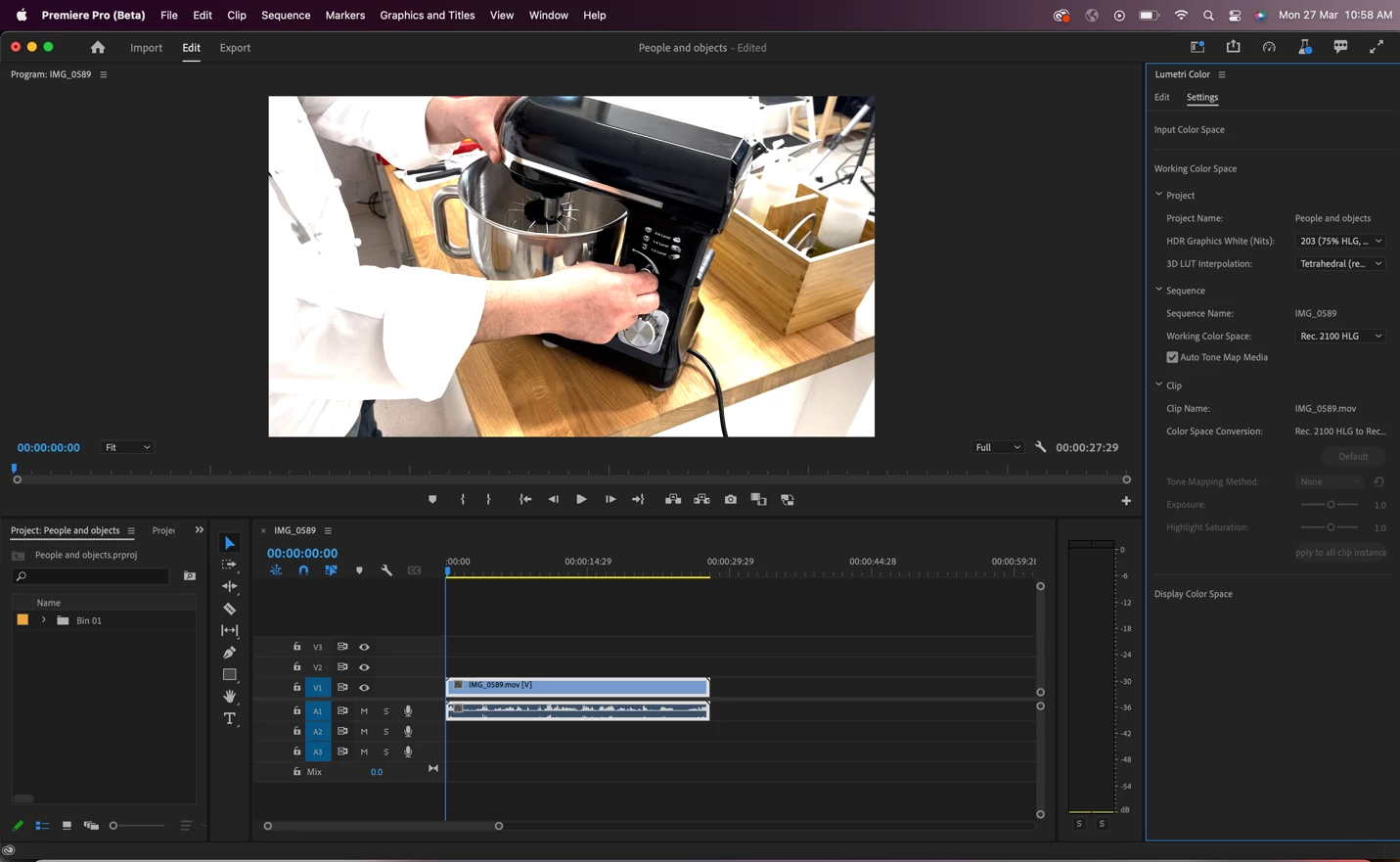
Screen above shows the Lumetri Color panel with the new ‘Settings’ tab.
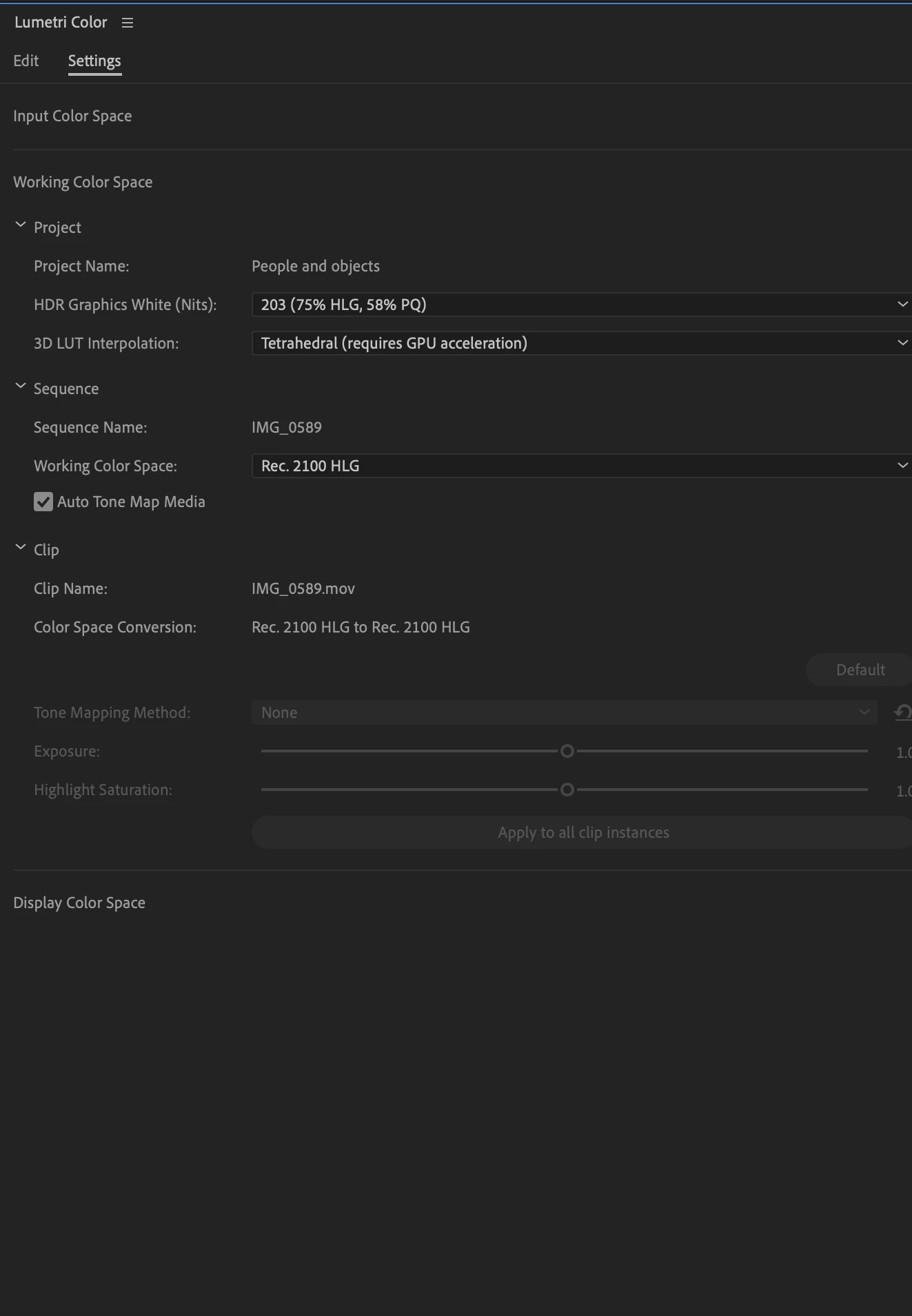
The screen above shows the zoomed-out view of the new ‘Settings’ tab.
The color settings are organized under three sections ‘Input Color Space’, ‘Working Color Space’ and ‘Display Color Space’ for you to easily find the setting based on where they are in the color workflow, such as specifying metadata for source (input) media or editing the color space or specifying the display settings.
If you just want to use basic color settings, you will find some settings such as specifying input (source) Color Space, Working Color Space, and input LUT useful.
As an advanced user, you can interact with the below settings:
1. Input Color Space – This section allows you to choose the color settings at the source media level like specifying the color space of the source (input) media if you want to override the color space that Premiere Pro has selected. If you work with log videos, you can also select if you would like all log videos to be auto-detected as log and color converted to the selected Working Color Space or have the application recognize them as Rec. 709.
2. Working Color Space – This section allows you to select the color settings that apply to the Working Color Space of your video. For example, which color space should be chosen and be visible in the Program Monitor or used for color conversion. You can also select the Tone Mapping Method or HDR Graphics White (Nits) to be used when working with HDR videos.
3. Display Color Space – In this section, you can find some settings applicable to Display Color Management, if you have a different monitor/device than your Working Color Space. For example, turn Display Color Management on to see your HDR videos on a non-HDR monitor while editing to know how your final output will appear on HDR display devices.
The settings under various sections are further organized under ‘Clip’, ‘Sequence’ and ‘Project’ and will be enabled only when the corresponding clip or sequence has been selected. Project or application-level settings will apply to the whole Project or application respectively.
The settings are in sync with settings spread across dialogs today like Modify Clip, Sequence Settings, Project Settings, source settings and Preferences.We have, additionally, consolidated all settings in these dialogs in a new Color tab to make them more discoverable. So, if you have created a new sequence and want to modify color settings while editing video and audio settings in one go, you can do so easily as well within the same dialog. The same applies for other dialogs like Project Settings and Modify Clip as well. We have also incorporated color settings like HDR Grpahics White Nits and 3D LUT interpolation in Team projects.
Please try out the new Lumetri Color panel ‘Settings’ experience in Beta and let us know what you think!
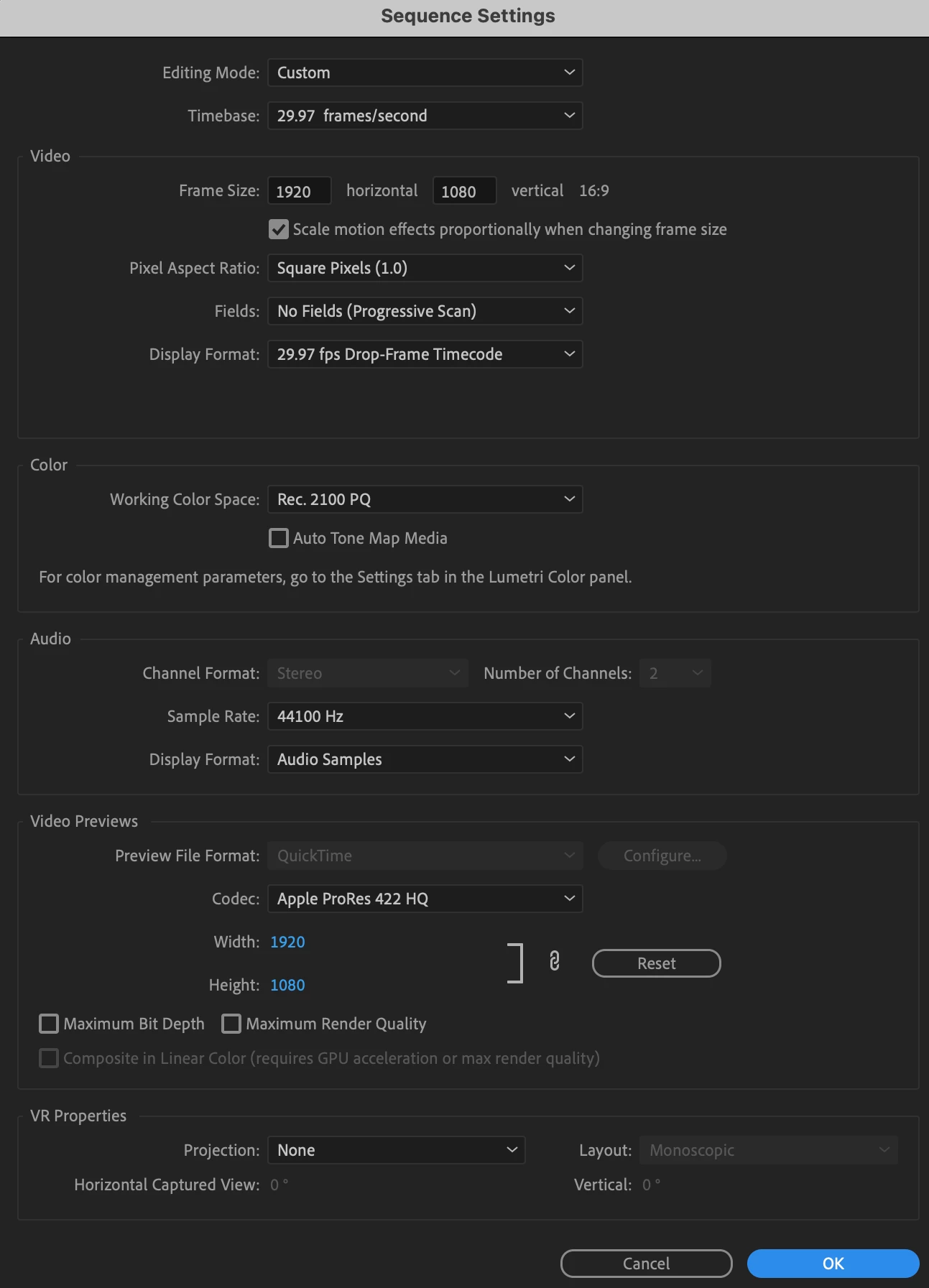
The dialog above shows the Sequence Settings dialog with a new consolidated color section.
 AdChoices