


Acrobat DC opens for few seconds and closes after updating to April 2021 release
After updating Acrobat DC to April 2021 release, Acrobat DC opens for a few seconds and closes.
Applicable versions
- Acrobat DC (Version 2021.001.20149 | April 16, 2021 release)
Try the workarounds below in the order they appear:
Update the Creative Cloud Desktop app to its latest version and keep it open
- Open the Creative Cloud desktop app. (Select the icon
 in the Windows taskbar or the macOS menu bar.)
 - In the Creative Cloud desktop app, click the options menu, and then click Check for App Updates.
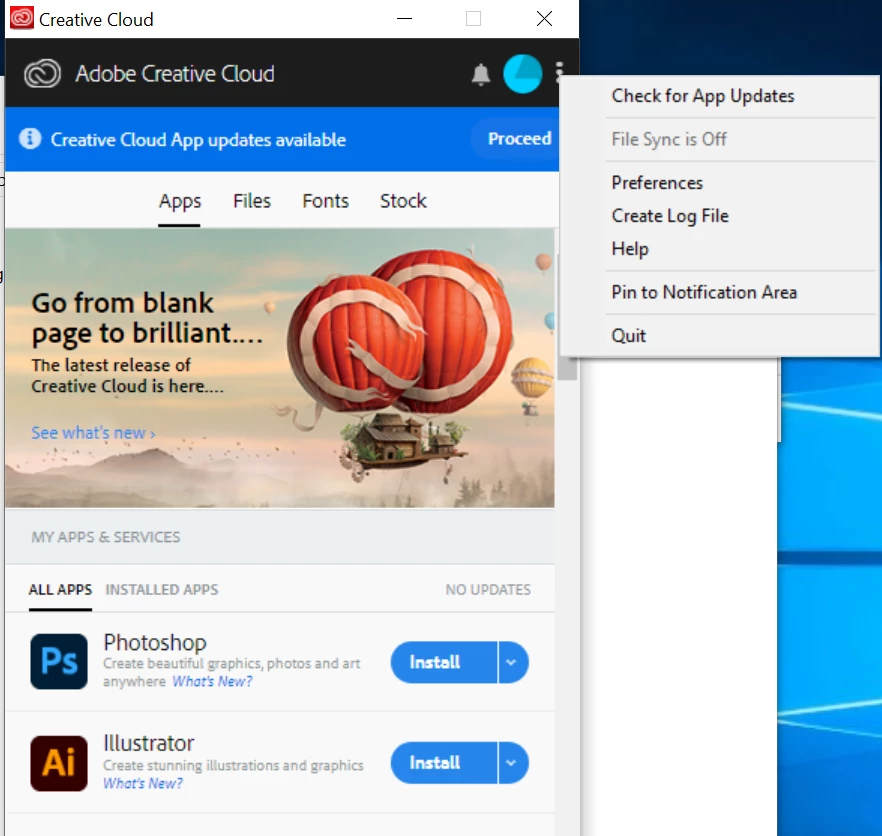
- If you aren’t using the latest version of the Creative Cloud desktop app, a prompt to update will appear. Select Update.
After the Creative Cloud desktop app is updated, launch Acrobat DC and check.
Create a feature lockdown registry key
Applicable on Windows
- In Start > Search, type RegEdit and press Enter. The Registry Editor is displayed.
- Browse to HKEY_LOCAL_MACHINE\SOFTWARE\WOW6432Node\Policies\Adobe\(product name)\(version)\FeatureLockDown.
For example, the path for Acrobat DC is LOCAL_MACHINE\SOFTWARE\WOW6432Node\Policies\Adobe\AdobeAcrobat\DC\FeatureLockDown. - Create the following key:
Key: bDisableFrequentSignInWorkflow
Data type: REG_DWORD
Value: 0
- Close Registry Editor.
Uninstall Acrobat and reinstall the previous version.
Steps to uninstall Acrobat DC.
Uninstall Acrobat DC on Windows
- Open the Run command box - press the Windows key and the R key.
- In the Run command box, type Control Panel and press OK.
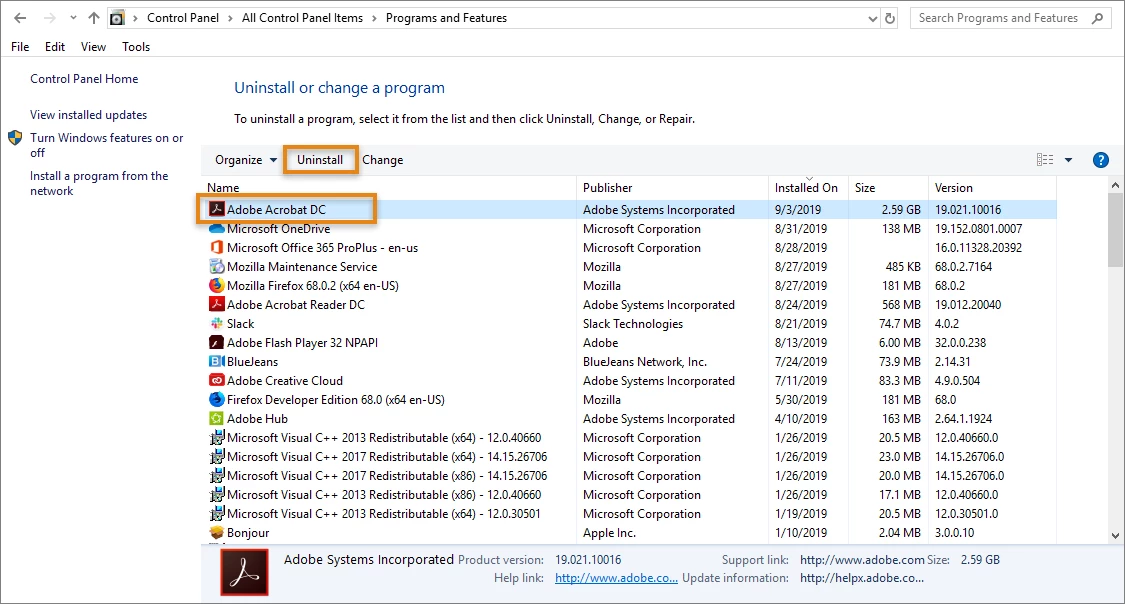
- In Control Panel, click Programs and Features.
- From the list of installed programs, select Adobe Acrobat DC and click Uninstall
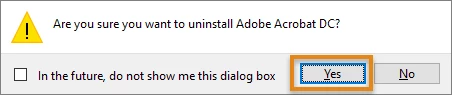
- Click Yes in the confirmation dialog.
Uninstall Acrobat DC on macOS
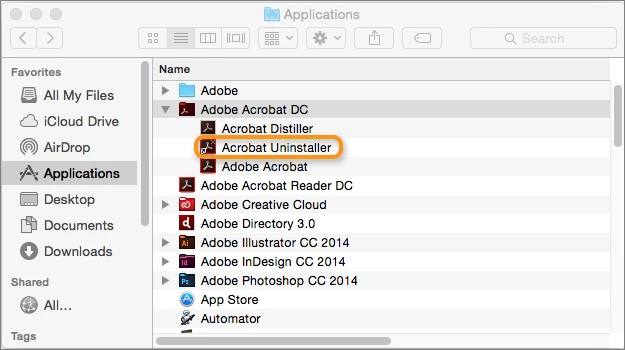
- Go to Finder > Applications > Adobe Acrobat DC, and double click the Acrobat Uninstaller.
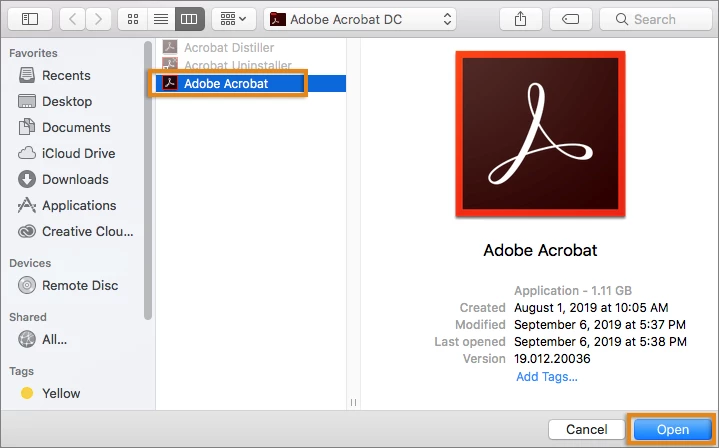
- The uninstaller asks you to select the product. Select Adobe Acrobat and click Open.
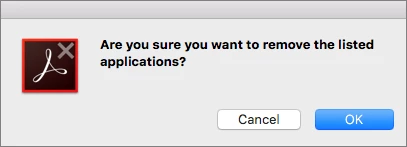
- In the confirmation dialog for Acrobat DC removal, click OK.
Steps to reinstall Acrobat DC
Do any of the following:
- Open your Creative Cloud desktop app. In the list of apps, find Acrobat, and then click Install.
- Download the Acrobat DC installer, and then follow the onscreen instructions to sign in and install.
 AdChoices