Participating Frequently
October 28, 2020

P: Copy/Sync Crop and Spot Removal wrong results at portrait photos

  • October 28, 2020
  • 46 replies
  • 1884 views

Copy or sync crop and spot removal develop settings causes wrong results at portrait photos. The crop and spot removal settings are wrong by 90° after copy/paste or sync.


Here an example photo to reproduce.

- Importing in Lightroom Classic 10

- Create a copy by edit in Photoshop 
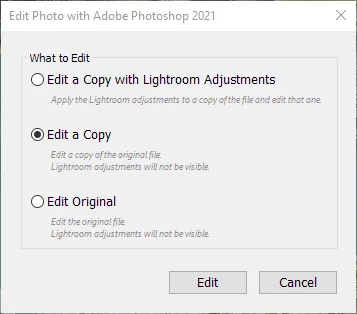
- Make a small edit, e.g. add text "Photoshop edit" and save.

- Add a crop and spot removal e.g.
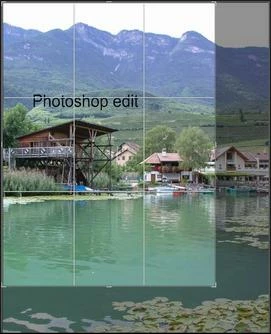
 

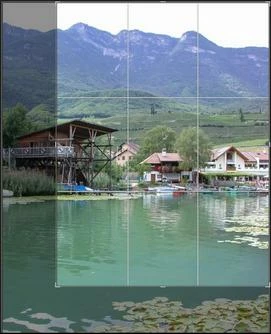
- Copy or sync the crop and spot removal develop settings to the same/original photo before the edit in Photoshop. But the result of the crop and spot removal is totally wrong:
This topic has been closed for replies.

46 replies

PECourtejoie
Community Expert
Community Expert
March 17, 2021

Hello, could you state the version of Lr Classic you are using, and your OS?

Participating Frequently
March 17, 2021

When I select a group of photos in 4x6 format and change a 4x6 portrait to a 16x9 aspect ration and sync the other photos change to a 10x12 in landscape.

johnrellis
Legend
March 17, 2021

[Update: This isn't quite right, see below.]

The bug is only partially fixed -- copy/paste of crops and local adjustments between photos with different rotation/mirroring (called "orientation" by LR internals) now works only if the target photo's orientation has been saved to the file's metadata.

To reproduce:

0.  Uncheck the option Catalog Settings > Metadata > Automatically Write Changes Into XMP.

1. Import a raw photo that hasn't been rotated in-camera and that doesn't have a .xmp sidecar.

2. Do Photo > Rotate Right.

3. Do Photo > Edit In > Photoshop and save the file as a TIFF.

4. In LR, crop the TIFF and apply a visually noticeable brush stroke.

5. Select the TIFF, do Photo > Develop Settings > Copy Settings, select Local Adjustments and Crop, then do Paste Settings on the raw.

6. Observe that the crop and the adjustments have been placed in a different location on the raw:

7. Do Edit > Undo Paste Settings.

8. Select the raw and do Metadata > Save Metadata To File.

9. Do Photo > Develop Settings > Paste Settings.

10. Observe that the crop and local adjustments are now correctly placed on the raw:

Tested with LR 10.2 / Mac OS 10.15.7.

Rikk Flohr_Photography
Community Manager
March 16, 2021

Updates to Lightroom Classic and the Lightroom Ecosystem products for Desktop, Mobile and Web were released today and contain a fix for this issue.

Please refresh your Creative Cloud application and install your update when it becomes available. Thank you for your patience.

Rikk Flohr: Adobe Photography Org
Participating Frequently
October 29, 2020

@arjun_haarith

The provided sample image is the original JPG image from a Nikon Coolpix 995 camera after imported into Lightroom. Because the camera has no orientation sensor (and no orientation exif tag), Lightroom displays every portrait photo from this camera as a landscape photo after the import. So I had to rotate it manually in Lightroom [Library -> Photo -> Rotate Right (CW)].
This problem I has only now been noticed. Up to now I had denoised all my JPG images before importing them into Lightroom using the Neat Image application, because it gives much better results than the Lightroom denoised function. 
But now I wanted to change my workflow to completely use Lightroom and import the original (not denoised) JPG of the camera and try to transfer the development settings. I noticed that the crop and spot removal develop settings are transferred incorrectly. Affected are all images rotate in Lightroom, if the source image of the development settings was processed by any external program.

arjunhaarith
Adobe Employee
Adobe Employee
October 29, 2020

Hi Maik,

Thanks for reporting this. 

I just verified this in 9.4, and could confirm the behaviour there as well. Have you also observed the same in older versions?

Irrespective of that, we will investigate the same and get back.

Few questions :

1) Was this a landscape image initially on which the orientation was changed to portrait?

2) Do you see this issue on an actual portrait image as well?

Thanks,

Arjun