

johnrellis
Legend
April 28, 2015

P: JPEG format tripping up other programs

  • April 28, 2015
  • 63 replies
  • 1918 views

Lightroom CC writes JPEGs in an atypical layout that trips up other programs. While they appear to be strictly conforming to industry standards, the unusual layout has caused problems for at least two users: one who had problems uploading photos to real-estate services, and another whose own software tripped over the layout.

LR writes the APP1 header as: TIFF header, 114 unused bytes, ExifIFD, IFD1, IFD0. Whereas Photoshop CC uses a more traditional layout: TIFF header, no unused bytes, IFD0, ExifIFD, IFD1. Here's an Exiftool dump of the beginning of a LR JPEG:
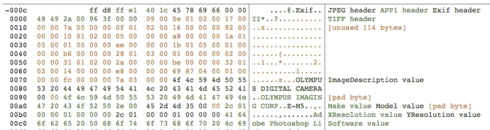
And here's a dump of the beginning of a Photoshop JPEG:

I've tested LR JPEGs with 12 Mac and Windows programs and 2 online services, all of which read them just fine:

Mac: Preview, Photoshop CC 2014, ColorSync Utility, Firefox, Chrome, Lattice, Paintbrush, Safari, Word
Windows 8.1: File Explorer Preview, Irfanview, Paint, Windows Photo Viewer
Online services: Flickr, Zenfolio

Even though LR's JPEGs may be strictly conforming, if it wrote the JPEGs without the unused header bytes and it put IFD0 immediately after the TIFF header, as Photoshop does, then there would be fewer problems with other programs choking on LR's JPEGs.

This topic has been closed for replies.

63 replies

Inspiring
June 22, 2015
I've upgraded to LRCC and exported pictures do not show EXIF data Picasa version 3.9.139. Bit of a pain so pleased I didn't uninstall LR5.
Inspiring
June 21, 2015
Many people having this issue are on PHP-based servers. Just an FYI, this issue has been reported as a bug on the PHP side of things, as well.

http://news.php.net/php.bugs/193576

Hopefully, someone somewhere can get this fixed before I have to write my own EXIF-parser. 🙂
johnrellis
Legend
June 18, 2015
This bug still exists in LR CC 2015.1.
Inspiring
June 11, 2015
Yep, it does work. Thanks for this workaround John.
johnrellis
Legend
June 11, 2015
A workaround is to set the export option Limit File Size To to be a very high number, e.g. 30000 K (30 MB). This was suggested by an Adobe employee in another bug report that might have the same cause as this issue:

http://feedback.photoshop.com/photosh...

I've tried a couple of exports and it seems to work.
Inspiring
June 4, 2015
Same problem here. Re-saving file in Photoshop fixes the EXIF data but it shouldn't have to be that way.

Hope this gets fixed soon!
Participating Frequently
June 3, 2015
Use the Metadata Wrangler, it works very well. It takes a bit of time to install bu then you can save parameters as a preset and it becomes completely transparent.
Inspiring
June 3, 2015
Also having this problem... disappointing.
johnrellis
Legend
June 2, 2015
Some newly discovered details: LR 6 makes three passes to export a file: 1) It writes the file, including with full metadata. 2) It reads the file back into memory. 3) It rewrites the file with updates to face-detection region information. Past versions of LR only used one pass, as does nearly every other program.

The .jpg written on the first pass uses the typical EXIF IFD layout. But the re-written file from the third pass uses the atypical layout. I'd wager the second two passes were introduced to support face recognition, since it's the face region information that's getting changed on the third pass. I'd guess an inexperienced programmer couldn't figure out how to change the existing code to write all metadata on the one and only pass, or he/she was pressured to hack something quickly, so he/she added additional passes (with bugs to boot).

See this post for more details than you want: http://feedback.photoshop.com/photosh...
Participating Frequently
May 26, 2015
It works for me but I made a small change. I had to preserve all the Date/Time fields otherwise I could not display this information in WordPress.
Great plugin!