Inspiring
April 5, 2021

P: loses connection with files after folder is renamed

  • April 5, 2021
  • 137 replies
  • 7689 views

I've been using Lightroom for many years, and I've never experienced this problem until the last two updates to the application.

When I upload photos to Lightroom, the app creates a folder that is by default named with the date, in this format: 20210403.

I usually rename the folder, in Lightroom, with something more descriptive, just after the upload is complete. For example, 20210403_family-gathering.

Starting with the previous version of Lightroom, after I perform this action, Lightroom loses the connection with the files in the newly renamed folder. A question mark appears on the folder in the Navigation panel, and in Loupe view, every photo now displays a small exclamation mark in its upper right corner.

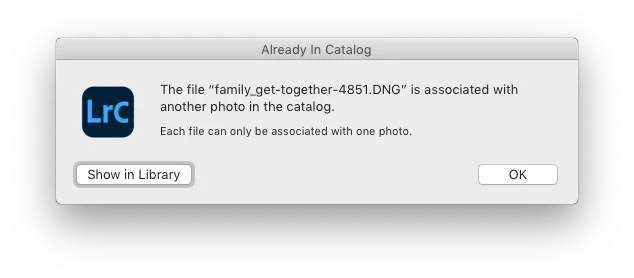
When I click on an exclamation mark, a dialog box appears, like the first one of three that I've uploaded.
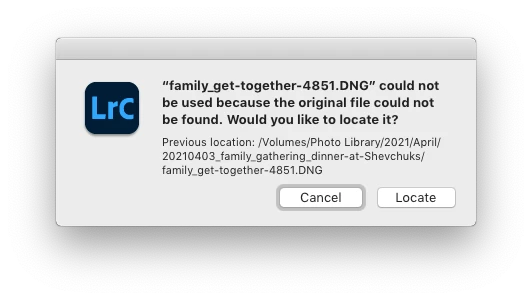
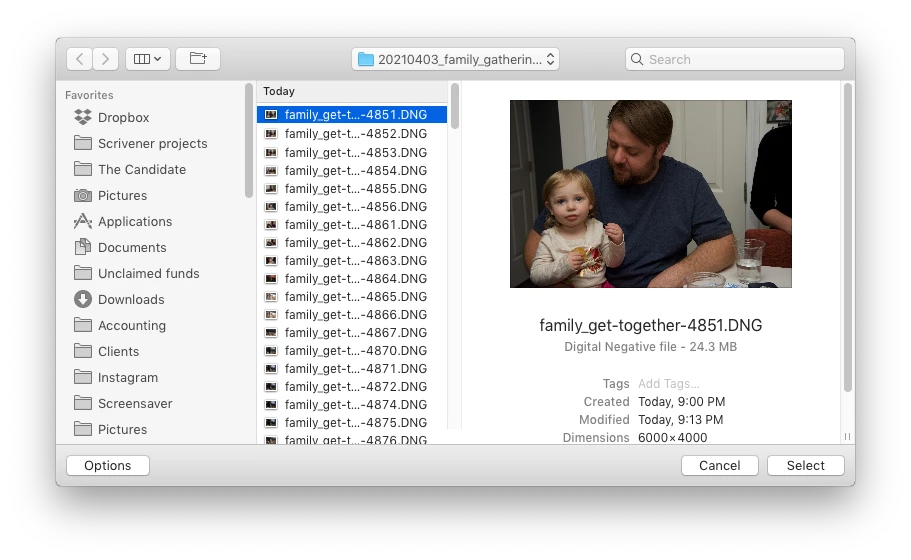
When I click on "Locate," another dialog box appears. For example:
The first file, which is highlighted, is the one that is missing (although at this point, Lightroom has lost track of all of the files in the renamed folder). When I click the "Select" button, this dialog box appears:
Lightroom is obviously confused, and the only way around this, in the current version of Lightroom, is to quit the application and re-launch Lightroom. After I relaunch Lightroom, it re-finds the files and the exclamation marks are gone. When I quit Lightroom after renaming the folder from the most recent upload, I back up the catalog. I don't know if this is necessary, but I back up the catalog whenever I quit Lightroom.
 
This is a bug, which never existed for me, until the last two updates of the app.
This topic has been closed for replies.

137 replies

Rikk Flohr_Photography
Community Manager
April 20, 2021

Thank you for posting those but unfortunately they don't provide the information I need. 

I really need to see the screenshots of Finder showing the full path rather than Get Info showing me the same. 

In Lightroom I need to see the Folders Panel with the folder where the reported missing image resides - not the Missing Photos system collection. 

Neither of the screenshots help diagnose the issue. Is it possible for you to post those I've requested?

Rikk Flohr: Adobe Photography Org
Participating Frequently
April 20, 2021

https://imgur.com/a/wIfzt6X

Here are screenshots of my problem, in the first image you can see from Library view that there about 6k photos missing from folder Klijenti. One of those photos is one that is shown.

In the second image, you can see a successful export even though it is said to be missing. Alongside is file info.

When I right click on the image -> Show in Finder, correct location on disk opens in Finder and image is selected. Folder in folders panel also correctly opens, with nothing being greyed out. 

I also tried right click on the folder -> Update Folder Location. Lightroom opens the already correct location in Finder, and when I click on Choose nothing happens.

Rikk Flohr_Photography
Community Manager
April 20, 2021

Can you provide screenshots of the Finder window showing the full path to one of these 'missing images'

Also provide a screenshot of the Lightroom folders panel for the same image. 

I wonder if you have a capitalization problem between the catalog and the OS?

Rikk Flohr: Adobe Photography Org
Participating Frequently
April 20, 2021

I have a folder structure consisting of about 20k photos. Every time I go to synchronize root folder it says about 6k photos are missing. But they aren't.

This problem happens only when importing files from another catalog. As I migrated to macOS, photos from older Windows 10 were backed up to external HDD alongside its catalog. Then when loading them in Lightroom on Macbook, program says they are missing.

When loading photos in Lightroom on Mac, I pointed their new location on HDD and everything seems ok. Not a single image has a regular exclamation point, no folders are greyed out with a question mark. Photos are not smart previews. I have no problem going into develop module and even exporting so called missing images.

Exiting and opening Lightroom doesn't help as well. I even went so far to create a brand new catalog, where I imported images from the previous one. The problem still persists!

Using latest version of Lightroom Classic 10.2 on Big Sur 11.2.3

UPDATE:

I found the cause of the problem and the solution. All missing files originate from folders that contain one of the following letters in their name: č, ć, ž, š, đ. In order to fix it, I had to go rename folder, but don't actually change anything, just press ok when window Rename folder pops up.

This is clearly a bug, since this problem has never occurred before.

Legend
April 16, 2021

*Logan31639 using a RAID is much different than just a USB hard drive. Is this hardware or software RAID? Have you installed any firmware updates? 

Known Participant
April 16, 2021

Have you noticed whether the number of photos in the folder has an impact? The catalog keeps track of the the full folder / filename for each photo so it has to be updated for every photo in the hierarchy. If you externalize all updates then the photos and XMPs have to be updated as well. 

Inspiring
April 16, 2021

I am running LR Classic 10.2 on OSX Big Sur 11.2. All operations carried on the local disk (not tried on NAS or plugin)


For some time the Rename folder in Library module has not worked correctly and the latest update to 10.2 (which I did this week) has made matters even worse.


Please note - I am only using LR to move files / rename folder, I am NOT using Finder.


After importing images to a folder in my Pictures library (in to a YYYY/MM/DD structure) if I try to rename the folder (say from DD to DD - Beach to make it more meaningful) I right click on the folder in the Folders panel, select Rename and enter new name in the dialog) and click Save.


The Folder name in the panel becomes greyed out with a small question mark (?) on the folder icon and the image in the window has an exclamation mark (!) against it. A check in Finder shows that the folder HAS been renamed correctly so it does not appear to be a permissions / security issue.


Prior to version 10.2 if I clicked away from the new folder and clicked back it would resolve itself. However since 10.2 this does not happen.


If I click on the exclamation mark next to the image I get a message “(image name) could not be used because the original file could not be found. Would you like to locate it?” yet underneath it shows the ‘Previous location….and the correct NEW folder name’!!


If I click on Locate it opens a ‘finder’ dialog at the CORRECT new location and with the files displayed. If I highlight the relevant image and click Save, I get a message ‘The file (image name) is associated with another photo in the catalog - Each file can only be associated with one photo’.


I have found that if I quit Lightroom and reload then all is resolved…but clearly that is not a viable solution every time I rename a folder and there is clearly some issues with the Rename option, which appears to have been made worse with the latest release.

Known Participant
April 13, 2021

Because I've lots of miscellaneous hardware lying around, the first thing I'd do is attach a hard drive to a USB port with a powered cable. I wouldn't use a case with any electronics. Then see if the problem occurs with this setup in place of the SAN.

If this setup works then the odds are that there's a driver problem for the SAN. While possible, it's unlikely to be a hardware problem with the SAN. 


People who use non-SAN drives in their SAN do experience all kinds of strange problems but the SAN usually reports them. SAN failures are rarely subtle. 


Participating Frequently
April 13, 2021

Trying to find a sure fire way to reproduce the behavior.  To summarize, the NAS is off 9 hours and then come back.  The folder that was selected when the connection went off, show connected after the reconnection, but all the raw files show missing.  I tried shutting off the NAS for 1 hr and then 2 hrs but no missing files after reconnection.  The interesting thing is the folders that were selected yesterday and there were 4, are all showing connected after the test of shutting down for 1 hr and then 2.  All the other folders are greyed out during disconnect.  The other strange thing is that of the 4 folders that were selected before the night shutdown, two of the folders only have the first image missing and the other 2 have all the images missing.

alexskunz
Inspiring
April 13, 2021

We have multiple people who all began to see the same problem at the very same time here. I doubt that's coincidence.

Folder operations in LrC have received improvements in v10 (changelog entry). That's related to what people are having problems with now.

At the same time, there's probably also some Mac users who held out on v10 until the "slow UI" problem was fixed in v10.2, so this is only beginning to show for more people now.