Inspiring
April 5, 2021

P: loses connection with files after folder is renamed

  • April 5, 2021
  • 137 replies
  • 7689 views

I've been using Lightroom for many years, and I've never experienced this problem until the last two updates to the application.

When I upload photos to Lightroom, the app creates a folder that is by default named with the date, in this format: 20210403.

I usually rename the folder, in Lightroom, with something more descriptive, just after the upload is complete. For example, 20210403_family-gathering.

Starting with the previous version of Lightroom, after I perform this action, Lightroom loses the connection with the files in the newly renamed folder. A question mark appears on the folder in the Navigation panel, and in Loupe view, every photo now displays a small exclamation mark in its upper right corner.

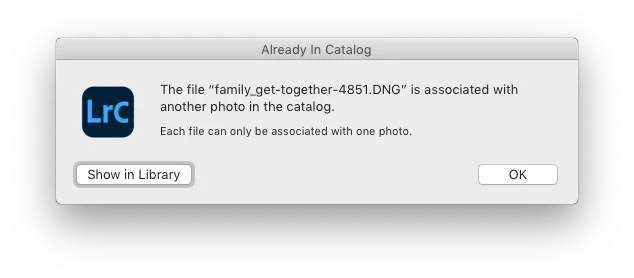
When I click on an exclamation mark, a dialog box appears, like the first one of three that I've uploaded.

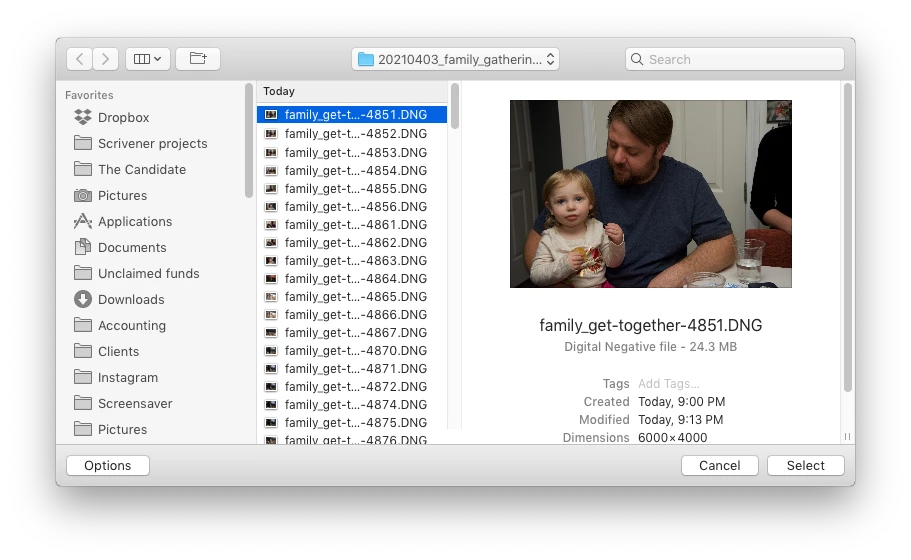
When I click on "Locate," another dialog box appears. For example:
The first file, which is highlighted, is the one that is missing (although at this point, Lightroom has lost track of all of the files in the renamed folder). When I click the "Select" button, this dialog box appears:
Lightroom is obviously confused, and the only way around this, in the current version of Lightroom, is to quit the application and re-launch Lightroom. After I relaunch Lightroom, it re-finds the files and the exclamation marks are gone. When I quit Lightroom after renaming the folder from the most recent upload, I back up the catalog. I don't know if this is necessary, but I back up the catalog whenever I quit Lightroom.
 
This is a bug, which never existed for me, until the last two updates of the app.
This topic has been closed for replies.

137 replies

Inspiring
April 22, 2021

Ok, here's an update:   I opened up another Lightroom Catalog which I don't use very often and it works fine with changing folder names on all external drives.   So it appears that the bug is catalog-specific.    How do we fix this Adobe?   Let's see what happens if I optimize the catalog that's working...  I'll post a reply if anything changes after optimization.  

Inspiring
April 21, 2021

I'm having the exact same problem and it just started with latest update.   The error happens frequently...but sometimes the folders come back after about waiting for about 30 seconds, clicking on other folders, crossing my fingers, and/or swearing at Lightroom.  However, all images inside the folders remain missing and I am unable to use "find missing images" as it does nothing.    Otherwise, quitting Lightroom and relaunching always brings them back.  (Not an acceptable fix).  I'm very surprised Adobe "can't reproduce the problem".    It sure seems like a lot of us users can reproduce it.   This happens across all external hard drives that have images in lightroom, except my internal hard drive.  

Latest Lightroom Classic

2019 iMac 5K

Radeon Pro Vega 48 8 GB

Mohave 10.14.6

Participating Frequently
April 21, 2021

Nope, they aren't duplicates.

Arnold-Norway
Inspiring
April 21, 2021

Could the Missing photos be duplicates?

RegardsArnold Hoddevik
Participating Frequently
April 21, 2021

https://imgur.com/a/dFFXuJt

Still nothing.

The first photo was when I went Library -> Find All Missing Photos, pop up with No missing photos appears. 

Second photo is when I right clicked on folder Klijenti -> Synchronise Folder -> Show Missing Photos, about 6k photos show up in catalog filter Photos Missing From Folder "Klijenti"

Arnold-Norway
Inspiring
April 21, 2021

What happens if you use the Find All Missing Photos in the Library menu?

Then you will get a new filter line in the catalog panel, showing all offline photos.

RegardsArnold Hoddevik
Inspiring
April 21, 2021

I have tried with single/multiple images, and with and without subfolders. Always does the same. The folders are being correctly manipulated, as shown in Finder and being shown correctly after quitting and relaunching. No files/folders are being moved / renamed outside of Lightroom, so somehow the catalog is losing sight of the folder during the rename process.

Participating Frequently
April 20, 2021

That took some time - creating a user account, giving access etc.

The problem still persists, everything is as before. I even tried copying the original catalog and opening the copy, but the files are still missing.

Rikk Flohr_Photography
Community Manager
April 20, 2021

Thank you. Yes that is a better view of what is going on. 

As a test, can you create a new Mac OS user and test the same catalog from the new user account to see if it behaves the same?

Rikk Flohr: Adobe Photography Org
Participating Frequently
April 20, 2021

I am sorry, I misunderstood you.

https://imgur.com/a/SwHcCyS

Does this provide all the info you need?