Inspiring
April 5, 2021

P: loses connection with files after folder is renamed

  • April 5, 2021
  • 137 replies
  • 7689 views

I've been using Lightroom for many years, and I've never experienced this problem until the last two updates to the application.

When I upload photos to Lightroom, the app creates a folder that is by default named with the date, in this format: 20210403.

I usually rename the folder, in Lightroom, with something more descriptive, just after the upload is complete. For example, 20210403_family-gathering.

Starting with the previous version of Lightroom, after I perform this action, Lightroom loses the connection with the files in the newly renamed folder. A question mark appears on the folder in the Navigation panel, and in Loupe view, every photo now displays a small exclamation mark in its upper right corner.

When I click on an exclamation mark, a dialog box appears, like the first one of three that I've uploaded.

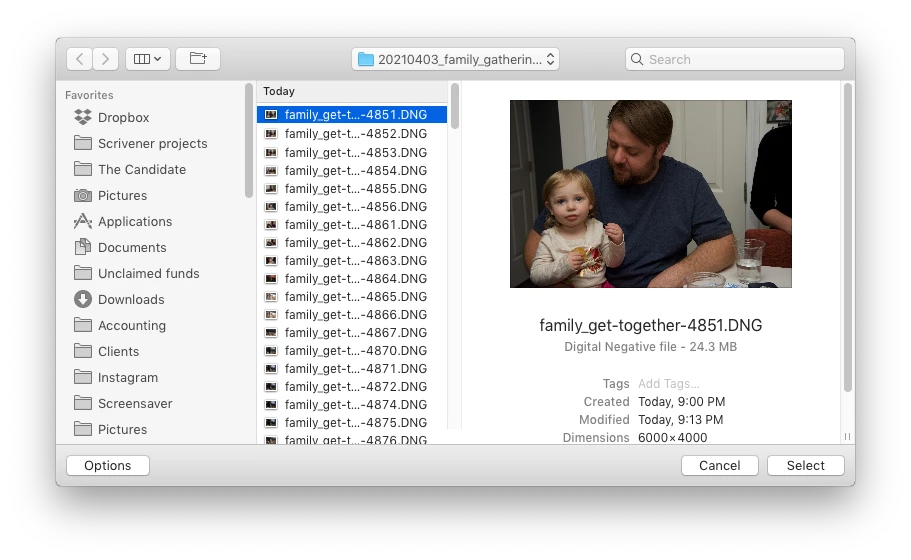
When I click on "Locate," another dialog box appears. For example:
The first file, which is highlighted, is the one that is missing (although at this point, Lightroom has lost track of all of the files in the renamed folder). When I click the "Select" button, this dialog box appears:
Lightroom is obviously confused, and the only way around this, in the current version of Lightroom, is to quit the application and re-launch Lightroom. After I relaunch Lightroom, it re-finds the files and the exclamation marks are gone. When I quit Lightroom after renaming the folder from the most recent upload, I back up the catalog. I don't know if this is necessary, but I back up the catalog whenever I quit Lightroom.
 
This is a bug, which never existed for me, until the last two updates of the app.
This topic has been closed for replies.

137 replies

Known Participant
April 22, 2021

Somewhere in this thread someone asked about externalizing updates so that a new catalog can be built from the images without losing edits. My apologies for adding this to the end. 


In Catalog Settings, Metadata tab; check:

  • Include Develop settings in Metadata inside JPEG, TIFF, PNG and PSD files
  • Automatically write changes into XMP 

Then in the Library Module:

  • select all your images 
  • Metadata tab, Save Metadata to File

Then create a new catalog and import the images. 


What is lost: 

  • Collections
  • Edit history. If the Highlights were adjusted several times, only the final remaining adjustment will show in the Basic panel. 
  • Presets 
  • Anything else that is only stored in the catalog, I've not been able to find a list. Map / Book / Slideshow / etc.???

I've tested this and it worked fine on my Windows machine. Tested with V10.0. 

Additionally I keep a document for all my Preferences and Catalog Settings so that I can recreate them, if needed. It seemed that the new catalog kept the preferences but not

the Catalog Settings. 


alexskunz
Inspiring
April 22, 2021

Greg, Logan & all others: I truly appreciate the amount of time and effort you're putting into testing all these different scenarios.

(even though it shouldn't be necessary for customers to spend that time on having to convince a company that their product has a bug when multiple users are beginning to see the same problem at the same time, after an update.)

Inspiring
April 22, 2021

I determined last night that creating a new catalog and importing all of your images doesn't fix the problem.   It seemed to work when I had just a few images, but when I imported significantly more, the problem came back.    My only solution so far has been to make a copy of the only catalog I have that doesn't have this bug and add/remove images from there.    FYI my working catalog has about 70000 images and my new copied catalog now has about 75000 images.  

Inspiring
April 22, 2021

I've now determined that any new catalogs I create exhibit the same behavior, however one catalog I have works fine.  I've successfully copied that catalog and the copy works.  So now if I ever want to create a new catalog I need to make a copy of the only one that works, delete images I don't want, and add the ones that I want.  BTW, I wanted to add that the only bug I've found is that images get lost after renaming folders but moving folders/images around is perfectly fine and Lightroom tracks them just fine.  It's very specific to renaming.   

UPDATE: This one catalog that used to work fine now also has the same problem.  It worked for about 4 hours of use.  So now the problem occurs no matter which catalog I am using.


This is the information on my system and the catalog that (used to) work, while it was working.   

Lightroom Classic version: 10.2 [ 202103041821-226a1211 ]
License: Creative Cloud
Language setting: en-US
Operating system: Mac OS 10
Version: 10.14.6 [18G8022]
Application architecture: x64
Logical processor count: 16
Processor speed: 3.6 GHz
SqLite Version: 3.34.0
Built-in memory: 65,536.0 MB
Real memory available to Lightroom: 65,536.0 MB
Real memory used by Lightroom: 17,328.4 MB (26.4%)
Virtual memory used by Lightroom: 29,143.0 MB
Memory cache size: 949.9MB
Internal Camera Raw version: 13.2 [ 738 ]
Maximum thread count used by Camera Raw: 5
Camera Raw SIMD optimization: SSE2,AVX,AVX2
Camera Raw virtual memory: 280MB / 32767MB (0%)
Camera Raw real memory: 282MB / 65536MB (0%)
Displays: 1) 5120x2880, 2) 1920x1200

Graphics Processor Info: 
Metal: AMD Radeon Pro Vega 48


Application folder: /Applications/Adobe Lightroom Classic
Library Path: /Volumes/SAMSUNG SSD/LIGHTROOM IMAGE CATALOG T5/Lightroom Image Catalog-v10.lrcat
Settings Folder: /Users/gregwhite/Library/Application Support/Adobe/Lightroom

Installed Plugins: 
1) AdobeStock
2) Aperture/iPhoto Importer Plug-in
3) Aurora HDR 2019
4) Blurb BookSmart
5) DxO PhotoLab
6) DxO PhotoLab 2
7) DxO PhotoLab 2 Importer
😎 DxO PhotoLab 3
9) DxO PhotoLab 3 Importer
10) DxO PhotoLab Importer
11) Export to Photomatix Pro
12) Facebook
13) Flickr
14) FocalPoint
15) HDR Efex Pro
16) HDR Efex Pro 2
17) LRT Export 5
18) Luminar 4
19) Nikon Tether Plugin
20) onOne Perfect Photo Suite
21) Perfect Effects
22) Perfect Portrait
23) Perfect Resize
24) PhotoFrame
25) PhotoTools 2.6
26) PhotoTune
27) SmugMug
28) Upload To Pictage

Config.lua flags: 
Features.disableGlobalTaskManager = true

AudioDeviceIOBlockSize: 512
AudioDeviceName: $$$/dvaaudiodevice/SystemDefaultAndEffectiveDeviceName=System Default (Built-in Output)#{comment}DVAAU-4201250: Open the audio hardware preferences page.
AudioDeviceNumberOfChannels: 2
AudioDeviceSampleRate: 48000
Build: LR5x77
CoreImage: true
GL_ACCUM_ALPHA_BITS: 0
GL_ACCUM_BLUE_BITS: 0
GL_ACCUM_GREEN_BITS: 0
GL_ACCUM_RED_BITS: 0
GL_ALPHA_BITS: 8
GL_BLUE_BITS: 8
GL_DEPTH_BITS: 24
GL_GREEN_BITS: 8
GL_MAX_3D_TEXTURE_SIZE: 16384
GL_MAX_TEXTURE_SIZE: 16384
GL_MAX_TEXTURE_UNITS: 8
GL_MAX_VIEWPORT_DIMS: 16384,16384
GL_RED_BITS: 8
GL_RENDERER: AMD Radeon Pro Vega 48 OpenGL Engine
GL_SHADING_LANGUAGE_VERSION: 1.20
GL_STENCIL_BITS: 8
GL_VENDOR: ATI Technologies Inc.
GL_VERSION: 2.1 ATI-2.11.23
OGLEnabled: true
GL_EXTENSIONS: GL_ARB_color_buffer_float GL_ARB_depth_buffer_float GL_ARB_depth_clamp GL_ARB_depth_texture GL_ARB_draw_buffers GL_ARB_draw_elements_base_vertex GL_ARB_draw_instanced GL_ARB_fragment_program GL_ARB_fragment_program_shadow GL_ARB_fragment_shader GL_ARB_framebuffer_object GL_ARB_framebuffer_sRGB GL_ARB_half_float_pixel GL_ARB_half_float_vertex GL_ARB_imaging GL_ARB_instanced_arrays GL_ARB_multisample GL_ARB_multitexture GL_ARB_occlusion_query GL_ARB_pixel_buffer_object GL_ARB_point_parameters GL_ARB_point_sprite GL_ARB_provoking_vertex GL_ARB_seamless_cube_map GL_ARB_shader_objects GL_ARB_shader_texture_lod GL_ARB_shading_language_100 GL_ARB_shadow GL_ARB_shadow_ambient GL_ARB_sync GL_ARB_texture_border_clamp GL_ARB_texture_compression GL_ARB_texture_compression_rgtc GL_ARB_texture_cube_map GL_ARB_texture_env_add GL_ARB_texture_env_combine GL_ARB_texture_env_crossbar GL_ARB_texture_env_dot3 GL_ARB_texture_float GL_ARB_texture_mirrored_repeat GL_ARB_texture_non_power_of_two GL_ARB_texture_rectangle GL_ARB_texture_rg GL_ARB_transpose_matrix GL_ARB_vertex_array_bgra GL_ARB_vertex_blend GL_ARB_vertex_buffer_object GL_ARB_vertex_program GL_ARB_vertex_shader GL_ARB_window_pos GL_EXT_abgr GL_EXT_bgra GL_EXT_bindable_uniform GL_EXT_blend_color GL_EXT_blend_equation_separate GL_EXT_blend_func_separate GL_EXT_blend_minmax GL_EXT_blend_subtract GL_EXT_clip_volume_hint GL_EXT_debug_label GL_EXT_debug_marker GL_EXT_depth_bounds_test GL_EXT_draw_buffers2 GL_EXT_draw_range_elements GL_EXT_fog_coord GL_EXT_framebuffer_blit GL_EXT_framebuffer_multisample GL_EXT_framebuffer_object GL_EXT_framebuffer_sRGB GL_EXT_geometry_shader4 GL_EXT_gpu_program_parameters GL_EXT_gpu_shader4 GL_EXT_multi_draw_arrays GL_EXT_packed_depth_stencil GL_EXT_packed_float GL_EXT_provoking_vertex GL_EXT_rescale_normal GL_EXT_secondary_color GL_EXT_separate_specular_color GL_EXT_shadow_funcs GL_EXT_stencil_two_side GL_EXT_stencil_wrap GL_EXT_texture_array GL_EXT_texture_compression_dxt1 GL_EXT_texture_compression_s3tc GL_EXT_texture_env_add GL_EXT_texture_filter_anisotropic GL_EXT_texture_integer GL_EXT_texture_lod_bias GL_EXT_texture_mirror_clamp GL_EXT_texture_rectangle GL_EXT_texture_shared_exponent GL_EXT_texture_sRGB GL_EXT_texture_sRGB_decode GL_EXT_timer_query GL_EXT_transform_feedback GL_EXT_vertex_array_bgra GL_APPLE_aux_depth_stencil GL_APPLE_client_storage GL_APPLE_element_array GL_APPLE_fence GL_APPLE_float_pixels GL_APPLE_flush_buffer_range GL_APPLE_flush_render GL_APPLE_object_purgeable GL_APPLE_packed_pixels GL_APPLE_pixel_buffer GL_APPLE_rgb_422 GL_APPLE_row_bytes GL_APPLE_specular_vector GL_APPLE_texture_range GL_APPLE_transform_hint GL_APPLE_vertex_array_object GL_APPLE_vertex_array_range GL_APPLE_vertex_point_size GL_APPLE_vertex_program_evaluators GL_APPLE_ycbcr_422 GL_ATI_blend_equation_separate GL_ATI_blend_weighted_minmax GL_ATI_separate_stencil GL_ATI_texture_compression_3dc GL_ATI_texture_env_combine3 GL_ATI_texture_float GL_ATI_texture_mirror_once GL_IBM_rasterpos_clip GL_NV_blend_square GL_NV_conditional_render GL_NV_depth_clamp GL_NV_fog_distance GL_NV_light_max_exponent GL_NV_texgen_reflection GL_NV_texture_barrier GL_SGI_color_matrix GL_SGIS_generate_mipmap GL_SGIS_texture_edge_clamp GL_SGIS_texture_lod 

Inspiring
April 22, 2021

I've not tried creating a new catalog yet. I'm not unwilling to try this, but I'm not prepared, at this time, to invest time and energy into re-importing roughly 92 thousand images into a new catalog. And I can't know, with the current available data, whether creating a new catalog would be a permanent fix for this issue. For now, I'm going to live with the bug by adjusting my workflow so that I'm renaming folders just before I'm ready to quit Lightroom. If I learn, later, that creating a new catalog and re-importing files permanently eliminates this bad behavior, then I'll seriously consider following that path.

Rikk Flohr_Photography
Community Manager
April 22, 2021

Though we've not been able to reproduce this behavior I've opened a ticket for investigation with the team. You may be contacted by an engineer for additional information.

Thank you for your patience. 

Rikk Flohr: Adobe Photography Org
Inspiring
April 22, 2021

Have you tried creating a new catalog, adding a few images, and testing to see if the problem occurs with the new catalog?    I have one older catalog that works fine, but the rest of them have the same bug.  However new catalogs seem to work ok, though I've not tested a new catalog with a LOT of images.   I personally don't want to have to create an entirely new catalog and re-import all of my images to get rid of this bug. 


Inspiring
April 22, 2021

My EHD is a NewerTech Guardian Maximus enclosure RAID-1, with two 3 TB Toshiba hard drives that I purchased from OWC. I've changed a few variables since discovering the problem, including upgrading from Mac OS 14.6 to 15.7, rebuilding the EHD's directory with DiskWarrior 5.2, and swapping the EHD's connection to my 2018 MacBook Pro from an external, CalDigit TS3 Plus Thunderbolt 3 dock to directly in one of the MBP's Thunderbolt ports. I also performed the recommended "Clean Lightroom Install Procedure." None of these changes have resolved the problem, which I still consider to be a bug, regardless of whether a single Adobe administrator can't reproduce the problem. It will only be further investigated by Adobe engineers, and defined as a bug that needs to be addressed, if enough end users complain to hurt the company's image, or profits. If there's any good news, it's that more people are speaking out about the same problem, and that's not a coincidence. Also, for however many people are protesting about the same issue in this forum, we can be sure that others are experiencing the problem who will not register a complaint in this forum.

alexskunz
Inspiring
April 22, 2021

How old is the catalog where this happens? I'm asking because mine is essentially "ages old" (begins in 2007) and I also went from Windows to Mac with it, and the photos and folder structure in it. Actually @Rikk had that catalog in his hands a while ago to do some repairs on it (on a different issue).

Inspiring
April 22, 2021

Optimization didn't break it.   I went back to my latest lightroom catalog backup of the catalog with the issue, from about 3 weeks ago... it's got the bug.