Inspiring
April 5, 2021

P: loses connection with files after folder is renamed

  • April 5, 2021
  • 137 replies
  • 7689 views

I've been using Lightroom for many years, and I've never experienced this problem until the last two updates to the application.

When I upload photos to Lightroom, the app creates a folder that is by default named with the date, in this format: 20210403.

I usually rename the folder, in Lightroom, with something more descriptive, just after the upload is complete. For example, 20210403_family-gathering.

Starting with the previous version of Lightroom, after I perform this action, Lightroom loses the connection with the files in the newly renamed folder. A question mark appears on the folder in the Navigation panel, and in Loupe view, every photo now displays a small exclamation mark in its upper right corner.

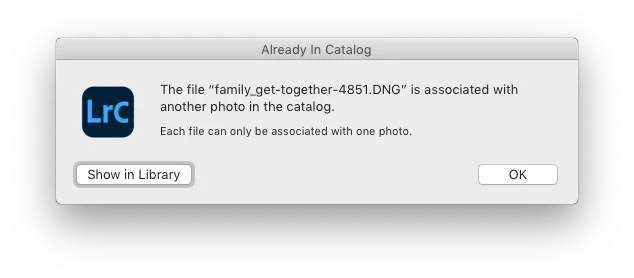
When I click on an exclamation mark, a dialog box appears, like the first one of three that I've uploaded.
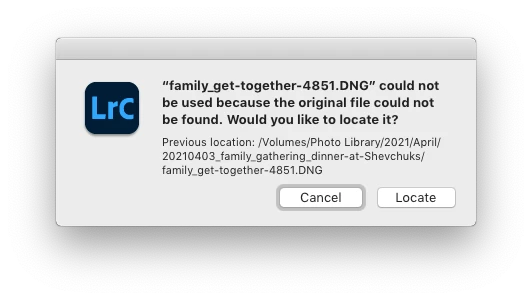
When I click on "Locate," another dialog box appears. For example:
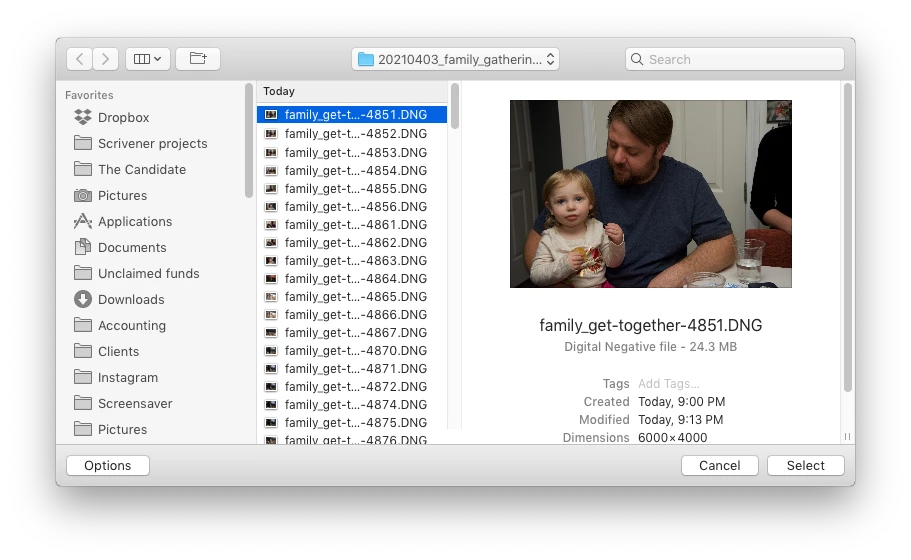
The first file, which is highlighted, is the one that is missing (although at this point, Lightroom has lost track of all of the files in the renamed folder). When I click the "Select" button, this dialog box appears:
Lightroom is obviously confused, and the only way around this, in the current version of Lightroom, is to quit the application and re-launch Lightroom. After I relaunch Lightroom, it re-finds the files and the exclamation marks are gone. When I quit Lightroom after renaming the folder from the most recent upload, I back up the catalog. I don't know if this is necessary, but I back up the catalog whenever I quit Lightroom.
 
This is a bug, which never existed for me, until the last two updates of the app.
This topic has been closed for replies.

137 replies

Bob Somrak
Legend
April 13, 2021

Using MOVE during import does NOT move the folder, only the photos in the folder to a new destination in a different folder as designated in your import destination dialog.

M4 Pro Mac Mini. 48GB
Inspiring
April 13, 2021

Status update: As Rikk suggested, I followed the "Clean Lightroom Install Procedure," and this did not resolve the problem. Then I remembered that I had second EHD that I wasn’t using and connected that to my computer. I imported a batch of photos to the second EHD, and after the import was complete, I renamed the destination folder in Lightroom and there was no problem. No question mark appeared on the folder, and the individual image files did not display exclamation marks in Loupe view. Lightroom did not lose track of the folder or files.

Later, I imported the folder into my primary Photo Library EHD, using Lightroom's "Move" import setting. Lightroom copied the folder and its contents (.DNG image files), but after the import was finished, the folder name had been stripped of the words I had added when I originally renamed it. The moved folder's name was now in Lightroom's default date format "20100410." I again renamed the moved folder in Lightroom by adding a few descriptive words, and again, Lightroom did not lose track of the folder or its contents.

But importing image files directly into my primary Photo Library EHD and then renaming the destination folder in Lightroom continues to be a problem, and I don't think the problem has anything to do with my primary EHD going to sleep. It's in an enclosure that contains two 3.5-inch, 3 TB hard drives in a RAID 1 [Mirror] configuration. I only power up this EHD when I'm using Lightroom and/or Photoshop, and I don't believe this drive ever sleeps. I can hear it running constantly whenever I use it.

Even though the original problem I described does not occur when I import files to a second EHD, I still consider the problem to be a bug. I've been working with the same hardware configuration and workflow for several years and several iterations of Lightroom, and I've never had this problem before the last two Lightroom updates. My hardware configuration hasn’t changed. Lightroom has changed. 

If Lightroom suddenly refuses to play nice with my hardware and software configuration, that shouldn't be my problem.

alexskunz
Inspiring
April 12, 2021

For me it's only like that since v10.2.

Participating Frequently
April 12, 2021

A little more information.  LrC finds jpeg's and psd's, just can't find the raw files(NEF).  Only with the current folder that was selected before the power went off the previous day.  Quitting and a restart of LrC fixes the problem.  I think this is a bug that was introduced in V10, before that it did not occur.

Inspiring
April 12, 2021

I am having this exact same problem.  I'm on a Macbook Pro, running Catalina version 10.15.7.  Photos are on an EHD.

Known Participant
April 9, 2021

Carlos, if drives have sleep enabled in the drive, it cannot be disabled. It's hardware. Drove me nuts until I figured out what was going on. I wouldn't think that NAS drives are built this way but it is common for normal desktop drives. Some people try to save money by using desktop drives in their NAS, perhaps that's not a good idea?

Known Participant
April 9, 2021
  • In my Energy Saver preferences, the "Put hard disks to sleep when possible" option is unchecked.

For some hard drives, this is built into the drive and they will go to sleep independent of commands from the OS. Drove me nuts until I discovered what was going on. You'll need to research the specific brand/model. For the drives that are doing that on my system, this feature cannot be disabled. 


Inspiring
April 9, 2021

Don't enable a "Power Schedule" in your Synology Control Panel/Hardware & Power/Power Schedule. This way it won't turn off ever.

Inspiring
April 9, 2021
  • My laptop is always plugged into power when I'm using Lightroom.
  • In my Energy Saver preferences, the "Put hard disks to sleep when possible" option is unchecked.
  • I don't have a different EHD.

There is at least one other report (which was merged into this conversation) at the top of this conversation, in which another Lightroom user, Alexander, claims to have what sounds like a nearly identical issue. And a new post from David, below, describes a similar problem.

I will consider a clean install of Lightroom, when I have the time.

Participating Frequently
April 9, 2021

I have a similar problem.  I am on a iMac 10.14 with the photos on a NAS.  The NAS turns off at night and starts back in the morning.  I am using LrC 10.2.  I did not install the earlier version of Lr 10. The folder I have selected at night, before the NAS goes off, shows the photos and works normally.  In the morning, after the NAS is reconnected, all the folders show connected in the folders panel.  The same folder that was selected at night is still selected and either in grid or loupe view, but the photos have the missing flag.  Here is the strange thing - only the raw files(NEF) are missing, photoshop files are found.  All the other folders are fine.  I can select any of them and none are missing.  If I go back to the original selected file it is still missing.  Quitting Lr and a restart fixes the problem.

Disconnecting the NAS shows all the folders missing.  Reconnect and all the folders show connected.  The parent  and 3 subfolders(one subfolder was the one that shows missing in the morning) show connected but now two of the subfolders show missing raw files.  PSD files are not missing but all NEF files are. This only started with LrC ver 10.

David