Inspiring
April 5, 2021

P: loses connection with files after folder is renamed

  • April 5, 2021
  • 137 replies
  • 7689 views

I've been using Lightroom for many years, and I've never experienced this problem until the last two updates to the application.

When I upload photos to Lightroom, the app creates a folder that is by default named with the date, in this format: 20210403.

I usually rename the folder, in Lightroom, with something more descriptive, just after the upload is complete. For example, 20210403_family-gathering.

Starting with the previous version of Lightroom, after I perform this action, Lightroom loses the connection with the files in the newly renamed folder. A question mark appears on the folder in the Navigation panel, and in Loupe view, every photo now displays a small exclamation mark in its upper right corner.

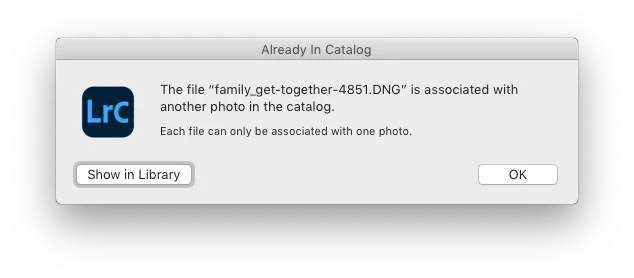
When I click on an exclamation mark, a dialog box appears, like the first one of three that I've uploaded.
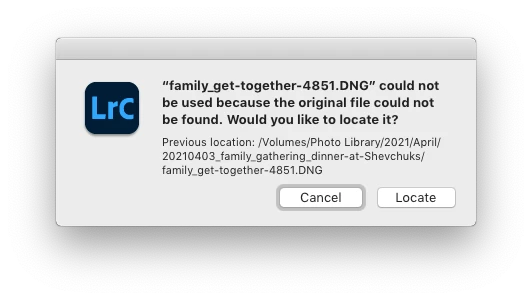
When I click on "Locate," another dialog box appears. For example:
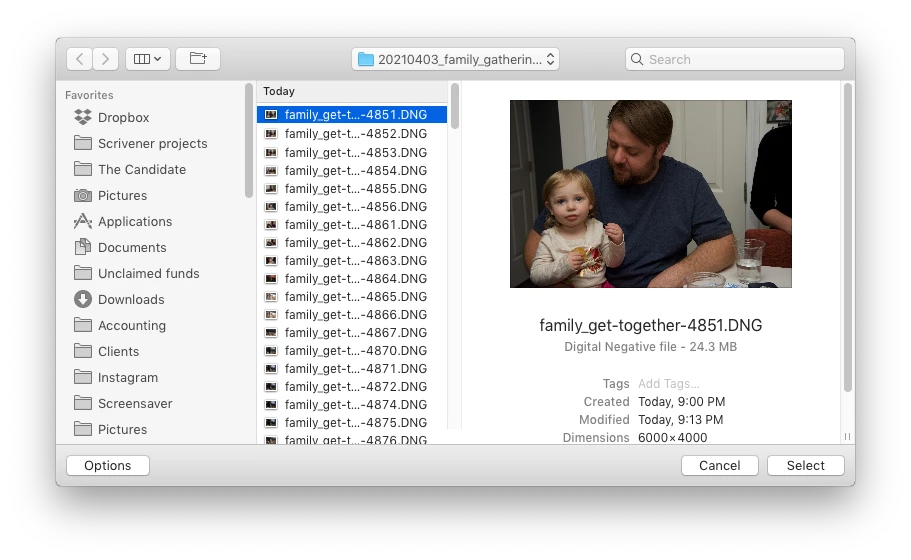
The first file, which is highlighted, is the one that is missing (although at this point, Lightroom has lost track of all of the files in the renamed folder). When I click the "Select" button, this dialog box appears:
Lightroom is obviously confused, and the only way around this, in the current version of Lightroom, is to quit the application and re-launch Lightroom. After I relaunch Lightroom, it re-finds the files and the exclamation marks are gone. When I quit Lightroom after renaming the folder from the most recent upload, I back up the catalog. I don't know if this is necessary, but I back up the catalog whenever I quit Lightroom.
 
This is a bug, which never existed for me, until the last two updates of the app.
This topic has been closed for replies.

137 replies

Rikk Flohr_Photography
Community Manager
April 9, 2021

At this point, I've checked multiple times on a single 10.15.7 machine. I've also checked an M1 with Big Sur and a Windows 10 machine. I cannot reproduce this on any of the machines. 

Given the test you just ran for me, I would start checking settings for your EHD in Mac OS.

Other things to try: 


  • Are you plugged into power or on battery when this happens? 
  • Is the drive set to sleep?
  • Have you tried using a different EHD?

At this point, there are no other reports of this behavior that I've seen and I cannot reproduce. That leads me to believe it is system-specific to your machine. 

You might try a clean reinstall to see if your system was in a bad state when you did the previous update.

Clean Lightroom Install Procedure

  1. Close Lightroom
  2. Restart the computer
  3. Use the Adobe Creative Cloud App to uninstall Lightroom
  4. Restart the computer
  5. Install Lightroom via the Creative Cloud App without launching any other programs.
  6. Restart the computer
  7. Launch Lightroom
  8. Wait 5 minutes

Rikk Flohr: Adobe Photography Org
Inspiring
April 8, 2021

I just imported 10 image files to a folder on my computer's internal, SSD drive. After the import was complete, I renamed the folder, in Lightroom, and the image files did not go missing. The issue I originally described did not manifest.

However, this is not my standard workflow, and I will not be importing images to my laptop's internal drive, renaming the folder, and then dragging it to my preferred location on my external drive, just so that I can avoid this annoying issue.

Prior to the last two releases of Lightroom, I have always been able to follow the steps I listed, above, without issue. Again, as far as I'm concerned, this issue is a bug.

Rikk Flohr_Photography
Community Manager
April 8, 2021

I've followed these instructions as precisely as possible and still get the same result. Folder is intact, images are intact, nothing needs to be repointed/found/located.

In your step 8 - if you substitute your local drive for the external drive does the issue happen there also?

Rikk Flohr: Adobe Photography Org
Inspiring
April 8, 2021

Here are the steps I currently follow to import image files from a camera memory card (Sandisk SDXC - 64GB).

  1. Launch Lightroom 10.2 Release, Build [202103041821-226a1211]
  2. Remove card from camera and insert into IOGEAR SD card reader USB stick.
  3. Insert IOGEAR SD card reader USB stick into an Anker USB hub, which is connected to a CalDigit TS3 Plus Thunderbolt 3 Dock, which is connected to a Thunderbolt 3 port on my 2018 MacBook Pro, running Mac OS 10.14.6. 
  4. Lightroom recognizes the memory card and automatically opens an import window. I have "Copy as DNG" selected as my default.
  5. Rename the files, choosing "Custom Name - Original File Number" from the Template drop-down menu. ("Extensions:" Leave as is)
  6. Add keywords.
  7. In the Destination panel, "Into Subfolder" is not checked. In the Organize drop-down menu, "By date" is selected. The Date Format is 20210407.
  8. Image files are imported into my "Photo Library" external drive, and folders are organized chronologically by Year>Month>Day. So, for example, the 2020 folder contains 12 "month" folders, from January through December, and each month's folder contains individual folders for each date that corresponds to a photo shoot.
  9. After the image files are fully imported, I usually browse through the images in the folder before renaming it to something more descriptive, although if time is short, I rename the folder just after import, and I always rename it in Lightroom, never in the Mac Finder.
  10. If circumstances require it, I'll edit photos in this session. Otherwise I may just cull and rate photos to prepare for a future post-processing session.
Rikk Flohr_Photography
Community Manager
April 7, 2021

I have attempted this 3 more times on Mac 10.15.7 and LrC 10.2. It performed as expected each time. 

I tried Copy and Copy as DNG and both worked with no issues. 

Perhaps more detailed step-by-step instructions are necessary since I cannot duplicate the issue?

Rikk Flohr: Adobe Photography Org
Known Participant
April 7, 2021

While much less frequent today, Lightroom has historically "lost" files and folders that were rediscovered with a restart. On Windows I've not had this happen on any V10 release.

So they have been steadily fixing it.


You are probably right that it's a bug.


Inspiring
April 7, 2021

I followed your reset procedure, and the problem I originally described persists. As Alexander noted, if I navigate away from the renamed, problem folder by clicking on another, previously imported folder, and then return to the renamed folder, the question mark disappears and it appears that Lightroom has "found" the renamed folder. But each and every file in the renamed folder still displays an exclamation mark, and if I attempt to edit any of them, in Develop mode, the Histogram panel reports that the photo is missing. If I quit Lightroom and relaunch, all of the missing photos in the renamed folder are now found. None of them display exclamation marks, and I can edit them in Develop mode, as usual.

You may not be able to identify this as a bug, but as far as I'm concerned it's a bug.

My current workaround is to edit any newly imported photos before renaming the folder, and then rename the folder just before I quit Lightroom.  

Rikk Flohr_Photography
Community Manager
April 6, 2021

Without additional information regarding step-by-step instructions for reproducing, I am not able to replicate the behavior and, by extension, unable to identify this as a bug. 

I would recommend your resetting your preference file to see if some cruft has accumulated on your local machine and is causing this behavior. 

Reset Procedure:

1. Close Lightroom.

2. Hold down [Alt/Opt]+[Shift] while restarting Lightroom.

3. Overwrite the Preferences when prompted by the dialog.

4. Close Lightroom.

5. Restart Lightroom.

Rikk Flohr: Adobe Photography Org
Inspiring
April 6, 2021

Mac OS 10.14.6

I use a 2018 MacBook Pro, plus two external hard drives. One of the drives contains the Lightroom catalog. The other drive contains my "photo library" — all of the image files I've imported into Lightroom.

As for why I rename a folder after importing, the simple reason is that's the way I've always done it. Sometimes I don't decide on a custom name until after I've browsed through the images. Would it be possible for me to choose a custom folder name prior to importing the files? Yes, but why should I have to?