Inspiring
April 5, 2021

P: loses connection with files after folder is renamed

  • April 5, 2021
  • 137 replies
  • 7688 views

I've been using Lightroom for many years, and I've never experienced this problem until the last two updates to the application.

When I upload photos to Lightroom, the app creates a folder that is by default named with the date, in this format: 20210403.

I usually rename the folder, in Lightroom, with something more descriptive, just after the upload is complete. For example, 20210403_family-gathering.

Starting with the previous version of Lightroom, after I perform this action, Lightroom loses the connection with the files in the newly renamed folder. A question mark appears on the folder in the Navigation panel, and in Loupe view, every photo now displays a small exclamation mark in its upper right corner.

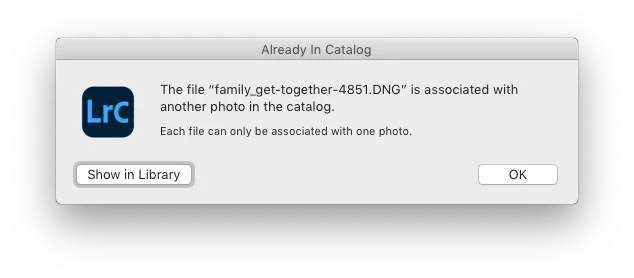
When I click on an exclamation mark, a dialog box appears, like the first one of three that I've uploaded.
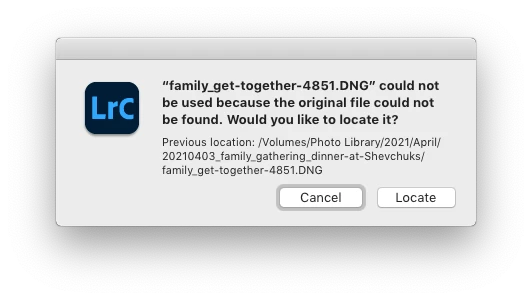
When I click on "Locate," another dialog box appears. For example:
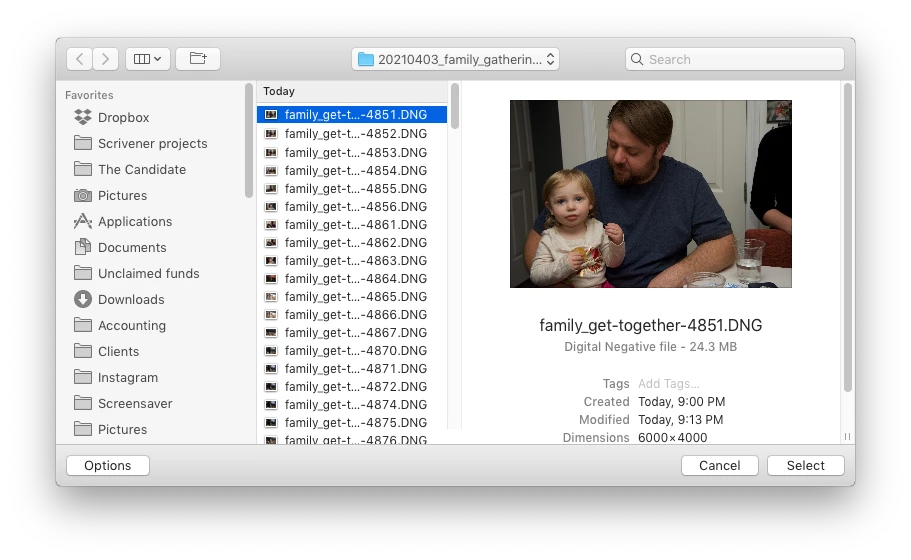
The first file, which is highlighted, is the one that is missing (although at this point, Lightroom has lost track of all of the files in the renamed folder). When I click the "Select" button, this dialog box appears:
Lightroom is obviously confused, and the only way around this, in the current version of Lightroom, is to quit the application and re-launch Lightroom. After I relaunch Lightroom, it re-finds the files and the exclamation marks are gone. When I quit Lightroom after renaming the folder from the most recent upload, I back up the catalog. I don't know if this is necessary, but I back up the catalog whenever I quit Lightroom.
 
This is a bug, which never existed for me, until the last two updates of the app.
This topic has been closed for replies.

137 replies

Inspiring
May 18, 2021

That’s entirely possible.  I’ll test that theory next time I do this although I do seem to remember I had the same thought but waiting didn't help.

🙂

Known Participant
May 18, 2021

Did you give it enough time to complete the catalog updates? When the folder name is changed, each file is in the folder now has a new path/filename. This is stored in the catalog for every file. It's a quick process unless there are thousands of files or some contention for the drive containing the catalog.


Inspiring
May 18, 2021

I am having exactly the same problem with '!' in each image after a folder is renamed in LR but I don't get the '?' in the Folder list in the Library. '!' disappears after restarting LR.

2020 27" iMac Retina 5K, macOS 11.2.3, Lightroom Classic 10.2

Inspiring
May 17, 2021

I have the exact same problem with the following configuration:

MacBook Pro 15' macOS Big Sur 11,3,1

2,4 GHz Intel Core i9 8 cœurs

32 Go 2400 MHz DDR4

LrC 10.2

LrC catalog path (SSD inside) :
Macintosh HD/Users/Milek/Pictures/Lightroom

At your disposal if you want to upload my catalog to reproduce the bug.

Inspiring
May 17, 2021

Exactly the same for me.

giancatt.stmoritz
Known Participant
May 16, 2021

I can replicate this problem on my macpro 2013 with 64GB RAM

  Systemversion: macOS 10.15.7 (19H1030)

  Kernel-Version: Darwin 19.6.0

  Startvolume: MacPro

I have 340’000 photos on my Drobo 5D all backed up to 2 other Drobo 5D

happens whenever I change the folder name.

files show missing ! mark

after closing LrC and reopening files are back 

 see my screenshots Adobe !

Participating Frequently
May 13, 2021

I'm seeing it on Mojave, Catalina, and Big Sur.

Inspiring
May 13, 2021

@heffSTL 

The other workaround (until this bug is fixed) is to create a new folder with the correct name and move images into that folder.   May take less time than quitting and restarting lightroom.    It does seem the common thread is Mac users on Mohave and Big Sur... perhaps Catalina too.  

Inspiring
May 13, 2021

@lumigraphics 

That has all been tried already.  Problem exists on new catalogs without any external drives.

Legend
May 12, 2021

Except he is here reporting that it doesn't work fine. Hence, basic troubleshooting.