Inspiring
April 5, 2021

P: loses connection with files after folder is renamed

  • April 5, 2021
  • 137 replies
  • 7688 views

I've been using Lightroom for many years, and I've never experienced this problem until the last two updates to the application.

When I upload photos to Lightroom, the app creates a folder that is by default named with the date, in this format: 20210403.

I usually rename the folder, in Lightroom, with something more descriptive, just after the upload is complete. For example, 20210403_family-gathering.

Starting with the previous version of Lightroom, after I perform this action, Lightroom loses the connection with the files in the newly renamed folder. A question mark appears on the folder in the Navigation panel, and in Loupe view, every photo now displays a small exclamation mark in its upper right corner.

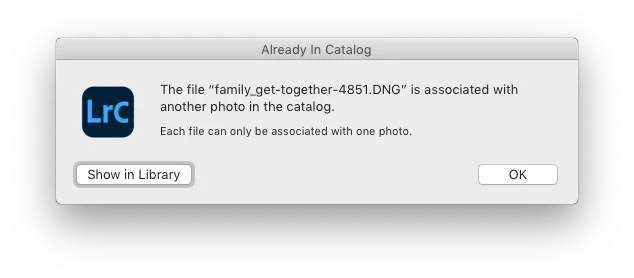
When I click on an exclamation mark, a dialog box appears, like the first one of three that I've uploaded.
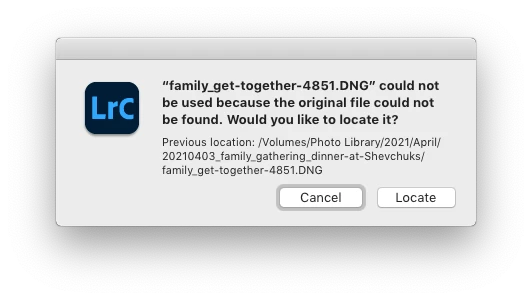
When I click on "Locate," another dialog box appears. For example:
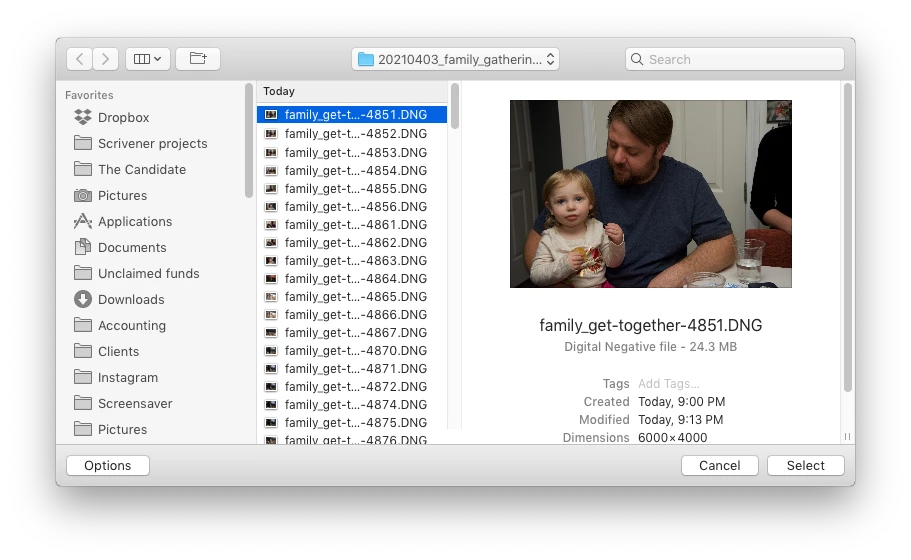
The first file, which is highlighted, is the one that is missing (although at this point, Lightroom has lost track of all of the files in the renamed folder). When I click the "Select" button, this dialog box appears:
Lightroom is obviously confused, and the only way around this, in the current version of Lightroom, is to quit the application and re-launch Lightroom. After I relaunch Lightroom, it re-finds the files and the exclamation marks are gone. When I quit Lightroom after renaming the folder from the most recent upload, I back up the catalog. I don't know if this is necessary, but I back up the catalog whenever I quit Lightroom.
 
This is a bug, which never existed for me, until the last two updates of the app.
This topic has been closed for replies.

137 replies

Inspiring
May 12, 2021

I agree, creating a new folder with corrected name and move images into it seems to be the best/only workaround beyond quitting and restarting.  BTW, I'm still having issues with  missing files, even with my new workflow, but it's less frequent.


Inspiring
May 12, 2021

*Logan31639 - that new folder is a really neat workaround and removes the need to quit. It seems to work well

Participating Frequently
May 11, 2021

As far as I can tell. That's a separate issue. This thread is really focused on nailing down the "rename after import" bug that is impacting so many Mac users.

Inspiring
May 11, 2021

@Greg_White_Shark 

Not that you should have to change your workflow, but it's good that you've found a process that works for you and minimizes the hassle of dealing with this bug. I haven't noticed Lightroom becoming slow after importing images, but maybe I'm not paying close enough attention. In any case, even if I wait to rename an imported folder until the end of a post-processing session, Lightroom still looses its connection to the folder and its contents. For now, as I've previously mentioned, my workaround is to rename folders just before I'm about to end a session and quit Lightroom. That said, I've discovered another data point, which is probably irrelevant to the renaming bug, but it's interesting to me: if I import a bunch of photos into a new folder, select a group of them, and then create a new folder with a descriptive name, checking the option to "Include selected photos" in the dialog box, Lightroom moves the photos into the new folder and doesn’t lose track of them.

Known Participant
May 11, 2021

For years we've been asking for more progress bars. Thanks for noting that you too are affected by this lack of info regarding background processes. Up voted. 

Inspiring
May 11, 2021

I've noticed that after imports are complete, or after exports are completed, lightroom is still busy doing something in the background for several minutes, perhaps building previews or whatever, but there is no obvious indication of what it's doing.  All I know is that it gets slow/laggy for several minutes after importing images.   Renaming folders when this is happening tends to give me the lost files issue.   So I've had to change the way I do things:  I now import with import dialog selected, and choose minimal previews.   When I export images, I don't add them to the library until later, when it's a good time to bring them in and can wait for lightroom to finish whatever it's doing in the background.  I do this via syncronizing the folder I know they are in, and again, I use the import dialog and have minimal previews selected.   I've found that this speeds up lightroom considerably and now files tend not to get lost when I rename the folders.     I have also tinkered with Lightroom and Catalog preferences significantly lately, and also reformatted one of my hard drives that was having permission issues, so perhaps all of this together has helped fix the issue...fingers crossed.

Participating Frequently
May 10, 2021

Nonsense. The program works just fine with all of those drive types and configurations. Those aren't red flags at all.

This is a newer and very specific macOS bug.

Legend
May 10, 2021

Disconnect all of your external drives, remove all of your third-party LR plug-ins, and see if the problem persists. When I see external drives in a RAID, SoftRAID, etc- that's a big red flag.

Rikk Flohr_Photography
Community Manager
May 10, 2021

Thanks, I will let the team know. 

Rikk Flohr: Adobe Photography Org
Rikk Flohr_Photography
Community Manager
May 8, 2021

This thread is being merged into an existing authoritative thread for better tracking and response. Please review the official answer (if any) in the second post on the thread for more information. 

Rikk Flohr: Adobe Photography Org