
Known Participant
September 23, 2018

P: Multiple dng files from conversion

  • September 23, 2018
  • 57 replies
  • 1797 views

After conversion of tiffs to dngs, I have multiple dngs!!!

Here's the details...

After importing a series of tiff images, I converted the tiffs into Adobe dngs files.  After restasrting LR 7.5, I find that I have multiple dngs!?!   At least three (3)!
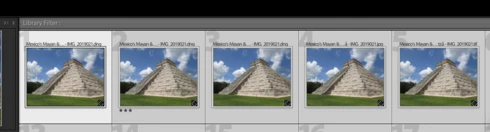


Really?  Seriously?

My Finder does not show these duplicates as actually existing.  So where in the heck did they come from?

This topic has been closed for replies.

57 replies

TheDigitalDog
Inspiring
September 23, 2018
See the differences and the specific mention of TIFF below? I'm not making this stuff up sir:

https://en.wikipedia.org/wiki/Raw_image_format

A camera raw image file contains minimally processed data from the image sensor of either a digital camera, or motion picture film scanner, or other image scanner.[1][2] Raw files are named so because they are not yet processed and therefore are not ready to be printed or edited with a bitmap graphics editor. Normally, the image is processed by a raw converter in a wide-gamut internal color space where precise adjustments can be made before conversion to a "positive" file format such as TIFF or JPEG for storage, printing, or further manipulation. This often encodes the image in a device-dependent color space. There are dozens, if not hundreds, of raw formats in use by different models of digital equipment (like cameras or film scanners).[3]

Maybe you'll inform us of the actual camera you're using to produce the raw?
Author “Color Management for Photographers" & "Photoshop CC Color Management/pluralsight"
DMEEPhDAuthor
Known Participant
September 23, 2018
Andrew, despite you having a blog and publishing articles, you seem to not really understand what 'render', 'rendered', or 'rendering' is.

In essence, rendering is the application of the rendering equation—which is an integral equation in which the equilibrium radiance leaving a point is given as the sum of emitted plus reflected radiance under a geometric optics approximation—by a computer program.

ALL photorealistic or non-photorealistic images from a 2D or 3D model (or models in what collectively could be called a scene file)  are rendered by means of computer programs.

The results of displaying such a model can be called a render.  A scene file contains objects in a strictly defined language or data structure; it would contain geometry, viewpoint, texture, lighting, and shading information as a description of the virtual scene.  The data contained in the scene file is then passed to a rendering program to be processed and output to a digital image or raster graphics image file.

Your attempt to make a distinction by case of rendering is like saying there is a difference between puppies which are born and puppies which are whelped.

A difference which makes no difference is not a difference.
TheDigitalDog
Inspiring
September 23, 2018
Just re-sync the folder(s) or create a new catalog and import. Now what do you see? 
Author “Color Management for Photographers" & "Photoshop CC Color Management/pluralsight"
TheDigitalDog
Inspiring
September 23, 2018
Where exactly did I state I was converting 'rendered' tiffs

Where? In your VERY first post. Copy and paste:
 I converted the tiffs into Adobe dngs files 

A TIFF is rendered. I know of no digital camera that produces an actual TIFF that is raw data. I know of lots that produce proprietary raw data, not rendered that is based on a TIFF.
You should IMHO, follow your 'guru's' advise and convert proprietary raws to DNG. And I suspect you're not clear on the differences between TIFF and a proprietary raw data file or I and at least one other here would not have asked you specifically WHY you're converting TIFF to DNG which is something that can be done. You can convert a JPEG to DNG too. Pointless. And explained why. JPEGs, like TIFFs are rendered images, NOT raw data. Do you see the difference now? And why two of us asked why you're converting TIFF to DNG? 

What you really wanted to say was  I converted the raws into Adobe DNGs files. But you didn't so we had to read your writings as provided. 
Author “Color Management for Photographers" & "Photoshop CC Color Management/pluralsight"
DMEEPhDAuthor
Known Participant
September 23, 2018
Where exactly did I state I was converting 'rendered' tiffs?  I am converting a raw file which happens to be in the tiff format into a dng.   There are high-end and speciality cameras which write tiff files as their raw format.

And I think you are still a bit confused about the tiff format.  There are two (2) diffierent ISO standards for this format; dated decades apart.  You cannot talk about a tiff file without making the distinction between which standard it is based upon.
TheDigitalDog
Inspiring
September 23, 2018
BTW, this is raw and I'd hope you would agree, it's nothing like a rendered TIFF:

Author “Color Management for Photographers" & "Photoshop CC Color Management/pluralsight"
TheDigitalDog
Inspiring
September 23, 2018
A TIFF is a rendered image. A raw isn’t. Both are based on TIFF/EP. If your camera produces an actual TIFF (rendered), there is absolutely NO reason to convert it do DNG. If it is actually a proprietary raw, there are indeed many reasons to convert to DNG:
http://digitaldog.net/files/ThePowero...

You stated you are converting rendered TIFFS to DNG but hopefully you are confused between proprietary raws and rendered TIFFs.
Author “Color Management for Photographers" & "Photoshop CC Color Management/pluralsight"
DMEEPhDAuthor
Known Participant
September 23, 2018
Update: After catalog optimization, the duplicate DNGs are still present.  However, when one right-clicks on the image in Library and selects 'Show in Finder', each DNG points right back to the single DNG file.

In essence, these duplicate DNGs exist only in Lightrooms imagination.

The question remains: "How to remove the extras?  Which ones should be selected, or does it make no difference?
DMEEPhDAuthor
Known Participant
September 23, 2018
My Photoshop guru is a she and Simone makes a very nice six-figure income in the UK providing Photoshop services to corporate clients.  They, and I, trust her implicitly, and they put their trust in her in the form of British Pounds.

I'm not completely aware of the history of the raw file, but back in the day there were several cameras which produced as their 'raw' file a tiff file.  However, I do know that raw files which are not tiffs are NOT an "Adobe owned and controlled format"—that is an idiotic premise.  The raw file format (e.g., .arw . CR2, etc.) is proprietary to the camera manufacturer.   I think Sony or Canon or Nikon would be surprised to know that they do not own their patented intellectual property.

You should also look up the definition of "rendered" as what you imply is grossly incorrect.

As to your claim about the basement of DNG and TIFF formats, once again you are incorrect.  The DNG format is based upon the international standard ISO 12234-2, titled "Electronic still-picture imaging – Removable memory – Part 2: TIFF/EP image data format".  This is different from the Tagged Image File Format, which is a standard administered by Adobe currently called "TIFF, Revision 6.0 Final – June 3, 1992."

In a nutshell, the major difference between DNG and the ISO 12234-2 standard is the increased capacity for the inclusion and handling of metadata.  That's why Simone—and many other Photoshop professionals working with images from professional photographers—prefers using the DNG format rather than a simple TIFF.

DMEEPhDAuthor
Known Participant
September 23, 2018
Hi Victoria,

I was simply following my regular workflow when dealing with files from this old camera.  I download the files into a directory created by a photography management program named Light Blue.  The folder structure is created and named automatically; in this case the folder structure is:

Mexico's Mayan & Aztec Illumination
Mexico's Mayan & Aztec Illumination\processed
Mexico's Mayan & Aztec Illumination\unprocessed

The images are copied with file verification using Path Finder 8 into the 'unprocessed' subfolder.  They are then renamed as 'Mexico's Mayan & Aztec Illumination - 'sub location' - 'original file number'.

In this case, the files were named:

Mexico's Mayan & Aztec Illumination - Ek' Balam - IMG_2019021.tif
Mexico's Mayan & Aztec Illumination - Ek' Balam - IMG_2019021.jpg

After copying and renaming, the files are imported into LR.

After import, depending upon the number of files and their size in the import, I might optimize the catalog.  I might keyword fist, and then optimize.  There's no hard and fast rule; I typically see how LR is responding.  If it is flying along, then I continue the workflow without optimization.  If it is dogging it, I will optimize.  If the optimization takes a long time, I will restart LR and then continue.

In this case, LR was humming along nicely, so I keyworded the images and then selected the tiffs for conversion to dng.

One (1) dng was produced for each tiff.  I optimized and restarted and viola!  Three (3) dngs in the collection 'Previous Import,' faithfully aligned with the tiff and the jpeg, all with the very same file number.  Except, the duplicates actually do NOT exist in any folder on any drive.  I verified this with Path Finder 8.

I've been using LR since version 3 and have never seen this behavior previously.  In fact, I'm pretty sure I have encountered more oddball behavior and bugs in LR 7.5 than in any previous version, and my observations have been borne out by reading the blogs since the release of LR 7.

That's why I delayed for months before upgrading, and I did that all because of a piece of hardware — Loupedeck+.

Ah well.  What do you think, Victoria?  Should I remove the dngs from the catalog and start again?  Should I move the real dngs where LR can't find them and then see of LR cannot find them and then move them back?

I can see several permutations one could apply here.