johnrellis
Legend
December 10, 2014

P: Still inconsistent capture date/time for photos and videos

  • December 10, 2014
  • 165 replies
  • 5837 views

Update 5/17/2018: Though LR 7.1 made improvements, LR 7.3.1 still has two closely related problems with a single underlying cause:

- With photos and videos missing metadata capture date/times (e.g. scans), there is still an inconsistency between the times shown under the thumbnails in grid view and in the Metadata panel and the hidden, internal times used for sorting in grid view.

- Changing IPTC Date Created in the Metadata panel, either by editing the field or using Metadata > Copy/Paste Metadata, similarly causes inconsistent values to be shown and sorting and searching to work inconsistently.  It also causes date metadata to be written back to the files that doesn't conform with the Metadata Working Group's standard.

The underlying cause is architectural: LR doesn't have a single internal catalog field representing "capture time".  Rather, it maintains capture time in several different fields, and the various parts of LR update those fields inconsistently.

See here for precise recipes to replicate these bugs:

https://feedback.photoshop.com/photoshop_family/topics/lightroom-still-inconsistent-capture-date-tim...

https://feedback.photoshop.com/photoshop_family/topics/lightroom-still-inconsistent-capture-date-tim...

See here for a workaround: 

https://feedback.photoshop.com/photoshop_family/topics/lightroom-still-inconsistent-capture-date-time-for-videos?topic-reply-list%5Bsettings%5D%5Bfilter_by%5D=all&topic-reply-list%5Bsettings%5D%5Breply_id%5D=15475521#reply_15475521.  

-------------

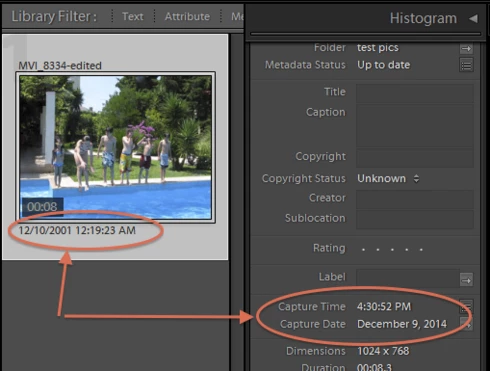
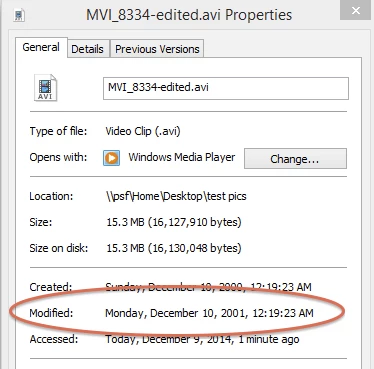
LR 5.7 still shows inconsistent capture date/times for videos. For a test .avi on Windows 8.1, the date in grid view appears to be the file system's last-modified time, while Capture Date/Time is set to the time of import.This problem was declared fixed in LR 5.5, and it appears to have been fixed for images, but not videos:http://feedback.photoshop.com/photoshop_family/topics/inconsistent_dates_for_files_missing_date_time...I'm opening a new topic, since the previous one has been marked "Solved".
This topic has been closed for replies.

165 replies

Smit K
Community Manager
Community Manager
May 18, 2018
Hi John,

When I downloaded the zip and checked the filemodifydate for before and after.jpg, I am getting the following 
before.jpg - 2018:05:17 22:15:08+05:30
after.jpg - 2018:05:17 22:15:08+05:30

Also for the test.jpg file is as follows:
2018:05:17 22:15:08+05:30
and I have value for DateTimeOriginal as follows
2001:05:01 15:02:00

DateTimeOriginal value is only present in test.jpg

Here is the screenshot from the Lightroom Classic:


PS - I was testing on Win10

Thanks,
Smit
Smit | Lightroom Team
johnrellis
Legend
May 18, 2018
Steven, you can delete the Dropbox folder -- the recipe in the next post quickly reproduces the symptoms you observed.
johnrellis
Legend
May 18, 2018
The original merged topic contains details about Steven's symptoms (thanks!).  See the next post in this topic for a diagnosis.
johnrellis
Legend
May 18, 2018
Unfortunately, there is still a bug with the capture times of imported files missing EXIF:DateTimeOriginal (e.g. scans) -- the sort order in grid view doesn't always match that implied by the capture time shown under the thumbnails and in the Metadata panel.   LR sets the capture time of each scan to the file's modified time, but the internal catalog field used for sorting gets set n hours earlier, where is the UTC offset of the computer's time zone. 

To reproduce:

1. Create a new catalog.

2. Download and unzip this folder: 
https://www.dropbox.com/s/gkytf55c88vrm8k/capturetimebug.2018.05.17.zip?dl=0

3. Run these ExifTool commands to set the file modification dates of "before.jpg" and "after.jpg":
exiftool -filemodifydate="2001:05:01 h:01:00" before.jpg
exiftool -filemodifydate="2001:05:01 h:03:00" after.jpg
where = 15 - the UTC offset of your computer's time zone. My computer is in PDT (UTC - 7), so I set h to 8:
exiftool -filemodifydate="2001:05:01 08:01:00" before.jpg
exiftool -filemodifydate="2001:05:01 08:03:00" after.jpg
4. Import "before.jpg", "test.jpg", and "after.jpg" using Add (not Move or Copy).

5. In Library, select All Photographs and View > Sort > Capture Time.

6. Observe that the sort order of the photos is inconsistent with the capture times shown under the thumbnails and in the Metadata panel:


LR sets the visible capture time of each scan to the file's date-modified time expressed in the local time zone, but it sets the hidden internal field used for sorting to the date-modified time expressed in UTC.

The usual workaround fixes this: Select all the photos, do Metadata > Edit Capture Time, and click Change All.
Participating Frequently
May 18, 2018


Not sure whether this is relevant, but a similar problem occurs with scanned tiff images interspersed with camera taken pictures. In other words, scan some pictures as tiff and import Imp light room, then import pictures .ARW files, and then scan some more pictures as tiff. The new tiff images cluster with the older tiff files, and will come before the ARW files. In this situation there is no THM file.

Inspiring
April 23, 2018
The issue is not fixed in 7.1 - or at least if it was  it is back in 7.3....
ItWasNotMe
Known Participant
April 3, 2018
LR 7.3 on MacOS 10.13.4
Setting correct Capture Time universally across all fields on a paste of Metadata - Still not fixed
Using the 'Edit' workaround to correct the above - Not yet broken
Inspiring
March 21, 2018


Testing.
Participating Frequently
February 15, 2018
Thanks, Alan!

Actually, I received a helpful reply on another forum last night which had an easier (IMO) and effective workaround: 

Workaround:
1) Import iphone .MOV videos as you normally would.  (I use "YYYY-MM-DD Hour.Minute.Second_iphone" and use it to check against the metadata). 

2)  Select all previously imported files and, under the metadata tab, Click "Edit Capture Time".  Select Type of Adjustment: Adjust to a specified date and time.  Don't change anything.  It will appear nothing needs changing as the original time already matches the corrected time.  Select Change All.  You'll notice there is now a 3rd metadata date/time entry: Date Time Original.  This matches the metadata list of .CR2 and .jpg file and is CRITICAL in order for ALL .MOV files to be renamed correctly*.   

4) NOW select all files and rename your using a date/time preset.  I used the same one that I use upon import and it works.  The filename matches the date and time the video was TAKEN/Created (not imported).  This works for a single file or multiple files.

**Note: I tried skipping step 3 to see if it was necessary, and it IS.  Without editing the capture time the files were renamed using the IMPORTED date/time. In fact, when I tried renaming an .MOV file from my 5d Mark iv, which had the correct date/time in the filename upon import, it was renamed using the IMPORTED date/time also.  This must be ANOTHER BUG on top of the bug that randomly adds 5-6 hours (for CST) to the Date Time Digitized.  The renaming feature must use the "Date Time" metadata (which is the IMPORTED date/time) if there is no "Date Time Original" metadata entry.  So stupid.  Therefore, step 3 is necessary in order to create the "Date Time Original" metadata entry, which eliminates the mis-naming in all video files.  

Hope that helps!  But also hope it gets fixed!!
alanterra
Inspiring
February 15, 2018
Hi Laura. I understand your frustration, but if you are looking for a work-around while you are waiting for a fix, i suggest you look at A Better Finder Rename. You can create droplets that use metadata to rename files, which you would apply before importing the video into Lightroom. (If you are on Windows, I suspect that there are umpteen utilities that offer the same options.) I use A Better Finder Rename all the time.