


Crystal Visionary
Known Participant
November 9, 2017

P: Zooming very large images shows grey box

  • November 9, 2017
  • 49 replies
  • 2160 views

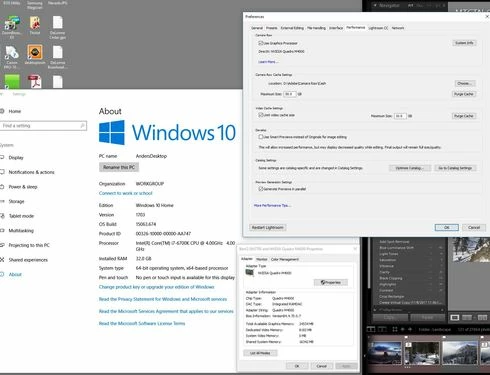
I am using lightroom Classic CC 7.0.1 and Camera Raw 10.0. Is there a limit to how large a file can be and still be able to create a 1:1 preview?  I have a 16 bit TIFF that is 26246 x 2899 pixels.  When I try to view it at 1:1 or any other size except "Fit" in the Library module, it refuses to draw (Fill works so long as I don't try 1:1 first).  I just see a grey box. I can view it in any size in the Develop module or Photoshop, but not the Library module.  Does the Library module have a size limit, and if so, what is it?  I also checked the Task Manager and it showed the CPU and disk had little or no activity, and memory was using 15GB which is not unusual on my system. I have 3.67 Terabytes of unused disk space. I have an i7 6700K processor running at 4.00GHz and 32GB of DDR4 Sdram memory and Windows 10 version 1703.
This topic has been closed for replies.

49 replies

Todd Shaner
Legend
January 16, 2020
I forgot to mention if you use the resized lossy DNG panorama workflow you can sync all of the develop settings applied back to a full-size panorama DNG if you need to recreate it at a later date. See this post: https://console.getsatisfaction.com/photoshop_family/conversations/lightroom-classic-preview-size-li...
Known Participant
January 16, 2020
Thanks. Good to have a simple explanation and I wish Adobe engineers
could have explained this when I first reported. I can live with this.
**Raw images** Sony A7R - A7RV, A7C (24 MPix), a6700, Sony NEX-7, various Canon DSLRs and G series<br />**Displays** 2x BenQ SW271C (4K, USB-C)<br />**Printer** Epson SureColor SC-P800<br />>**Mac Studio M2 Max** Sequoia Version 15.1, 32GB/1TB (system/catalog), Photos stored on QNAP all SSD volume connected via 10GbE<br />**Raw images** Sony A7R - A7RV, A7C (24 MPix), a6700, Sony NEX-7, various Canon DSLRs and G series<br />**Displays** 2x BenQ SW271C (4K, USB-C)<br />**Printer** Epson SureColor SC-P800<br />
Todd Shaner
Legend
January 16, 2020
You're experiencing the Library 1:1 Preview size limitation (long edge >16384 px) mentioned in this post, which remains to be acknowledged or fixed by Adobe. You can try the workaround in my post above. Resized lossy DNG exports for large panoramas do not have this issue, the file size is smaller, and most images exhibit no difference in image quality compared to the full-size LR Photo Merge to Panorama DNG file. The original files stacked with the resized lossy DNG take up about the same or less storage space as the full-size panorama DNG file. This allows you to recreate the full-size panorama at a later date if a larger image size is needed or you notice compression artifacts (not likely).
Legend
January 16, 2020


I have a very large pano made in Lr from 19 vertically shot raw images from a Nikon D90 camera. In the Library module of Lr 9.1 Classic with Loupe View, this is what I see:


Clicking to zoom in at 1:1 view I get a very low res image while Lr is loading:


Once loaded, the image area goes grey - 1:1 image view is not rendered:


Zooming back out to Fit View briefly flashes the low res image, then the image is displayed as normal, like the first screen shot above. Clicking to zoom in again at 1:1, first gives a grey outlined box:


before again showing a grey image area like the third screen shot shown above.

In the Develop module, zooming to 1:1 view works as expected.


Todd Shaner
Legend
February 27, 2019
Thinking about this some more I wondered if the reduced-size Lossy DNG could be used to sync editing settings back to the original full-size LR panorama DNG.

To test this I used the original 17523 x 3906 panorama DNG file to create a lossy DNG file with Long Edge 7856. This is less than 1/2 the original resolution to see if resizing affects the Develop setting sync. I applied EVERY Global and Local setting available in LR (except Red Eye Correction) to the 7856 x 1706 Lossy DNG and then synced it to the original DNG file with no settings applied. The results are identical when viewed at any zoom size.

This allows using the much smaller file size lossy DNG as a settings archive. It also acts as a Smart Preview if you set 'Resize to Fit' at 10000 px or less when creating the lossy DNG. This will improve editing performance without having to enable the global Preferences setting 'Use Smart Previews instead of Originals for image editing.' Make sure to stack the original raw files with the lossy DNG copy, which I always do anyhow. If at a later date you need a full-size copy of the panorama rebuild it using the stacked raw files and then Sync All of the settings from the lossy DNG to the resurrected full-size DNG file. Done!

I hope someone finds this useful. Thank you.


Todd Shaner
Legend
February 26, 2019
Since this issue hasn't been addressed (i.e. fixed) by Adobe I started looking at alternatives.

It appears the LR Preview is limited to ~16,384 pixels (2 to the 14th power) long Edge dimension with 16,385 failing. I have numerous LR Panorama DNG files that are longer than this dimension and I certainly don't need that much resolution for most of my usage. If you're shooting panoramas with a 50+ Mp camera it's very unlikely you will need the full-resolution panorama merge DNG file.  I happened to fall on an old post discussing how to reduce the size of these large DNG files. https://forums.adobe.com/message/10254121#10254121

Use the below LR Export module settings to covert large panorama DNG files into resized lossy DNG files that are 1:1 view enabled. Using even a very wide 1:5 aspect ratio panorama the dimensions will be 3250 x 61250 (52 Mp), which is capable of creating a 300dpi 10.8" x 54" print. I converted a large 17844 x 3806 panorama using the below settings to 16250 x 3466. Next I exported the original DNG file to TIFF 16 bit ProPhoto RGB format with Resize to 16250 Long Edge and Screen Low Sharpening. At 1:1 or even 2:1 view there is no visible difference in the image quality between the loss-less TIFF export file and the resized lossy DNG file. Even the fine gradient sky areas are identical with no banding observed.

Below is a comparison of file sizes. The Resized Lossy DNG file is slightly smaller than a same size 80 Quality JPEG Export file. I'm not sure what type of compression is used for the lossy DNG file, but they also look identical.

Having said all this it still begs the question why Adobe hasn't fixed this issue since it was working in earlier versions (pre LR Classic).


Inspiring
September 1, 2018
For what it's worth, I've just tried disabling GPU acceleration and it didn't solve my problem. Running Classic CC release 7.5 with Camera RAW 10.5.
Dwight McCann
Known Participant
February 8, 2018
Yup, they really need an 'Advanced' facility for the database.  All the tools are there in the code support, they just need a frontend.
Crystal Visionary
Known Participant
February 8, 2018
That is quite evident on the database management side.  Lightroom's abilities as a database manager are mediocre at best and I can't think of any improvements they have made since Lightroom 1.  They seem to view it as a RAW processor with just enough Database management ability to get by.
Dwight McCann
Known Participant
February 8, 2018
Only time will tell!  As a 35+ year programmer on mainframes and mini's for the University of California I believe two factors influence what code is added/modified: the programmers want to work on new exciting features and could care less about program errors which has a workaround; and pressure from Sales for new features with not a single thought given to the errors they have already sold! Without solid competition, Adobe has no motivation to allocate resources to address coding changes that don't result in revenue.