


P: 1 Syncing Photo Never Syncs
I have a problem with Lightroom CC (for Windows 10) perpetually showing that it is "Syncing 1 photo" (see screenshot below).
It seems that all my photos are synced, however. When I filter to show "Syncing" photos, no photos appear (see screenshot below). All my photos are in albums, and all my albums have the blue icon indicating that all photos in them are "Synced and stored locally." All my devices with Lightroom installed (including on the web) show the same number of total images.
I checked my diagnostic log. Under "Sync/Error Assets" an asset ID is listed. I found that asset ID in Managed Catalog.mcat and noted the associated filename. A photo with that filename no longer exists in Lightroom CC or my local backup drive. I had permanently deleted that file (i.e., I deleted the file and then also permanently deleted it from "Deleted Items"). When I tried to re-import an image with that same filename (just for testing purposes), Lightroom CC warned me about the duplicate image.
It seems that there might be a catalog database entry, but no image file to sync, hence the perpetual syncing. Does anyone know a way to remedy this situation (without taking unnecessarily drastic measures)? Thank you!
Steps I have taken unsuccessfully, thus far: Restart the program, restart my computer, pause/resume syncing, uninstall/reinstall Lightroom CC, install the prior version (2.3). Someone on a support chat suggested that I delete the local Managed Catalog files and let everything re-sync down from the web, but I do not want to do that if I don't have to (that solution seems unnecessarily drastic for such a relatively minor glitch).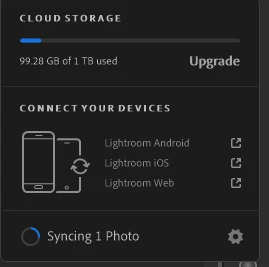

Note: This conversation was created from a reply on: Lightroom CC: Syncing stuck forever.
 AdChoices