


Inspiring
August 18, 2019

P: 1 Syncing Photo Never Syncs

  • August 18, 2019
  • 57 replies
  • 1956 views

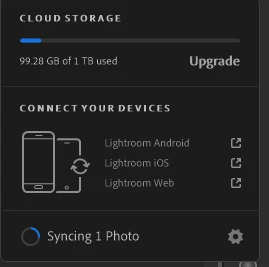
I have a problem with Lightroom CC (for Windows 10) perpetually showing that it is "Syncing 1 photo" (see screenshot below).

It seems that all my photos are synced, however. When I filter to show "Syncing" photos, no photos appear (see screenshot below). All my photos are in albums, and all my albums have the blue icon indicating that all photos in them are "Synced and stored locally." All my devices with Lightroom installed (including on the web) show the same number of total images.

I checked my diagnostic log. Under "Sync/Error Assets" an asset ID is listed. I found that asset ID in Managed Catalog.mcat and noted the associated filename. A photo with that filename no longer exists in Lightroom CC or my local backup drive. I had permanently deleted that file (i.e., I deleted the file and then also permanently deleted it from "Deleted Items"). When I tried to re-import an image with that same filename (just for testing purposes), Lightroom CC warned me about the duplicate image.

It seems that there might be a catalog database entry, but no image file to sync, hence the perpetual syncing. Does anyone know a way to remedy this situation (without taking unnecessarily drastic measures)? Thank you!

Steps I have taken unsuccessfully, thus far: Restart the program, restart my computer, pause/resume syncing, uninstall/reinstall Lightroom CC, install the prior version (2.3). Someone on a support chat suggested that I delete the local Managed Catalog files and let everything re-sync down from the web, but I do not want to do that if I don't have to (that solution seems unnecessarily drastic for such a relatively minor glitch).



 Note: This conversation was created from a reply on: Lightroom CC: Syncing stuck forever.

This topic has been closed for replies.

57 replies

Rikk Flohr_Photography
Community Manager
January 2, 2020
If you click on the Filter Icon and use the Sync Status pulldown you should be able to see the single stuck image. Try editing it slightly and then moving to a different image to see if it becomes unstuck. 
Rikk Flohr: Adobe Photography Org
Participating Frequently
December 30, 2019
I've just installed Lightroom via the Mac App Store and face the same issue. It's syncing forever one photo. Already rebooted and removed deleted photos permanently but all in vain.
Known Participant
September 11, 2019
Thank you Rikk, it was hidden in the trash. Permanently deleted and stuck sync is gone.
Rikk Flohr_Photography
Community Manager
September 10, 2019
General Approach to find/fix stuck asset:


1)  Use the syncing filter on the search panel to find the asset, if found make an edit to it (i.e. adjust tint in a meaningless amount) and it should sync.


2) Look through the trash for an asset with a syncing indicator and restore and re-delete the asset, or just permanently delete it.  (search doesn't find anything in the trash)


3) Try running Lightroom Web and see if the asset shows up in the sync issues section.  If it does it will show the filename. The user can see the filename of the asset that is pending and can either try and search for the asset in LrDesktop or delete the asset using LrWeb and re-import it if they still have access to the file.


4) In LrWeb look in the deleted folder for an incomplete asset.  If it is there permanently delete the asset.

If you send the the Mini Report instead of the diagnostic log, we can identify the stuck asset much easier. 
Rikk Flohr: Adobe Photography Org
Known Participant
September 9, 2019
Yep, I have it generated, here's the OneDrive link https://1drv.ms/u/s!AsgF9JUMzDPSi6lUrOMTW4VOnXEV3Q?e=HWAcsI


Rikk Flohr_Photography
Community Manager
September 9, 2019
You should probably send me a diagnostic log:

Preferences>Account and hold down the option key to reveal the button. 
Rikk Flohr: Adobe Photography Org
Known Participant
September 8, 2019
Having this issue too. Lr Desktop showing one photo sync pending, filtering only syncing pictures gives me a black hole page.
On Lr web, no syncing issues.
Inspiring
September 8, 2019
I was able to fix this issue where Lightroom showed that it was perpetually syncing one photo. Here are steps I followed to fix my issue:

  • My Lightroom diagnostic log showed an asset ID under the "Sync/Error Assets" section
  • I was able to glean from a rudimentary text-based search through one of my catalog files that the asset ID referred to a stack, not an image/video asset
  • I copied my Managed Catalog.wfindex database file located in C:\Users\{username}\AppData\Local\Adobe\Lightroom CC\Data\{Catalog ID}\ (on Windows 10) to my SQLite directory. (SQLite is open-source database software.)
  • I used SQLite to query the "assets" and "stack_assets" tables in my copied catalog database
  • I discovered two existing images still associated with the problematic stack ID (there would've been at least three images originally associated with it—probably four)
  • I deleted those two images from my library in Lightroom
  • Lightroom stopped trying to sync one photo
  • I successfully re-imported (and synced) the two images I had deleted

This is pure conjecture, but thinking back to when this issue first arose, the cause might've been a flurry of activity that might not have allowed Lightroom's sync operation to catch up. I had just imported a large number of images. I was going through the newly imported images and stacking quite a few sets of bracketed images and creating HDR files from the images in the stacks. I also permanently deleted a few of the HDR images soon after I created them, including one that would've been in the problematic stack. Perhaps permanently deleting that image confused Lightroom as it tried to catch up with all my activity?
Inspiring
September 8, 2019
I was able to fix this issue. I sent you an email with some details on what worked. I can also provide more details, if they would be helpful to your team. Thank you very much for your help in solving this issue.
Rikk Flohr_Photography
Community Manager
September 6, 2019
Thanks for the additional info Mike. We've filed a bug with sync team to review. In the meanwhile the cloud team is going to try to fix your account on the backend. 
Rikk Flohr: Adobe Photography Org