


Participating Frequently
May 5, 2021

P: Desktop Memory leak on M1 Machines

  • May 5, 2021
  • 57 replies
  • 14827 views

Hi!


I am a software developer. Recently, my Lightroom CC (version 4.2 - 20210301-0713) is very slow . A close look at activity monitor reveals that the app consumes too many threads and memory (attached photos) which freezes the app.
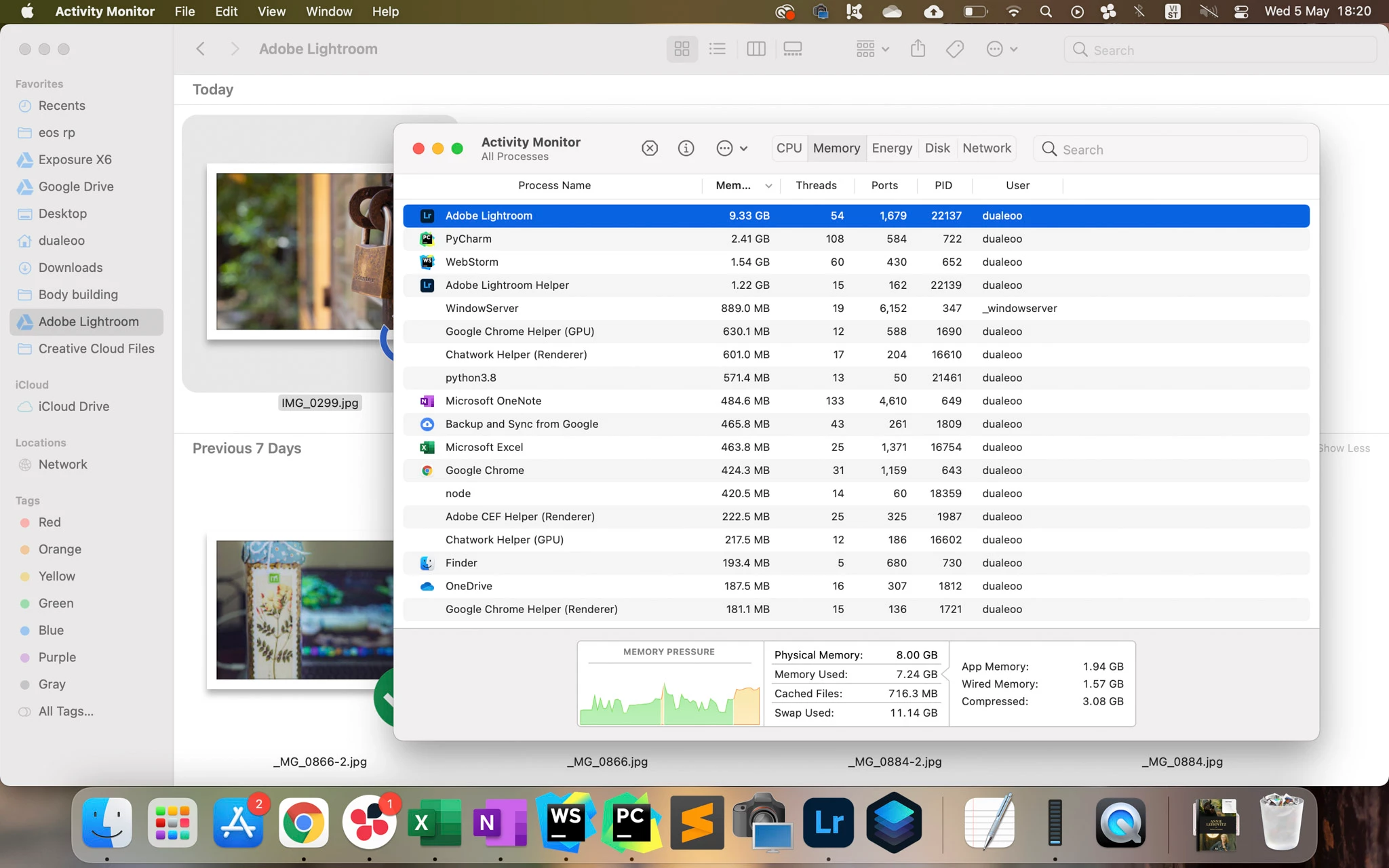


@Rikk Can you help me forward this to the development team?


Thank you so much!

57 replies

DDW80
Participant
November 20, 2021

Can confirm the same issue on our M1 Max 64GB 16" machine. LR has a memory leak.

Participating Frequently
November 17, 2021

I'am on a Macbook Pro M1 16go and i have exactly the same Issue (Lightroom Cloud or Classic).
Lightroom use a maximum of RAM with Swapping too! ( i tried, uninstalled et reinstalled the soft... it's the same thing)
I can resolve the issue by disabling GPU accelaration but lightroom become very slow...
We need a software update 😞

Participant
November 15, 2021

Also having this problem, got the new 16inch pro max with 64gb memory! I have only installed Lightroom classic from creative cloud onto the computer (no other software yet), working on one set of photos (around a thousand) and in two hours it told me to force quit because of memory using around 30/40gb three times.  Would love a solution, thanks 

Rikk Flohr_Photography
Community Manager
Community Manager
November 11, 2021

"I'm using release 11.0 and camera raw 14.0 running in macOS Monterey 12.0.1 on a M1 machine."  This thread is about Lightroom Desktop 5.0 - not Lightroom Classic. You may want to look in the Classic forum to see if there is a similar thread there. 

Rikk Flohr: Adobe Photography Org
Participating Frequently
November 11, 2021

Just wanted to say I'm having the same issue.
I'm using release 11.0 and camera raw 14.0 running in macOS Monterey 12.0.1 on a M1 machine.

This has been an issue since at least the previous version of LR Classic. However, I was able to run fine after turning off GPU acceleration. But now I'm facing the same issue even thought I have it turned off. 

Photoshop has a memory bandwith where you can fine tuned it for you system, I think LR should have the same thing. 


Keep the good work, thanks

Victoria Bampton LR Queen
Community Expert
Community Expert
November 11, 2021

There's quite a few people on this thread saying "Me too" but only a single vote at the top, so if you're affected, please go hit that button as it affects the priority given to fixing it.

Victoria - The Lightroom Queen
stephend94954148
Participant
November 11, 2021

I have an M1 mac book pro 13 inch with 16gb of memory. I am having the same issue. Just doing some minor editing memory used by LR classic will go as high as 16gb memory used. I have done the reset and reinstall and it is still doing the same thing. Just now memory use hit 13gb. not good.

Participant
November 7, 2021

I'm experiencing the same issue on a 16 inch M1 Max 64GB when just doing edits and masking. The ram is at 30-40GB consumed in about 25-30 minutes. Have seen this happen on multiple occasions.

Participant
October 30, 2021

Lightroom 5.0 on 14" MacBook Pro Max 


I have a new MacBook Pro 14" Max with 64GB of memory. This replaced a 13" M1 2020 Macbook pro. I used Lightroom with cloud sync on both machines. I've updated the 5.0 on both. Both are also running Monterrey. 


On my new M1 Max MBP, I am experiencing what seems to be a memory leak that results in my system running out of application memory. This manifested when exporting a number (100+) of CR3 RAW files into TIFF and also just browsing through purging/editing 900 freshly imported RAW files. Lightroom gets up to 40+ GB of memory being consumed.


I've attempted to reproduce this on my older 13" MBP M1 but I cannot reproduce the issue on that laptop. 


Is anyone else experiencing this?

Rikk Flohr_Photography
Community Manager
Community Manager
October 30, 2021

Runaway memory usage is a sign sometimes of a bad install:

First Reset Preferences then Clean Reinstall


This procedure works for both Lightroom Classic and Lightroom Desktop.

If you are using Lightroom Desktop it can change the location of your local storage. Please review this setting after resetting preferences. 


Reset Procedure:

1. Close Lightroom.

2. Hold down [Alt/Opt]+[Shift] while restarting Lightroom.

3. Overwrite the Preferences when prompted by the dialog.

4. Close Lightroom.

5. Restart Lightroom.


Clean Lightroom Install Procedure

Close Lightroom

Restart the computer

Use the Adobe Creative Cloud App to uninstall Lightroom

Restart the computer

Install Lightroom via the Creative Cloud App without launching any other programs.

Restart the computer

Launch Lightroom

Wait 5 minutes

Rikk Flohr: Adobe Photography Org
Participant
October 30, 2021

Thanks for the quick reply. I did these steps and then imported a new batch of RAW files but I'm still experiencing the issue. 

Inspiring
August 17, 2021

Just upgraded to today's update of Lightroom Classic and already it seems to be much less memory hungry...