


Participating Frequently
May 5, 2021

P: Desktop Memory leak on M1 Machines

  • May 5, 2021
  • 57 replies
  • 14714 views

Hi!


I am a software developer. Recently, my Lightroom CC (version 4.2 - 20210301-0713) is very slow . A close look at activity monitor reveals that the app consumes too many threads and memory (attached photos) which freezes the app.
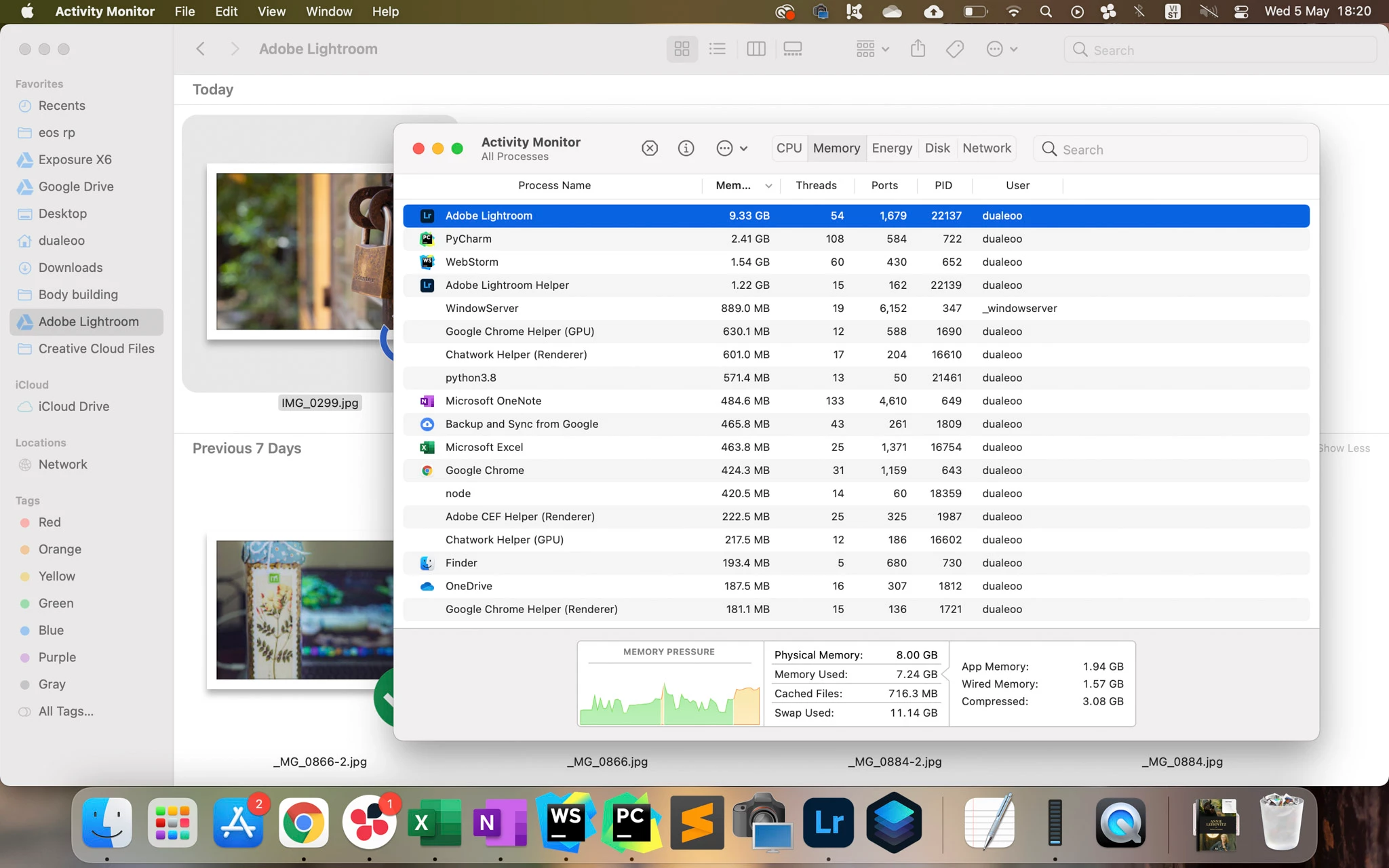


@Rikk Can you help me forward this to the development team?


Thank you so much!

57 replies

justinwadejones
Participating Frequently
May 29, 2021

This is actually a massive issue.  There is no way this isn't wide spread on M1 mac's.  I have 3 M1 mac's and they all do the exact same thing, this does NOT happen on my intel iMac.  As soon as you double click a photo the app goes from around 1GB of RAM used to 6-8GB without doing anything else.  It never releases the RAM until you close the app.  This basically makes the app completely unusable.  It's kind of insane this is even happening.

Rikk Flohr_Photography
Community Manager
Community Manager
May 17, 2021

After exporting the photo and waiting 10 minutes or so without doing additional work in Lightroom, does it return the memory?

Rikk Flohr: Adobe Photography Org
Minh0D4DAuthor
Participating Frequently
May 16, 2021

Hi @Rikk

So sorry for the late reply.

I performed the 9 steps as you have instructed (evidences: https://drive.google.com/file/d/1nRQiMjt__RpOuOshLRBdEe_hBYbujAfR/view?usp=sharing)

However, the problem persists. In particular:

- the app consumes 5 GB of memory when I double click on a photo (video:16:24)

- the app (Lightroom Helpers) consumes 5 extra GB of memory when I click export (video:17:08)

So in total, the app consumes 10 GB of memory when exporting a photo.

Please help!

----

P/S: This is the ID of the log file for which Adobe LogCollector Tool collected:

Rikk Flohr_Photography
Community Manager
Community Manager
May 6, 2021

This tells me you've done a preference reset but not a clean install. 

Clean Lightroom Install Procedure

Close Lightroom

Restart the computer

Use the Adobe Creative Cloud App to uninstall Lightroom

Restart the computer

Install Lightroom via the Creative Cloud App without launching any other programs.

Restart the computer

Launch Lightroom

Wait 5 minutes

Rikk Flohr: Adobe Photography Org
Minh0D4DAuthor
Participating Frequently
May 6, 2021

Hi Rick!

Have you performed a clean install? A preference file reset?

Oh yes. Last week, I reported an issue with export (https://feedback.photoshop.com/conversations/lightroom-desktop-cloudbased/lightroom-desktop-cloud-based-stuck-on-preparing-for-export/6085848aa8e98c342a79e6e9). You suggested me to do a preference file reset. However, the problem (fail to export) resurfaced after a few days. A detailed investigation reveals that export failure is due to memory leak.

I have then performed a clean install ("Use the Adobe Creative Cloud App to uninstall Lightroom") and "Restart the computer". The problem, however, persisted (attached photo) 

=> To sum up, I have both performed clean install + preference file reset


This is not a commonly reported issue. 

This can be explained. Mac M1 has just released recently. Therefore very few users use Lightroom CC on Apple Silicon.

Rikk Flohr_Photography
Community Manager
Community Manager
May 5, 2021

This is not a commonly reported issue. 

 Have you performed a clean install? A preference file reset?

Clean Lightroom Install Procedure

Close Lightroom

Restart the computer

Use the Adobe Creative Cloud App to uninstall Lightroom

Restart the computer

Install Lightroom via the Creative Cloud App without launching any other programs.

Restart the computer

Launch Lightroom

Wait 5 minutes

Rikk Flohr: Adobe Photography Org