


Inspiring
October 22, 2017

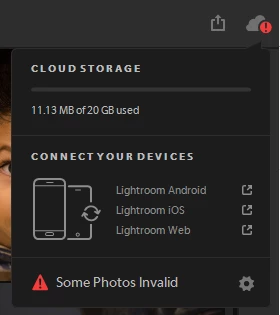
P: Error in cloud sync dialog "Some Photos Invalid"
  • October 22, 2017
  • 28 replies
  • 2893 views


I saw this annoying red "!" exclamation mark on my Lightroom CC, which states, "Some Photos Invalid"

There are two problems 

1) Which photos? 
2) Where are the verbs, I am no English expert but it should have been "Some photos are invalid" (mind case and verb)

This topic has been closed for replies.

28 replies

Inspiring
October 10, 2019
Yes, for me this worked:
Pause syncing. Go to the deleted folder and scroll down to the bottom slowly and let all the syncing status refresh. Resume sync. Done!
Inspiring
October 7, 2019
I found that, if you deleted the erroneous files, they still sit in the deleted folder and are trying sync.  You need to go into the Deleted folder, select the files, and permanently delete them.
Participating Frequently
April 27, 2019
No, it seemed to be some sort of upload error. I was able to see it in the desktop software, but not online. So I deleted all photos and reuploaded them. After that it worked.
Rikk Flohr_Photography
Community Manager
Community Manager
April 13, 2019
KLM, 

If you log into your account at http://lightroom.adobe.com and navigate to the image in question, does it show it is available in the cloud? Can you edit it or put a flag on it from the web interface?
Rikk Flohr: Adobe Photography Org
Participating Frequently
April 12, 2019
Just started using lightroom yesterday and ran into exactly this issue. So it's obviously not fixed unfortunately.

I tried using this solution mentioned above:
- Apply a flag or a star rating to selected photos.

When I do this, the error symbol disappears and it restarts synching the pictures. But after the synching is finished, the error flag appears again for the exact same pictures...

Version No.: 2.2.1

Rikk Flohr_Photography
Community Manager
Community Manager
April 5, 2019
@8244036 Binder, @273939 K Binder,  Can you confirm your installed version numbers?
Rikk Flohr: Adobe Photography Org
Inspiring
April 4, 2019
Sorry, this problem has NOT been fixed for me
Inspiring
April 1, 2019
It is a problem for me and I cannot find a fix 😞
Rikk Flohr_Photography
Community Manager
Community Manager
March 7, 2019
This bug should have been fixed in the recent release. Can you confirm that you are no longer seeing the issue?
Rikk Flohr: Adobe Photography Org
Participant
November 4, 2018
This fix is not working for me. I have followed the steps and some photos are showing, some not and no 'info' is available for them. I have hit delete but to no avail. It seems LR CC  is still trying to sync although I have turned off CC sync - I am getting the blue circle going round for now over 2 days! My photos are stored on an external drive hooked up to a Mac laptop. I have a couple of days ago uninstalled and reinstalled LR CC to try to remedy this but a get the same issue. It may be that my external drive is at fault?? as before I tried this remedy lR was continuing trying to sync. I would like to cancel this sync altogether but seem unable to do so. If I can do this I will hook up another drive and download images to that from LR Cloud. If indeed it is n external drive fault, to complicate matters the I have set in Preferences storage location for originals one the same external drive. Any help out there please?