


Inspiring
October 22, 2017

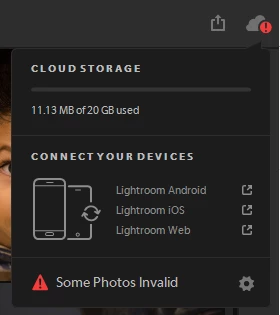
P: Error in cloud sync dialog "Some Photos Invalid"
  • October 22, 2017
  • 28 replies
  • 2893 views


I saw this annoying red "!" exclamation mark on my Lightroom CC, which states, "Some Photos Invalid"

There are two problems 

1) Which photos? 
2) Where are the verbs, I am no English expert but it should have been "Some photos are invalid" (mind case and verb)

This topic has been closed for replies.

28 replies

Participant
November 4, 2018
This fix is not working for me. I have followed the steps and some photos are showing, some not and no 'info' is available for them. I have hit delete but to no avail. It seems LR CC  is still trying to sync although I have turned off CC sync - I am getting the blue circle going round for now over 2 days! My photos are stored on an external drive hooked up to a Mac laptop. I have a couple of days ago uninstalled and reinstalled LR CC to try to remedy this but a get the same issue. It may be that my external drive is at fault?? as before I tried this remedy lR was continuing trying to sync. I would like to cancel this sync altogether but seem unable to do so. If I can do this I will hook up another drive and download images to that from LR Cloud. If indeed it is n external drive fault, to complicate matters the I have set in Preferences storage location for originals one the same external drive. Any help out there please?
Participant
January 12, 2018


In the new LR CC, the cloud icon shows an red !. Clicking on the cloud icon, the text 'sommige foto's zijn ongeldig' (dutch for: ' some photos are invalid' How do I find this invalid photos?
Inspiring
December 28, 2017
This worked for me too - but took a long time to find this post.  All error messages should have more explanation and a link to fix.
Inspiring
December 4, 2017
Thanks for the info. Like others, I do wish Adobe would let us know how to fix such (important) issues more easily. I don't have the problem now as I went through a much more long-winded way but never mind, I shall certainly print this off and put it in my "More Obscure Adobe Fixes" folder. I am sure many others will use this method too.Thanks again!
Inspiring
December 4, 2017
Thanks!  This worked for me as well.  Appreciate it.
Participating Frequently
November 24, 2017
Thank you, Rick. This worked for me. I wish Adobe would allow us to see which photos are causing the error message much more easily. 
Rick Spaulding -
Legend
November 15, 2017
I'm sorry you are having difficulty syncing. Try these steps and let us know it helps:

  1. In the My Photos area in the left pane, select the All Photos album.
  2. Switch to the Square Grid view (

    Image is not available

    ), which displays photos as equal-sized thumbnails along with their flag status, sync status, and rating.
  3. While holding down the Alt key (Win) or Option key (Mac), click the cloud icon (

    Image is not available

    ). Lightroom CC now displays only those photos that it's trying to sync.
  4. Press Ctrl+A (Win) or Command+A (Mac) to select all the photos displaying in the grid and then do any of the following:
    1. Delete the selected photos by choosing the Edit > Delete option and then add the photos in Lightroom CC again.
    2. Apply a flag or a star rating to selected photos.

The syncing issue should now be resolved. To check the sync status, click the cloud icon (

Image is not available

) at the upper-right corner. 

Inspiring
November 8, 2017
Same problem. Have you solved it yet? I have checked my entire photo folders and cannot find any hint. It was OK a couple of days ago so what has happened?